Tutorial on Using the All-in-One WP Migration Plugin for WordPress Backup and Restore
When it comes to website backup, novice users may find it very troublesome. Today, Naibabiji shares a super simple WordPress backup and restore plugin: All-in-One WP Migration, and how to use All-in-One WP Migration to backup and restore website data. All-in-…
Updated on March 25, 2026About 4 minutes read
Page Operations
Due to browser security restrictions, the webpage cannot directly add bookmarks for you. You can manually bookmark the current page using the following methods:
Windows / Linux: Press Ctrl + D.
macOS: Press Command + D.
Mobile browser: Open the browser menu and select „Bookmark“, „Add Bookmark“, or „Add to Home Screen“.
Open WeChat, scan the QR code to view the current page.
When it comes to website backup, novice users might find it very troublesome. Today, Naibabiji shares a super simple WordPress backup and restore plugin: All-in-One WP Migration, and how to use All-in-One WP Migration to backup and restore website data.
All-in-One WP Migration Introduction
All-in-One WP Migration allows you to export your WordPress website without technical knowledge, including the database, media files, plugins, and themes.
During the export process, you can also choose which data not to export.
Even if you are using a mobile phone, you can operate All-in-One WP Migration to backup or restore your website.
All-in-One WP Migration has the following advantages:
Simple operation, just a few clicks of the mouse to complete;
No restrictions on server or operating system;
Bypasses server file size limits by importing data in 2MB chunks;
Does not rely on any PHP extensions;
Supports mysql and mysqli
Supports WordPress versions after 3.3;
Supports exporting backups locally or to the cloud.
Disadvantages of All-in-One WP Migration:
The exported backup is in a proprietary format and incompatible with other plugins;
Has upload size limits (requires payment, can be easily cracked);
Exporting to the cloud is a paid feature.
All-in-One WP Migration Download
You can directly search for the plugin name in the WordPress backend to download, or download it via the URL below and upload it for installation in the WP backend.
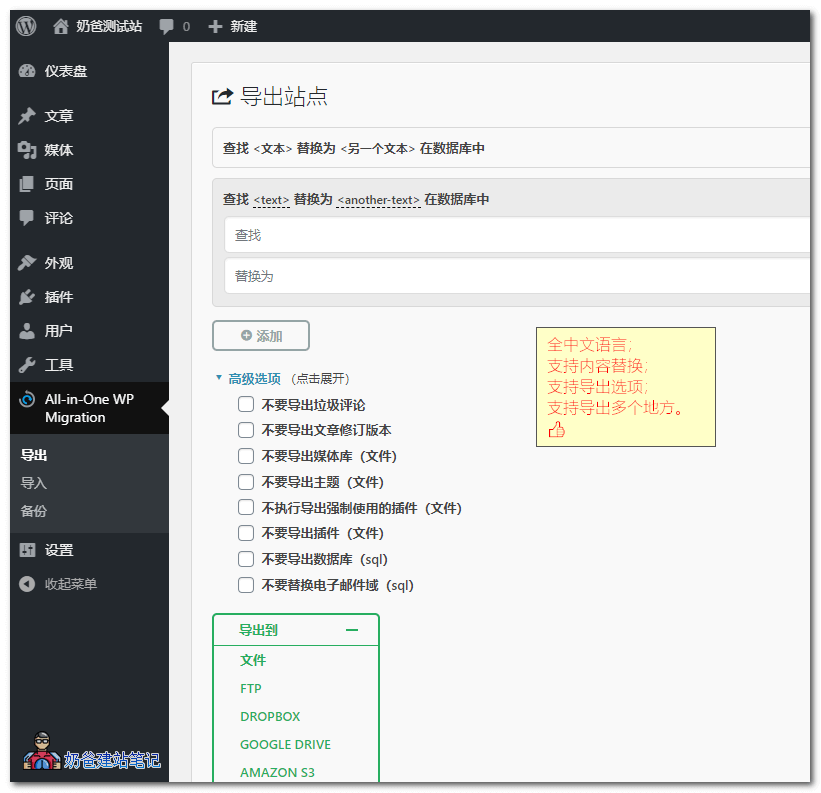
For example, if you are migrating your website to a new server and also changing the domain name or website title, you can add replacement rules here, so you won't need to replace the database again after the migration is complete.
Export to location, select file(Other items require additional purchase)
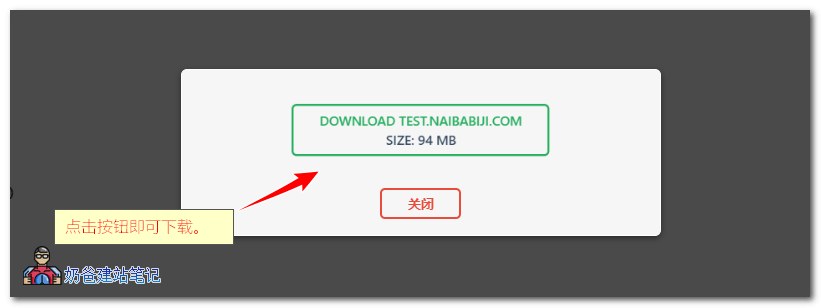
2. It will be packaged for you shortly, showing the file size. Click the button to download it locally.
3. Set up a fresh WordPress site on the new server and install the All-in-One WP Migration plugin.
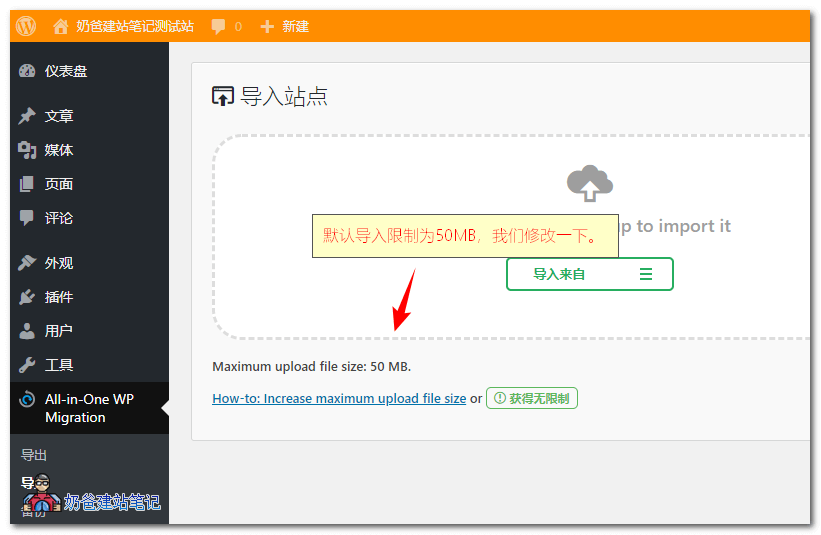
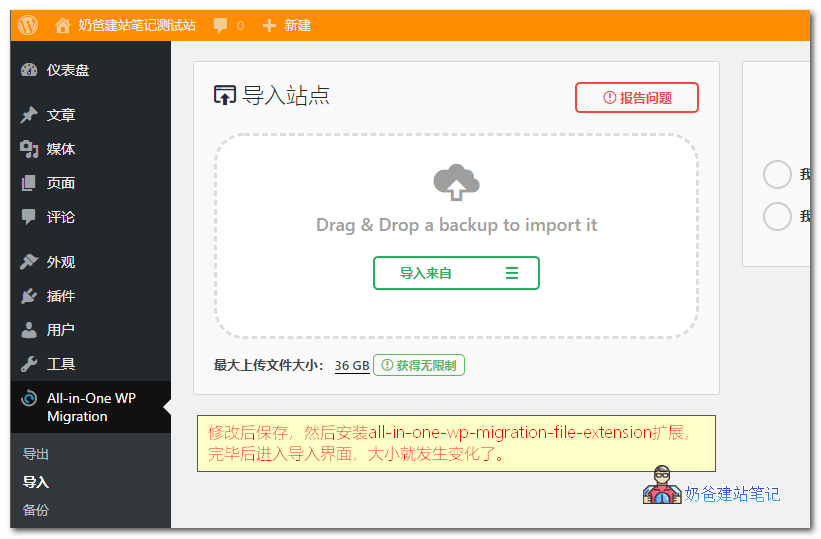
4. Click Import, and you'll find the size limit is 50MB. Let's modify it.
Modify the All-in-One WP Migration 50MB Size Limit
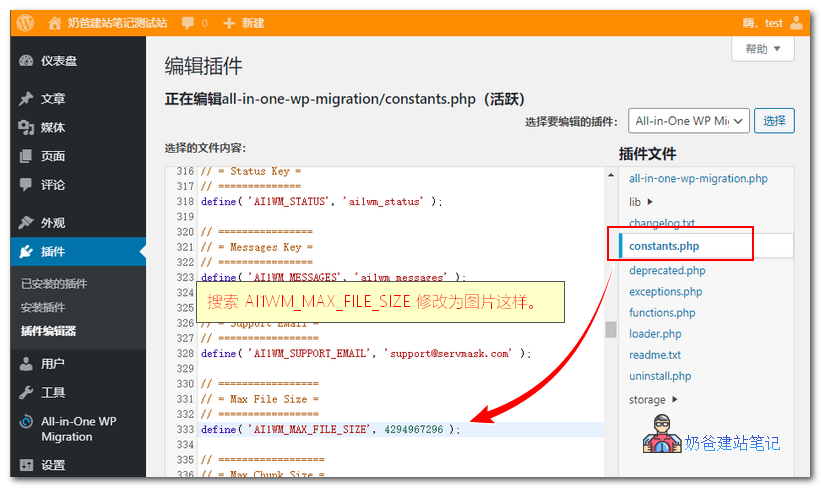
①. From the left menu, select Plugin Editor, then choose All-in-One WP Migration, and click on the constants.php file.
②. Search forAI1WM_MAX_FILE_SIZE, modify the content after it to4294967296. If you want a larger size, change it yourself, for example,4294967296 * 9
Note: In the new version, this has becomedefine( ‚AI1WM_MAX_FILE_SIZE’, 2 << 28 );The modification method is still effective, but you need to adjust your server's upload file size limit (if using Baota Panel, simply go to the App Store, Installed Programs, find PHP, Settings, and modify the upload limit size).
If the crack fails, either honestly purchase the genuine version or try other methods. Using cracks is unreasonable in itself; don't complain about the tutorial being bad if you can't crack it.
③. Return to the import site interface again, and the upload size limit will have changed.
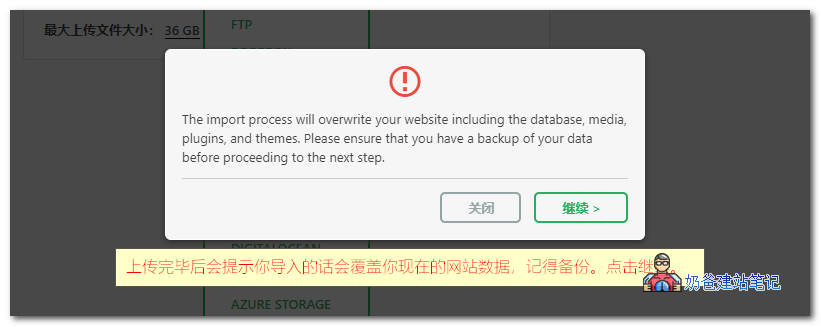
5. Select your backup file to import. After importing, you will see the prompt shown in the image below:
Note: If your server restricts the upload size, you can use the following method to modify the limit.
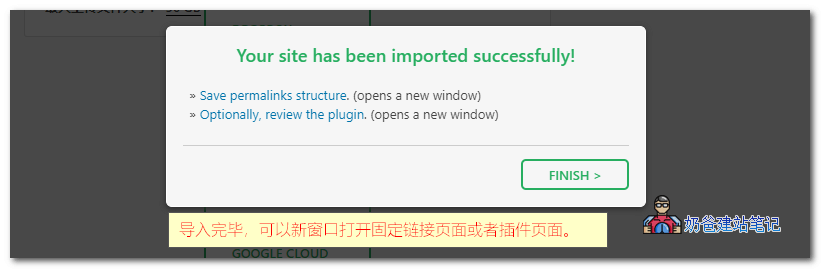
6. After the import is complete, the website backup has been successfully restored.
Other Backup Methods
Using All-in-One WP Migration is quite simple, and the plugin is clean, suitable for beginners. However, there are countless methods for website backup; you can also try the following methods:
Since 2009, I have been using WordPress long-term, focusing on VPS, server maintenance, theme and plugin selection, Google SEO, and building foreign trade independent websites. The tutorials on this site are mainly derived from real-world experience in website building, migration, troubleshooting, and long-term maintenance.