users who build websites with WordPressAfter that, how to optimize WordPress to make the website load faster? Adding cache to the website is one of the most common optimization methods.
The most commonly used WordPress caching plugin should be WP Super Cache. Naibabiji is currently usingWP Rocket. The Breeze caching plugin introduced in this article is a free WordPress caching plugin launched by Cloudways (a WordPress hosting provider). UnlikeSiteGround's optimization plugin, which can only be used with their hosting, regardless of your hosting provider, as long as you are building a website with WordPress, you can install the Breeze plugin to cache and optimize website speed.
Breeze Feature Introduction
Using Breeze is very simple; install and use it directly, and you can keep the default settings. Of course, if you want to configure it yourself, you can also make some modifications, as shown in the image below.

The default checkmark for the cache system indicates that the cache function is enabled.
And 1440 is the default cache cleanup time, which is 1 day. If your website is updated frequently, you can consider reducing the cache time.
Minify files: checking this can speed up website access, but it may cause page layout issues. If you find that checking an item causes page layout problems, uncheck it and clear the cache.
Gzip and browser cache can be checked by default.
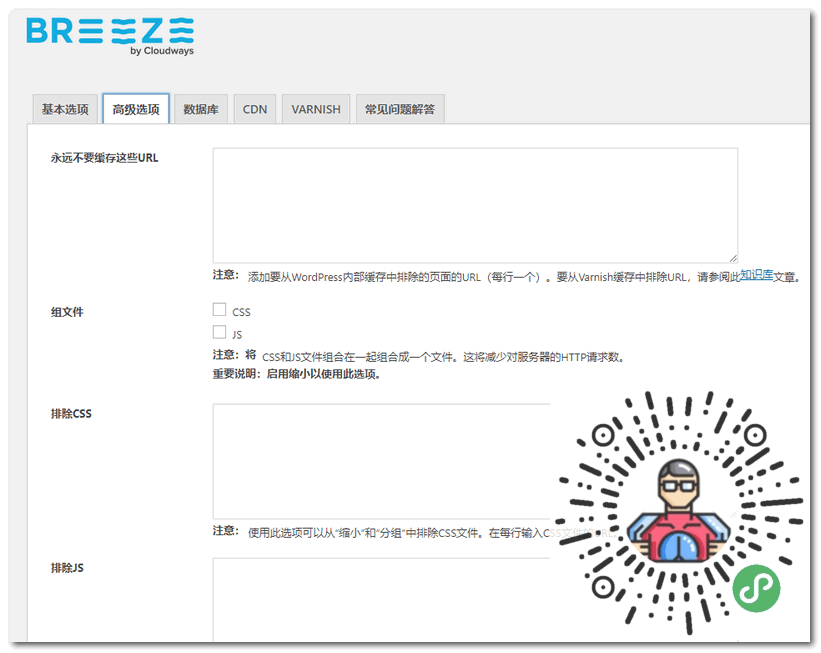
In the advanced options, it is generally fine to leave them empty by default, unless your website has special requirements, in which case you can add items here to exclude from caching.
 The database function is a simple tool for cleaning up database junk files. If you have saved draft files, do not select all and optimize at once.
As for CDN and VARNISH, configure them if needed.
VARNISH is a caching technology. Cloudways hosts support it by default, but other hosts may not. If needed, you can try to install varnish cache support yourself.
Breeze Caching Effect
If Breeze is correctly enabled, when viewing your website's front-end source code while not logged in, you can see a similar string of code like the one below.
<!-- Cache served by breeze CACHE - Last modified: Sun, 08 Sep 2019 11:11:37 GMT -->
It means the page has been cached.
You can test whether there is a change in the overall loading speed of the website with and without Breeze cache enabled.
Breeze Plugin Download
You can directly search for 'Breeze – WordPress Cache Plugin' in your WordPress admin dashboard to install it, or click the link below to download the plugin installation package and upload it for installation. If you don't know how, refer to:WordPress Plugin Installation Tutorial
If you want to further optimize your WordPress website speed, you can also tryHummingbirdthis plugin, which is also quite useful.