
Some novice users, when startingBuilding Your Own WebsiteConsider server costs, so they choose free or cheap virtual hosting to build a website.
The problem with such cheap virtual hosting is limited server capacity and bandwidth.
If your website has many images, it can easily hit server limits and get suspended.
Another scenario is that you use a foreign server with slow internet speed, so you want to use some domestic image hosting services to upload images and reference them on your site, but featured images are still generated from your own server, and external images are hard to manage.
Therefore, the plugin introduced in this article,External Media without Importintroduced in this article can help you solve these problems.
Plugin Introduction
External Media without Import is a WordPress plugin originally created by a Chinese developer. The purpose was because the author's initial server performance was poor, so they considered using external images.
However, the author has now switched toa Vultr server for the website, so this plugin hasn't been updated for a while, but its functionality still works on WordPress 5.3.1.
Description
By default, adding images to the WordPress media library requires you to import or upload images to the WordPress site, meaning a copy of the image file must be in the site. With this plugin, you can add images stored on external sites to the media library by simply providing a URL linking to the remote image address. This way, you can host images on a dedicated server separate from your WordPress site and still display them through various gallery plugins that fetch from the media library.
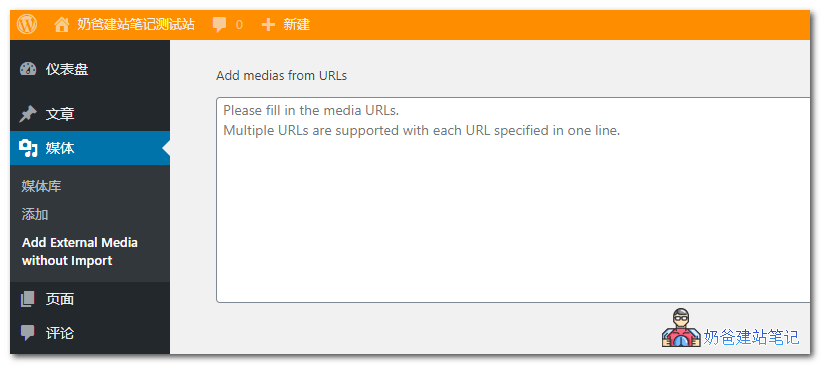
The plugin provides buttons and inputs on the Media -> Add New page, the media upload panel, and a dedicated „External Media without Import“ submenu page. So you can add external media before or after editing any post or page, or during the editing process, without interrupting the workflow.
Plugin Usage and Download
Using External Media without Import is simple. After installation, an 'External Media without Import' option appears when uploading images. Just enter the image URL, and it supports batch adding.
Then the images are all in your media library. You can add them to multiple posts or set them as featured images, without taking up any server disk space.