Astra is a premium WordPress Theme, available in both free and Pro versions. Naiba often uses Astra whenForeign Trade Website Buildingbuilding Foreign Trade Independent Websites. Some users who have purchased Astra Pro themselves don't know how to activate the genuine license, so here is a tutorial to share.
Astra Pro Activation Steps
1. Install the Astra Theme
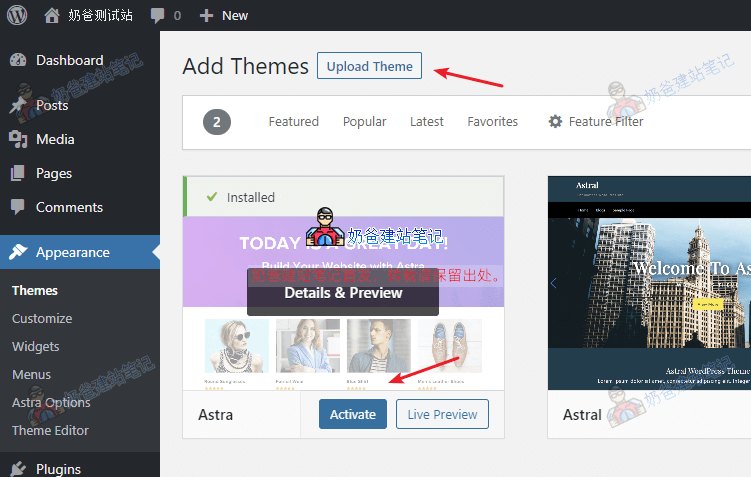
The free and Pro versions of Astra are the same theme; the Pro features are enabled via a plugin.
We can directly search for and install Astra from the Themes section in the WordPress Admin Dashboard, then activate it.
2. Install the Astra Pro Plugin
After purchasing Astra Pro, you can get the plugin download link from the official website. Generally, we recommend using Elementor-related plugins and not installing all available plugins.
Only install: Astra Pro Addon plugin, Astra Premium Sites, Ultimate Elementor.
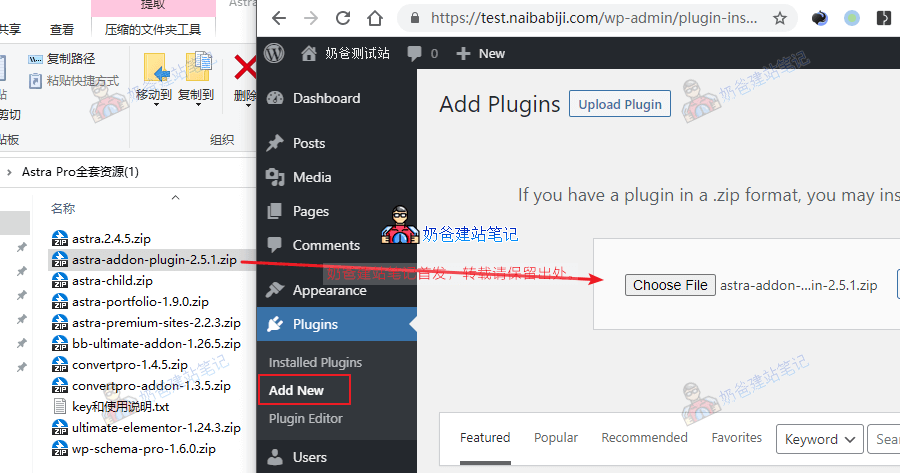
Here we install theAstra Pro Addon pluginby going to Plugins > Add New > Upload Plugin in the WordPress Admin Dashboard and uploading the zip file.
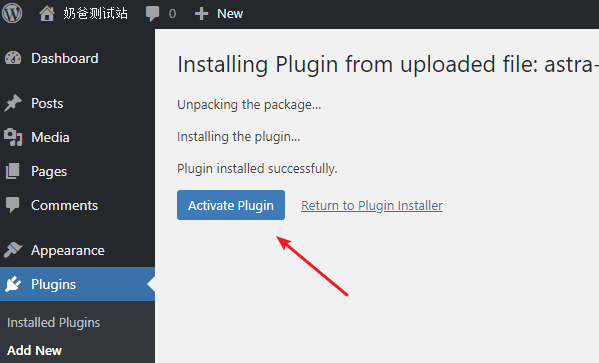
After installation, activate the plugin.
3. Enter the Astra Pro License Key
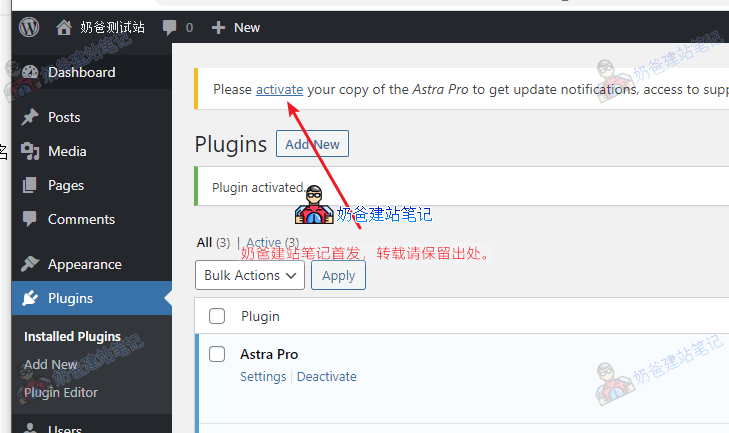
After activating the plugin, you will be prompted to activate the license (Activate). Click it.
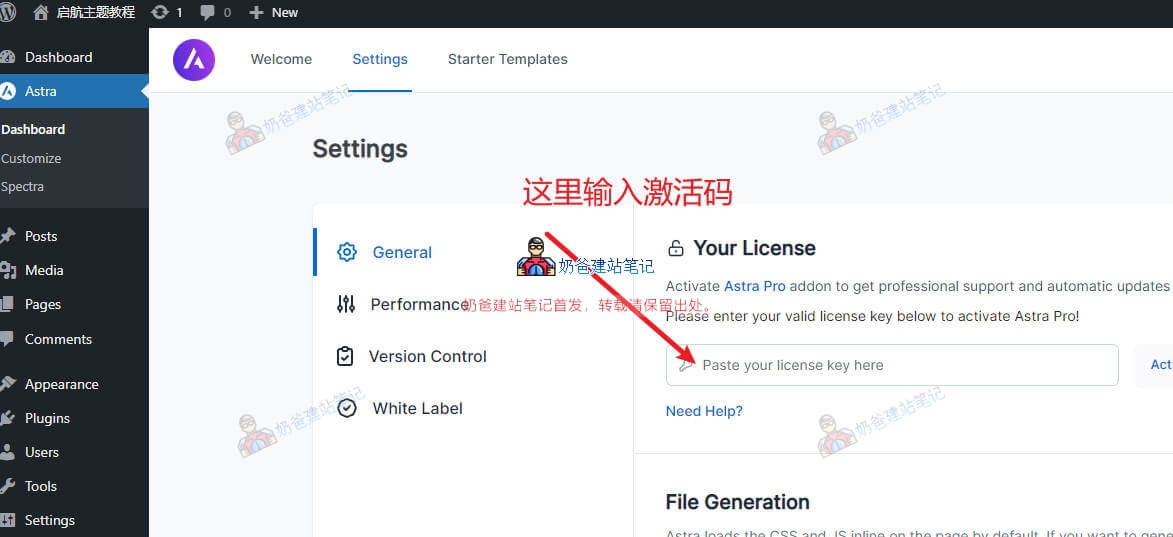
In the input box shown in the image above, enter the Astra Pro license key, then click the activate button.
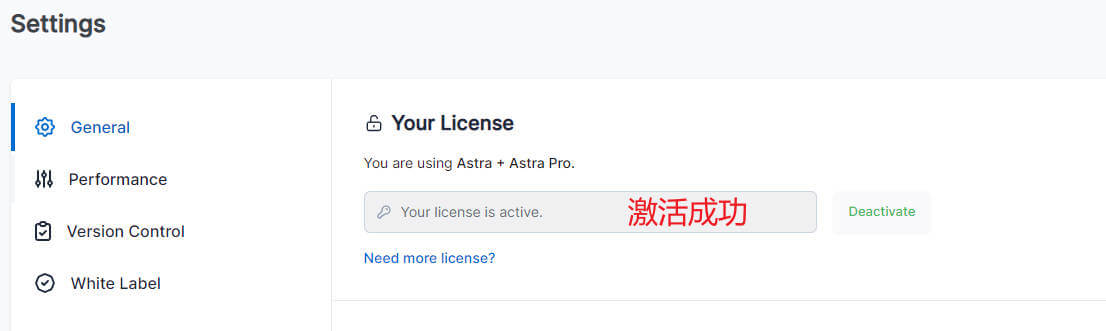
After successful activation, you can use all features of Astra Pro.
4. Install the Premium Starter Templates Plugin
Similarly, from WordPress Plugins > Add New > Upload Plugin, install theAstra Premium Sitesplugin.
(Newer versions of Astra Pro also include the Spectra Pro plugin. If you use Spectra Pro, it is not recommended to install Elementor and Ultimate Elementor to avoid performance impact.)
After installation, click the activation button (Activate) as prompted and enter the key for Premium Starter Templates to activate it.
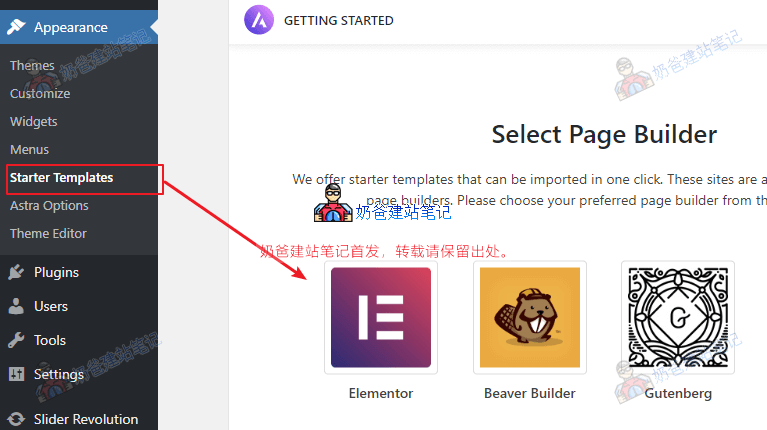
Once activated, you will see Starter Templates under the Theme menu. Click on it, and the first time it will ask you to choose a builder; Elementor is recommended.
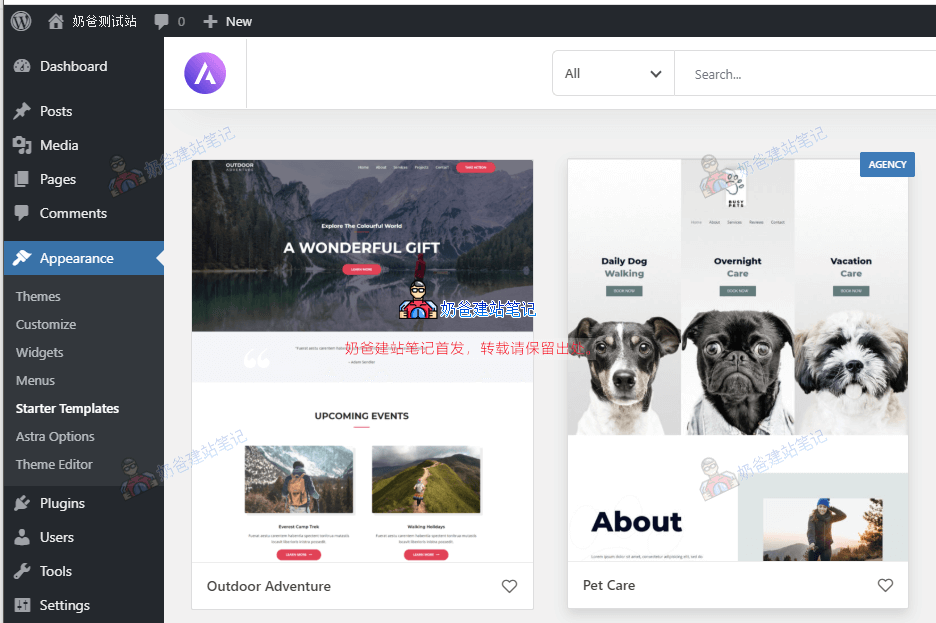
Then you will see the demo themes that come with the theme. You can choose any theme to import entirely or import individual page content.
5. Install Ultimate Elementor and Other Plugins
The Ultimate Elementor plugin adds some extra advanced features to Elementor. If you want your website effects to be more impressive, you can install this plugin.
The Astra Portfolio plugin is an advanced portfolio plugin. Many premium themes support the portfolio post type by default, but this can be problematic for migration. Using the Astra Portfolio plugin ensures you won't lose portfolio data when changing themes in the future.
If you don't have many products, using Portfolio for product pages or project showcase pages is a good choice.
The ConvertPro plugin is the type of plugin for website pop-up notifications and can be used during promotions.
Astra Pro Update Tutorial
How to update the Astra Pro theme and related plugins?
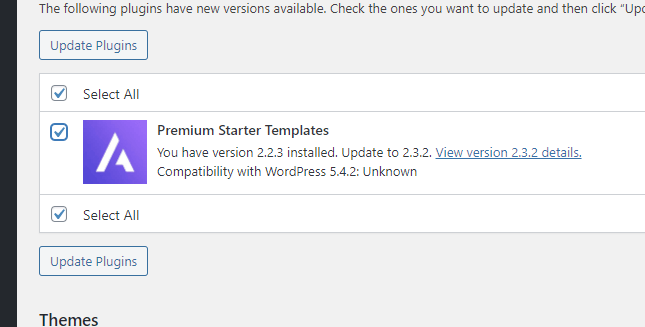
If you are using a foreign server, you can simply click update when WordPress backend prompts you that a new version is available.
If you are using a domestic server, direct updates may fail to download due to network issues. In that case, you can download the files from your purchase list on the Astra official website and update by uploading and overwriting the files via the backend. Refer to:Manual Plugin Update_Methods for Manually Upgrading WordPress Plugins
How to Use Astra Pro?
Through the steps above, we have installed Astra Pro and its companion plugins. However, for website building beginners, how to use them next might still be confusing. Here, Naiba recommends some beginner-friendly tips for getting started with Astra Pro.
First, to avoid having to start over after installation, we can first install a backup plugin to back up the website. Later, if you want to start fresh, you can simply restore from the current backup file without reinstalling Astra Pro.
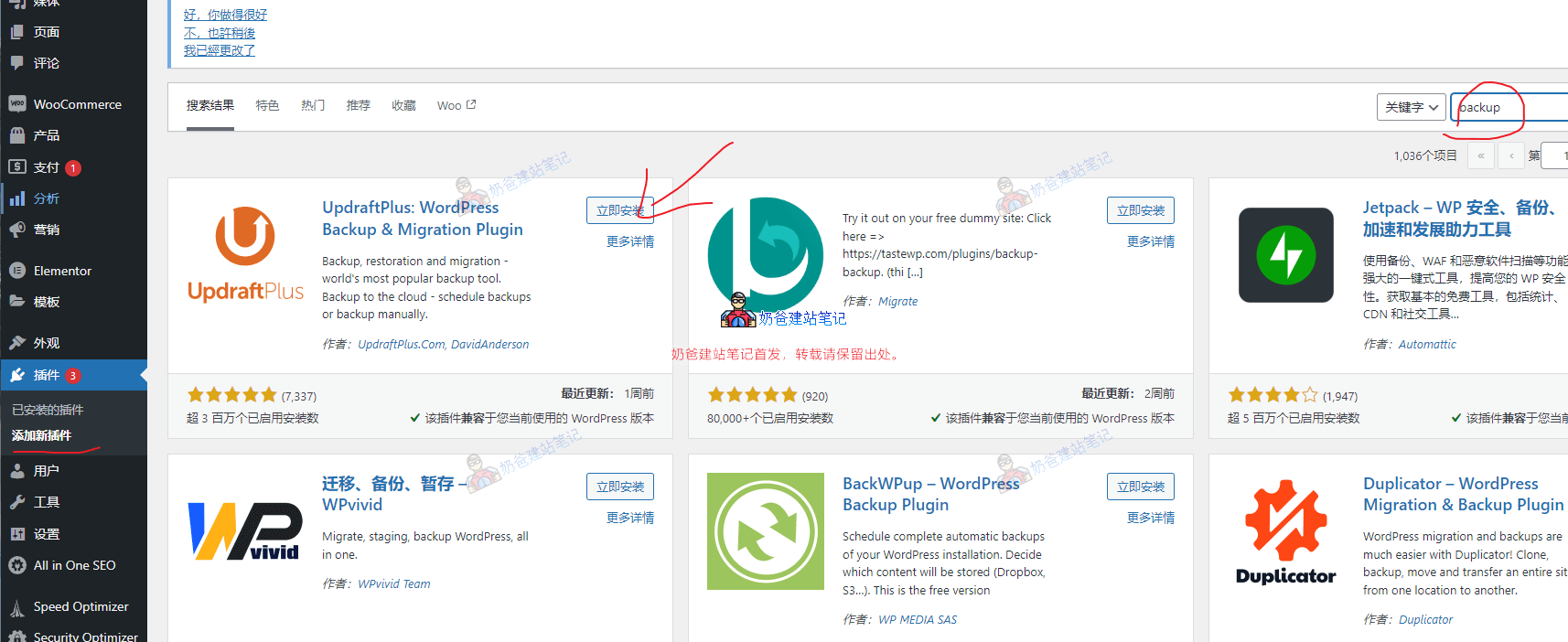
We can go to the website backend, Plugins, Add New, search for 'backup', then install and activate the plugin shown in the screenshot.
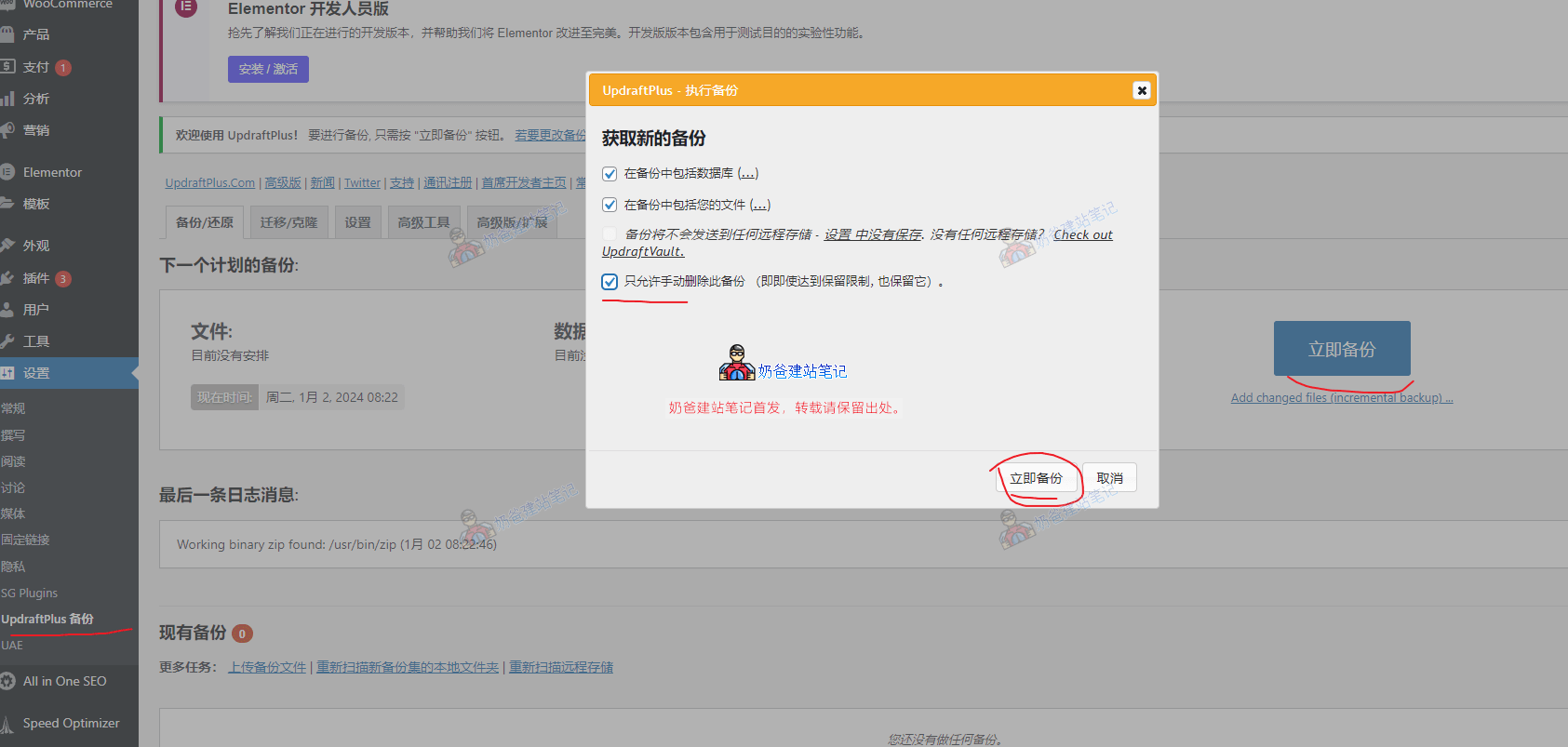
From the backup plugin, let's back up the website's current state and check the option to only allow manual deletion of backups.
thenNow we can start using Astra to build our own theme.
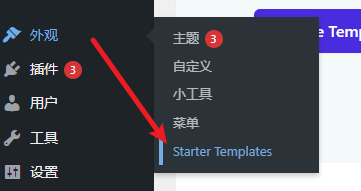
Access Astra's pre-made templates from Starter Templates under the Appearance menu.
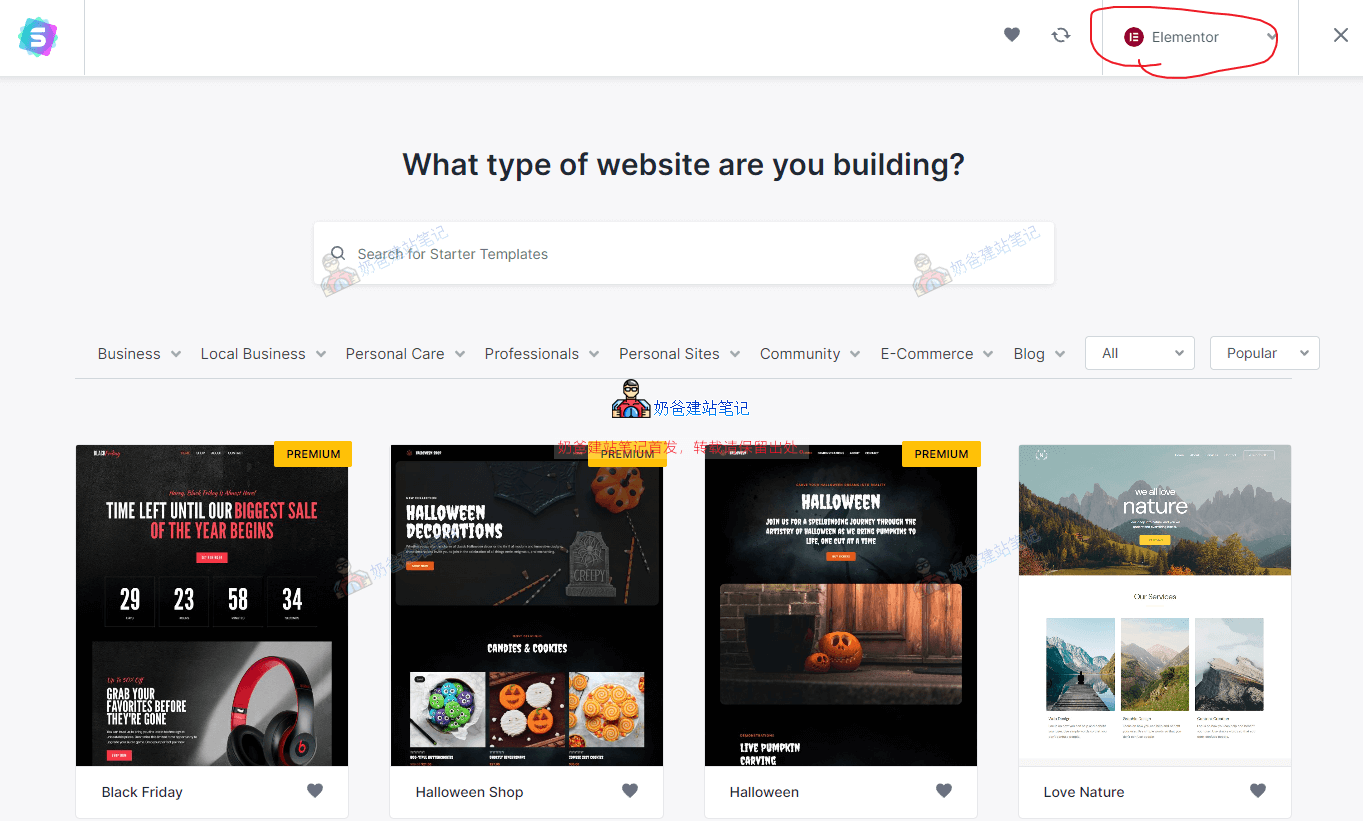
In the interface that appears, select Elementor in the top right corner (currently, Elementor is still more suitable for beginners and has the most complete ecosystem).
Choose a pre-made template you like and proceed with the import.
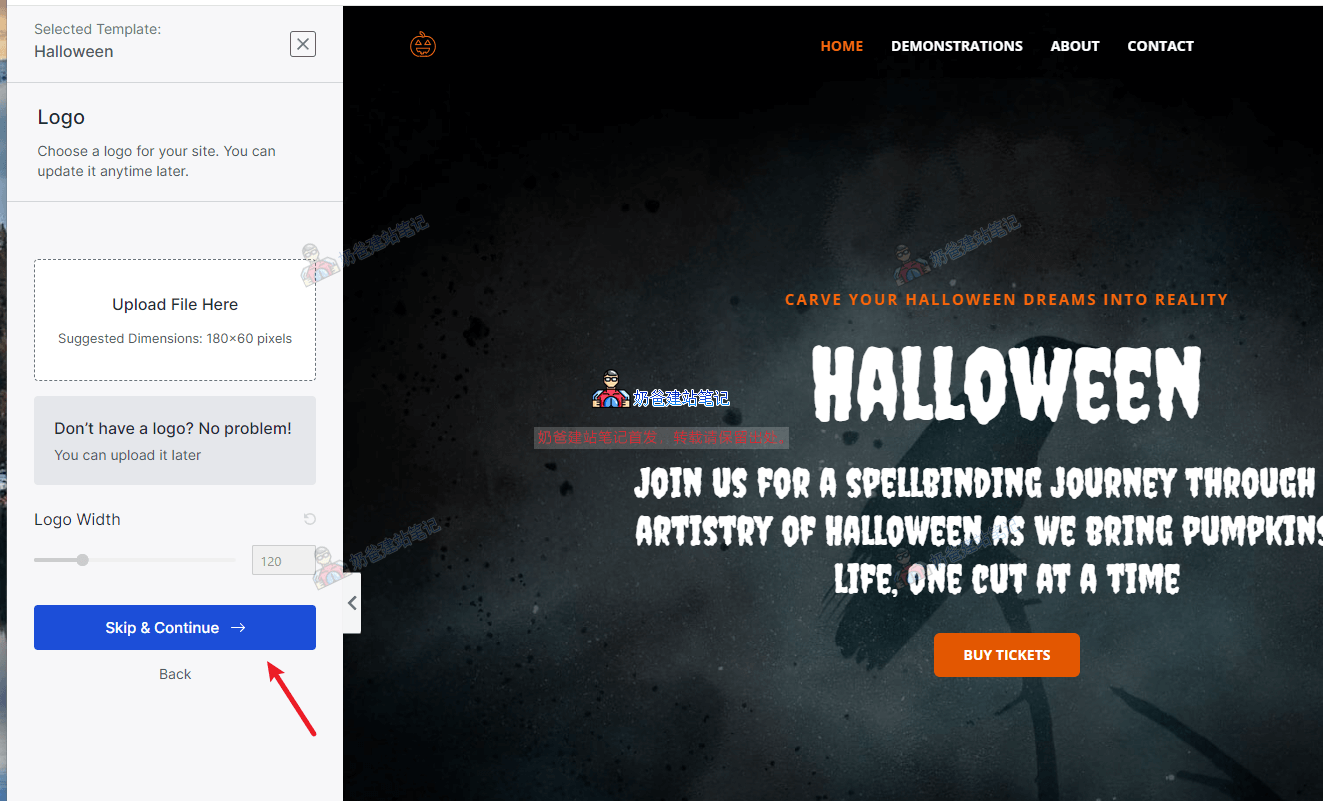
After clicking, you can see the preview on the right. Click the button on the left to import directly. You can upload the LOGO and colors midway or skip and modify them uniformly later.
Click the blue buttons throughout the process, keep everything else default, and wait for the import to complete.
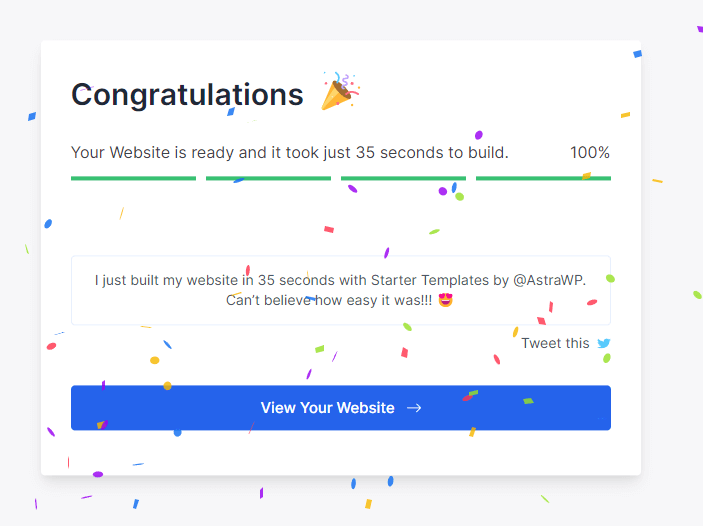
The appearance of the image above indicates that the website template has been successfully imported.
Click the 'View Your Website' button to see the effect of your website.
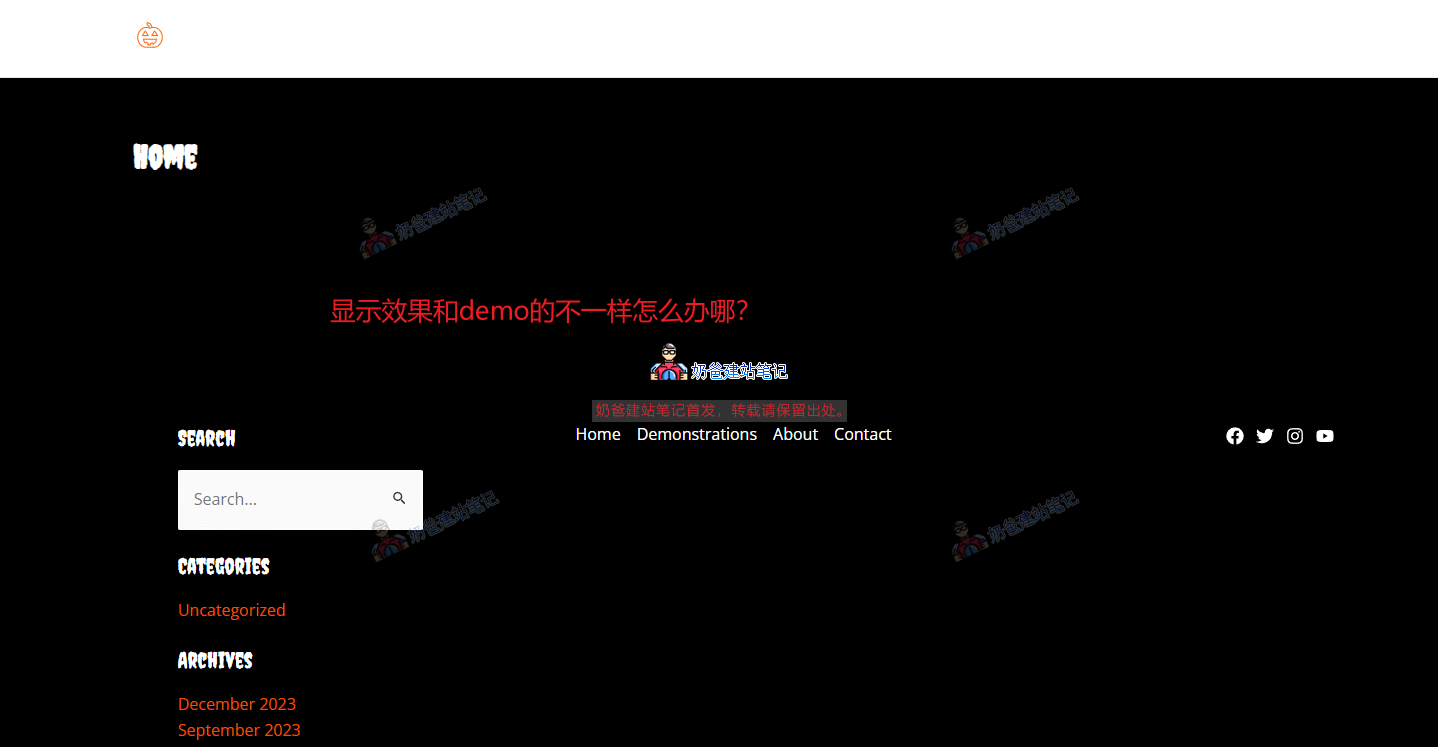
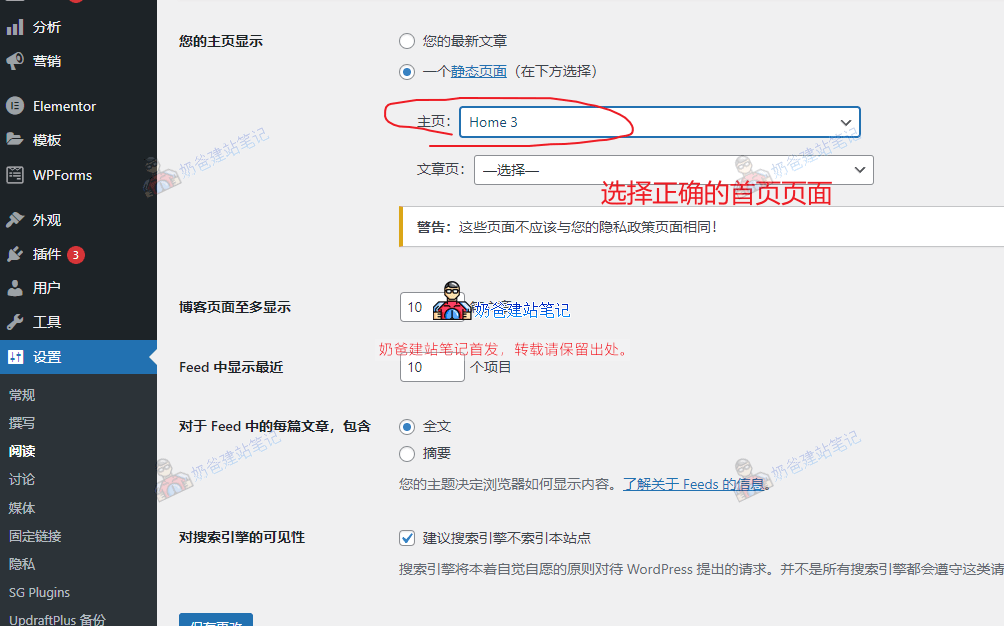
If you check the website frontend and find it looks similar to the screenshot above, completely unlike the Demo, it's most likely because the website homepage was not set correctly. You can correct this by following the steps below.
How to modify the LOGO, colors, and some website settings?
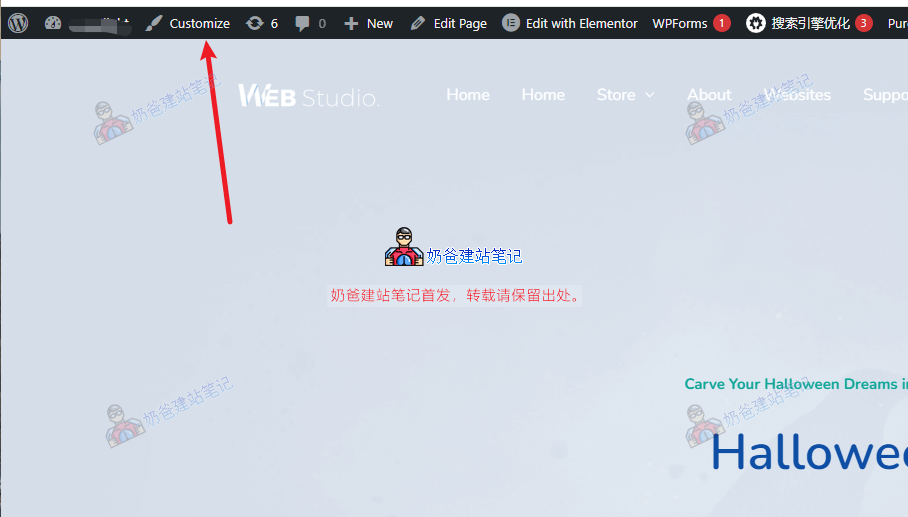
On the website frontend, click the Customize button.
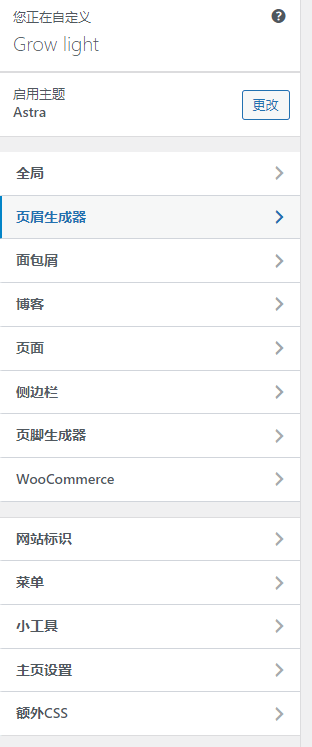
You can see the options shown in the image above on the left. You can click on each one to explore.
If there are some features you want to adjust but can't find, you can enable all Astra Pro features. The method is as follows:
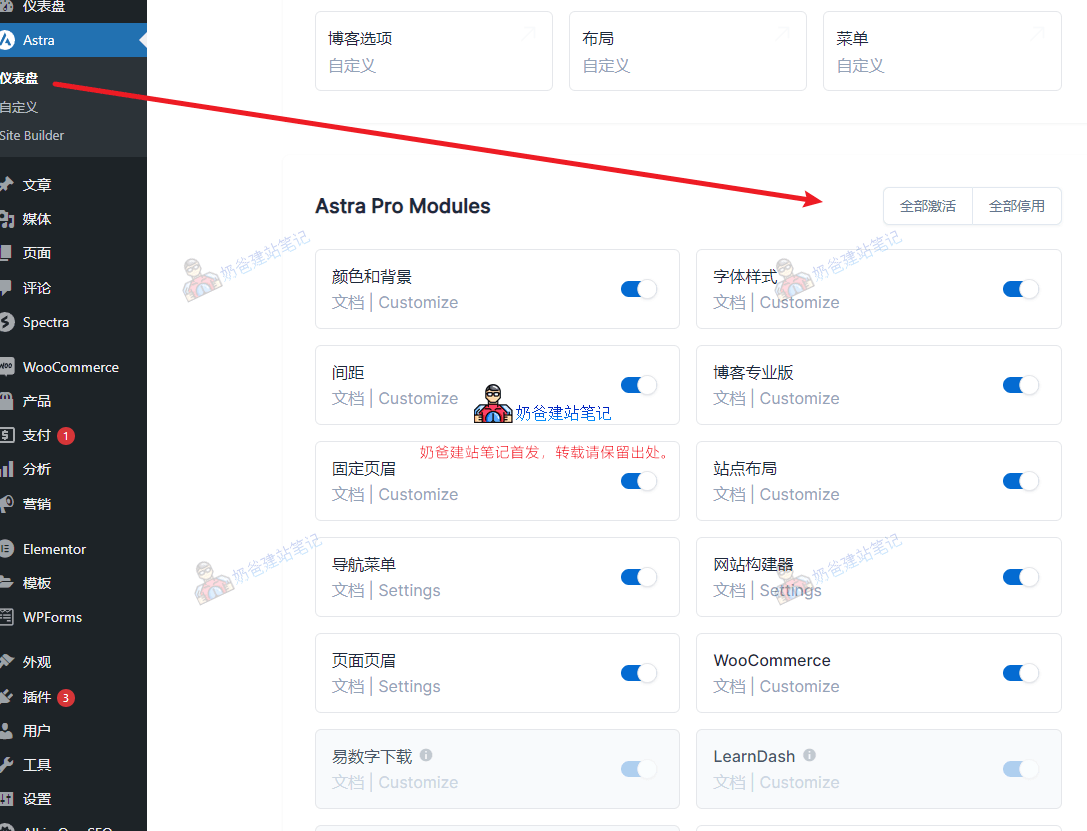
After you enable all these features, return to the website customization interface, and you will find the settings are much more comprehensive.
How to modify website content?
If we want to modify the content of a website page, such as text and images, we can simply click to edit with Elementor.
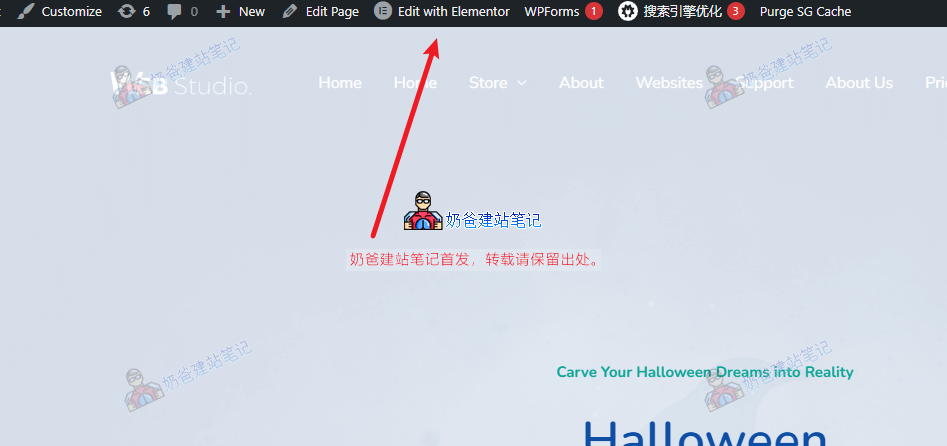
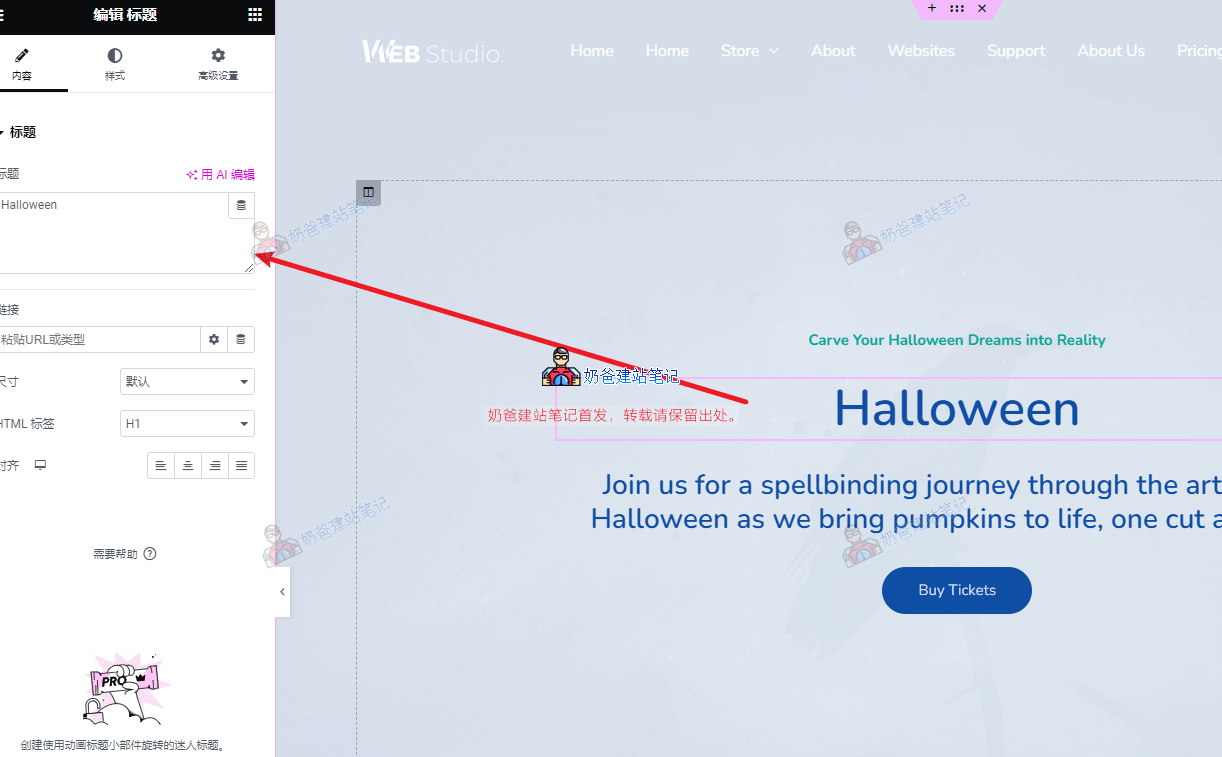
After opening, select the area you want to modify, and the editing options will appear on the left. After making changes, update the page.
Of course, to make the webpage better align with your own ideas, you need to familiarize yourself more with the Elementor builder tutorials and do some designing yourself. Simply changing text and images exactly like the demo will hardly achieve 100% satisfaction.
What if I mess things up after repeated changes and want to start over?
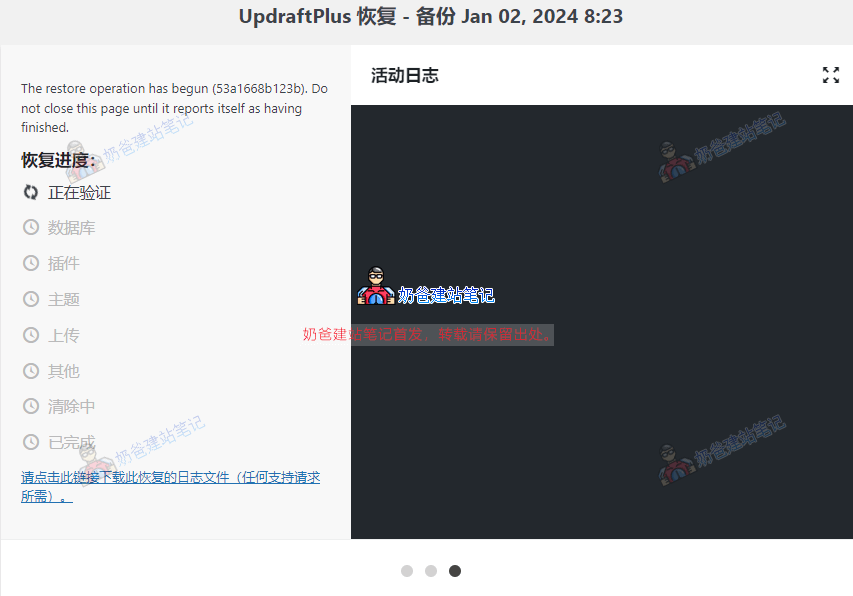
Just restore from a previous backup.