After building a websiteyou often encounter situations where you need to provide download links or demo addresses when publishing articles. Inserting a hyperlink by default doesn't look good. How can you insert a beautiful download button into an article? Here are two simple methods to share with everyone.
Pure code version, recommended for the classic editor.
The download button on Naibabiji's website is implemented using code.
The implementation method is also simple: just set a separate CSS style for the download button.
Usage method is as follows:
- Create a CSS style for a download button in the CSS styles;
- When writing an article, insert an a tag with the class attribute value.

The CSS used for the download button on the Naibabiji website is as follows:
.theme-demo {
    border-radius: 5px;
    color: #ffffff!important;
    display: inline-block;
    margin-right: 10px;
	  margin-bottom: 10px;
    padding: 10px 15px;
	background-color: #3bc492;
	text-decoration: none!important;
	text-indent: 0!important;
}
Add it to your theme's CSS style file. Method:
- WP admin dashboard, Appearance, Theme Editor.
- Copy the above content and add it to the very end of style.css, then save.
If you also want to insert download icons or other elements inside the download button, you can add the corresponding CSS styles yourself.This websiteThere are many beautiful button styles online, you can copy some.
You might say that inserting code like this is too troublesome, having to manually add a class="theme-demo" to the link each time, or manually copy the code.
Don't worry, see this article:WordPress Editor Enhancement_Quickly Insert Specific Code: AddQuicktag
System-built button, recommended for the Gutenberg editor
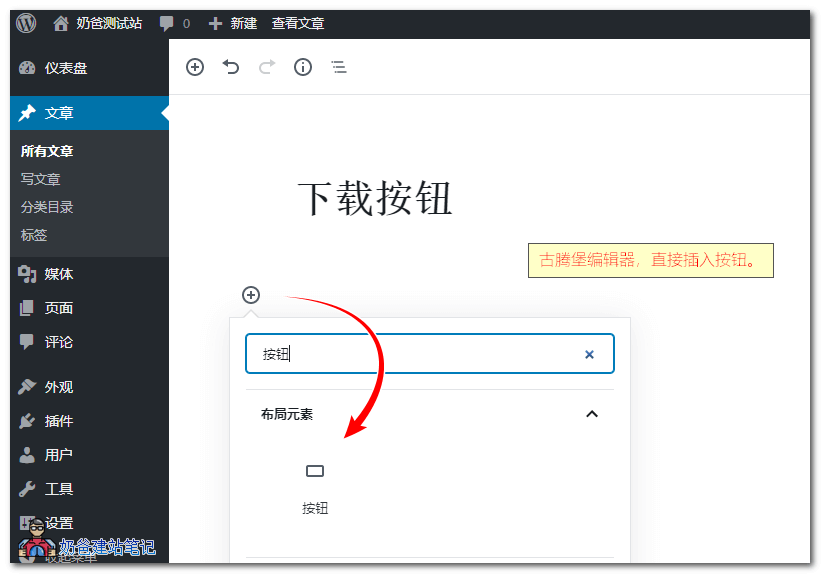
If you are using the Gutenberg editor, it is not so troublesome. You can directly insert a button. The method is as follows:
1. When publishing an article, click the ➕ button, then search for button, as shown below:
2. After inserting the button, set its style, color, and add a link in the block settings on the right side, and a beautiful download button will appear.
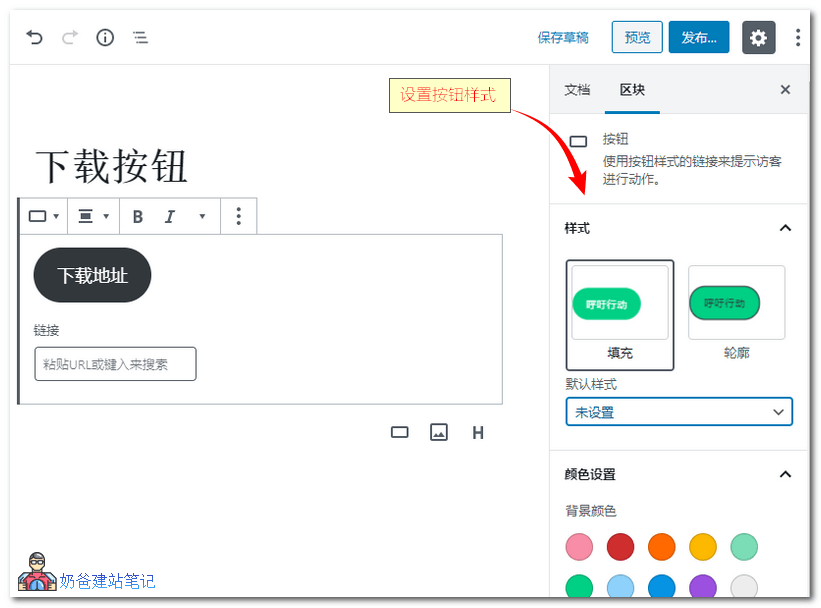
If you don't want the button in the Gutenberg editor to be so rounded, simply adjust the border radius to a smaller value or 0 in the settings on the right.
If you are building a resource download site, you can install a dedicated download plugin, which also comes with beautiful download buttons and makes resource management convenient.