
How to add a table of contents to WordPress articles? There are two methods: Method 1, integrate code into the theme. Method 2, use a plugin, install and activate it.
NaibaWebsite Building Notesshares with everyoneAdd article directory via plugin和Method to add article directory via code。
Recommended WP Table of Contents Plugins
When adding directories to website article content, Naiba tested many directory plugins and ultimately found the following two to be excellent.
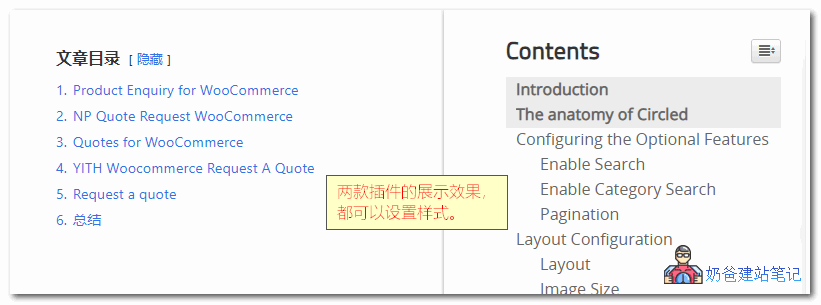
Both of these table of contents plugins are very useful; you can test them both.
LuckyWP Table of Contents
This is the table of contents plugin currently used by Naibabiji. You can directly see its effect by referring to the table of contents in this article.
LuckyWP Table of Contents has rich settings, allowing you to customize display style, position, etc.
One reason for choosing it is that the default effect matches this site's theme better, and another is that its table of contents links use pinyin by default.
Feel more comfortable to look at?
Easy Table of Contents
Easy Table of Contents is also a very useful WordPress article table of contents plugin. It has slightly fewer configuration features compared to the aforementioned LuckyWP Table of Contents, but it is also widely used.
UpdateIf you want a floating article table of contents plugin, you can considerFixed TOC
Table of Contents Plus
The first plugin, LuckyWP Table of Contents, hasn't been updated for a long time and has compatibility issues. Now using this one.
Method to implement article directory via code
If you don't want to use a plugin, you can also directly use code to implement the function of displaying a table of contents in articles. It's all automated and requires no additional operations.

The image above shows the effect of the code-based article table of contents previously used by Naibabiji.
The implementation method is as follows:
//文章目录
function article_index($content) {
$matches = array();
$ul_li = '';
$r = '/<h([2-6]).*?\>(.*?)<\/h[2-6]>/is';
if(is_single() && preg_match_all($r, $content, $matches)) {
foreach($matches[1] as $key => $value) {
$title = trim(strip_tags($matches[2][$key]));
$content = str_replace($matches[0][$key], '<h' . $value . ' id="title-' . $key . '">'.$title.'</h2>', $content);
$ul_li .= '<li><a href="#title-'.$key.'" title="'.$title.'">'.$title."</a></li>\n";
}
$content = "\n<div id=\"article-index\">
<strong>文章目录</strong>
<ul id=\"index-ul\">\n" . $ul_li . "</ul>
</div>\n" . $content;
}
return $content;
}
add_filter( 'the_content', 'article_index' );


@media screen and (max-width:600px) {
	#article-index {
    width: 100% !important;
}
}
Copy the code above and insert it into the theme's functions file. If you don't know how, it's recommended to use the following plugin to help you.
	/* 文章目录 */
#article-index {
-moz-border-radius: 6px 6px 6px 6px;
border: 1px solid #DEDFE1;
float: right;
margin: 0 0 15px 15px;
padding: 0 6px;
width: 300px;
line-height: 23px;
}
#article-index strong {
border-bottom: 1px dashed #DDDDDD;
display: block;
line-height: 30px;
padding: 0 4px;
}
#index-ul {
margin: 0;
padding-bottom: 10px;
}
#index-ul li {
background: none repeat scroll 0 0 transparent;
list-style-type: disc;
padding: 0;
margin-left: 20px;
}
#index-ul a {
	color: #4c4c4c;
}
#index-ul a:hover {
	color: #009cee;
}
Insert the CSS code above into the website theme's stylesheet. If you don't know how to insert it, you can also use the method below.
How to make articles display a directory?
After using the above plugin or code on your site, you find that the article still doesn't display a table of contents?
Then it should be that you didn't set a style for the title when publishing the article.
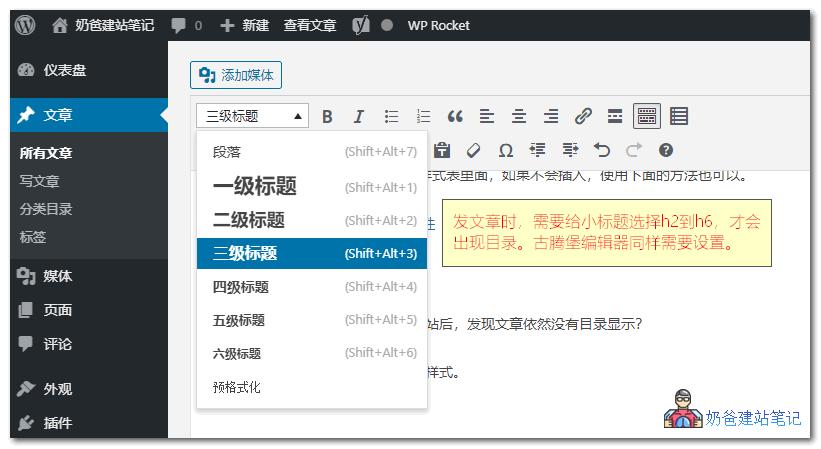
Please note, do not use first-level headings (H1) within the article content, as it's not good for SEO. Setting H2 and H3 is generally sufficient; the table of contents will automatically display hierarchical levels based on different heading levels.