
After running a WordPress secure website for a period of time, especially when there are many article images, your website's uploads folder will generate many thumbnail images.
These thumbnail images are useless for our website, so if you disable thumbnail generation from the beginning after installing the websiteDisable Thumbnail Generation, then you won't be troubled by this problem.
Below, we will teach you how toBatch Delete WordPress Thumbnail Files。
Note: Back up before deleting images to avoid mistakes.
Batch Delete Using a Plugin
WordPress has a rich plugin system, but there aren't many plugins for batch deleting thumbnails. Naiba tested all the ones available on the market, and only the following 3 remained.
DNUI
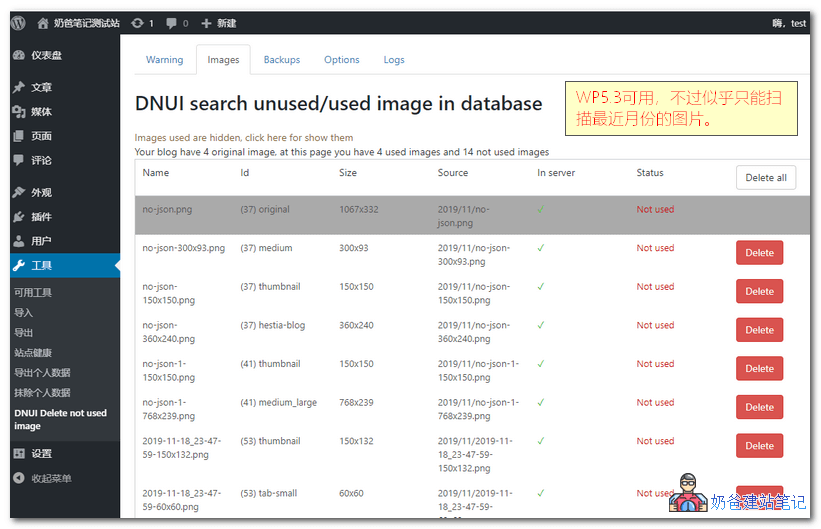
DNUIThis plugin is the most frequently mentioned in online search resultsPlugin for batch deleting WordPress thumbnails, but in actual testing,NaibabijiI found that the user experience of DNUI is not good; it can only scan images from the current latest month. On the test site, there are thumbnails from 2017 and 2018 that DNUI cannot scan.
But the files that have been scanned can be deleted in batches.
Image Cleanup
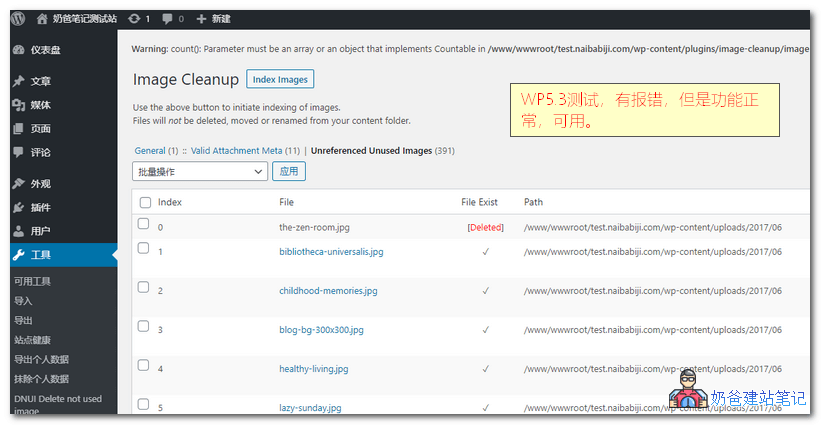
Image CleanupAlthough this WP plugin showed an error alert at the top during testing, it did not affect its functionality. Image Cleanup wasthe only plugin that could completely scan all thumbnail images。
If you want to use a plugin to delete, this one is a good choice.
Media Cleaner
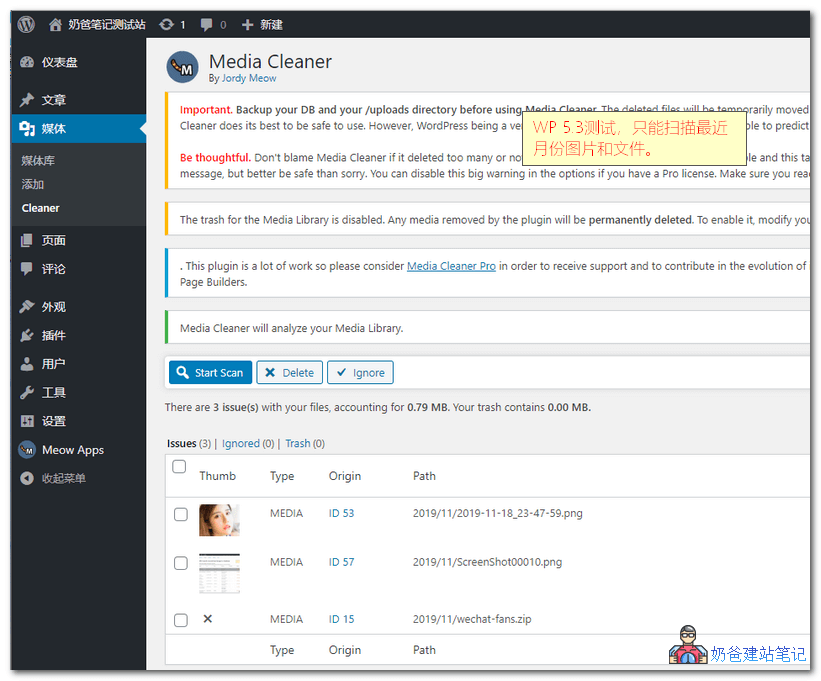 Media Cleaner is the newest among the tested plugins, so its compatibility with WordPress is not an issue, but testing revealed that this plugin could not scan images from previous folders.
Force Regenerate Thumbnails
This plugin forces the regeneration of thumbnails, allowing you to delete all old image sizes and truly regenerate thumbnails for image attachments.
Special Note:
Regarding the above plugins' inability to scan previous image files, the speculated reason is that the previous images on Naiba's test site were not written to the database (the database was reset after the site was built), so the plugins only scanned files that had records in the database and were not referenced by articles.
Manual Batch Deletion
Manual batch deletion is a more reliable method, divided into FTP deletion and SSH command batch deletion. The software required for this method includes:#WebsiteBuilding# Free VPS Management Software Xshell6/Xftp6 Chinese Version
Delete Using FTP Software
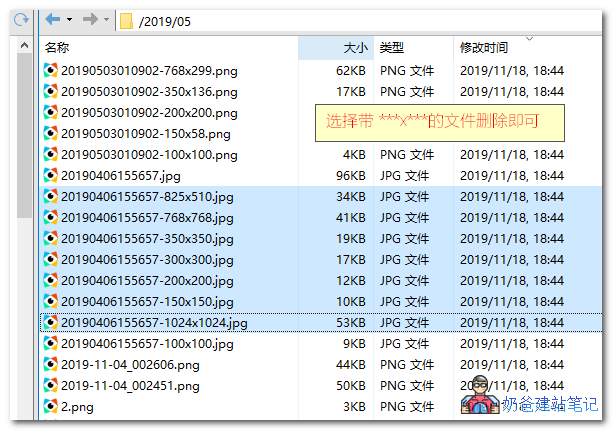
Use FTP software to connect to the server, such as xftp, enter your image folder, batch select images ending with the format „-numberxnumber“, then right-click and choose delete.
This method is time-consuming and labor-intensive, with low recommendation.
Batch Delete Using SSH Commands
This method is the fastest, but if the images inserted in your articles are thumbnails rather than original images, do not use this method.
This method only seems to be used forLinux VPS servers. If you are on shared hosting, this operation is not possible.
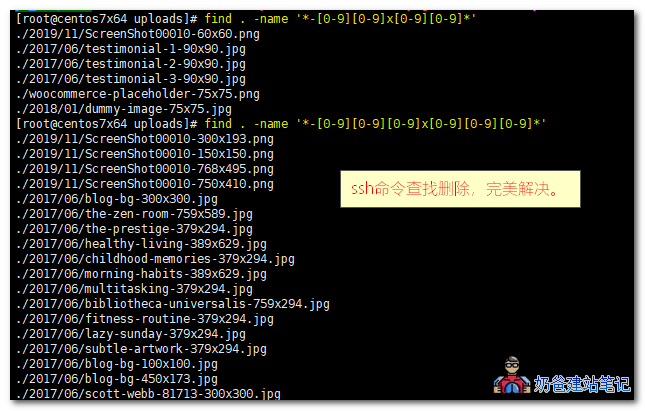
Use Xshell to connect to the server, then switch to the uploads folder and execute the following commands:
find . -name '*-[0-9][0-9]x[0-9][0-9]*'
和
find . -name '*-[0-9][0-9][0-9]x[0-9][0-9][0-9]*'
The above two commands are to find files whose names contain „-numbernumberxnumbernumber“ and „-numbernumbernumberxnumbernumbernumber“.
Because the naming format of WordPress thumbnails is like this, for example, -75x75.jpg and -300x193.png in the above image.
After finding and confirming that these files can be deleted, use the following command to delete:
find . -name '*-[0-9][0-9]x[0-9][0-9]*' -exec rm -f {} \;
和
find . -name '*-[0-9][0-9][0-9]x[0-9][0-9][0-9]*' -exec rm -f {} \;
Another command found online
You can use the option-regexTo use regular expressions:
find . -regex '\./[0-9]+_[0-9]+\.zip'If you need to delete the found files, usexargs(Make sure before deleting):
find . -regex '\./[0-9]+_[0-9]+\.zip'|xargs rm -fIf you not only want to delete but also get the count of deletions, you can do this:
find . -regex '\./[0-9]+_[0-9]+\.zip'|tee >(wc -l 1>&2)|xargs rm -f
Alright, the several methods introduced above can help youbatch delete WordPress thumbnails. Finally, a reminder again: please back up before operation to avoid deleting useful files.