
For the vast majority of websites built withWordPress installation, the homepage displays all recently updated posts. However, for various reasons, you might not want posts from all categories to appear. You can achieve this by using the following two methods toexclude specific categories from the homepage。
Plugin for Excluding Specific Categories from the Homepage
Ultimate Category Excluder is aWordPress Pluginthat excludes post categories based on settings. It not only supports excluding posts from specific categories on the homepage but can also be configured to exclude them from tags, search results, archive pages, and RSS feeds. It's a very practical plugin, suitable for novice users.
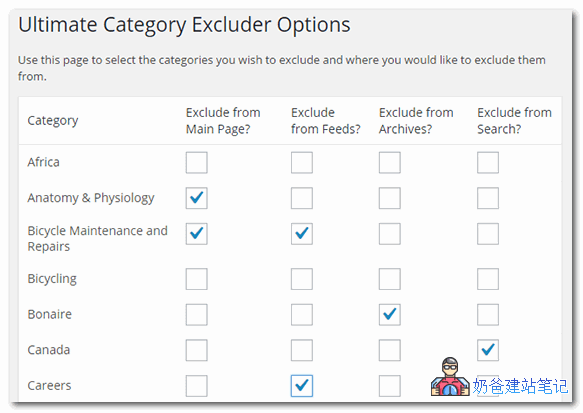
Ultimate Category Excluder is a free WP plugin. You can download and install it from the link below, or search for it directly in the WordPress admin dashboard to install.
Excluding Categories Using Code
If you don't want to install a plugin just to exclude category posts, you can also use code to achieve this.
The specific method is to copy the following code into yourtheme's functions.php fileand that's it.
function exclude_category_home( $query ) {
if ( $query->is_home ) {
$query->set( 'cat', '-5' );
}
return $query;
}

add_filter( 'pre_get_posts', 'exclude_category_home' );
In the code above, the second line is for page detection: is_home is the homepage, is_search is the search results page. If you want other pages, you can modify the code accordingly.
The third line, -5, means to block all posts with category ID 5.
You can extract the category ID by hovering over the category name in the admin and looking at the URL.
To exclude multiple categories, separate them with commas. For example, '-5, -1'.
If the homepage is a static page, how to exclude category posts from the blog archive page?
Naiba Web Development Notes currently sets a static page as the homepage, and uses another page for blog posts. In this case, using the above code will cause both the homepage and the blog page to not display the excluded category content.
To exclude categories only on the homepage but not on the blog archive page, edit your theme file (mine is index.php) and insert the following code
<?php if ( have_posts() ) : query_posts($query_string .'&cat=-1'); while ( have_posts() ) : the_post(); ?>
The above code may need to be modified by yourself; the query part isquery_posts($query_string .'&cat=-1');