
Today, a netizen asked Naiba, „After I opened user registration,
WordPress Default Registration Process and Setup Methods
To allow user registration, you first need to enable it in the website backend. The method is as follows:
WordPress backend > Settings > General > Membership, check the option "Anyone can register".
Then, when a user registers via the registration button, the system will automatically send the password to their email.
Note: For default registration, you need to set up the email system first. See the article:Methods for Sending Emails in WordPress
Method One: User Generate Password
Use the following User Generate Password plugin, which is only about 3k and will not affect performance.
During registration, you can enter a password and robot verification (requires entering the website name). If you want a code version,refer here。
Effect Demo:
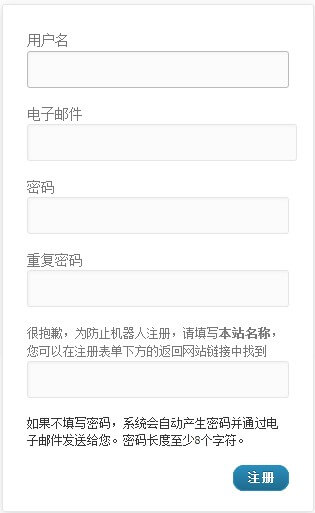
Refer to the link below for the plugin download address. After downloading, modify the website name inside the PHP file to your own, then upload and activate it.
Method Two: Auto Login New User After Registration
The Auto Login New User After Registration plugin offers more features than the one in Method 1. In addition to supporting password input during registration, it can also be configured to automatically log in and redirect users after registration.
Demo Effect:
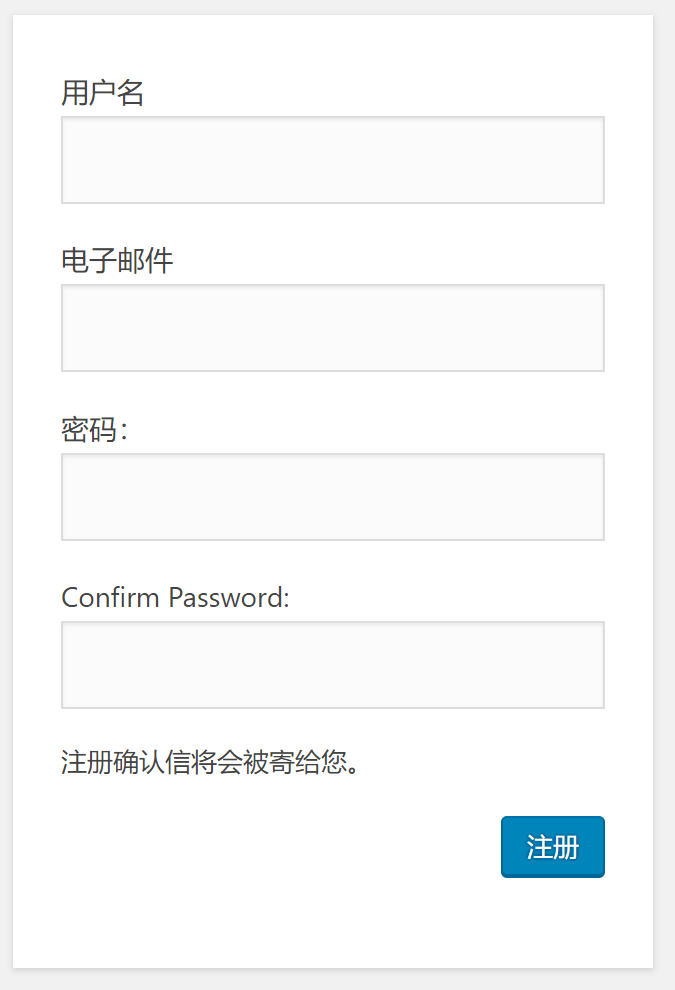
Usage Instructions:
After installing the Auto Login New User After Registration plugin, you need to check "Check to ENABLE Password required fields on new user registration form" in the plugin settings to display the password input field during registration.
If you check and Check to ENABLE Last Name required field on new user registration form, then an option to enter a username will also appear on the registration page.
Check to ENABLE auto-login for new user after registration enables automatic login after successful registration. Below, you can also set the redirect URL after auto-login.
Method Three: UsersWP – User Profile & Registration
UsersWP – User Profile & Registration has more features than the two plugins mentioned above. In addition to allowing custom passwords during registration, UsersWP also supports setting separate pages for login, registration, password recovery, and user profile.
It also supports auto-login after registration, auto-redirect, and displaying user agreements. Additionally, it provides shortcode functionality, allowing you to call or combine them anywhere on your site.
You can set whether to send emails for operations such as user registration and password recovery.
Effect Demonstration:
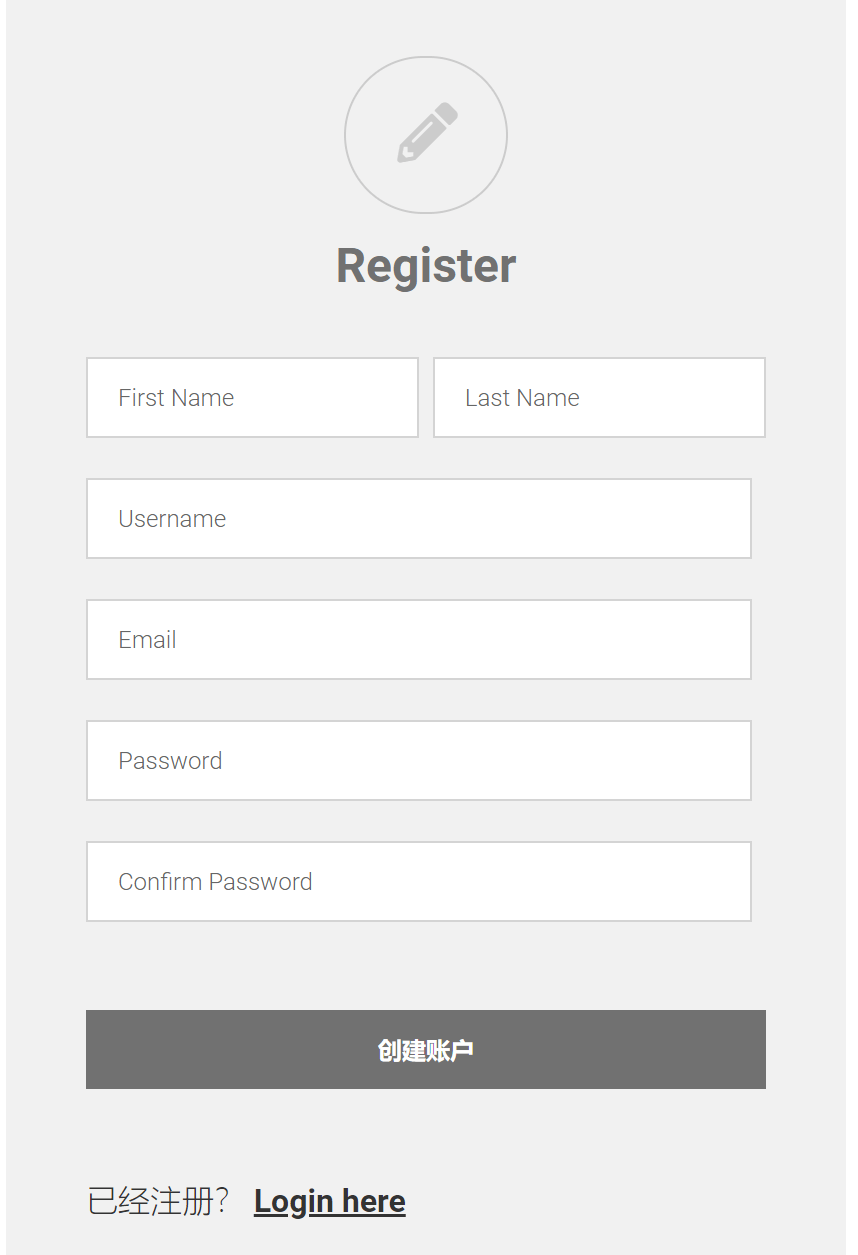
Usage Instructions:
The plugin is in English. To modify it to display in Chinese, edit the files in the userswp/templates/ directory.
After installation, enable it. If you need to customize registration and login pages, configure them in the Pages section of the plugin settings.
All three of the aboveWordPress Plugincan implement the feature for users to set their own passwords during registration, without needing to receive passwords via email. You can choose one to use based on your actual situation.