
Many friends building Foreign Trade Independent Websites use the WooCommerce Plugin for their product system. Some B2B websites wish to add a contact button or inquiry button on the product page. Previously, we introducedseveral inquiry button plugins. This article shareshow to use code to add a custom button below the WooCommerce Add to Cart button。
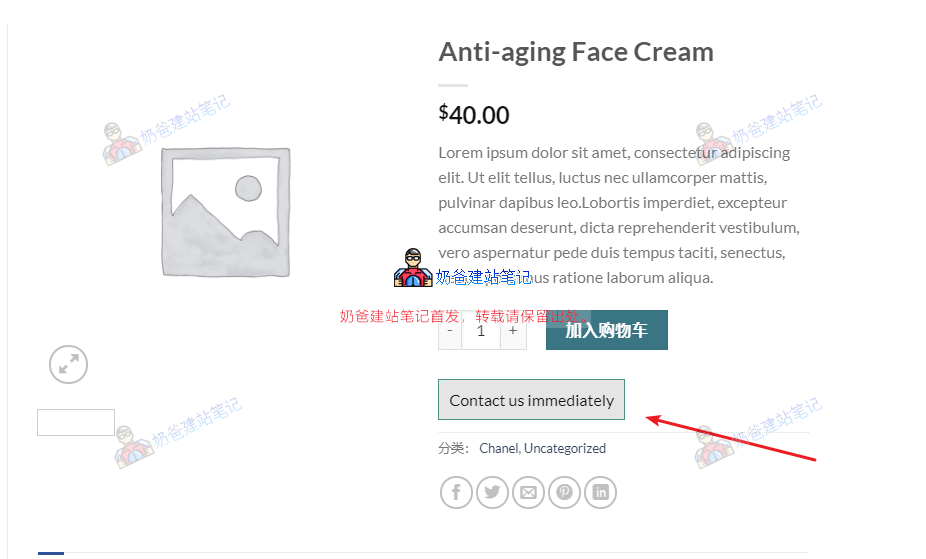
The effect is as shown above, adding a button with customizable text and link below the Add to Cart button.
Usage Method:
Copy the code below and paste it into your Theme's functions.php file.
add_action( 'woocommerce_single_product_summary', 'my_extra_button_on_product_page', 30 );

function my_extra_button_on_product_page() {
  global $product;
  echo '<a class="naibabutton" href="https://blog.naibabiji.com">Contact us immediately</a>';
}
After saving, you will see a „Contact us immediately“ button on the front end of your website. However, it does not have styles yet.
You can customize the .naibabutton style in your theme's CSS. If you don't know how, just copy the following code and add it.
.naibabutton {
    color: #111;
    background-color: rgba(0,0,0,0.1);
    border-style: solid;
    border-width: 1px 1px 1px 1px;
    border-color: #009688;
    padding: 10px;
}
Don't want to figure it out? Pay to have it solved.Contact Me
Add an Amazon Redirect Button
Many foreign trade companies have Amazon stores, so they want to add a button on their independent website's product page to jump to the Amazon store. There are 3 methods to achieve this.
1. Insert a button when filling in the product short description.
2. Add a code using a method similar to the inquiry button shared above.
3. Use a plugin.
Code Method:
Here I use a custom field method. First, add a custom field on the WooCommerce product page, such as amazon_link, and then fill in the Amazon URL in the value of amazon_link.
Then add the following code to the theme file, you can directly useCode SnippetsPlugin Method.
add_action( 'woocommerce_single_product_summary', 'my_extra_button_on_product_page', 30 );

function my_extra_button_on_product_page() {
global $product;
if ( get_post_meta(get_the_ID(), 'amazon_link', true) ){
echo '<a class="amazon-button" href="'.get_post_meta(get_the_ID(), 'amazon_link', true).'" target="_blank">Buy on Amazon</a>';
}

}
add_action( 'wp_head', function () { ?>
<style>
.product-desc li:before {
content: "\f112";
font: normal normal normal 16px/1 LineAwesome;
color: #f0494c;
}
.product-desc li {
list-style: none;
padding-bottom: 7px;
}
.product-desc ul {
padding-left: 0px;
}
</style>
<?php } );
After saving, products that have an Amazon URL filled in will display an Amazon button on the Frontend, while those without will not show it.
Plugin Method:
[vk-content]
Install aQuick Buy Now Button for WooCommercePlugin. Then, when editing a WooCommerce product, a corresponding settings box will appear.
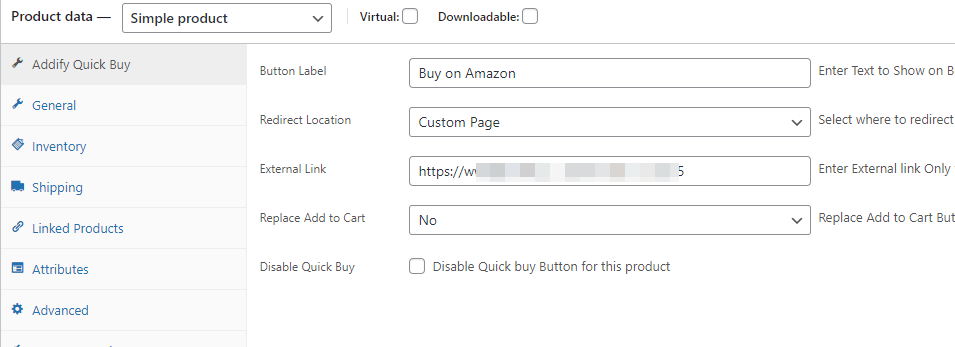
Fill in "buy on amazon", then select custom page for redirect, enter the URL below, and after publishing the product, a button to jump to Amazon will appear. If you don't modify the link yourself, it will just add a quick buy button.
[/vk-content]