This article teaches you how to customize the display style of WooCommerce product pages. Typically, somededicated WooCommerce Themesdesign product pages, while themes without such designs make product pages look monotonous. Therefore, Naiba here teaches you how to modify the display effect of product detail pages.
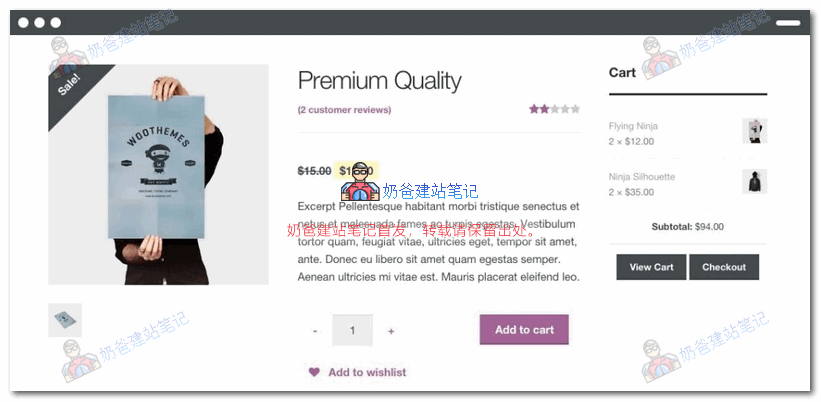
To modify WooCommerce here, we need to use the Elementor Pro tool.
Note, only the Pro version supports custom WooCommerce product pages. If you haven't purchased it, you canclick here to purchase。
Next, Naiba teaches youhow to use Elementor to design your own product page template layout。
Specific steps:
1. Install a WooCommerce Online Store Website
Because we are editing WooCommerce product pages, we must install WooCommerce on the WordPress site.
For WordPress site installation, please refer to:WordPress Installation Tutorial
For WooCommerce usage, please refer to:WooCommerce Tutorials
2. Create a Single Product Page Template
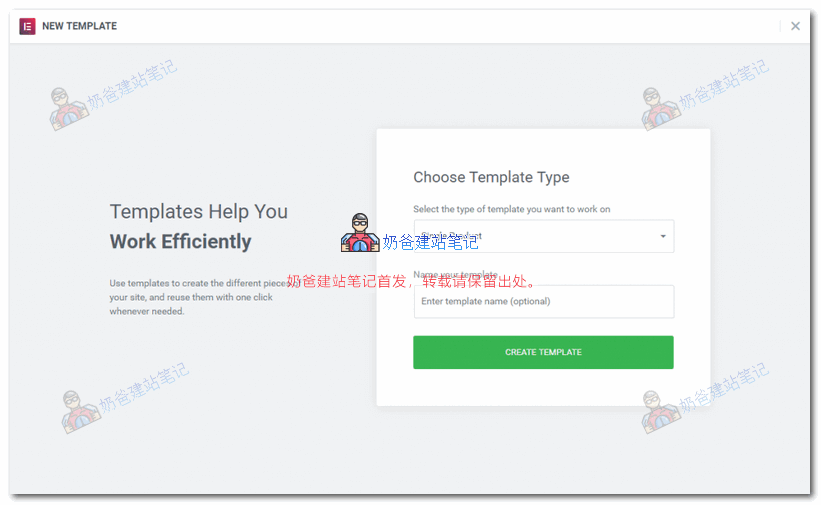
After installing WooCommerce and the Elementor plugin, click New, Page, then select Single Product to create a product page template.
3. Choose a Preset Template or Design Your Own
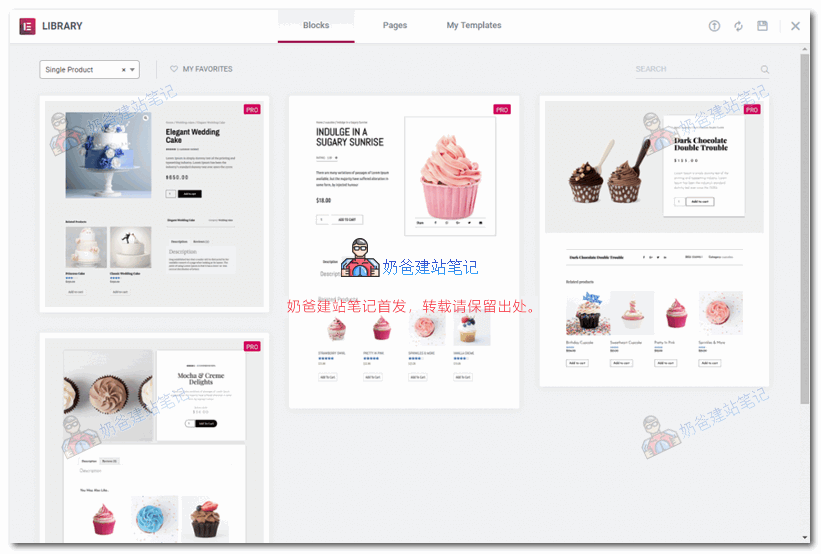
After purchasing the Pro version of the Elementor builder, you can find several preset product page templates from the preset library and directly import one.
Of course, you can also design the page layout yourself.
Once the general layout is determined, you can also add some widgets. The corresponding widget names are as follows:
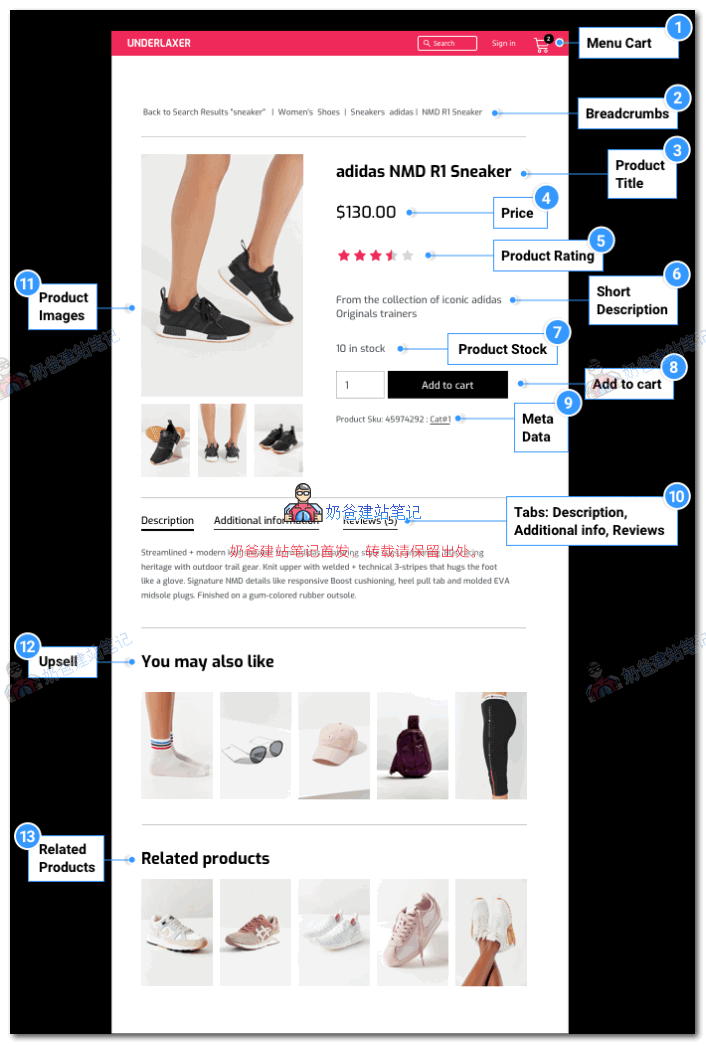
- Menu Cart Icon
- Breadcrumb navigation
- Product Title
- Product Price
- Product Rating
- Product Short Description
- Product Stock
- Add to Cart
- META Tags
- Product Description Tags
- Product Images
- Related Products
- Related Products
4. Preview the Template Effect
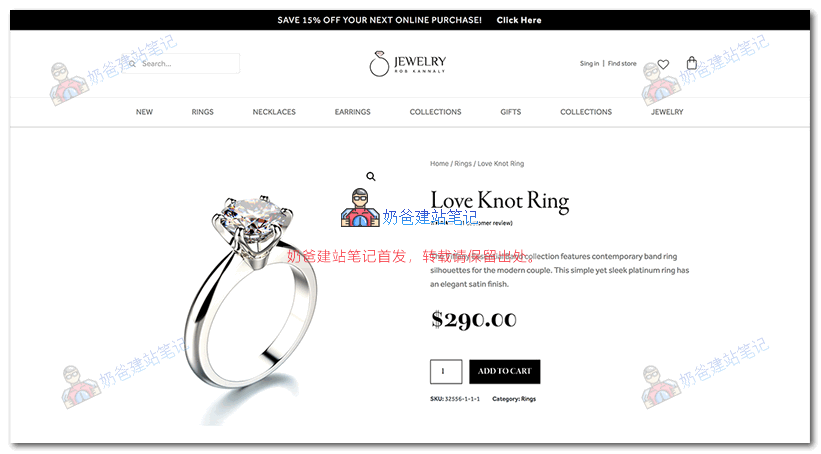
After designing, click the eye icon in the lower left corner of the editor to preview the design effect.
5. Set Display Conditions for the Product Template
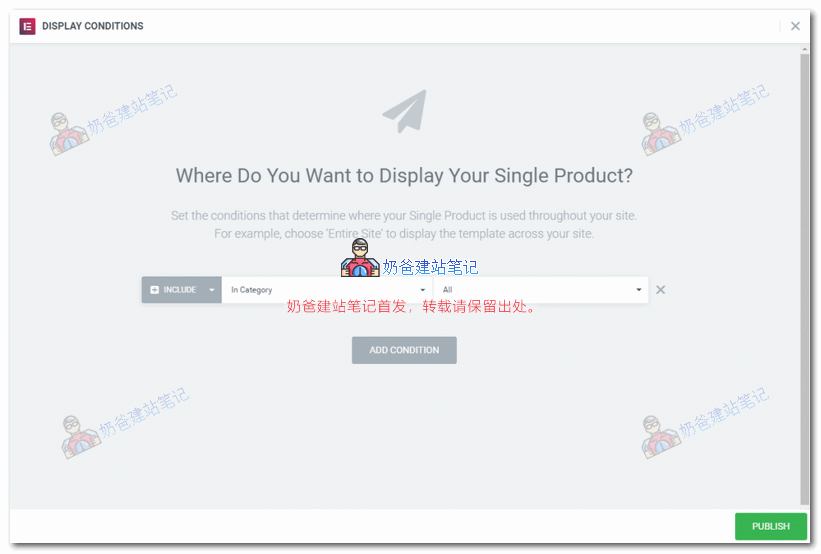
After previewing the effect and being satisfied, you can set the category display rules and then Publish.
You can see the template effect you just set on the front end of the website.
Summary:
Using Elementor's WooCommerce Builder tool, you can flexibly design product detail pages yourself. If you are not satisfied with the display effect of the theme's product page template, this method allows you to create a product page that meets your expectations.
Of course, a better approach is to purchase a dedicated one directly from the ThemeForest marketplace.optimized and designed for WooCommerce from the ThemeForest marketplace.。