🚀 Is building a website too difficult? Let me guide you step by step—Learn about the 「Naibabiji WordPress Website Building Coaching Service」 →

How to Reset Root Password on Vultr Server (Using Debian System as an Example)

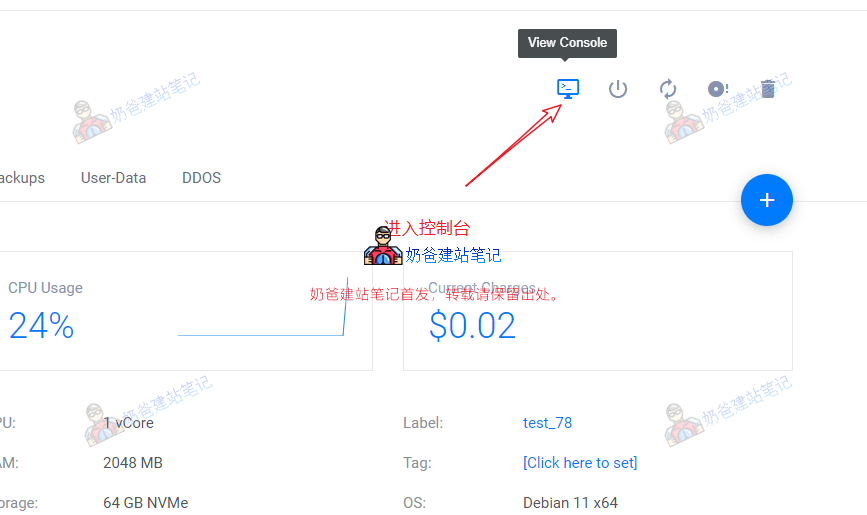
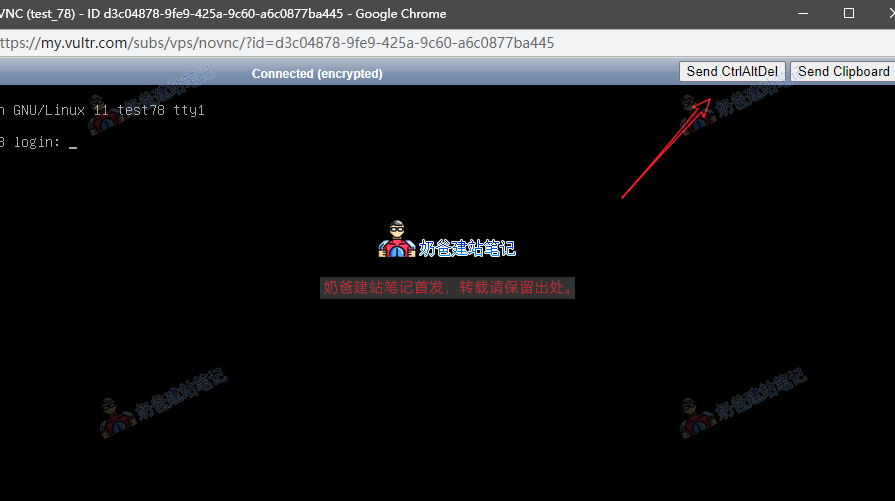
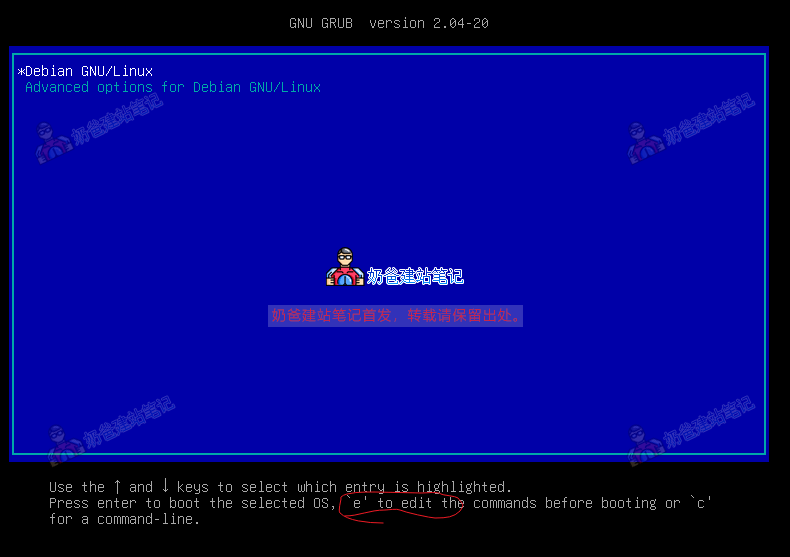
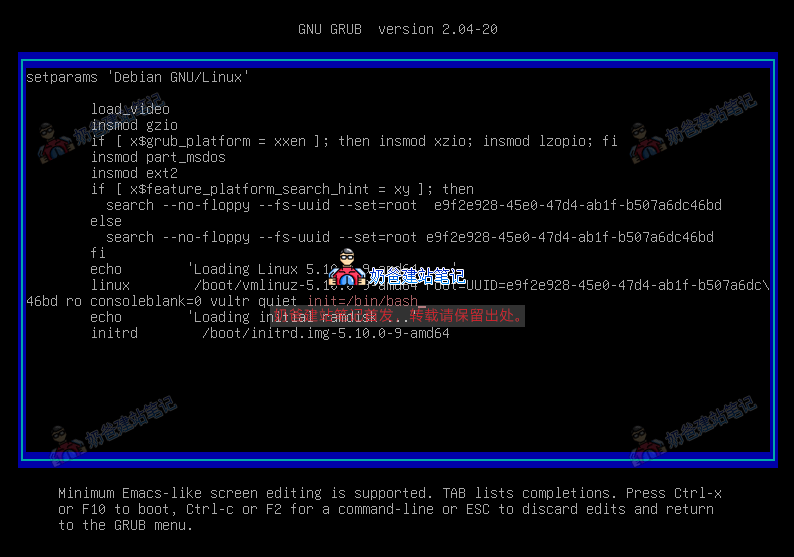
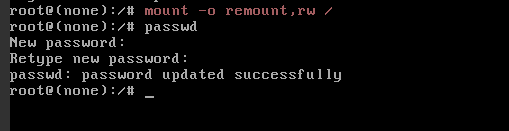
Today, after creating a Snapshot of a server on Vultr and restoring it to another server, I didn't save the password of the original snapshot server. So, after the snapshot restoration was complete, I couldn't log into the system and needed to manually reset the root password. The method is as follows:Enter the server details page, click the computer button in the upper right corner to enter the Console interface.Then click the Send CtrlAltDel button in the upper right corner.Press E on the keyboard in this interface.Add `init=/bin/bash` after `quiet` on the third line from the bottom in the image above, then press CTRL + X to exit.Then enter `mount -o remount,rw /`, then enter `passwd`, followed by entering the new password twice. The modification is successful, restart the server and you're done.

🚀 Still feeling confused after reading the tutorial? Let me guide you step-by-step instead.

「Naibabiji WordPress Website Building Coaching」 — From selecting a domain and purchasing hosting to installing themes and publishing posts, I「ll guide you through every step, helping you avoid detours and reach your goals directly.

👉 Learn about Website Building Coaching Service
🔒

Comments are closed

The comment function for this article is closed. If you have any questions, please feel free to contact us through other channels.

×
二维码

Scan to Follow