
Black Friday is coming soon, and almost all e-commerce websites will have promotions on Black Friday. If you want to run a promotion on your website during Black Friday, such as 10% off the entire store, using automatic coupon discounts is much more convenient than modifying product prices.
By default, after setting up coupons in WooCommerce, you need to tell visitors what coupon code to enter to get the discount. If the coupon can be applied automatically, it will provide a better user experience.
Here, Naiba recommends a plugin called Auto Coupons for WooCommerce, which can help us automatically apply coupons based on conditions.
First, click the link below to download and install the plugin.
Then, go to the WooCommerce backend and create a coupon in the coupons section.
You can see the Auto Apply option below the add coupon section; check it.
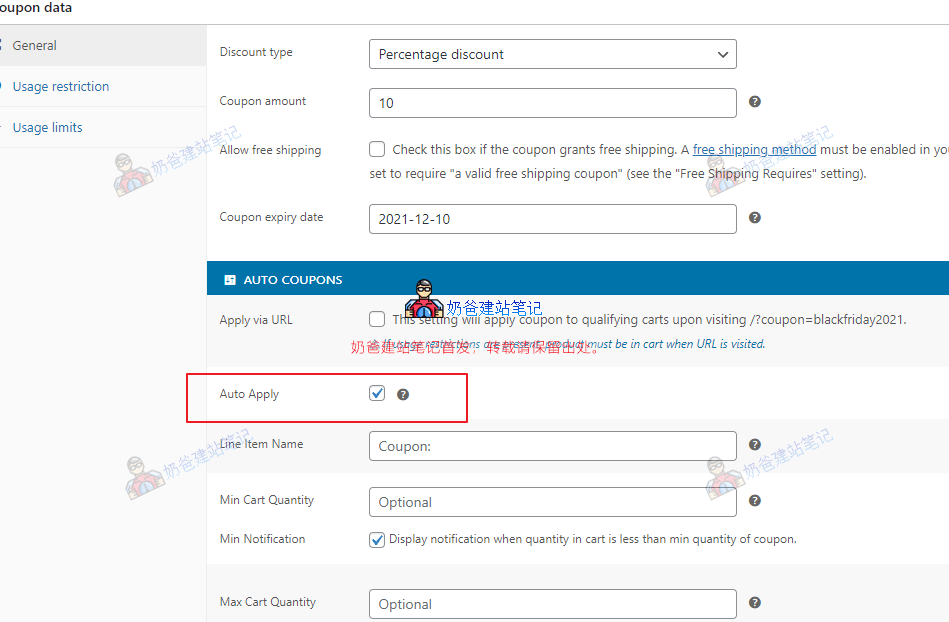
After this setup, when users place an order on the Frontend, the shopping cart amount will automatically apply the coupon, saving time and effort—no tricks, just great.