
SiteGround is a hosting provider suitable for Foreign Trade Independent Websites. This article teaches you how tocreate an FTP account on SiteGroundanduse FTP software to upload and download files。
SiteGround's panel varies depending on your registration time, divided into new and old versions of the management interface. Please choose your own panel tutorial to read.
The FTP software used in this tutorial is xsftp. If you use FileZilla or other FTP software, the content to fill in is the same, only the interface is different, so handle it flexibly.
Software Download:#WebsiteBuilding# Free VPS Management Software Xshell6/Xftp6 Chinese Version
Tutorial for FTP on the New SiteGround Management Interface
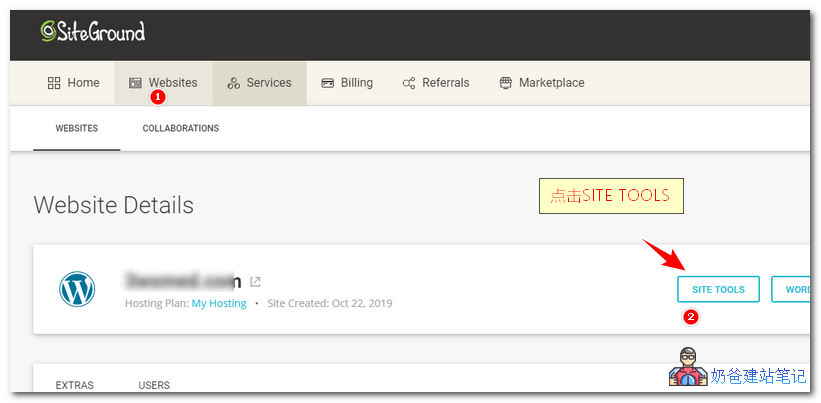
①. Log in to theSiteGroundbackend, click Websites, then click SITE TOOLS.
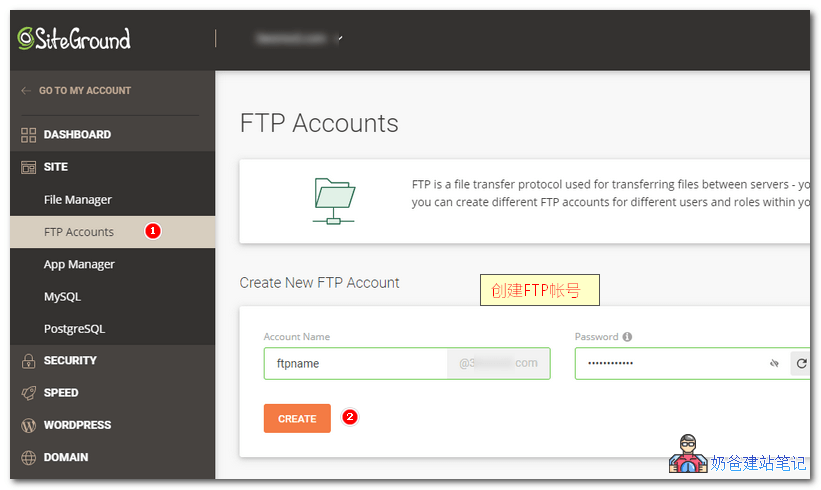
②. Click SITE on the left menu, then select FTP Accounts. On the page that appears, add a new FTP account.
③. After creating the FTP account, open the FTP software Xftp, then add a new site. Refer to the image below for the information to fill in.
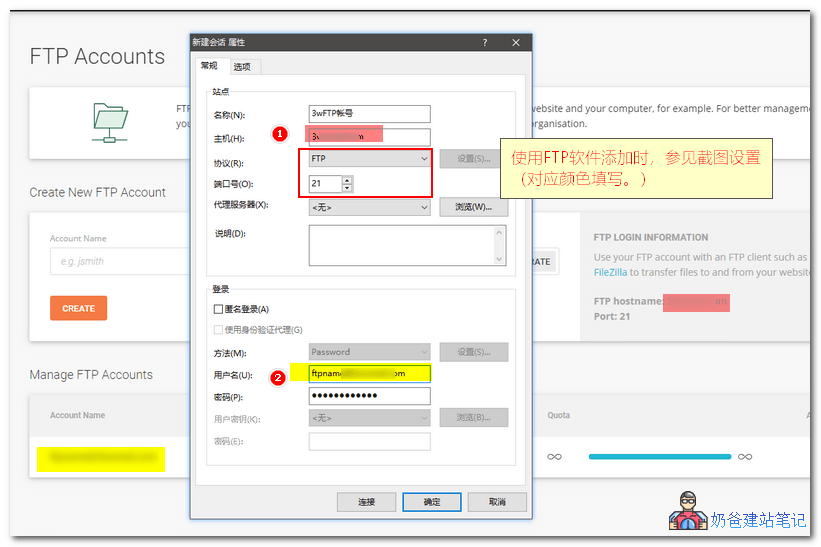 Once added, you can use Xftp software for file management.
Tutorial for FTP on the Old SiteGround Management Interface
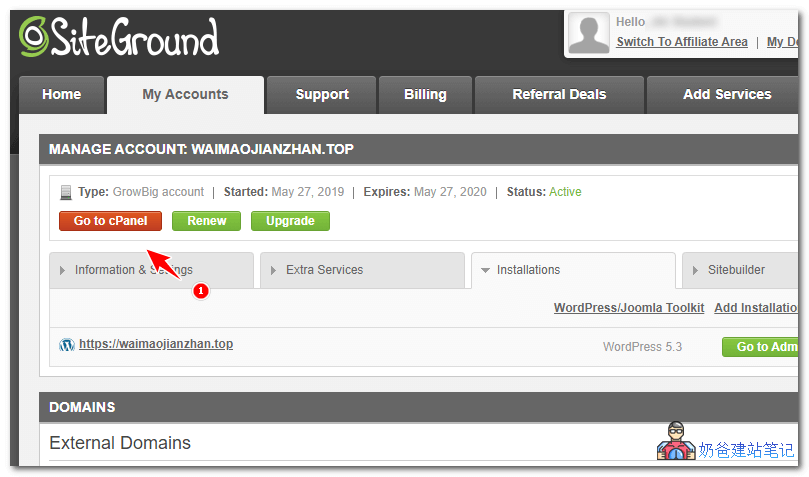
①. Log in to theSiteGroundbackend, click My Accounts, then click Go to cPanel.
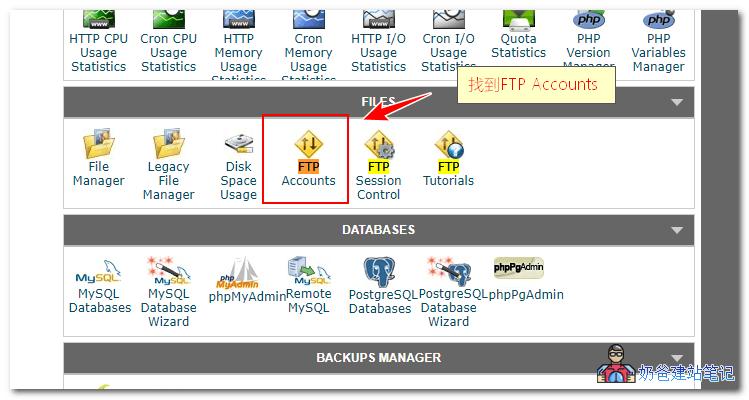
②. In the cPanel interface, find FTP Accounts and enter.
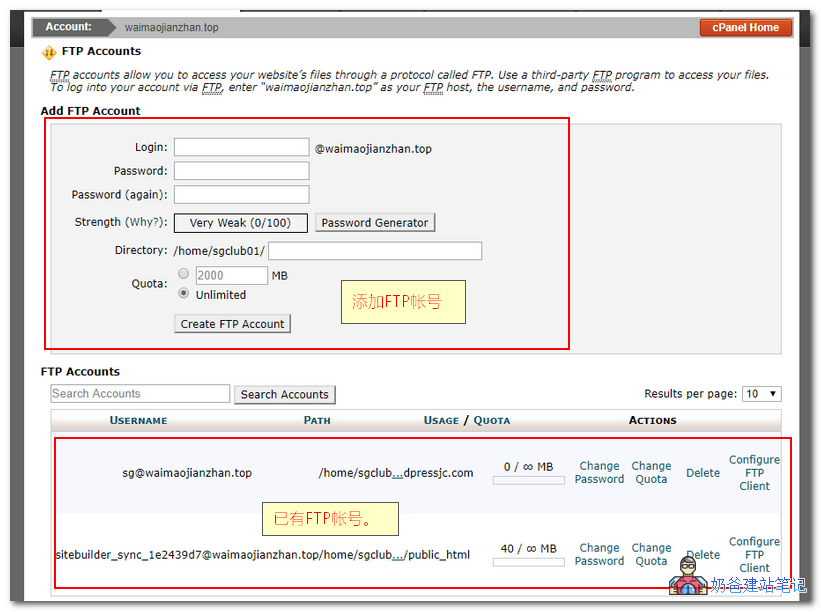
③. The old version automatically adds an FTP account by default. If you want to add a new FTP account yourself, create one in the upper section.
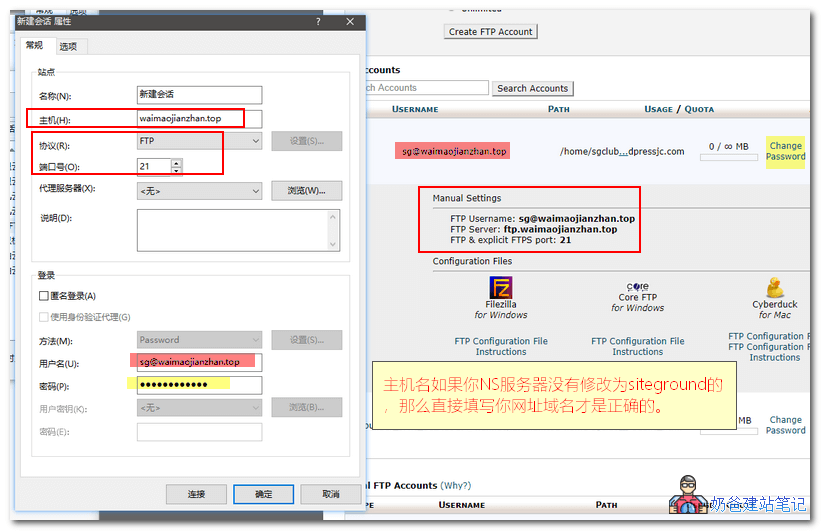
④. Open Xftp software to add a new site. Fill in the information according to the positions shown in the image below.
Note: If you have not changed your domain's DNS servers to SiteGround's, do not follow the FTP Server field in the screenshot for the hostname in your FTP software. Simply enter your website domain name; otherwise, you will not be able to connect to the FTP server properly.
Reasons for SiteGround FTP Connection Failure
Typically, the reasons for SiteGround FTP connection failure include the following points. Troubleshoot them one by one.
- Incorrect account or password entered;
- Incorrect server hostname entered;
- Incorrect protocol or FTP port.
- Network issues.
The above is what Naibabiji shares with everyoneSiteGround Adding FTP Account_Tutorial_Reasons for Connection Failure. If you find managing a website troublesome, you can also considerNaiba Foreign Trade Website Building Service。