WordPress 5.3.1 has prompted an update in the website backend. This version mainly fixes 4 security issues. It is recommended to update to the latest version. If the automatic update fails, please refer to the manual update method in this article.
Security Update
4 security issues affect WordPress 5.3 and earlier versions. Version 5.3.1 fixes these issues, so you need to upgrade. If you haven't updated to 5.3 yet, you can also update to the latest sub-version of the corresponding version (3.7-5.2) to fix these security issues.
- Unauthorized users can set posts as sticky via the REST API
- Cross-site scripting (XSS) can be stored in crafted links
- Enhancements
wp_kses_bad_protocol(), to ensure it understands named colon attributes - Stored XSS vulnerability exists when using block editor content
Maintenance Update
Here are some key update points:
- Administration: Improved admin forms to control standardization of height and alignment (see relatedDeveloper Notes), dashboard widget link accessibility, and alternative color scheme readability issues (see relatedDeveloper Notes).
- Block Editor: Fixed Edge scrolling issues and intermittent JavaScript problems.
- Bundled Themes: Added customizer options to show/hide author bio, replaced JS-based smooth scrolling with CSS (see relatedDeveloper Notes) and fixed CSS for Instagram embeds.
- Date/Time: Improved calculations for non-GMT dates, fixed date format output for specific languages, and made
get_permalink()PHP timezone changes more resilient. - Embed: Remove the provider that no longer offers CollegeHumor oEmbed, as the service no longer exists.
- External Libraries: Update
sodium_compat。 - Site Health: Allow filtering the email verification interval for admin notifications.
- Upload: Avoid thumbnail overwriting other uploads when filenames match, and exclude scaling of PNG images after upload.
- Users: Ensure admin email verification uses the user's locale instead of the site locale.
For more information,browse the full list of changes on Trac, or view the Version 5.3.1 documentation page。
Solutions for Automatic Update Failure
If automatic WordPress updates fail, you can use the following methods to update manually:
Method 1: Download offline package for manual update
You can download the latest version of the WordPress installation package and manually update it yourself.
For downloading the latest version of the WordPress offline installation package, refer to this article:WordPress New Version Chinese Simplified Local Download
After downloading, the method for manually updating WordPress is::
- ①. Extract the downloaded installation package and delete the wp-content folder inside;
- ②. Use FTP to delete the wp-admin and wp-includes folders on the server;
- ③. Upload the remaining local files to the server, overwriting all files;
- ④. Log in to your WordPress website's Admin Dashboard to see if there is a request to update the database. If yes, update it; if not, the update is already complete.
Detailed upgrade methods can be found at:Several Methods for Automatic and Manual WordPress Updates
Method 2: Update using a Plugin
Update:Plugins can be directly usedWP Downgrade, you can arbitrarilyinstall old or new versions of WP。
The blogger of I Love Water Boiled Fish wrote a plugin for Chinese download mirror. The plugin will automatically switch the download mirror to the URL specified in the plugin when you upgrade the Chinese version of WordPress. After the upgrade is complete, disable the plugin.
The plugin code is as follows:
<?php
/*
Plugin Name: WPJAM 中文下载镜像
Plugin URI: https://blog.wpjam.com/project/wpjam-basic/
Description: WPJAM 中文下载镜像
Version: 1.0
Author: Denis
Author URI: http://blog.wpjam.com/
*/
add_filter('site_transient_update_core', function($value){
	foreach ($value->updates as &$update) {
		if($update->locale == 'zh_CN'){
			$update->download	= 'http://www.xintheme.cn/download/wordpress-zh_CN.zip';
			$update->packages->full	= 'http://www.xintheme.cn/download/wordpress-zh_CN.zip';
		}
	}

	return $value;
});
Plugin Usage Method:
Save the above code as a PHP file, then upload it to the wp-content/plugins directory on the server. Enable the plugin in the backend and then click the update button.
You can also directlyclick here to downloadthe plugin file saved by Naiba, and directly upload the zip archive via the website backend to install, enable, and update the plugin.
Plugin Notes:
The download address provided in the plugin is not fast (it may time out during updates, causing failure). You can upload the installation package to your own server and modify the link to achieve fast downloads.
Method 3: Update using Code + Compressed Package
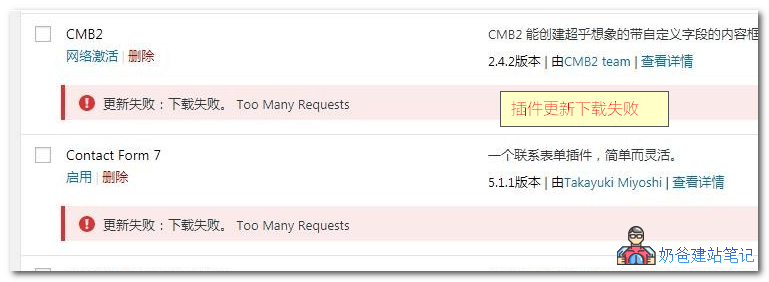
This method comes from the Long Xiao Tian Xia blog and is similar to method two, appearing even simpler and more convenient. It can alsoresolvethe issues of 429 Too Many Requests and automatic update failures,The specific usage method is as follows:
- Download the WordPress installation package file and rename it to wordpress.zip
- Upload wordpress.zip to your website's root directory
- Copy the code below into the theme's functions file
- Click update in the Admin Dashboard
- After the update is complete, delete the function code
/**
 * 临时更改WordPress程序包地址以便WP在线更新成功 - 龙笑天下
 * https://www.ilxtx.com/how-to-update-wordpress-successfully.html
 */
function lxtx_site_transient_update_core( $value ){
    foreach ($value->updates as &$update) {
        $update->download = home_url( 'wordpress.zip' );
        $update->packages->full = home_url( 'wordpress.zip' );
    }
    return $value;
}
add_filter('site_transient_update_core', 'lxtx_site_transient_update_core');
If you don't know how to add code to the theme's functions file, you can use the following plugin for assistance.
Safe Method to Add Code to the functions.php File: Code Snippets
For more methods, see: