If you use WordPress to build a website with a lot of text, such as a novel sharing website, then for user experience, you can consider adding a night mode to the website to prevent the page from being too harsh on night owls visiting your site.
If you don't know how to add a night mode to your website, congratulations, WordPress plugins can easily solve this problem.
Dark Mode for WordPress
Dark Mode for WordPress is a simple plugin for adding dark mode (night mode) to a website.WordPress PluginAfter installing the plugin and enabling it, a toggle button will appear on the front end of the website.
There are no extra settings; it works out of the box. The plugin only calls one JS file, so you don't have to worry about slowing down the website.
Blackout: Dark Mode Widget
Blackout: Dark Mode Widget is slightly more feature-complete than the Dark Mode for WordPress plugin above, with an additional customization feature allowing you to set colors and button size/position.
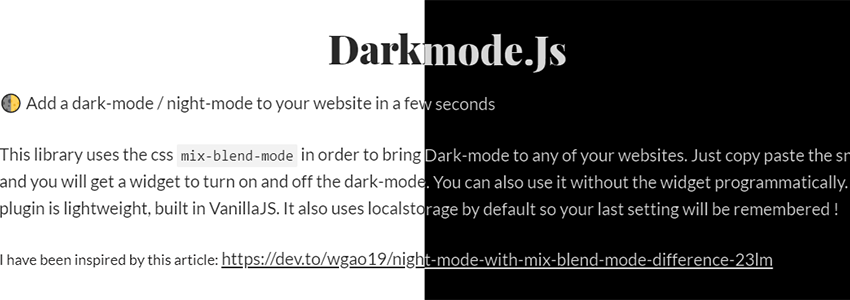
Darkmode.js
The two plugins mentioned above actually both use Darkmode.js
Darkmode.js is an open-source project. Project address:https://github.com/sandoche/Darkmode.js
So if you know how to add code yourself, you can implement the night mode feature for any website.
The simplest way is to directly copy the following code and add it to your website's code to implement the night mode feature.
<script src="https://cdn.jsdelivr.net/npm/darkmode-js@1.4.0/lib/darkmode-js.min.js"></script>
<script>
  new Darkmode().showWidget();
</script>
You can also customize the js file with the following code, for example, colors.
var options = {
  bottom: '64px', // default: '32px'
  right: 'unset', // default: '32px'
  left: '32px', // default: 'unset'
  time: '0.5s', // default: '0.3s'
  mixColor: '#fff', // default: '#fff'
  backgroundColor: '#fff',  // default: '#fff'
  buttonColorDark: '#100f2c',  // default: '#100f2c'
  buttonColorLight: '#fff', // default: '#fff'
  saveInCookies: false, // default: true,
  label: '????', // default: ''
  autoMatchOsTheme: true // default: true
}

const darkmode = new Darkmode(options);
darkmode.showWidget();
If there are items on your website you don't want to use dark mode for, you can disable it by adding the `darkmode-ignore` class, or by adding `isolation: isolate;`.