
Use WordPress to build a blogWebsite owners often consider adding anWordPress About Author Widgetto their site. For beginners who don't know code, they might not know how to do it. This article shares 3 author widget plugins and a method to add an About Author widget without a plugin.
What is an About Author Widget?
Similar to the About section on the left side of Naibabiji, an information box that introduces you, the website owner, or your website is called an About Authorwidgets, the English name isWidget.
4 WordPress Author Widget Plugins
Here, I share 3 author widget plugins that I've tested and found quite good. After installation, simply go toAppearance–widgetsInsideAdd.
Awesome Author Box Widget
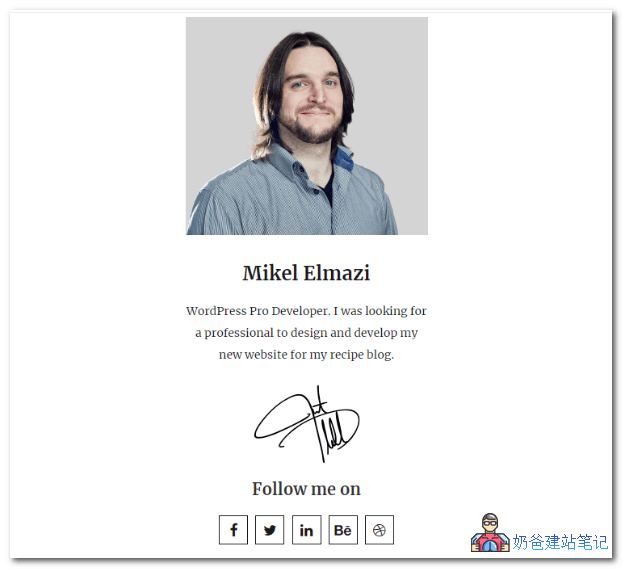
Awesome Author Box Widget is, in my personal opinion,the most beautifully styled的author widget。
Fully responsive layout, looks good on both mobile and desktop.
Awesome Author Box Widget is easy to use. After installing the plugin, go to Appearance, Widgets, and add the Awesome Author Box Widget to your website sidebar.
Supports setting author name, avatar, bio, signature, and social links.
Meks Smart Author Widget
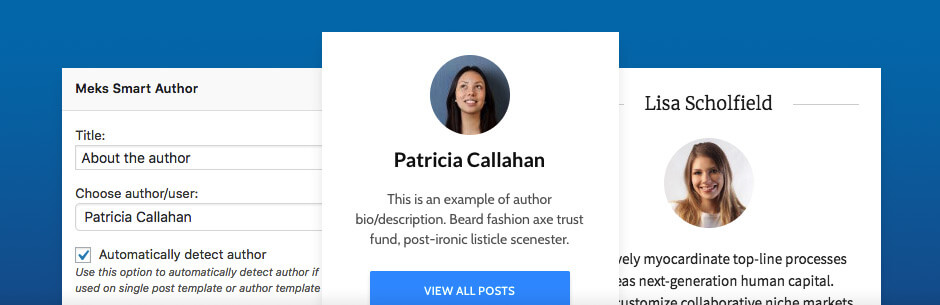 Meks Smart Author Widget is also an About Author widget, with more features than Awesome Author Box Widget. It is suitable for multi-author blogs, allowing you to view all articles by that author directly from the author widget.
Of course, you can hide the link to all articles and customize image sizes, etc.
The usage is the same: install and add to widgets. However, the personal bio needs to be edited in your WordPress profile at the top right.
Simple Author Box
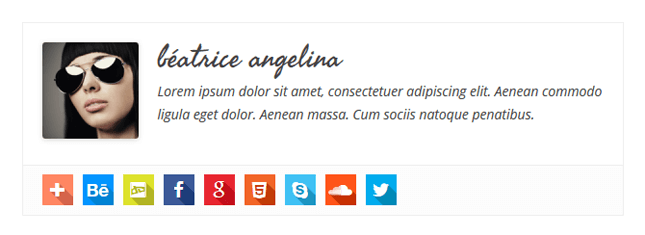
Simple Author Box, besides being able toadd it in the widget areato display author information,can also show it at the bottom of posts, as shown above, is the display effect at the end of the article.
Social icons can be added in the settings. If you choose the premium version, you can get more features.
HM – Cool Author Box
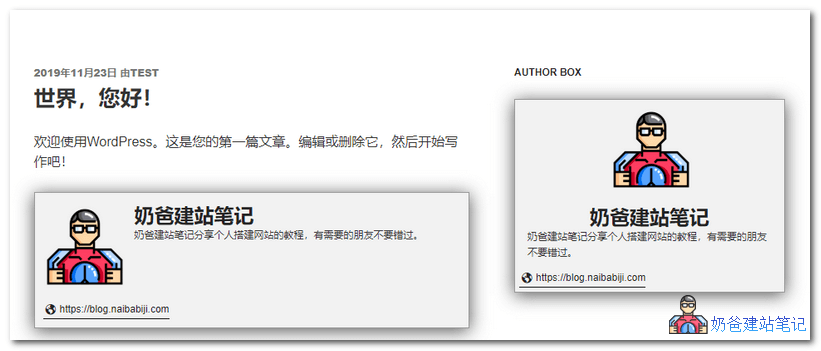 HM – Cool Author Box, similarly, besides the sidebar widget, can also display the author toolbar at the bottom or top of the article.
However, the display style that comes with this plugin may not match most themes, and you need to handle the styling with CSS.
Manually Add About Author Widget Without Plugin
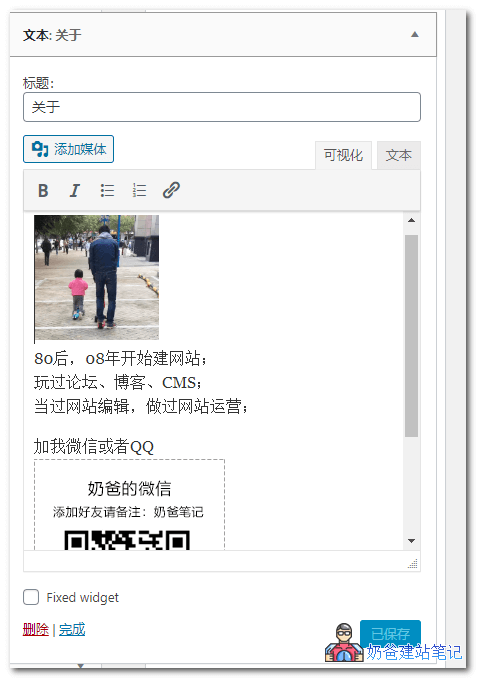
In fact, you can also create a simple About Author using WordPress's default text widget. For a more beautiful effect, design your own CSS code.
The above is the sharing of WordPress author widgets.