Home Experience & Tips Sharing Standard Post

Standard Post

How to Reset Root Password After Forgetting It on a Vultr Server (Using Debian System as an Example)

Today, after creating a snapshot of a server on Vultr and restoring it to another server, I did not save the password of the original snapshot server, so I could not log in after the snapshot restoration. Therefore, I needed to manually reset the root password. The method is as follows: Enter the server details page, click the computer button in the upper right corner, and enter the Console interface. Then click Send ... in the upper right corner.

Posted on December 16, 2021 About 1 minute read

Today, after creating a snapshot of a server on Vultr and restoring it to another server, I didn't save the password of the original snapshot server. So, after the snapshot restoration was complete, I couldn't log into the system and needed to manually reset the root password. The method is as follows:
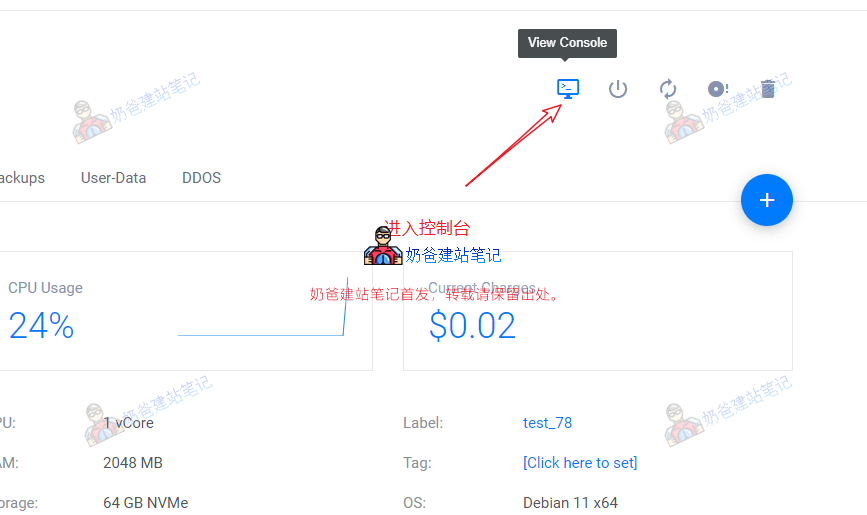
Go to the server details page, click the computer icon in the top right corner to enter the Console interface.
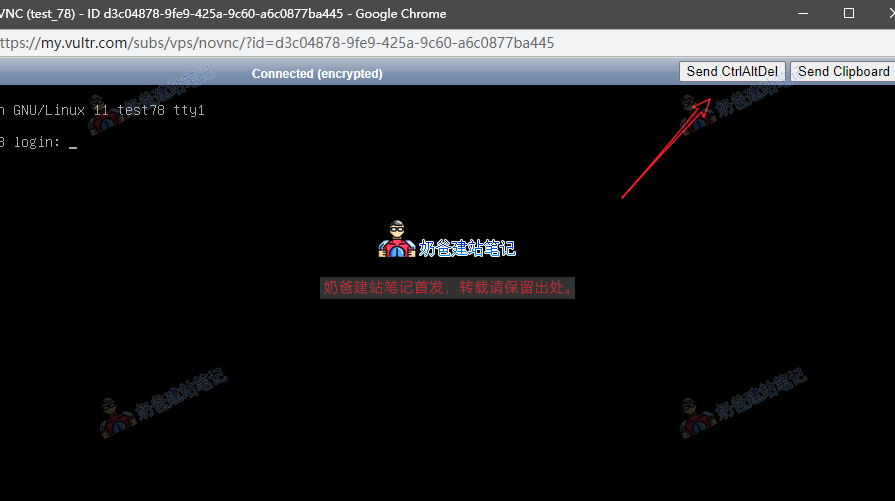
Then click the 'Send CtrlAltDel' button in the top right corner.
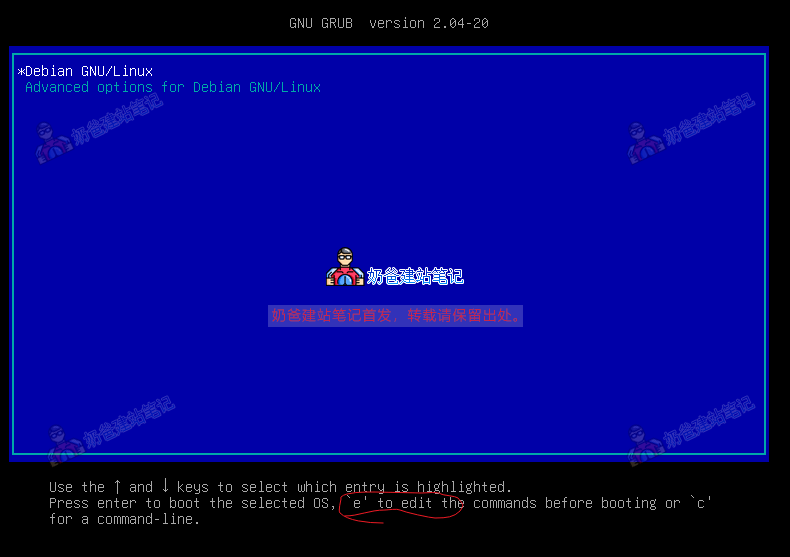
Press E on the keyboard in this interface.
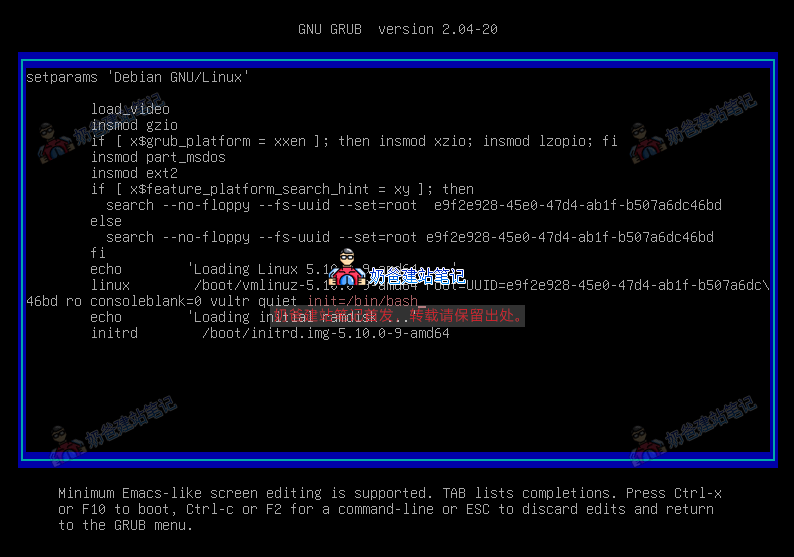
Add init=/bin/bash after quiet on the third-to-last line in the image above.

Then press CTRL + X to exit.
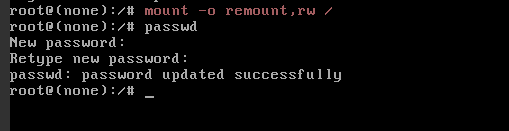
Then enter mount -o remount,rw /

Then enter passwd

Then enter the new password twice, and the modification is successful. Restart the server and you are done.

4/5 - (1 vote)
Previous Method for Auto-Filling Coupon Codes in WooCommerce Continue reading content around the same timeline. Next Astra Free Version Tutorial: Step-by-Step Guide to Building a Professional Business Website (2026 Latest Edition) View the next related tutorial or experience.

AI Website Building Assistant

🤖
Hello! I am the Naibabiji AI Assistant. How can I help you?
Quick Consultation: