
WeChat Mini Programs are becoming popular. Can we build a WeChat Mini Program using WordPress? The answer is definitely yes, and you can even use open-source WordPress Mini Program source code to build your own blog Mini Program for free.
First, a demo: scan the QR code below with WeChat to view.

Prerequisites for Building a WordPress Mini Program
A registered domain name and a WordPress website that has already been set up
If you don't have a domain name or website, you can refer to the articles Naiba wrote earlier about registering a domain name and building a website. Note thatThe website must be filed for record.
How to Choose a Domain Name for Beginners Building a Website
Steps and detailed tutorial for beginners to build a website
Enable SSL access for the entire website
You can easily add SSL to your website either in Baota Panel or using the LNMP one-click installation package. If you don't know how to configure it, you can contact Naiba for help. WeChat: vv15_zhi
Server environment
Installing the WordPress mini-program requires a minimum PHP version of 5.6, with PHP 7.2 recommended. Beginners can use Baota Panel for one-click installation.#WebsiteBuilding# Beginner-friendly Baota Panel setup tutorial
WeChat Mini Program account
Just go to https://mp.weixin.qq.com/ to register an account.
WordPress WeChat Mini Program support plugin
在WordPressSearch for 'REST API TO MiniProgram' in the backend plugins and install it.
WordPress Mini Program Plugin and Website Settings
Website permalink settings
First is the website settings. The WordPress mini-program author recommends using a pseudo-static format like /%category%/%postname%.html.
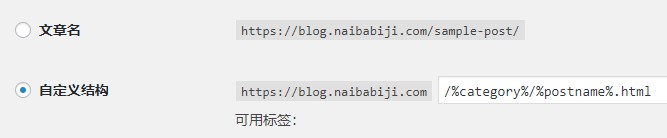
Using this permalink format enables internal link navigation within the mini-program. Other formats are not currently supported.
If your website has been live and operating for a long time, do not modify your permalink structure, as it will affect your website's SEO performance.
Mini-program plugin settings
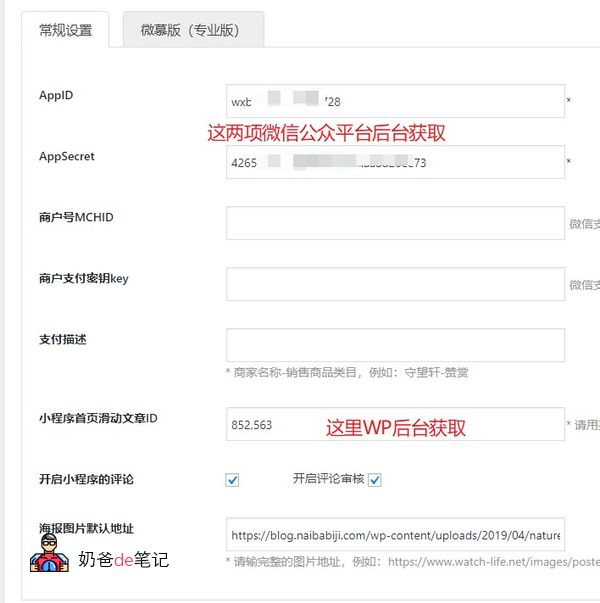
AppID and AppSecret can be obtained from the WeChat Official Platform backend, specifically at: Development - Development Settings - Developer ID
Merchant ID is only needed for enterprises; individual users cannot use it, so leave it blank.
Obtaining the homepage slider article IDs for the mini-program
The homepage slider article IDs for the mini-program are the articles you want to display in the homepage slideshow, as shown in the red box in the image below:
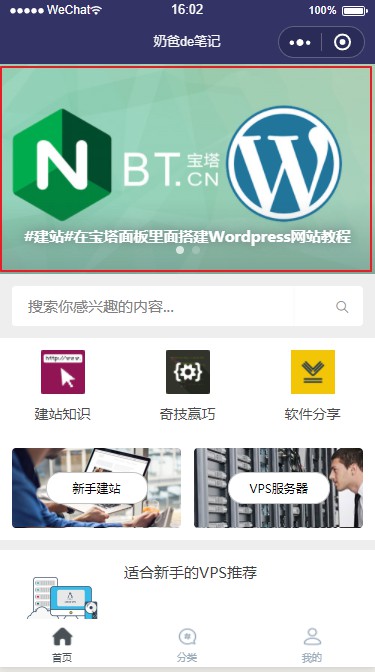
Method to obtain the article ID: In theWordPressbackend, go to Posts -> All Posts, hover your mouse over the edit button of the article title you want to use, and the number in the address bar URL is the ID.
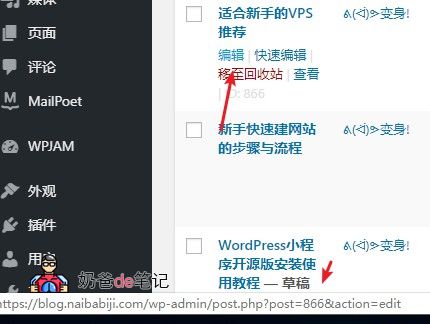
If you need to set multiple articles, separate the article IDs with English commas.
Comments and default poster address
If you need to enable comments, it is recommended to also enable the comment review function.
The default poster image is the poster image called when your published article does not have a featured image set.
If many of your articles lack featured images, it is recommended to installWordPress Random Featured Image Plugin
WeChat Official Account Backend Settings
Server domain settings
In Development -> Development Settings -> Server Domain, fill in the domain name you need to use.
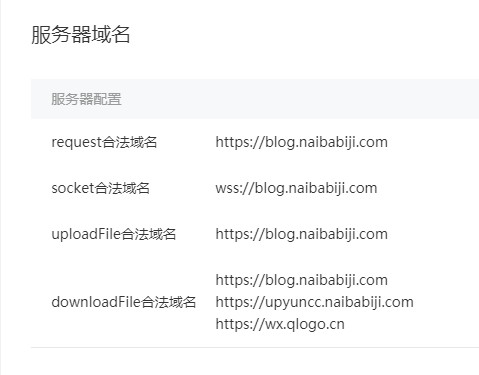
Note: For the downloadFile legal domain, please fill in your website's domain, the domain used by your website's CDN (if any), and wx.qlogo.cn.
Message template settings
In the WeChat Official Platform backend, left menu: Functions - Template Messages - Personal Template Library - Add.
Add two message templates: „Comment Reply Notification“ and „Tip Success Notification“.
Modifying the WordPress Mini Program Source Code
Import Mini Program source code
Download the WeChat Mini Program Developer Tools,Download Link, download and install.
Download the WordPress Mini Program source code,Download Linkand extract it after downloading.
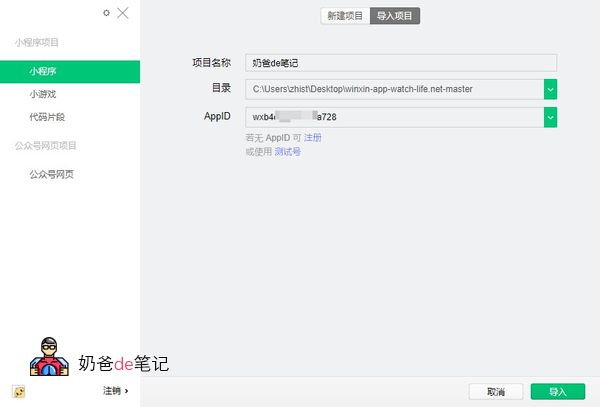
When creating a new Mini Program project, select Import Project, write your own project name, and choose the directory of the previously extracted Mini Program source code folder.
Fill in your own AppID.
Developer Tools Interface Introduction
By default, after opening the Mini Program source code, you will see the following interface.
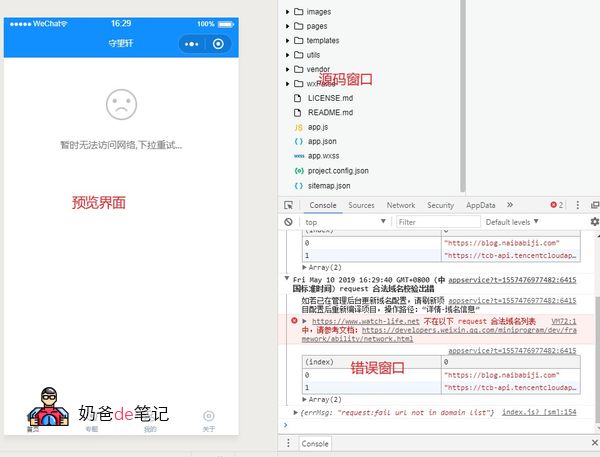
The left side is the preview interface, the upper half of the right side is the source code window, and the lower half is the error information window. Pay attention to the prompts in the error window.
Modify Mini Program Configuration Information
Open the utils-config.js file in the source code window. You need to modify the content highlighted in red in the image below.
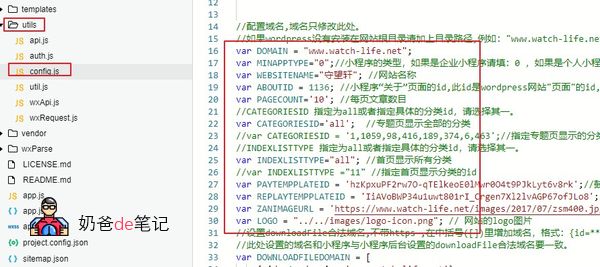
The author has commented on the purpose of each item; modify according to your own needs.
var ABOUTID = 1136;
If your website does not have an About page, you need to create one. The method is: in the WordPress backend - New - Page. Then enter your website introduction, and publish. Get the page ID (same method as getting the article ID above, but look in the pages).
Fill in the encouragement message and reply message templates with the ones you created earlier.
Set downloadFile Legal Domain
This is a key point; it needs to be consistent with what you filled in your WeChat Official Account backend. The format is as follows:
var DOWNLOADFILEDOMAIN = [
  { id: 1, domain: 'blog.naibabiji.com'},
  { id: 2, domain: 'img.wordpressjc.com' },
  { id: 3, domain: 'wx.qlogo.cn' },

];
Fill in the domain name according to your actual situation. Here I have a CDN accelerated domain name (the one with id 2).
Save the code (CTRL + S), and you should be able to see your website's Mini Program appearance on the left.
Modify Homepage Icon Navigation, Weimo, Enterprise Edition, and other information
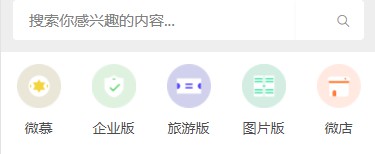
The navigation icons in the image above are also modified in the config.js file, just below the downloadFile domain code set earlier.
Modify the name by changing the value of name: ‚WeiMu‘, and modify the images by replacing the corresponding images in the local folder.
The link author has explanations in the comments. If you want to achieve the click-to-jump-to-category page like Naiba Web Development Notes Mini Program, the code is as follows:
{ id: '1', name: '建站知识', image: '../../images/websitepng.png', url: '../../pages/list/list?categoryID=141', redirecttype: 'apppage', appid: '', extraData: '' },
  { id: '2', name: '奇技赢巧', image: '../../images/jiqiao.png', url: '../../pages/list/list?categoryID=142', redirecttype: 'apppage', appid: '', extraData: '' },
  { id: '3', name: '软件分享', image: '../../images/softw.png', url: '../../pages/list/list?categoryID=140', redirecttype: 'apppage', appid: '', extraData: '' },
Note: The image in the code above is my own modification. For the method to extract the category ID, refer to the article ID extraction method mentioned earlier. The author defaults to 5 icons; I deleted two and only used 3. Modify according to your actual situation.
Modify the Ranking List and WeChat Mini Program two image navigations
The modification file is located at pages-index-index.wxml, below line 72.
Modify the name yourself. If you want the link URL to jump to a specific article, enter /pages/detail/detail?id=864 (ID is your own article ID).
The background image is in pages-index-index.wxss, lines 184 and 195, referencing images from Weibo image hosting. It is recommended to change to your own image links.
LOGO Image Modification
Directly modify the corresponding image in the local source code folder.
Modify the Mini Program title text, default is „Shouwangxuan“
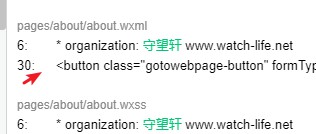
The WeChat Mini Program Developer Tools toolbar has a magnifying glass icon for search. Click it, enter „Shouwangxuan“, and modify the results that appear without an asterisk (*). Content with an asterisk will not be displayed whether modified or not, as it is commented out.
Modify Other Content
For other modifications, such as styles, you can search and modify. For more advanced modifications like template redesign, it should be difficult without basic web template creation skills. Beginners are advised not to try arbitrarily.
Finally, thanks to Shouwangxuan for open-sourcing the WordPress Mini Program. If an enterprise needs a more feature-rich WeChat Mini Program,Please click hereGet the commercial version of the WordPress mini program, with more features and a more complete interface.
If you don't understand the graphic tutorial, please checkWordPress WeChat Mini Program Setup Video Tutorial