
Both Shopify and WooCommerce can meet the needs of foreign traders to sell products online. However, Shopify is relatively more expensive than WooCommerce. This article teaches you how to use the Cart2Cart tool to migrate Shopify website data to WooCommerce website.
Related reading:Shopify vs WordPress: Which is Better for an E-commerce Platform?
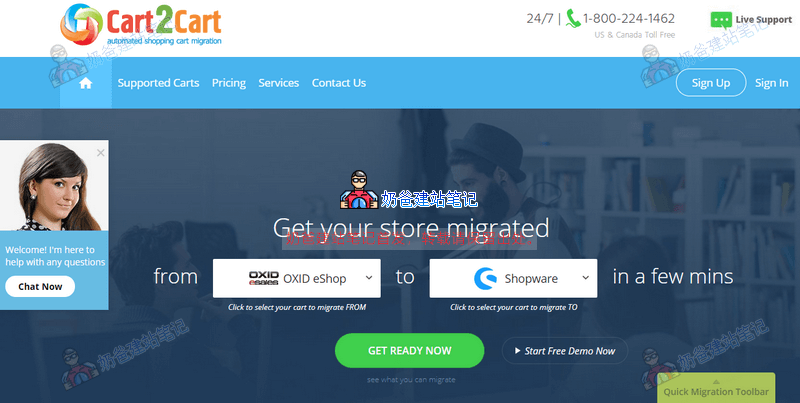
The easiest way to transfer Shopify website data to WooCommerce is by using Cart2Cart. It allows you to export products, customers, orders, and other related e-commerce entities from Shopify, preserve the relationships between them, and successfully import them into WooCommerce.
To migrate from Shopify to WooCommerce, we need to meet the following basic requirements:
- A Shopify store
- AWooCommerce store built with WordPress
- A Cart2Cart account
Click the button below to register a Cart2Cart account
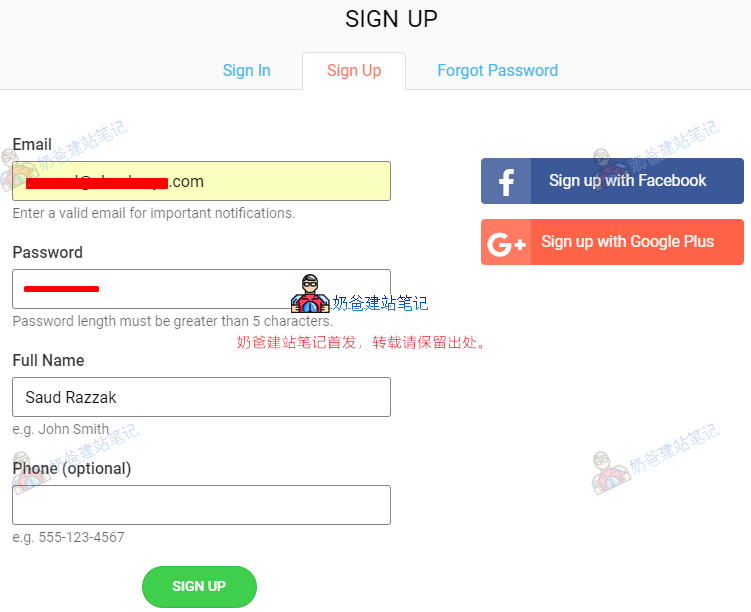
Enter your email account to register, and then the following image will appear:

After successful login/registration, you can see two migration options. The first is „Start Free Demo“, and the second is „Get Migration Package“.
For demonstration, we choose Free Demo here.
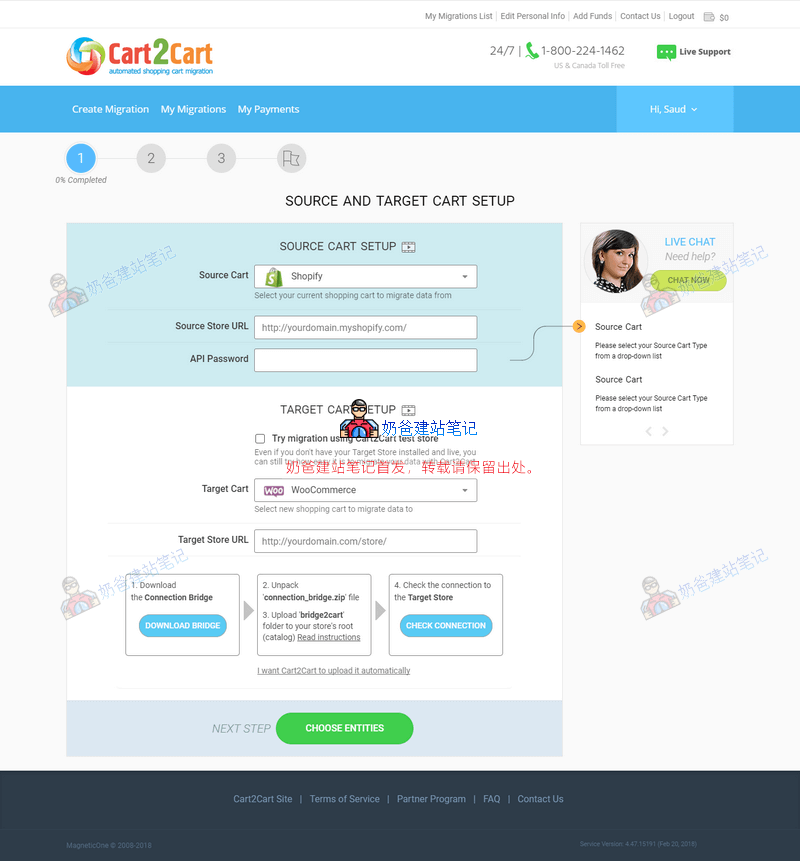
- We select Shopify as the type for Source Cart
- Source Store URL is your Shopify store address
The method to obtain the API password is as follows:
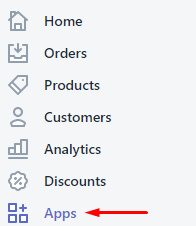
Select Apps in the Shopify Admin Dashboard

Select Manage private apps
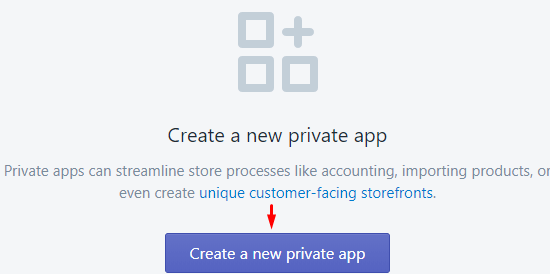
Click the 'Create a new private app' button.
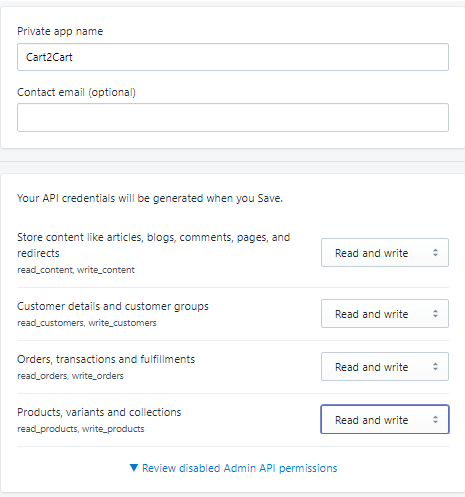
Enter a name and then save.
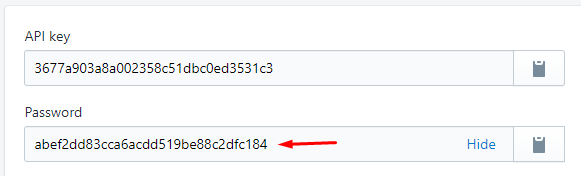
Copy the Password field.
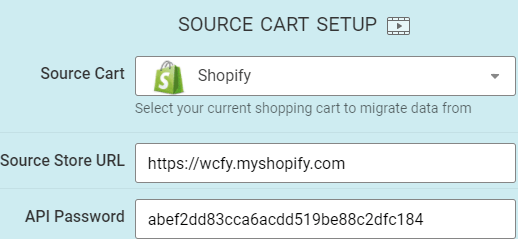
Paste the API password.
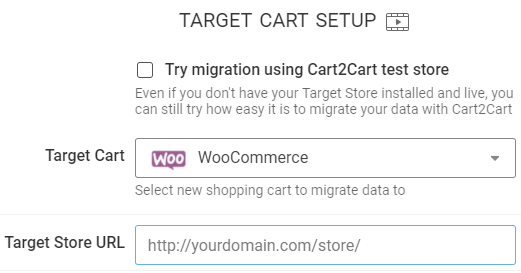
Then return to the Cart2Cart account, select WooCommerce for Target Cart, and choose the store address built with WordPress for Target Store URL.
If you haven't built a WooCommerce store with WordPress yet, please refer to the tutorial below to set one up first.
Download the Bridge plugin and upload it to the root directory of the WooCommerce website.

Then you will see the interface as shown in the image below:
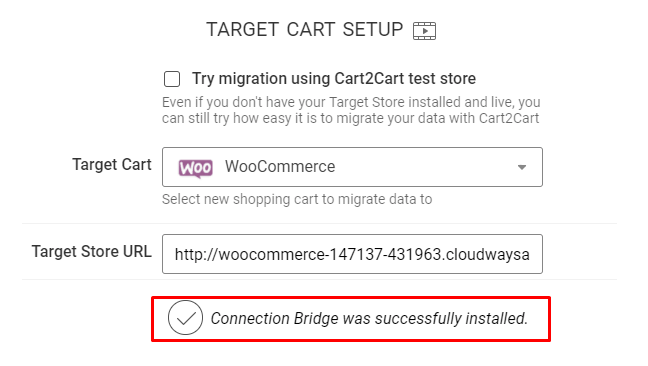
After the connection is successfully prompted, you can select the items you want to transfer. Choose entities
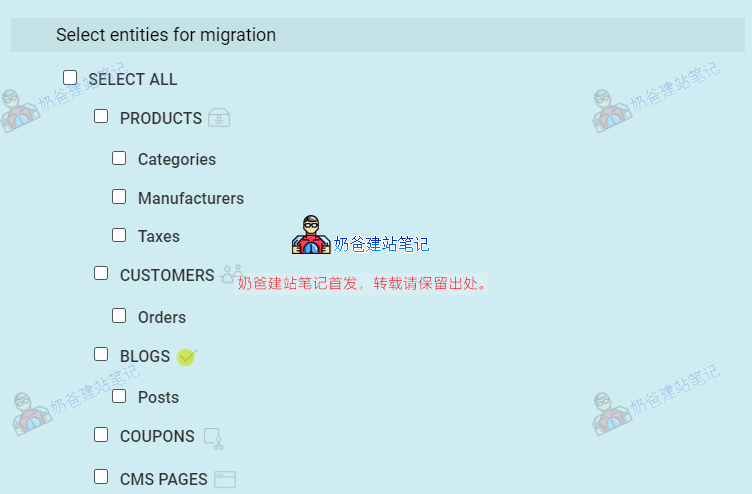
Select the items to transfer based on your actual situation.
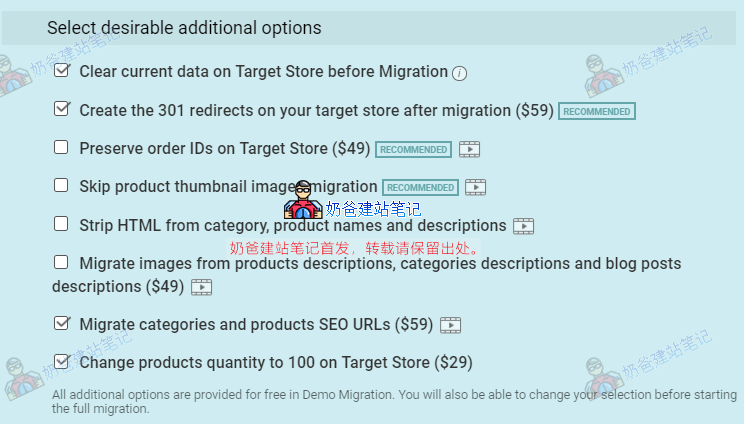
Then click the START FREE DEMO button to begin the migration demo.

Next, you can see the specific migration process.
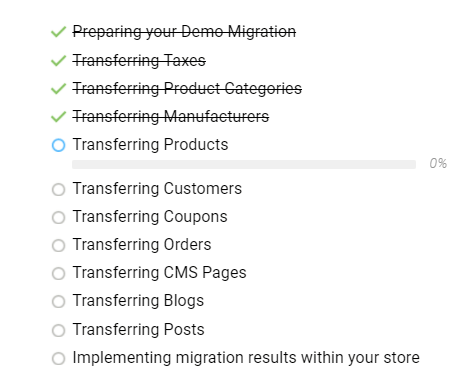
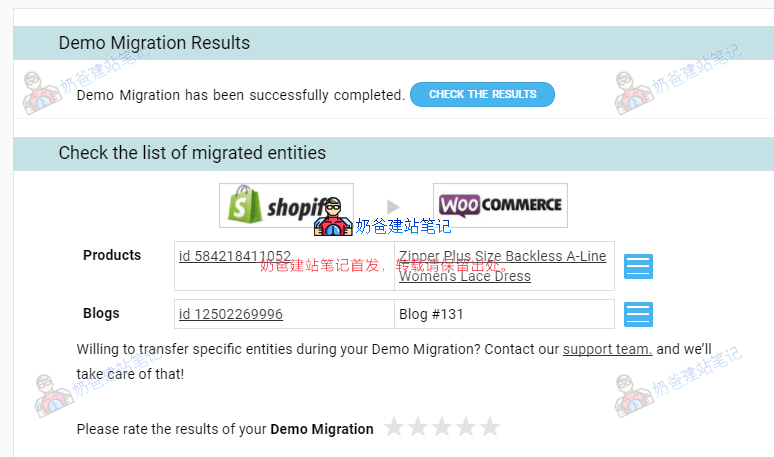
You will receive a notification once the migration is complete.
Visit your WooCommerce website to see the results.
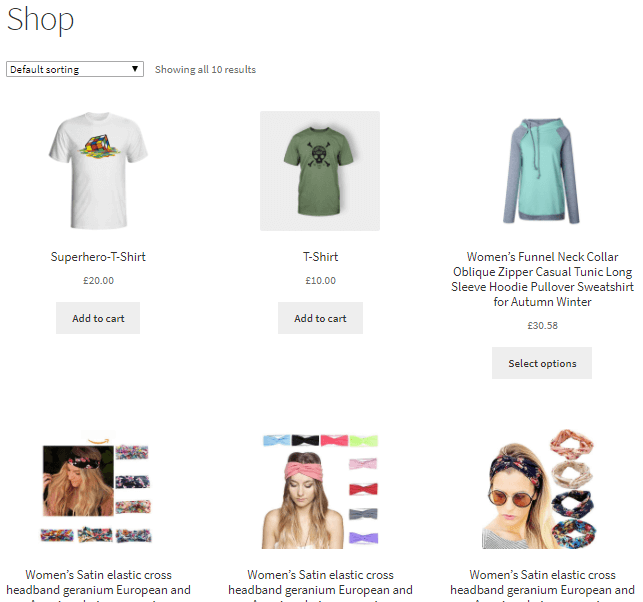
At this point, the work of migrating from Shopify to a WooCommerce store is complete.
Related Articles:
Can WordPress be used for an e-commerce website? What are its advantages over Shopify?