
In the previously published article „WordPress Article Insert Download Button_Custom Button Style', some readers might find it too troublesome to manually insert code into each article. Therefore, here is a recommendation for aWordPress editor enhancementPowerful Plugin: AddQuicktag
Note: AddQuicktag does not support the Gutenberg editor, so it is only recommended for users of the Classic Editor.
If you need to use the Classic Editor, see this article:How to Disable the New WordPress Gutenberg Editor
What can AddQuicktag do for you?
What can AddQuicktag do for you?
Simply put, it can help youimprove the efficiency of writing and composing articles, for example.
Yesterday, I shared the code for inserting buttons in WP articles. If you want to insert a button yourself, you need to switch to text mode and manually enter the code or copy and paste it. But with AddQuicktag, you just need to click the button to insert it, as shown below:
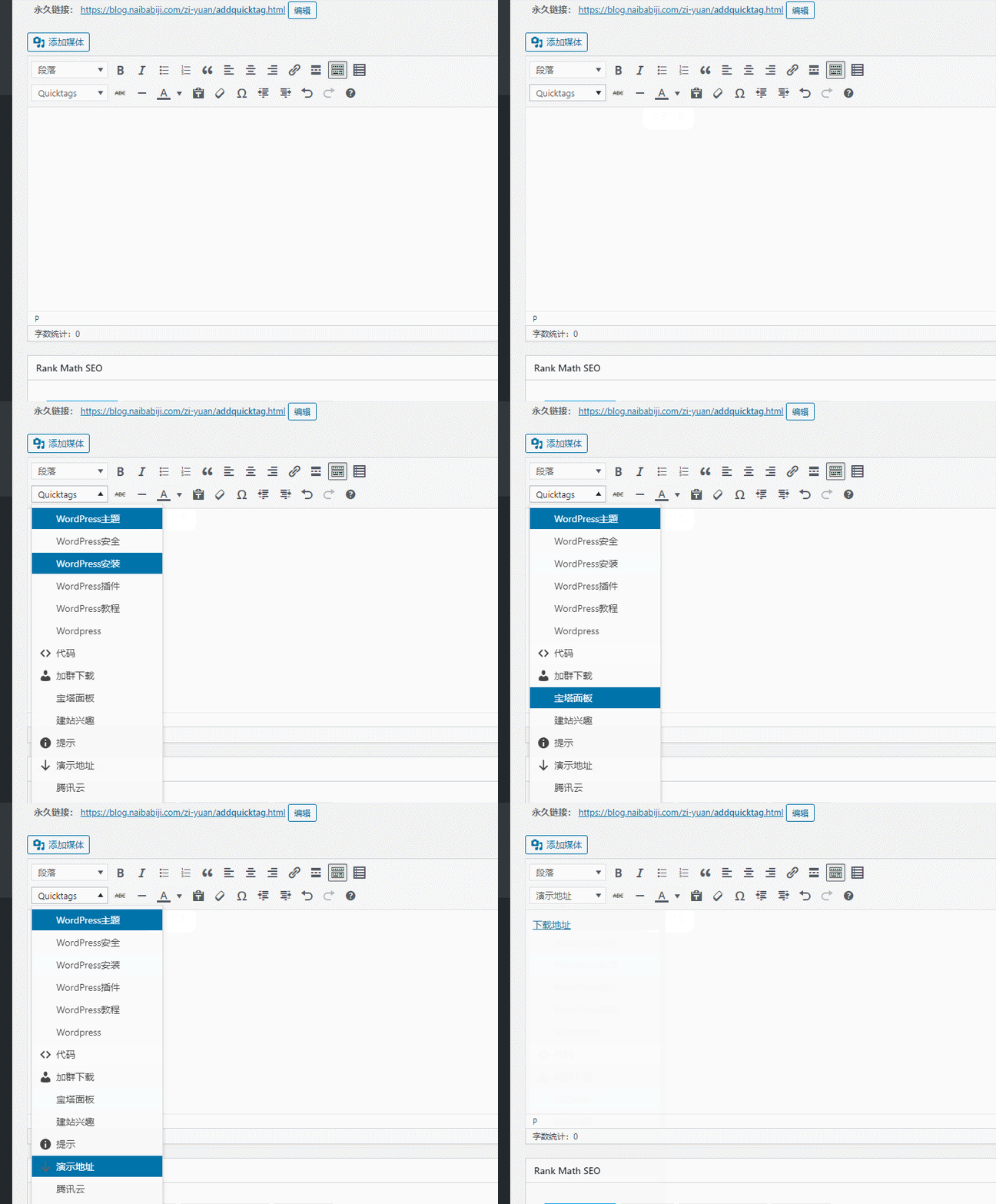 After inserting the code like this, modify the link address yourself. After publishing the article, the frontend will display the download button with CSS styling, saving a lot of time.
With AddQuicktag, when writing articles, inserting internal link addresses becomes very convenient. For example, writing aWordPress Themes, clicking a button inserts both the WordPress theme and the link, which is much faster than typing.
How to use AddQuicktag?
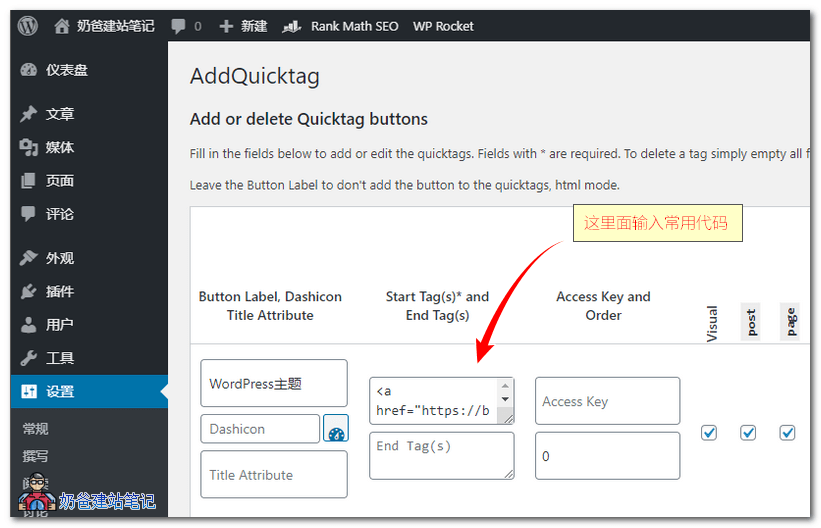
Using AddQuicktag is also very simple. After installing and activating the plugin, click onSettings–AddQuicktag, you will see the image below.
In the image below, the columns Button Label, Dashicon, and Title Attribute are for filling in the button name, icon, and title attribute respectively. Usually, you only need to fill in a title.
The Start Tag(s)* and End Tag(s) column is for filling in the start and end tags of your code. You can write them separately or together in one field.
The others do not need to be filled unless necessary. Just check the Visual, post, and page options behind, and then you will see the added button when publishing articles.
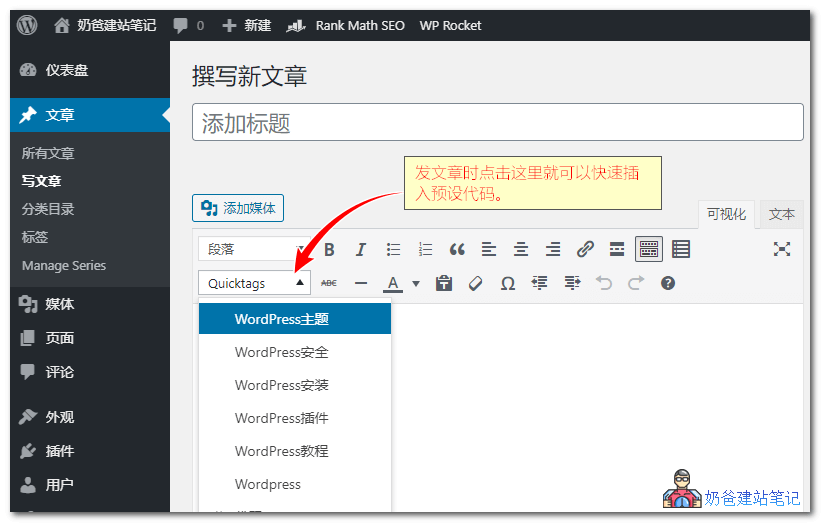
When writing an article, simply click this Quicktags button to insert the code you added, which is very useful for publishing articles.
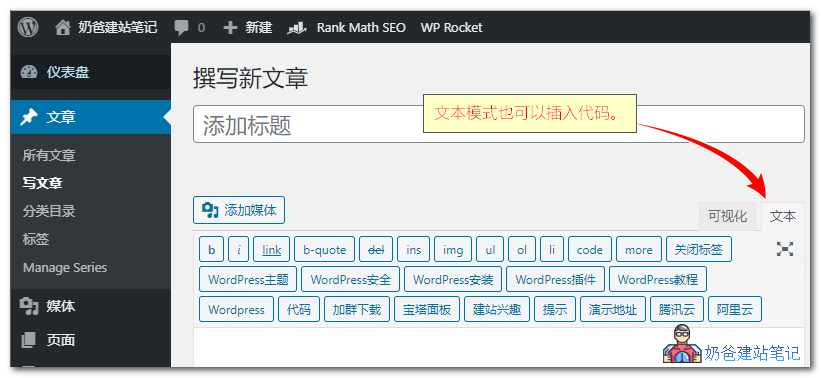
For code that needs editing or modification, switch to text mode, insert it, and then edit the code.
So, have you learned another trick?

AddQuicktag Download Address
You can search for AddQuicktag to install it from the plugins section in the WP admin dashboard, or download it from the link below and upload it for installation.