
Recently, after upgrading to WordPress 5.3, many people's websites have encountered issues, such asarticle publishing failure, images prompting post-processing failure,image file size cannot exceed 2560 pixels, etc.This article by Naiba introduceshow to solve the problem of WordPress 5.3 image upload post-processing failure by reducing images to 2500 pixels and re-uploading.
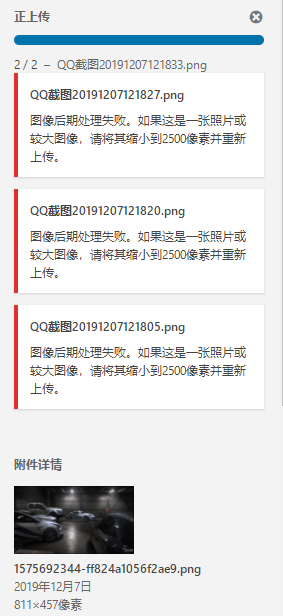
Error Message
If you encounter either of the following prompts after upgrading to WordPress 5.3, then the method in this article can help you solve it.
The Chinese prompt is:Image post-processing failed. If this is a photo or a large image, please reduce it to 2500 pixels and re-upload.
The English prompt is:Post-processing of the image failed. If this is a photo or a large image, please scale it down to 2500 pixels and upload it again.
Solution
Method 1: Clear Website Cache
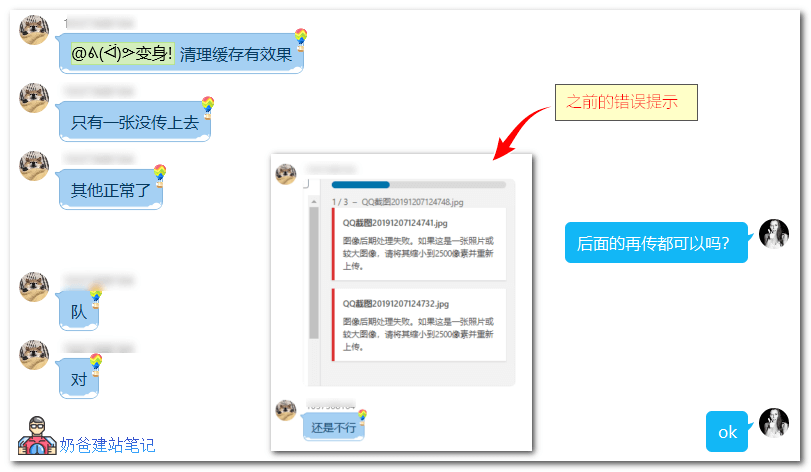
If you have installed caching plugins, such aswp rocket, WP SUPER CACHE, W3 Total Cache and other caching plugins, clear the cache.
If you also have Memcached or Redis cache, clear them as well.
Then test again.
Method 2: Upload Images via Media Library
This method is just a workaround for uploading and does not actually solve the problem.
First, upload the image through the media library in the backend, then insert the image into the article.
Method 3: Disable the 2560px Image Cropping Feature
You can install the Disable „BIG Image” Threshold plugin or insert the following code into the theme“s functions file.
//超过2560px的图片不剪裁
add_filter( 'big_image_size_threshold', '__return_false' );
For detailed methods, please refer to:Solution for WordPress Forced Image Cropping to 2560 Pixels
Method 4: Downgrade to an Older Version of WordPress
Many believe it is a compatibility issue between WordPress 5.3 and some server components, which can be resolved by downgrading to an older version. If you wish to downgrade, you can use the following method:
Other potentially useful methods (untested):
1. Enable PHP's mbstring extension
For cPanel virtual hosts, enter the cPanel panel, find PHP version under Software, then check mbstring.
2. For Nginx, try increasing the value of the client_max_body_size directive.
3. For Apache, try modifying the MaxRequestLen parameter in /etc/apache2/mods-enabled/fcgid.conf.
<IfModule mod_fcgid.c>
AddHandler fcgid-script .fcgi
FcgidConnectTimeout 20
MaxRequestLen 10485760
</ IfModule>
4. Use a third-party image storage service
5. Upgrade the server. Some people's servers experience CPU spikes up to 100% when uploading images (if you useBaota Panel, you can see this from the Baota Panel backend).