
This article teaches you how to build your own WordPress website on Alibaba Cloud Exclusive Virtual Host.
If you still don't know how to build a website using a virtual host, then after reading this tutorial, you will. (This article was written purely because some netizens asked, but Naiba does not recommend buying Alibaba Cloud virtual host to build a website. Cloud servers and virtual hosts are the same price, there is no need to get Alibaba Cloud virtual host.)
The virtual host configuration used in the tutorial is:
- Basic Edition
- Personal Beginner Website Building
- CPU/Memory 1 Core 1GB
- Database 500MB
- Web Space 5GB
- Peak Bandwidth 5Mbps
- 每月高速流量 200GB
独享虚机新用户享3年付3.5折优惠!
在搭建网站前,除了虚拟主机你还需要购买一个域名。如果没有,你需要先注册一个,可以直接在阿里云购买。
1. Check Virtual Host Information
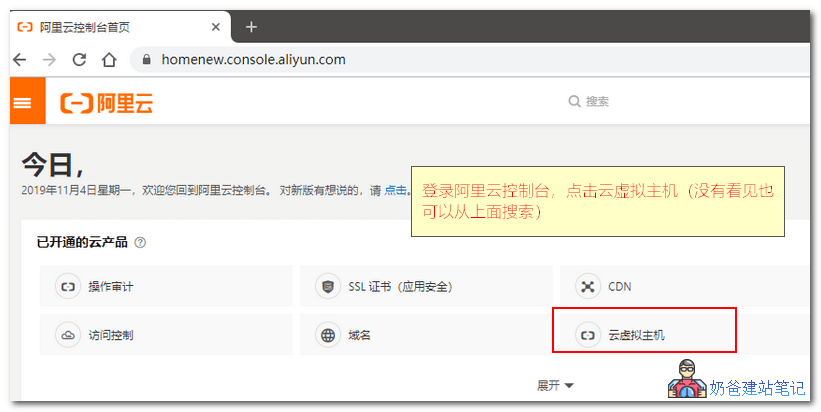
首先,登录阿里云控制面板,找到云虚拟主机,如下图:
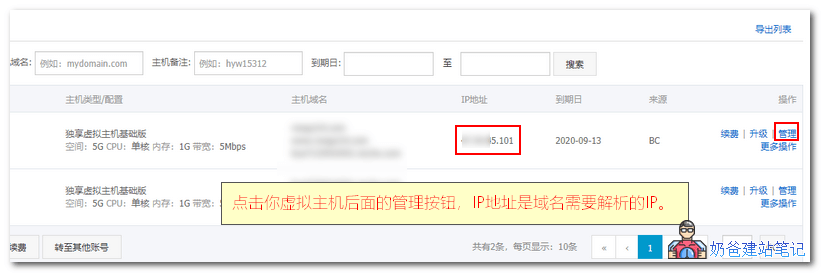
Find the virtual host you purchased and click the Manage button next to it.
Among them, the IP address of the virtual host is theDomain Name ResolutionIP address that needs to be added.
Reference tutorial article:Tutorial on DNS resolution for domains registered on Alibaba Cloud
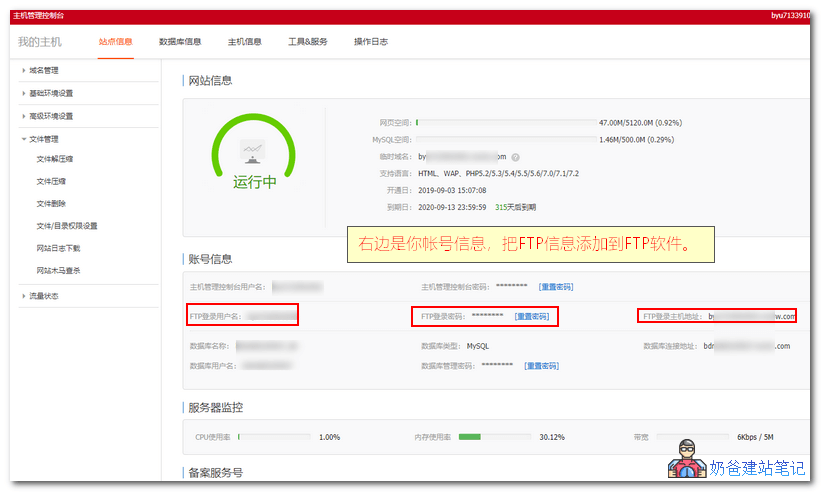
进入虚拟主机详情界面,可以看到你虚拟主机的帐号信息。
2. Upload WP Installation Package to Virtual Host
Next, we use FTP software to upload the WordPress installation package to the virtual host.
The software needed is Xsftp 6, which can be downloaded here:#WebsiteBuilding# Free VPS Management Software Xshell6/Xftp6 Chinese Version
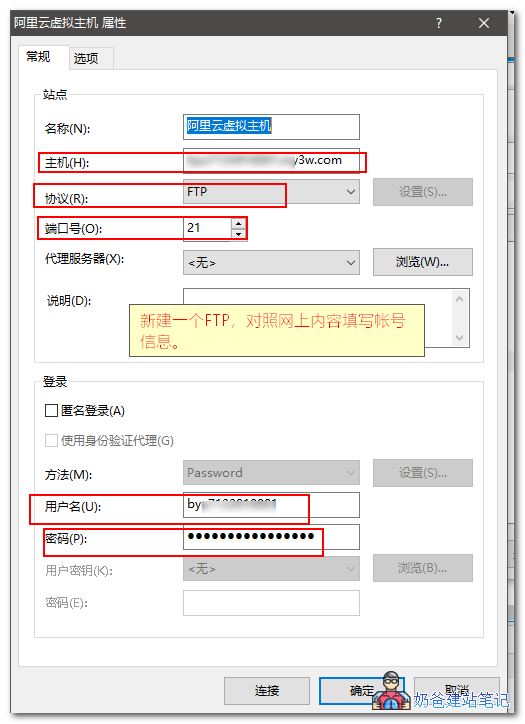
打开Xftp6软件后,点击新建按钮,出现下图的界面,跟着阿里云虚拟主机管理界面的帐号信息填写,然后连接。
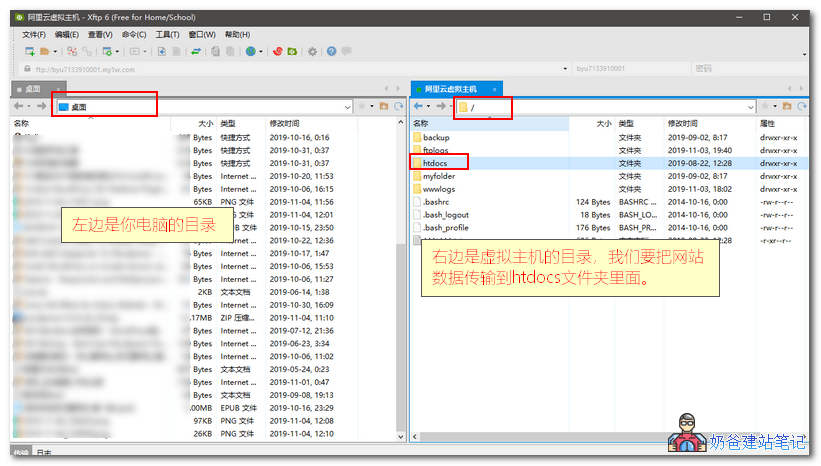
FTP连接成功后是下面图片这样的界面,左边窗口是你电脑上的文件夹位置,右边是虚拟主机的文件夹位置,我们双击进入htdocs文件夹。
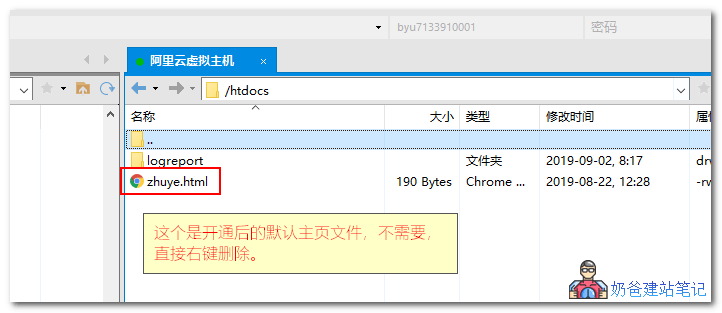
After entering the htdocs folder, delete the default homepage file zhuye.html. The logreport folder is a system file and cannot be deleted.
 Download the latest version of the WordPress installation package from the internet. The download address is as follows:
WordPress New Version Chinese Simplified Local Download
After downloading, we need to recompress an archive without the wordpress directory. Refer to the steps in the image below for specific operations:
Tip: Compressing into a zip archive for upload is faster and has a lower error rate than uploading the entire folder.
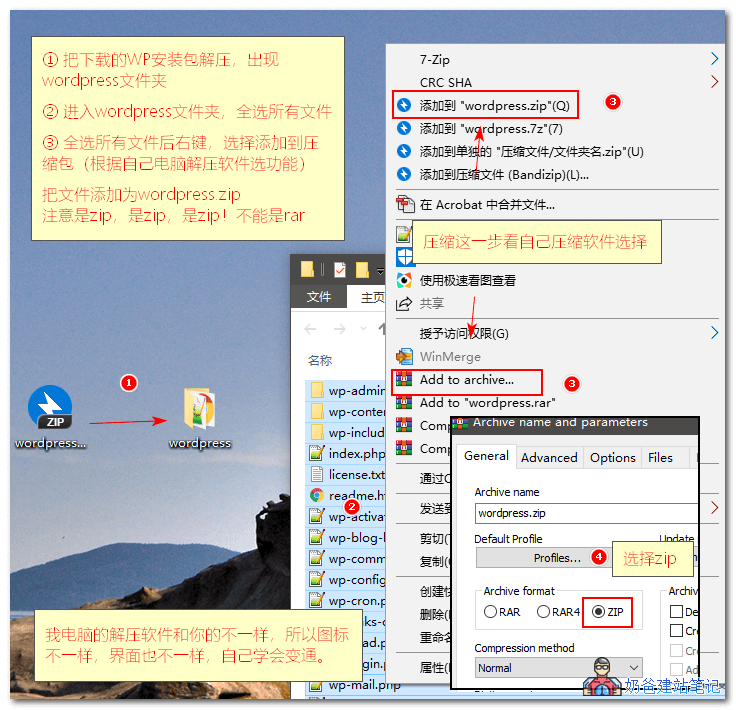
① First, extract the downloaded WordPress archive. After extraction, you will get a folder named wordpress;
②、Navigate to the WordPress folder, select all files and folders, then right-click and choose 'Add to archive';
③、If your right-click menu directly has an option to compress as .zip format, simply select 'Compress to zip file'. If there is no option to compress as zip, choose 'Add to archive', then select the zip format in the interface and compress.
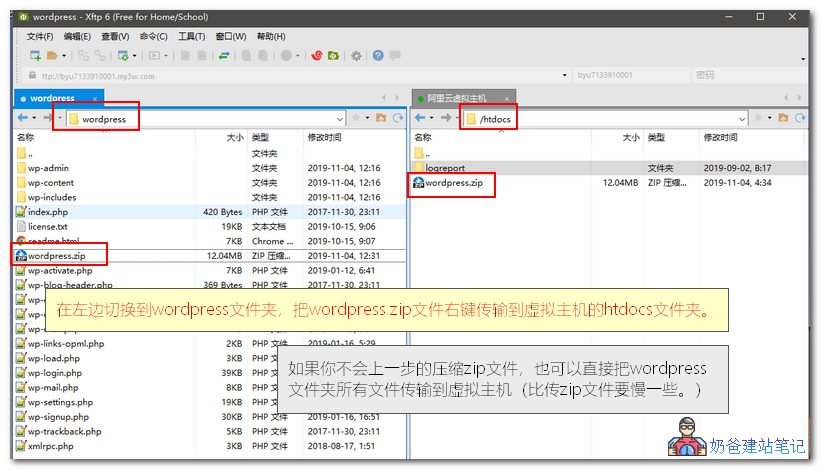
After compression is complete, in the Xftp software interface, upload wordpress.zip to the htdocs folder of the virtual host, as shown in the figure below:
After the compressed file is uploaded, return to the Alibaba Cloud Virtual Host control panel, click 'File Management' - 'File Extraction' in the left navigation bar, as shown in the figure below:
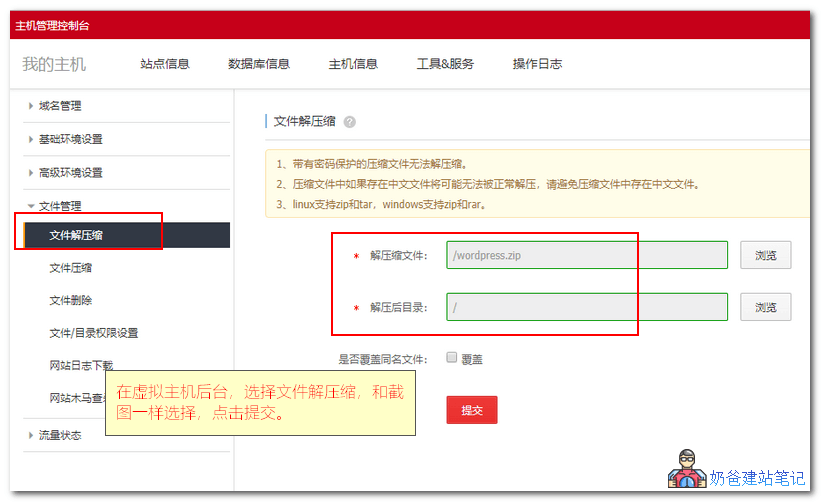
Click Browse for the decompression file, then select wordpress.zip
Click Browse for the decompression directory, then select the root directory.
Click the Submit button, after decompression, you can install WordPress through the website.
3. Install WordPress Website Program
Open your bound domain name, and you will see the WordPress installation interface, as shown in the figure below:
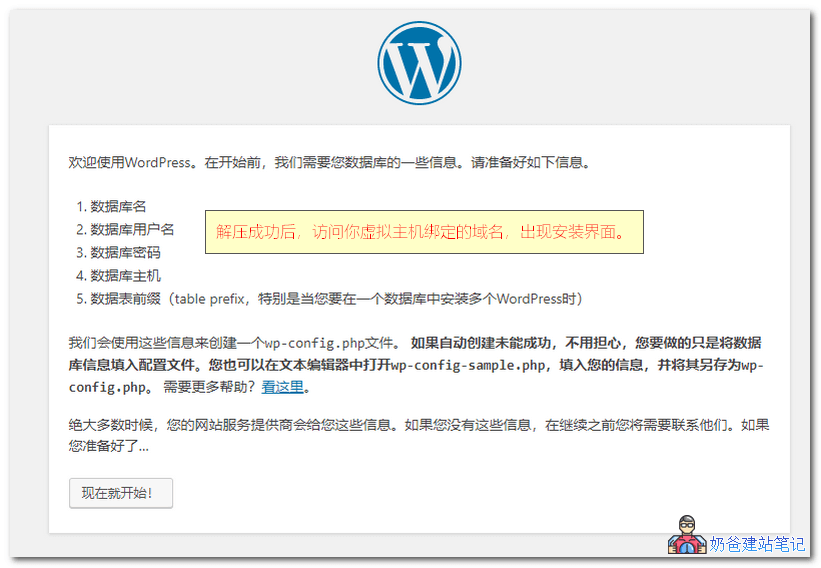
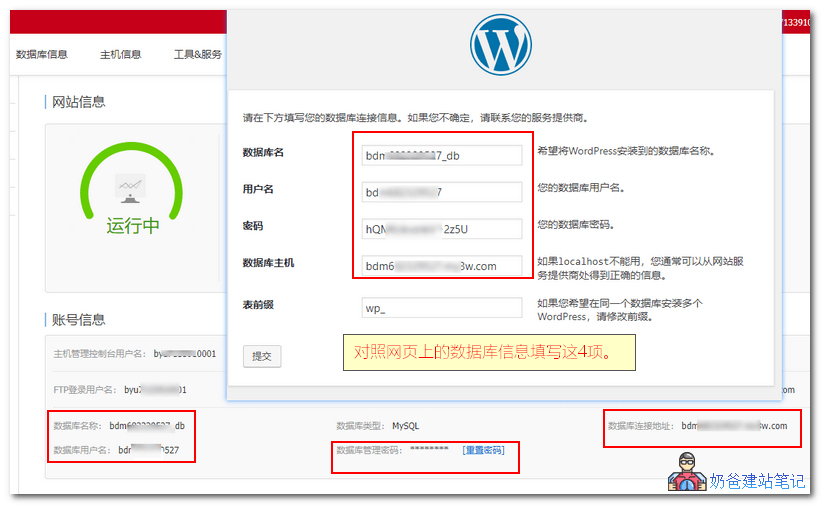
During installation, you need to fill in the database information. Refer to the figure below and fill in according to the information provided in the Alibaba Cloud Virtual Host management panel, then proceed with the installation.
Soon, your WordPress website will be installed.
4. Related Articles
After installing WordPress, you may also want to check out these articles.
- WordPress Beginner Tutorial 1: Admin Dashboard Settings
- WordPress Beginner Tutorial 2: How to Publish a Post
- WordPress Website Settings Optimization Tutorial
- WordPress Theme Installation Tutorial and Download Address Recommendations
- How to Make Money with a Website? Five Ways for Personal Websites to Earn Money