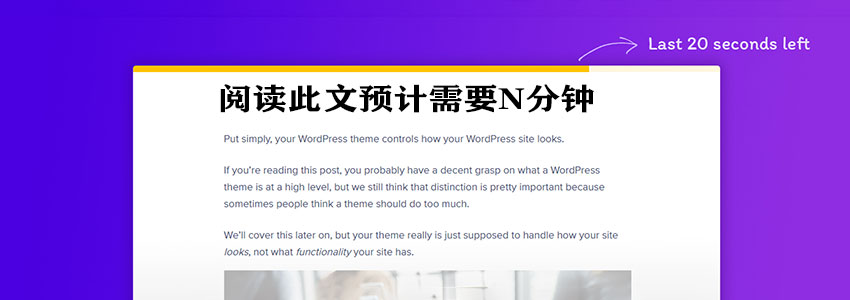
When building a website, providing an estimated reading time and adding a reading progress bar for articles can help readers better manage their time. In this article, Naiba recommends a plugin for adding estimated reading time and progress bars to WordPress.
Plugin Introduction
When users visit your website and view long articles, they often see too much text and worry that it will waste too much of their time. Adding an estimated reading time and reading progress bar to articles can better encourage users to read the article.
Read Meter is such a plugin.WordPress Plugin。
The Read Meter plugin displays the estimated reading time of blog posts along with a progress bar. It estimates reading time based on the amount of text and images in the post.
You can set in the settings which pages display the estimated reading time, such as posts, pages, and archive pages.
You can also use the shortcode [read_meter] to control the display position.
Plugin Usage
1. Download the plugin via the download button at the end of this article and upload it.
2. After installation, activate read-meter.
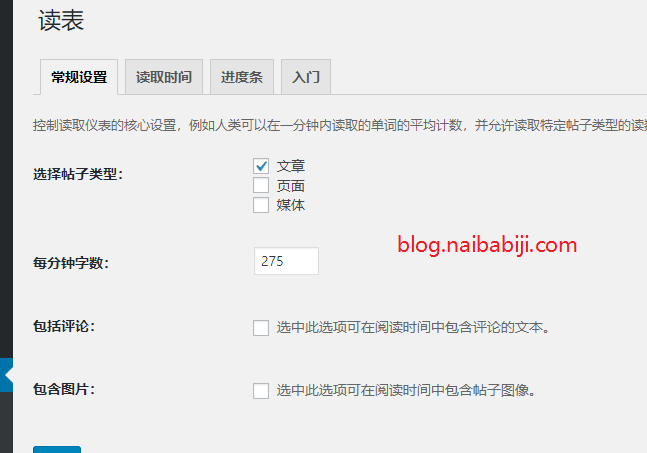
3. Go to read-meter settings, select the post types where you want to display reading time, and set the words per minute, whether to include comments and images.
4. If you need to set the estimated time display, switch to the Read Time interface.
Read Time Position: Select the position to display the estimated reading time: before content, above title, below title, or not displayed.
Display effect as follows:
 5. If you need to use the reading progress bar, switch to Progress Bar.
Select the Display Position, style, color, etc. After saving, you can view the effect on the front end.
Plugin Download
This is a new plugin. You can install it directly by searching for "Read Meter – Reading Time & Progress Bar" in the WordPress Admin Dashboard. If you cannot find it, please download and install it via the link below.