Why does your WordPress website feel slow? Don't blame the server first; it might be too many plugins
When many novice webmasters encounter a slow WordPress website, their first reaction is usually: Is the server too poor? Is the VPS configuration insufficient? Is the theme not good?
These are all possible, but when Naiba actually helps others check websites, almostwhen novices build their own websitesthe more common problem is:Too many plugins installed, too many enabled, not updated for a long time, eventually dragging the website slower and slower.
This article won't go into complex performance principles. It mainly uses screenshots of plugin counts from several websites to explain one question to novice webmasters:Does a WordPress website really get slower with more plugins? How should we judge?
1. A slow WordPress website is not necessarily a server issue
If your website loads slowly, the backend operations are sluggish, and publishing articles takes a long time, it could indeed be related to the server. For example, low VPS configuration, unstable network lines, insufficient PHP resources, slow database response, etc., can all affect WordPress speed.
But before actually switching servers, I suggest you first check a problem that is more easily overlooked:How many plugins are actually enabled on your website?
Many WordPress beginners, when starting to build a site, will keep installing various plugins:
- Install an SEO plugin;
- Install a caching plugin;
- Install a security plugin;
- Install a statistics plugin;
- Install an image compression plugin;
- Install a page builder;
- Install another page builder extension;
- Then install a form, popup, sharing, table of contents, translation, and backup plugin each.
As a result, over time, the website backend starts to slow down, and the frontend pages become heavier.
If you haven't done a systematic speed test yet, you can first read what Naiba wrote earlier:Using GTmetrix to Optimize WordPress Loading Speedto understand where your website is slow.
2. Does more plugins necessarily mean a slower website?
The answer is not absolute.
WordPress plugins do not necessarily slow down the site just because there are many installed; rather, the more plugins enabled, the heavier the plugins, the poorer the plugin quality, and the more conflicts between plugins, the higher the probability of the site slowing down.
For example, some plugins are just backend tools and do not load many resources on the frontend; some plugins, although only one, load a large amount of CSS, JS, database queries, and third-party requests on every page, and such plugins have a significant impact on speed.
Therefore, to judge the impact of plugins on speed, you should not only look at „how many plugins are installed in total,“ but also:
- How many plugins are enabled;
- Whether these plugins load resources on every page;
- Whether the plugins have not been updated for a long time;
- Whether plugin functions are duplicated;
- Whether plugins frequently query the database;
- Whether plugins call external APIs or third-party scripts.
3. Let's look at a comparison of plugin counts on 3 websites
The following 3 images show the plugin counts of different WordPress websites. This is mainly to help you build an intuitive understanding: not all WordPress websites need to install dozens of plugins.

Site A's problem is typical: many plugins in total, a high number active, and 31 plugins with updates available. For an average WordPress site, this situation warrants caution.
35 active plugins means many plugins may be loading simultaneously during site operation. More importantly, 31 plugins have updates available, indicating that site maintenance may not be timely. Plugins left outdated for long periods not only affect speed but also pose compatibility and security risks.

Site B is better than Site A, but 28 active plugins is still high for a typical showcase site. Especially if these plugins include heavy ones like page builders, multilingual, membership, e-commerce, statistics, security, firewall, cache, etc., it's no wonder the site is slow.
Of course, if this is a feature-rich site like an e-commerce, membership system, or online course platform, having 20-30 plugins may not be unreasonable. But if it's just a corporate website, blog, or foreign trade showcase site, this number is worth trimming.
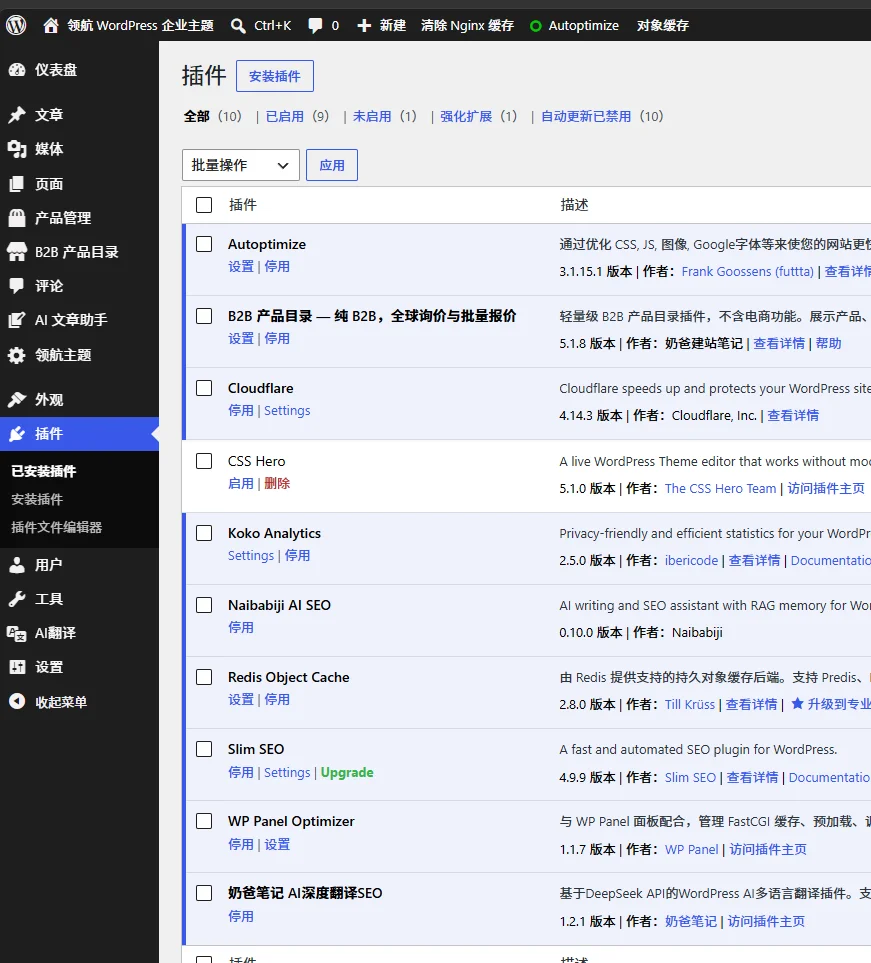
Now look at the Linghang Theme Demo Site: 10 plugins total, but only 9 active, and 0 plugins with updates available. This state is closer to the maintenance method Naiba recommends for novice webmasters:Only enable truly needed plugins and keep them updated promptly.
Plugins enabled on the Linghang Theme Demo Site include:
- Autoptimize
- B2B Product Catalog — Pure B2B, Global Inquiry & Bulk Quotation
- Cloudflare
- Koko Analytics
- Naibabiji AI SEO
- Redis Object Cache
- Slim SEO
- WP Panel Optimizer
- Naiba Notes AI Deep Translation SEO
You„ll notice that while the Linghang Theme Demo Site does have some plugins enabled, each one serves a clear purpose, not installed just to “look feature-rich„.
Here, Naiba will briefly break it down to help everyone understand: how to determine whether a plugin is worth enabling on a WordPress site.
- Autoptimize:Mainly used for frontend resource optimization, such as minifying, merging, or deferring CSS, JS, etc. It participates in frontend page optimization but aims to reduce page load burden. If misconfigured, it may cause compatibility issues with themes or other plugins, so avoid stacking multiple optimization plugins; keep one main tool.
- Cloudflare:Primarily used with Cloudflare CDN to facilitate site integration with Cloudflare services, such as caching, CDN, security rules, etc. It is usually not the core reason for site slowdowns; rather, it assists in site acceleration and security protection.
- Redis Object Cache:Used for object caching to reduce the load of repeated database queries by WordPress. It helps both frontend and backend, especially for sites with many posts and dynamic queries. However, the server must have Redis properly installed and configured; otherwise, enabling the plugin alone is pointless.
- WP Panel Optimizer:This is an optimization plugin used with the WP Panel control panel, mainly for clearing Nginx FastCGI cache and other panel-related caches. It is not a plugin that adds fancy features to the site, but rather solves cache flushing and maintenance issues. For sites using the WP Panel environment, this type of plugin is an operational aid.
- Koko Analytics:This is a lightweight site statistics plugin used to view site visit data. Statistics plugins generally generate a small amount of tracking activity on the frontend, so strictly speaking, they are not completely „zero impact“. However, compared to loading third-party analytics scripts, lightweight statistics plugins usually have a smaller impact. For ordinary blogs or corporate sites, as long as traffic is not extremely high, this impact is generally acceptable.
- Slim SEO:Used for basic SEO settings, such as titles, descriptions, sitemaps, etc. SEO plugins typically output some SEO-related tags on the frontend, but this output is very lightweight. Note that you should not install multiple SEO plugins, as this may cause duplicate output of titles, descriptions, and sitemaps.
- Naibabiji AI SEO:Mainly used in conjunction with content SEO optimization. When paired with statistical tools like Koko Analytics, it helps webmasters observe content performance and improve article direction. Its value lies not in front-end display functions, but in assisting back-end content optimization. The plugin itself does not load resources on the front end, so it usually does not have a significant impact on page speed.
- B2B Product Catalog — Pure B2B, Global Inquiry and Bulk Quotation:This is a lightweight B2B product management plugin, suitable for foreign trade display websites that do not require a full e-commerce shopping cart function. Many B2B enterprise websites do not actually need WooCommerce's complex features like shopping cart, checkout, orders, coupons, and payments; they only need to display products and collect inquiries. This plugin comes with an inquiry system, so there is no need to install an additional form plugin for product inquiries. From this perspective, it is lighter than directly using WooCommerce and better meets the needs of pure display B2B websites.
- Naiba Notes AI Deep Translation SEO:This is a multilingual content-related plugin that mainly uses AI translation to generate content in different languages. Compared to some all-in-one multilingual plugins, its design direction is more lightweight. However, it should be noted that multilingualism itself increases the amount of website content and database load. Especially for websites with many articles, products, and pages, if all languages are placed in the same WordPress site, the database, back-end management, and content maintenance pressure will increase later. Therefore, Naiba does not recommend blindly piling multiple languages into one site for websites with large content volumes. Whether to enable multilingualism should be determined based on the site's scale and maintenance capabilities.
Therefore, whether a plugin should be enabled cannot be judged solely by „the number of plugins,“ but by whether it has clear value.
Plugins like cache optimization, object cache, SEO, statistics, product display, and translation SEO, if they indeed serve the current needs of the website and do not have obvious overlapping functions, are considered relatively reasonable plugin configurations. Conversely, if you can no longer explain the purpose of a plugin, or if it overlaps with other plugins in functionality, you should consider deactivating or deleting it.
Naiba's recommended approach is:You can install plugins, but every enabled plugin must have a reason; you can have fewer plugins, but you should not sacrifice necessary website functions just to have fewer.What really affects WordPress speed is not just the number of plugins, but whether the plugins are bloated, redundant, unmaintained for a long time, and whether they load a large number of resources on the front end or frequently query the database.
4. Will deactivated plugins slow down the website?
Generally,deactivated plugins do not directly affect front-end page loading speed like activated plugins do,because they do not participate in the normal operation of WordPress.
But this does not mean that deactivated plugins can be left on the website indefinitely.
Having too many deactivated plugins at least causes several problems:
- The back-end plugin list becomes messy, increasing maintenance costs;
- You may not be able to distinguish which plugins are still needed and which have long been abandoned;
- If the plugin files have security vulnerabilities, they may still increase potential risks;
- Migrating or backing up the website will increase file size;
- It is easier to misjudge when troubleshooting later.
So Naiba's suggestion is simple:Delete plugins you are sure you don't need; don't just deactivate them.
5. Why do too many enabled plugins make WordPress slow?
WordPress plugins essentially add functionality to the website. The more functions, the more the website usually needs to process.
Common impacts include:
1. Loading more CSS and JS files
Many plugins load their own style files and script files on the front-end pages. For example, form plugins, popup plugins, carousel plugins, and page builder plugins may all add extra resources to the page.
If each plugin loads several files, the number of page requests will increase, and the webpage will naturally become slower.
2. Increase database queries
Some plugins frequently read the database, such as statistics plugins, related posts plugins, page view plugins, membership plugins, filter plugins, etc.
If there are too many database queries, both the frontend page loading speed and backend operation speed will be affected.
To further identify which plugin is slowing down database queries, you can refer to the tutorial written by Naiba:Query Monitor Usage Tutorial, this tool is suitable for finding slow queries and abnormal loading.
3. Duplicate plugin functionality
Many webmasters install multiple plugins with similar functions at the same time, for example:
- Installing multiple SEO plugins at the same time;
- Installing multiple caching optimization plugins at the same time;
- Installing multiple security plugins at the same time;
- Installing multiple image optimization plugins at the same time;
- The theme already has built-in functionality, but an additional plugin is installed to achieve the same function.
Duplicate functionality not only wastes resources but may also cause conflicts. For example, two caching plugins modifying page caching rules at the same time, or two SEO plugins outputting titles and descriptions simultaneously, can lead to strange issues.
4. Plugins calling external resources
Some plugins load third-party fonts, statistics scripts, maps, chat tools, ad scripts, CAPTCHA services, etc.
If these external resources are slow to access, users will experience slowdowns when opening your website. This problem is especially noticeable when accessing overseas resources from within China.
5. Plugins not updated for a long time
Not updating plugins may not immediately slow down the website, but it can lead to compatibility, security, and performance issues.
For example, if WordPress core, PHP version, and theme are updated, but a plugin is not maintained for a long time, it may cause backend errors, frontend loading anomalies, cache invalidation, etc.
6. How many plugins should raise concern?
There is no absolute standard, but for most ordinary websites, Naiba can provide a reference:
| Website Type | Recommended number of active plugins | Description |
|---|---|---|
| Personal Blog | About 5-15 | Basic plugins like SEO, cache, statistics, editing aids, backup, etc. |
| Corporate Website | About 8-20 | May need plugins for forms, SEO, cache, security, product display, etc. |
| Foreign Trade B2B Display Website | About 10-25 | Product catalogs, inquiry forms, multilingual or translation SEO may increase the number of plugins |
| WooCommerce Store | 20 or more is also common | The store functionality is complex; focus on plugin quality and server configuration |
Note: This table is for reference only, not a hard standard. What really affects speed is not the sheer number, but plugin quality, loading method, server configuration, and cache optimization.
If your WordPress is just a regular blog but has over 30 plugins enabled, you should seriously clean it up.
7. How to Clean Up WordPress Plugins?
Don't delete all plugins at once. Follow the steps below.
1. Back Up Your Website First
Before deleting plugins, back up your website files and database. Especially for production sites, don't delete directly on the live site.
2. List the Purpose of Each Plugin
Open the WordPress admin plugin list and ask each plugin a question:Is this plugin still serving a purpose?
If you can't tell what it does, it's likely a candidate for cleanup.
3. Delete Unused and Disabled Plugins
For plugins that are disabled and confirmed unused, delete them directly. Don't leave them lingering in the site files.
4. Merge Plugins with Duplicate Functions
If you have multiple SEO plugins, cache plugins, or security plugins installed, keep only one main plugin.
For example, one SEO plugin is usually enough, and don't blindly stack cache optimization plugins. You can first refer toThe Easiest Ways to Improve WordPress Site Speed and Performanceto get the basics optimized.
5. Test the Site After Deactivating
Some plugins may seem useless but could be depended on by themes, shortcodes, or page templates. After deactivating each plugin, briefly check if the frontend pages, form submissions, and backend editing work properly.
6. Run a Speed Test After Cleanup
After cleaning up plugins, re-test the site speed to see if frontend loading time, number of page requests, and backend response have improved.
If the site is still slow after cleaning plugins, consider other issues like server configuration, PHP version, database, cache, CDN, image optimization, etc. For more systematic optimization methods, continue readingSlow Website? 10 WordPress Optimization Methods to Speed It Up。
8. Which Plugins Should Be Kept?
For a typical WordPress site, it's not about having fewer plugins, but keeping truly valuable ones.
Generally, you can keep these types:
- SEO Plugin:Used to set title, description, sitemap, etc.
- Cache optimization plugin:Used to improve page loading speed;
- Security plugin:Used for login protection, brute force prevention, etc.
- Backup plugin:Used for regular website backups;
- Form plugin:Used for inquiries, messages, contact forms;
- Image optimization plugin:Used for compressing images or lazy loading;
- Business function plugins:For example, product catalogs, memberships, e-commerce, multilingual, and other truly needed features.
If your website has many images, you can also learn aboutimage lazy loading to optimize page speed, this type of optimization is quite helpful for image-heavy websites. You can also useImage to WebP tool for compression and SEO-friendly image naming. Naiba has seen many beginners upload original images directly, each possibly several megabytes. In such cases, the website will definitely be slow even without any plugins.
9. When the website is slow, don't just focus on the server
Many people, when encountering a slow WordPress site, immediately think of upgrading to a more expensive server. The server is certainly important, especially when the audience is in China and the website is hosted on an overseas server, where the line quality and stability affect the experience. In this case, you can ask a friend abroad to test the actual loading speed.
But if the website itself has messy plugins, large images, no caching, and many database queries, even if you upgrade from a virtual host to a better-performing VPS, it may only temporarily alleviate the issue without fundamentally solving the problem.
A more reasonable troubleshooting sequence is:
- First, check the number and quality of plugins;
- Then, check image sizes and page resources;
- Then, enable caching, object caching, or CDN;
- Then, use tools to detect slow queries and loading bottlenecks;
- Finally, determine whether to upgrade the VPS or change the server.
This troubleshooting approach is more reliable than immediately switching servers.
10. Summary: WordPress plugins should be sufficient, not excessive
WordPress is great largely due to its rich plugin ecosystem. But plugins are a double-edged sword: used well, they can quickly extend website functionality; used poorly, they can make the website increasingly slow.
For novice webmasters, Naiba suggests remembering these few sentences:
- Don't install a plugin immediately upon seeing a recommendation;
- If a problem can be solved without a plugin, don't install an extra one;
- Try to keep only one plugin for similar functions;
- Don't just deactivate unused plugins; delete them if confirmed unnecessary;
- Update plugins promptly; don't let updates pile up for long;
- If your site is slow, first check plugins, then consider if the server is insufficient.
If your website already has 20-30 plugins enabled and you can't clearly state the purpose of each, it's time to do a plugin cleanup. Many WordPress sites aren't really underpowered servers; they are gradually slowed down by a bunch of unnecessary plugins.
You can also comment below: How many plugins does your website currently have enabled? Naiba can later write a more specific WordPress plugin cleanup checklist.