
Previously, we shared#Web Development# LNMP One-Click Package Installation Graphic & Video Tutorial, this article shares how to use LNMP to add a virtual host.
LNMP Virtual Host Addition Illustrated Tutorial
After connecting to the VPS via SSH, enter the command to add a virtual host: <code>lnmp vhost add</code>, then press Enter. The following prompt will appear:
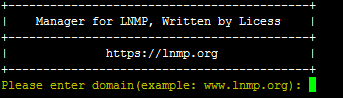
Enter the domain name you wish to bind here, then press Enter.

This asks if you need to bind any other domain names.
What does this mean?For example, if you need both www.naibabiji.com and naibabiji.com to access the same website, then you need to enter it here. Otherwise, just press Enter to skip.

This sets the website directory. Just press Enter, and the website directory will be set to the domain folder under <code>/home/wwwroot</code>.

Whether to enable pseudo-static, enter y and press Enter.

Enter the rewrite rules here. For installing WordPress, simply enter <code>wordpress</code>. If WordPress is installed in a subdirectory, enter <code>wp2</code>.

Enable website logs? Enter 'y' to enable, 'n' to disable.

If enabled, you need to enter the name for the log file. The default log directory is: <code>/home/wwwlogs/</code>. The default filename is: <code>domain.log</code>.

Create a database? Select 'y' for yes. If you want to create it manually or use a database from elsewhere, choose 'n'.

Enter the database password, then enter the database name and password to create, and press Enter.

Then enter y to generate an SSL certificate, and enter 2 to create a free Let's Encrypt certificate. If you have your own certificate, enter 1 and then enter the corresponding certificate path.
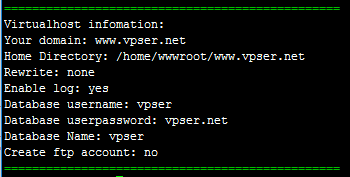
When the interface shown above appears, it proves the virtual host has been successfully added.
LNMP Virtual Host Addition Video Tutorial
If you have further questions, you can add WeChat or join the group for discussion.