To express the deep condolences of the people of all ethnic groups in the country to the martyrs who sacrificed their lives in the fight against the COVID-19 pandemic and the deceased compatriots, the State Council decided to hold a national mourning event on April 4, 2020. During this period, flags were flown at half-mast at home and at Chinese embassies and consulates abroad, and public entertainment activities were suspended nationwide. Starting at 10:00 on April 4, the entire nation observed a three-minute silence, and cars, trains, ships sounded their horns, and air raid sirens rang.
As website owners, we can also remove the color from the website, turning it entirely gray, to pay tribute to the heroes and express our condolences.
The method to turn a WordPress website gray is very simple. Click the Customize button on the website.
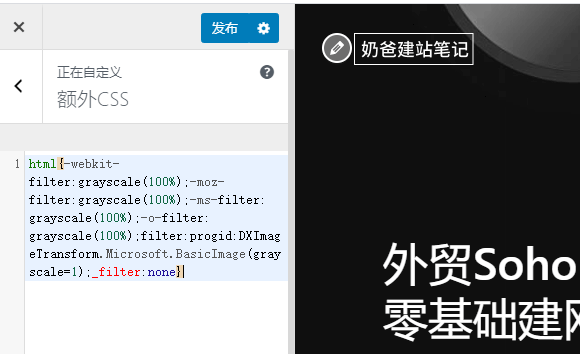
Then, in the Additional CSS section, paste the following code. Publish it to see the effect. To revert, simply delete the code.
html{-webkit-filter:grayscale(100%);-moz-filter:grayscale(100%);-ms-filter: grayscale(100%);-o-filter: grayscale(100%);filter:progid:DXImageTransform.Microsoft.BasicImage(grayscale=1);_filter:none}