Just now, a netizen asked Naiba to pay for „help fixing WordPress admin login page refresh and redirect issues.“ Initially, I thought it was an HTTPS redirect issue, but when I logged into the server backend, it wasn„t a redirect problem at all—the website was directlysuspended by SiteGround! The reason? The database exceeded the plan quota. A warning email was sent in March, but this friend didn't take it seriously. It dragged on until June, and after being overdue for 3 months, it was directly restricted.
If you encounter a similar situation, don't panic. Today, Naiba will use this real case to teach you step by step how to solve the SiteGround database quota exceeded problem, and also how to avoid stepping into the same pit in the future.
Step 1: First, handle the warning in SiteGround to unblock the database
Log in to your SiteGround backend. You will usually see a warning email at the top. On the email prompt page, find the„We have limited your MySQL database(s)“prompt, and click the button below to process the extension (usually temporarily restoring access). This way, you can operate the database first.
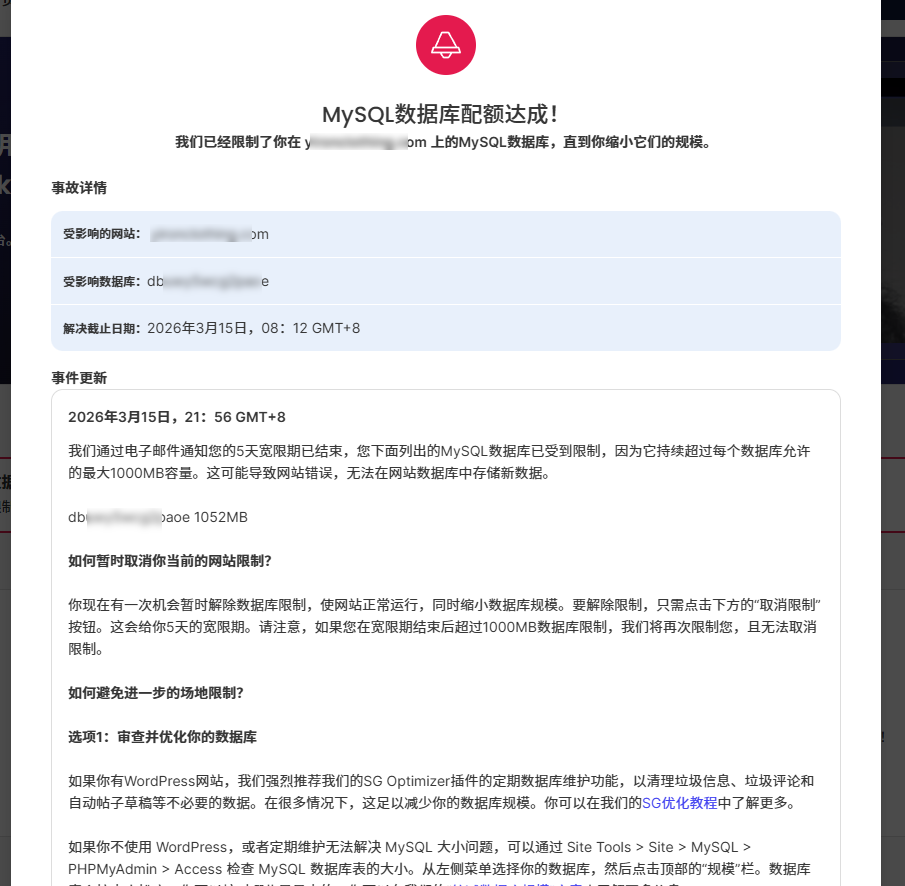
(Image: SiteGround warning popup for limiting MySQL database)
Step 2: Enter the database via phpMyAdmin to check usage
In the SiteGround panel, findphpMyAdmin, and enter your WordPress database. Click the „Database“ tab to see the size of all tables. When I checked for that netizen, wow, a table calledstatisticsoccupied nearly 1000MB, directly exhausting the plan quota!
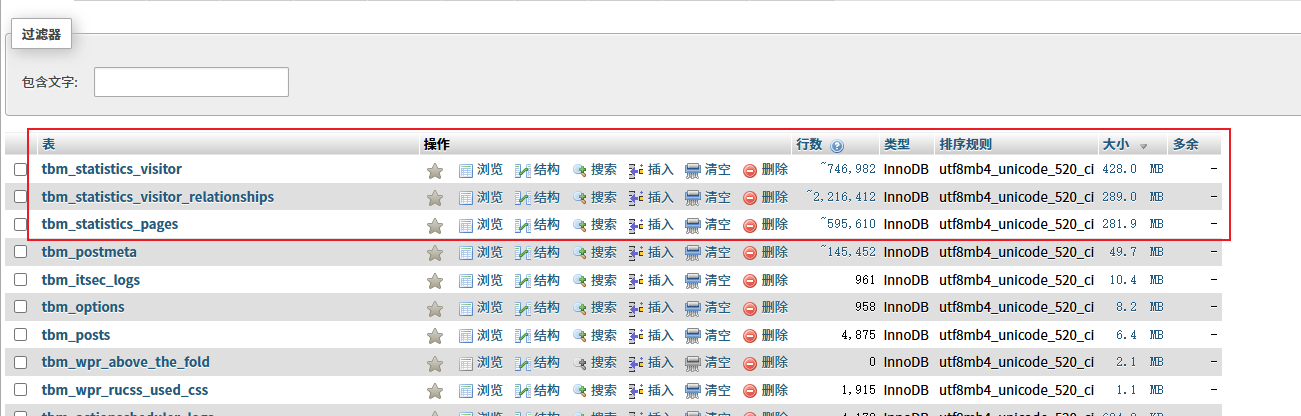
You can execute a cleanup command in the SQL tab of phpMyAdmin, or directly use the „Empty“ operation to delete the data in this table—but note that emptying will lose all historical statistics. If unsure, back up first.
Step 3: Find the „culprit“ — statistics plugin log settings
Why is thestatisticstable so large? Based on my experience, this netizen must have installed a statistics plugin likeWP Statistics, and did not set up automatic log cleanup. Enter the website backend (now that the database is smaller, the backend is accessible), and find the WP Statistics settings page. Sure enough, the log retention time was set to„Keep Forever“! From the site's creation until now, all visit records were stored. No wonder the database exploded.
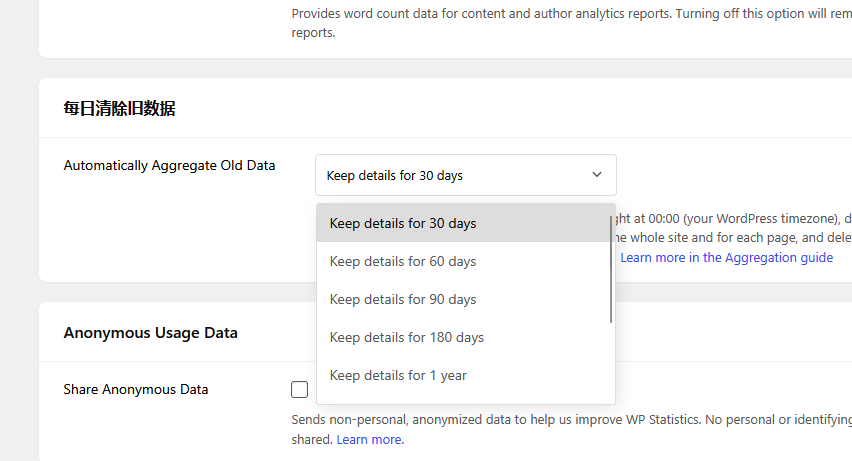
Quickly change the log retention time to 30 days or 60 days. This way, the system will automatically clean up expired records, and the database won't expand indefinitely.
Step 4: Long-term solution — switch to external statistics like Google Analytics
If you also use local statistics plugins (such as WP Statistics, Jetpack Stats), they all store data in your WordPress database. ForSiteGround's CPU resourcesand database space, this is a significant burden. A better approach is to directly installGoogle Analytics code(via a plugin likeSite Kitor manually), with data stored on Google's servers, completely unaffected by your site's database.
However, if you care about privacy or want to keep some lightweight local statistics, you can keep WP Statistics, but be sure to set up a cleanup schedule.
Step 5: Check for other „database hogs“
Besides statistics plugins, there are several other common reasons that can cause the database to fill up:
- Post Revisions: Each time you save a draft, a revision record is generated, and accumulated revisions take up a lot of space. You can use a plugin like „WP-Optimize“ to clean them up in one click.
- Cache Tables: Some caching plugins or form plugins also generate a lot of data; remember to clean them regularly.
- Spam Comments: Spam comments filtered by Akismet, if not deleted, will also fill up the database.
You can sort tables by size in phpMyAdmin and prioritize cleaning those large tables.
Summary
Summary of solutions for exceeding the database limit:
- Extend First: Click the button on the SiteGround warning page to restore access.
- Clean the Database: Use phpMyAdmin to find large tables and clean them.
- Adjust Plugin Settings: Change the retention period for statistics logs to 30-60 days.
- Long-term Solution: Switch to external statistics like Google Analytics to reduce database load.
- Prevention First: Regularly use optimization plugins to clean up revisions, spam comments, etc.
If you are also a SiteGround user, it is recommended to check the database usage in the backend every month, so you don't have to rush when it gets limited.
Additionally, if you want to upgrade your SiteGround hosting to a higher configuration server, you can refer toVPS Recommendationsthe article on switching to VPS.
Frequently Asked Questions (FAQ)
Q: Will cleaning database tables cause loss of important data?
A: If you clean statistics log tables (such asstatisticsprefix of the table), only visit records will be lost, without affecting articles, users, or settings. If unsure, export a backup first before proceeding.
Q: What is the database limit for my SiteGround plan?
A: The GrowBig plan typically offers 1GB of database space, but in practice, warnings may be triggered at a few hundred MB. For details, log in to the SiteGround dashboard and check the „Resource Usage“ page.