
Building a WebsiteAfter building a website, we may encounter situations that require comparisons, such as product comparisons. Usually, tables are used to create comparison lists. However, the WordPress default editor does not support directly generating tables, so we can use the WP Table Builder table generator to accomplish this.
WP Table Builder Introduction
WP Table Builder is a drag-and-drop table builder plugin for WordPress. Creating responsive tables with WP Table Builder is very easy.
WP Table Builder is great for creating comparison tables, pricing tables, list tables, and more.
The builder now comes with 5 elements. You can add the following elements to the table:
- Text
- Image
- List
- Button
- Star Rating
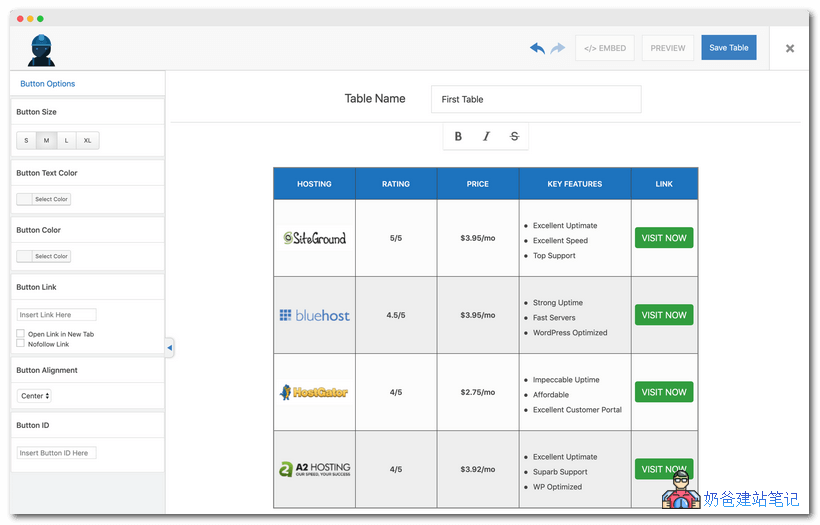
You can use this WP Table Builder to generate a comparison table like the one shown below.
How to Use WP Table Builder
After installing WP Table Builder, you can see the WP Table Builder control menu in the WP dashboard. Enter it and create a new table.
It will ask you to choose the number of rows and columns for the table. After creation, it looks like the image below:
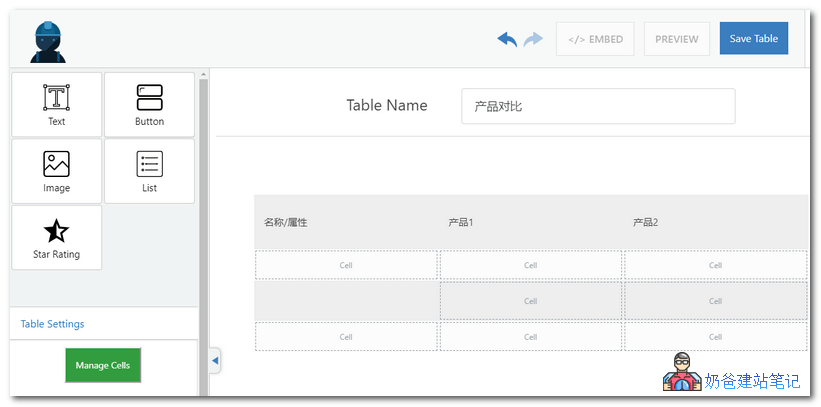
On the left, there are 5 default options: Text, Button, Image, List, and Rating. You just need to hold the content you want to add and drag it into the corresponding table cell.
After creation, each created table has a shortcode.
You just need to insert this table's shortcode into the article or location where you want it to display.
If the comparison content changes later, you can directly enter WP Table Builder and modify the content. The content called on the website will automatically update, which is very convenient.
Related articles:Several Methods to Add Tables in WordPress