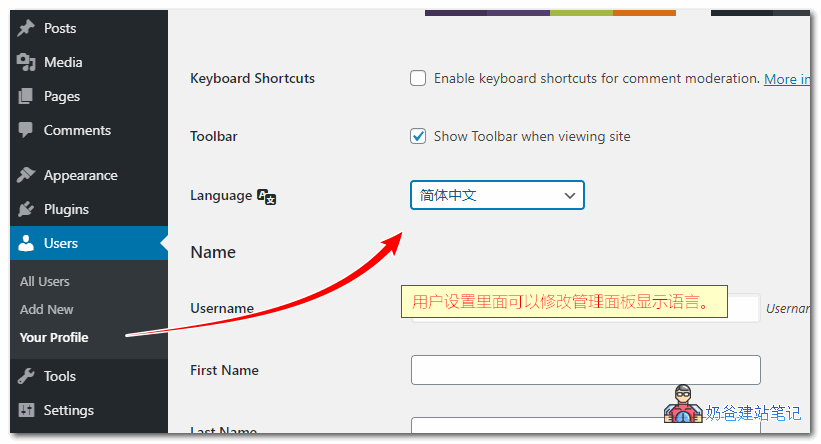
The usage of these two plugins is the same. After installing and activating the plugin, log in as an administrator and go to your profile page (Simple Admin Language Change is configured in the system settings). You will see an option to set the website language. Setting it to Simplified Chinese will achieve the effect where the website frontend displays in English and the backend displays in Chinese. Simple Admin Language Change is newer, while Admin Language Per User was last updated a year ago, but its functionality works fine.Download Plugin 1 Download Plugin 2In recent years, more and more foreign trade professionals have startedbuild my own website. Although English proficiency is a basic requirement for foreign trade professionals, most online WordPress tutorials are in Chinese interfaces, and translations between Chinese and English sometimes differ. Using these two plugins that display different languages for the WP frontend and backend can solve the problem of discrepancies between the website backend display and the tutorial display, improving one's ability to troubleshoot and become familiar with WordPress. At the same time, some foreign trade professionals also consider multilingual websites when building websites, wanting to set up both a Chinese website and an English website. You can installWordPress multilingual plugin Polylangto achieve website display in two or more languages. Alternatively, you can build two separate websites, one in English and one in Chinese, and then use the WP backend Chinese display plugin to achieve a consistent backend interface for both websites, making configuration and management easier. Yes, I am the one who gets a headache looking at a fully English backend.2 Plugins for Displaying English on WordPress Frontend and Chinese in Admin Dashboard
When working on English websites, we often set the WordPress system language to English for better visitor experience. However, if your English is not proficient or you are not accustomed to a fully English interface,is there a way to set the website frontend to display in English while the website admin dashboard displays a Chinese interface?The answer is: Yes. This article sharestwo WordPress plugins that allow different languages for the frontend and admin dashboard: Simple Admin Language Change and Admin Language Per User.
The usage of these two plugins is the same. After installing and activating the plugin, log in as an administrator and go to your profile page (Simple Admin Language Change is configured in the system settings). You will see an option to set the website language. Setting it to Simplified Chinese will achieve the effect where the website frontend displays in English and the backend displays in Chinese. Simple Admin Language Change is newer, while Admin Language Per User was last updated a year ago, but its functionality works fine.Download Plugin 1 Download Plugin 2In recent years, more and more foreign trade professionals have startedbuild my own website. Although English proficiency is a basic requirement for foreign trade professionals, most online WordPress tutorials are in Chinese interfaces, and translations between Chinese and English sometimes differ. Using these two plugins that display different languages for the WP frontend and backend can solve the problem of discrepancies between the website backend display and the tutorial display, improving one's ability to troubleshoot and become familiar with WordPress. At the same time, some foreign trade professionals also consider multilingual websites when building websites, wanting to set up both a Chinese website and an English website. You can installWordPress multilingual plugin Polylangto achieve website display in two or more languages. Alternatively, you can build two separate websites, one in English and one in Chinese, and then use the WP backend Chinese display plugin to achieve a consistent backend interface for both websites, making configuration and management easier. Yes, I am the one who gets a headache looking at a fully English backend.
The usage of these two plugins is the same. After installing and activating the plugin, log in as an administrator and go to your profile page (Simple Admin Language Change is configured in the system settings). You will see an option to set the website language. Setting it to Simplified Chinese will achieve the effect where the website frontend displays in English and the backend displays in Chinese. Simple Admin Language Change is newer, while Admin Language Per User was last updated a year ago, but its functionality works fine.Download Plugin 1 Download Plugin 2In recent years, more and more foreign trade professionals have startedbuild my own website. Although English proficiency is a basic requirement for foreign trade professionals, most online WordPress tutorials are in Chinese interfaces, and translations between Chinese and English sometimes differ. Using these two plugins that display different languages for the WP frontend and backend can solve the problem of discrepancies between the website backend display and the tutorial display, improving one's ability to troubleshoot and become familiar with WordPress. At the same time, some foreign trade professionals also consider multilingual websites when building websites, wanting to set up both a Chinese website and an English website. You can installWordPress multilingual plugin Polylangto achieve website display in two or more languages. Alternatively, you can build two separate websites, one in English and one in Chinese, and then use the WP backend Chinese display plugin to achieve a consistent backend interface for both websites, making configuration and management easier. Yes, I am the one who gets a headache looking at a fully English backend.🚀 Still feeling confused after reading the tutorial? Let me guide you step-by-step instead.
「Naibabiji WordPress Website Building Coaching」 — From selecting a domain and purchasing hosting to installing themes and publishing posts, I「ll guide you through every step, helping you avoid detours and reach your goals directly.
👉 Learn about Website Building Coaching Service
Comments are closed
The comment function for this article is closed. If you have any questions, please feel free to contact us through other channels.