
After we build our own enterprise website using WordPress and WooCommerce and finish uploading products, the default shop sorting is based on the form of „custom ordering + title“, which in English is „custom ordering + name“. If we need to adjust the product sorting ourselves, Naiba here introduces two methods.
Sort by Publication Date
This method is relatively simple; the most recently published product is always at the front. If you want to manually control the product order, you just need to modify the publication date. The operation method is as follows:

Select Theme -> Customize -> then find WooCommerce settings, find Catalog, and under Default Sorting, select Sort by most recent.
Manual Sorting
Manual sorting is only suitable for websites with relatively few products. If your website has hundreds or thousands of products, manually sorting all of them would be a massive project.
If you want to sort manually, you don't need to change the default product sorting mentioned above. Keep it as 'custom ordering + name', then go to the product list page.
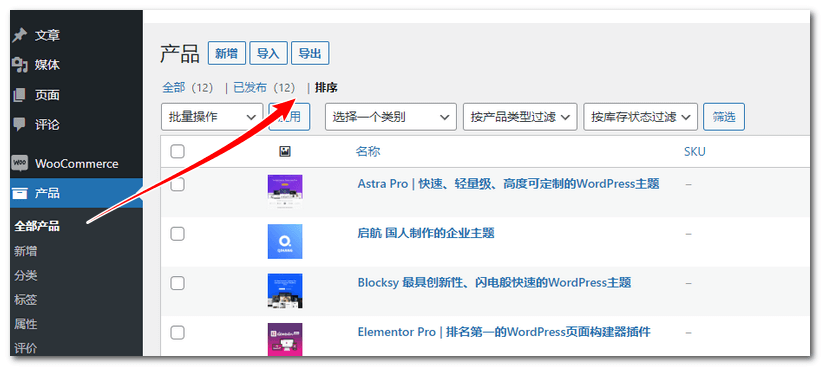
After entering the product list page, switch to the sorting view. You can then hold and drag the products you want to sort up or down to manually adjust their order.
Besides dragging here, you can manually enter a sequence number in the product editing page to sort, as shown in the image below:
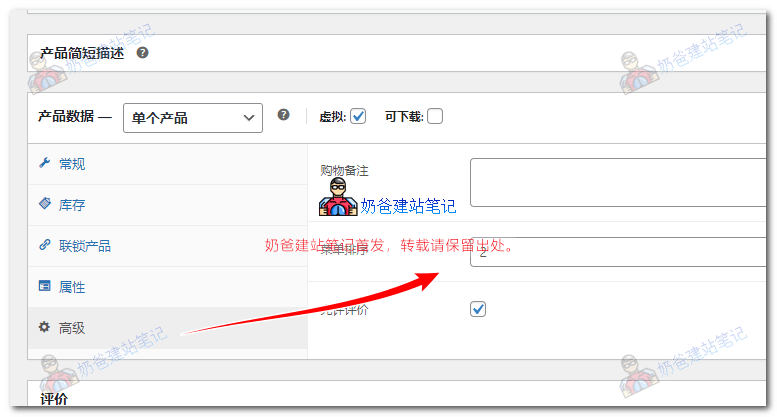
In the Advanced section of the Product Data, you can fill in a number for Menu Order. The smaller the number, the higher the position.
Alright, the above are the two methods Naiba introduced for sorting WooCommerce products. If it was helpful, remember to introduce Naibabiji to your friends.