
How to add smiley and other emoji icons to the WordPress comment box?Naiba added them via code many years ago, but now, after getting intoForeign Trade Website Buildingthe focus on website comments has become less. Since some novice webmasters asked about this, Naiba has summarized for everyonethe still usable WordPress comment box emoji plugins and code.。
WP Comment Box Emoji Plugin
For beginners, modifying code to add emoji images is quite troublesome, so you can consider using these plugins. Just install and activate them.
Emoji in comments
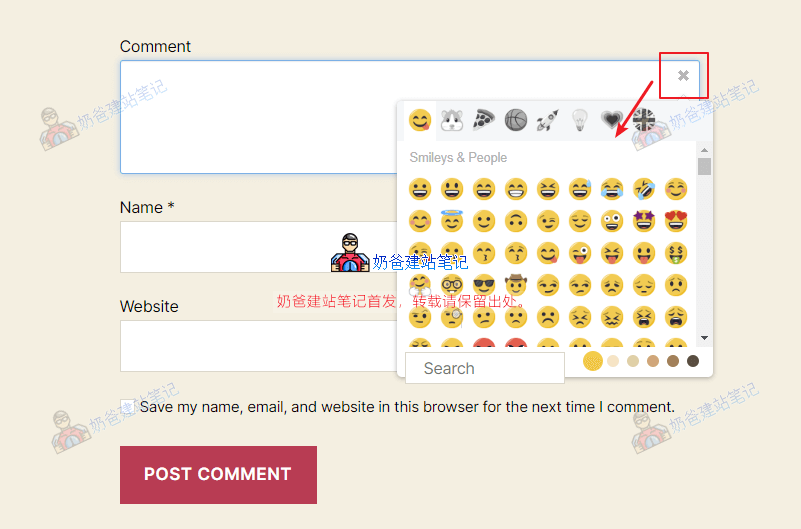
The 'Emoji in comments' plugin is very simple. It displays a button in your comment box for inserting emojis.
Kama WP Smiles
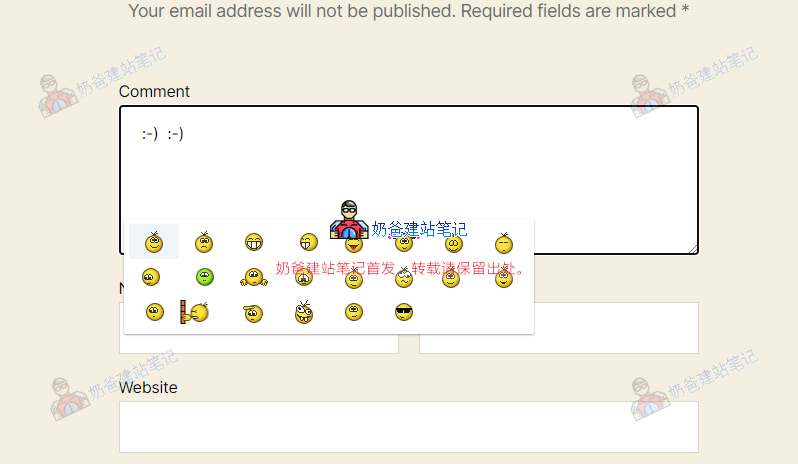
The emoji icons in Kama WP Smiles are not as rich as those in Emoji in comments introduced above, but the advantage is that you can control which emojis are displayed in the front-end comment area.
A little trick is to replace the emoji icons in the plugin folder with your own favorite emoji images.
WordPress Aru Emoji Plugin
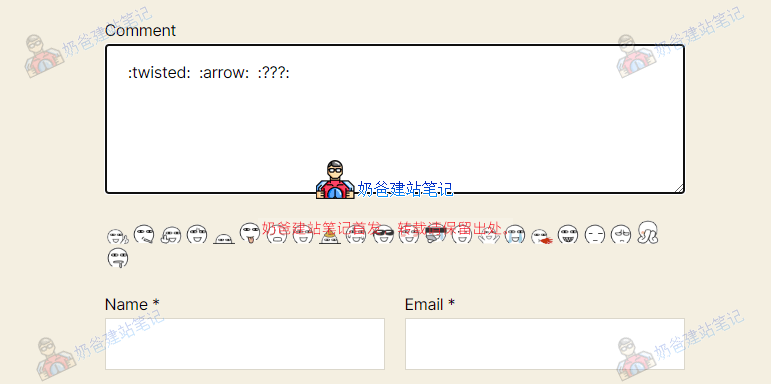
wp-alu is a plugin made by a Chinese developer. Download it from GitHub and upload it to use. There is no settings interface. If your theme uses the comment_form form, it works directly. If not, you need to insert code to call it yourself.
<p class="comment-form-smilies"><?php echo alu_get_wpsmiliestrans();?></p>
Similarly, you can consider replacing the image content yourself.
WordPress Comment Code Version
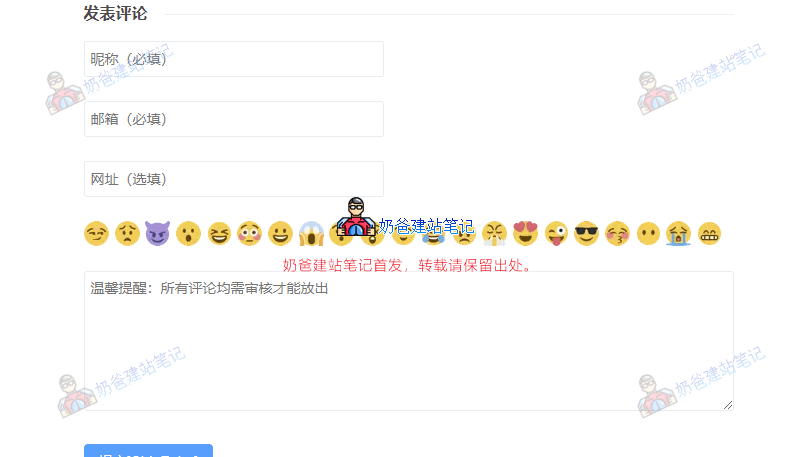
The code version essentially uses a similar method to the plugins, but it's not very beginner-friendly. The following method is only suitable for those with some coding foundation.
Implementation Method:
1. Download the required files from below.
2. After decompressing the downloaded archive, there are 3 sets of emojis in three folders: smilies1, smilies2, and smilies3. Choose a set you like (or replace them with your own emoji icons), and rename the folder to smilies.
3. Upload the entire modified smilies folder to the images folder under your website's theme folder (if there is no images folder, create one; I'm afraid beginners won't know how to modify the code).
4. Upload the smiley.php file from the archive to your website's theme directory.
5. Edit the theme's comments.php file and add the following code in an appropriate location.
<?php include(TEMPLATEPATH . '/smiley.php'); ?>
6. Add the following code to the theme's functions file.
//自定义表情路径
function custom_smilies_src($src, $img){return get_bloginfo('template_directory').'/images/smilies/' . $img;}
add_filter('smilies_src', 'custom_smilies_src', 10, 2);
Finally, it's done. It can be seen that it is much more cumbersome than using a plugin.
Reference source for the code method:
- Method for Adding Custom Comment Emoji Packs in WordPress (with Download Links for Three Emoji Packs)
- WordPress Comment Emoji Optimization
If the above code doesn't work well, you can search online yourself. There are many articles about adding emoji icons to the WordPress comment box. However, in general, if a plugin can achieve the function, consider using the plugin directly. After all, the domestic WP blogosphere discussing technology is very small now, and many codes might be outdated and ineffective due to lack of maintenance.