
Previously sharedAutomatically backup WordPress websites using plugins, but if you use your own VPS and have Baota Panel installed, you can also directly use Baota Panel to back up websites and databases and upload them to FTP space, saving the need to install another WP plugin.
Difference between backing up to the server and FTP
When backing up websites and databases on Baota Panel, there is an option to back up to the server disk or to FTP storage space. Their differences are as follows:
- Backing up to the server disk saves data on the server; if your server fails, the data is lost.
- Backing up to FTP storage space saves data on a third-party server; if your server fails, the data remains.
Therefore, werecommend prioritizing backup to FTP storage space for both website data and database backups.If you back up to the server disk, remember to periodically download the latest backup files from the server to your computer for safekeeping.
Apply for a free FTP service space
If you have multiple VPSs, you can set up an FTP service on another server and create an FTP account.
If you only have one VPS, we can apply for a free FTP space. Here we still use Upyun. Refer to the previously written tutorial for registration.Upyun acceleration for WordPress articlefor the registration tutorial; it won't be rewritten here.How to register for Upyun.
Create cloud storage space and account
After registering with Upyun,please be sure to follow the operations belowto avoid data leaks.
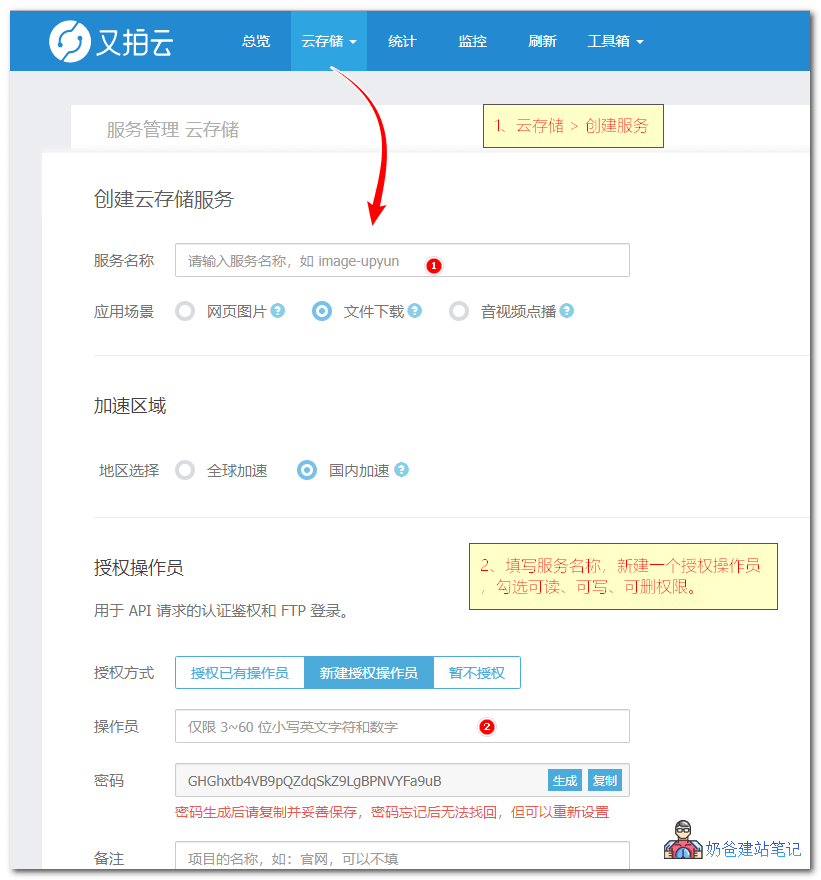
First, create a new cloud storage service in Upyun, as shown in the figure below.
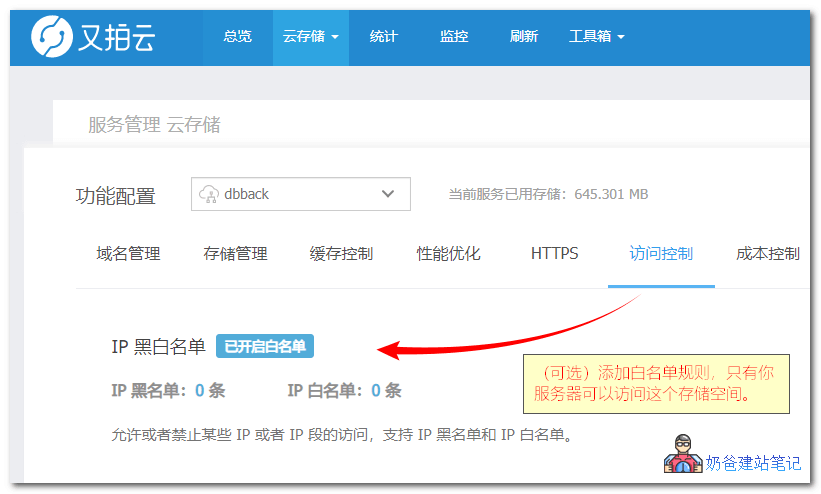
Then, click the access control interface of the created cloud storage service. You can optionally add an IP blacklist/whitelist and add your server IP to it, so that others cannot access this space, which is more secure.
However, there is a problem: your own computer cannot access it either. In most cases, the IP of our home computer changes every once in a while, so adding rules is troublesome.
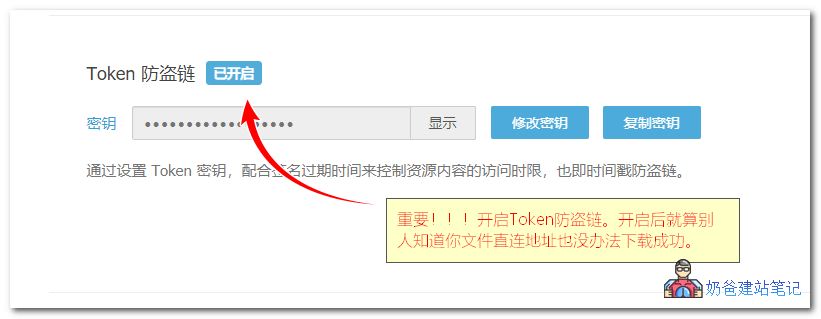
Therefore, we use thisToken anti-leechsetting,enable the Token anti-leech functionAs long as this key is not known to others, even if they know the direct link to the file on your cloud storage, they cannot download it successfully. It will prompt {„code“:„40310002“,„msg“:„region is forbidden“}
 FTP login account for cloud storage space
For the created Upyun cloud storage space, if we need to log in using FTP software, the corresponding information is filled in as follows:
Address (Host):
- Intelligent Routing (Recommended): v0.ftp.upyun.com
- Telecom Line: v1.ftp.upyun.com
- Unicom Line: v2.ftp.upyun.com
- Mobile Line: v3.ftp.upyun.com
Encryption: For FTP, select „No Encryption“ mode; for FTPS, select „Explicit FTP over TLS“ mode.
Username:操作员名/服务名, such as operator/mybucket
Password: Operator's password
Port: 21
For details, refer to the Upyun documentation:https://help.upyun.com/knowledge-base/developer_tools/
Automatically back up website data and database with Baota Panel
After having the FTP space, next we set up how to letBaota Panel automatically back up website data and database files。
① Log in to Baota Panel, search for FTP in the software store, and install FTP storage space.
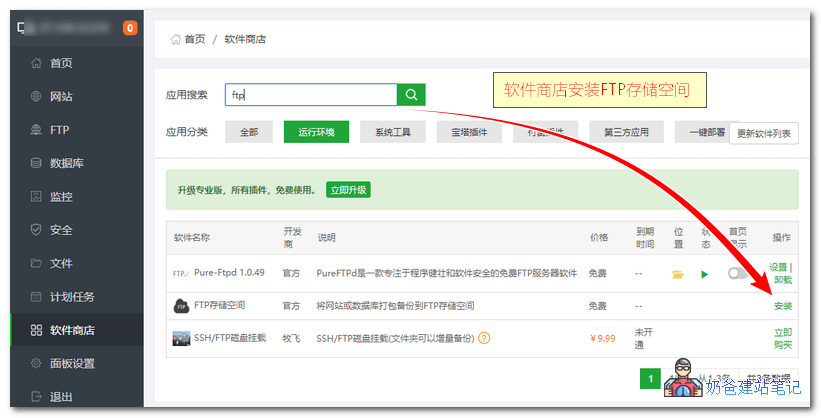
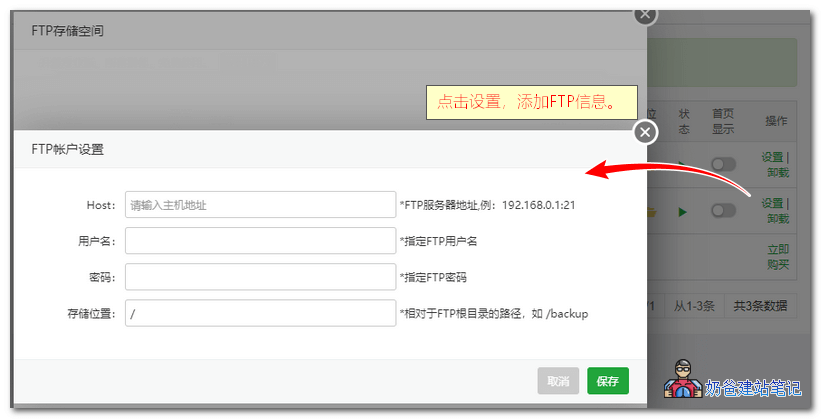
② Click the settings button of FTP storage space, and add the FTP account of the Upyun cloud storage space created in the previous step.
hosts fill in v0.ftp.upyun.com
Username fill in操作员名/服务名, for example, if the operator you created for the cloud storage space is 'naiba' and the cloud storage space name is 'backup', then fill in herenaiba/backup
Password fill in your operator password.
Storage location can be a random combination of English letters and numbers after /, or left blank.
③、Click on the scheduled tasks in Baota Panel, when adding a task, select 'Backup Website', then choose the website to back up, the backup cycle, and select FTP storage space as the backup location.
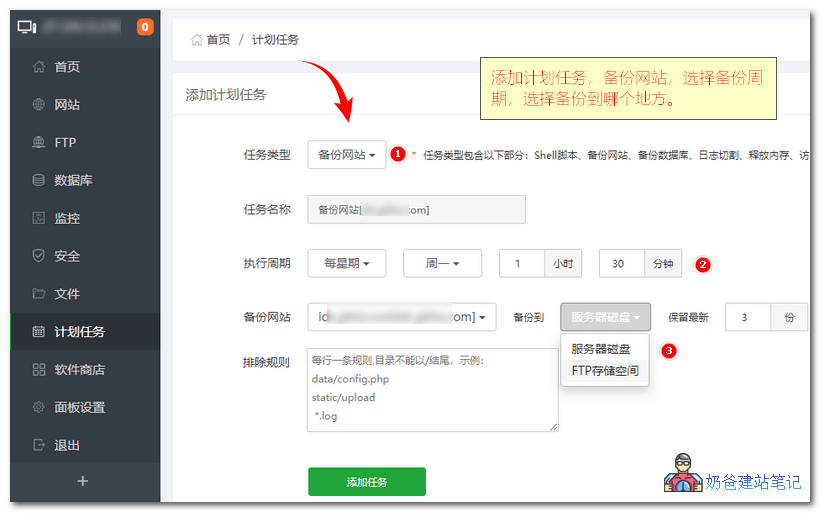
④ After adding one scheduled task, use the same method to add a scheduled task for backing up the website database.
⑤ After the scheduled task executes, log in to Upyun cloud storage to check if there is backup data. If not, verify that the account information is correct.
All of the above is how toAutomatically back up website data and database to FTP space using Baota Panel. If you find it troublesome, you can also back up to the website server's disk, but you need to regularly download the backup files from the server to your local machine to prevent data loss in case of server hardware failure.
How to restore backup data?
Having backups is not enough; you also need to learn how to restore from backups when website issues arise. Please refer to our separate tutorial on restoring backup data in Baota.