
After installing WordPress using Baota Panelyou may encounter an error when upgrading WordPress or installingWordPress Pluginan error message appears:Error: Connection to server failed, please check settings。
The error screen is shown below:
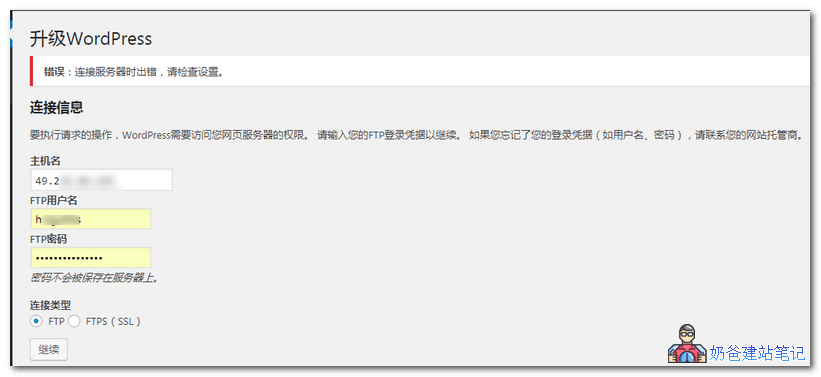
The reason you are prompted to enter FTP information when this error appears is due to incorrect permissions set for your server files and folders.
Solution to resolve the WordPress FTP account requirement issue in Baota Panel:
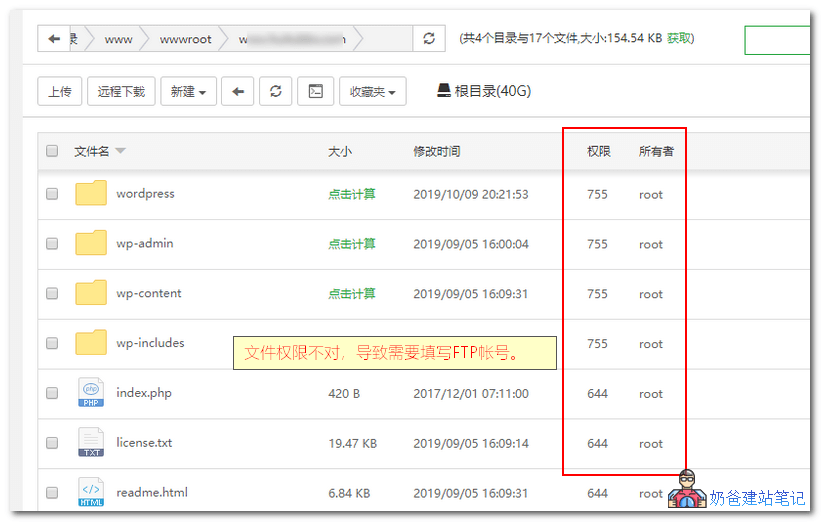
1. Log in to the Baota Panel, enter your website's folder, as shown in the figure below. You can see the permissions and owner are 755 and root respectively. The correct ones should be 755 and www, so we just need to modify them.
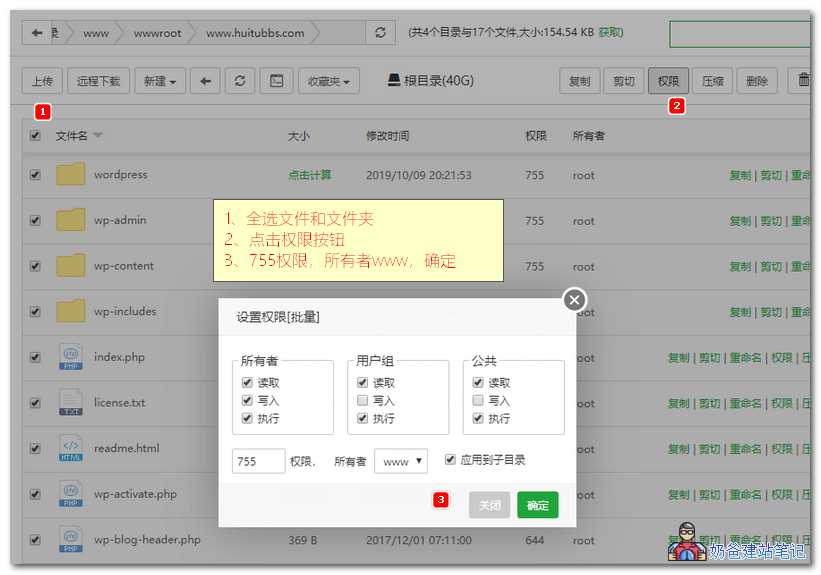
2. First, select all files and folders, then click the permissions button in the upper right corner. In the pop-up interface, choose 755 for permissions and www for the owner, then confirm. This will solve the problem.
Solutions for other panels:
If you are not using Baota Panel, you similarly only need to change the folder permissions and owner to 755 and www to resolve the issue of requiring FTP permissions when upgrading WordPress or installing WordPress plugins and themes.