
After setting up the website, how can you achieve automatic first-line indentation for each paragraph when publishing articles?First-line IndentIndent by two spaces?
The method to achieve paragraph first-line indentation is very simple; you just need to insert a piece of CSS code. The specific steps are as follows:
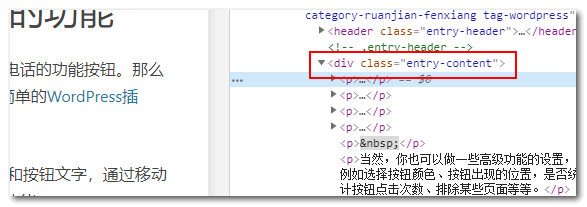
1. Find any article on your blog, then use Chrome's right-click 'Inspect' button, click on the article content, and check the class value of the upper div. For example, the value for Naiba's theme is entry-content, as shown in the figure below:
2. Click Appearance – Customize – Additional CSS, then insert the following CSS code and save.
.entry-content p { text-indent: 2em }Refresh the page, and you will see the function of automatically indenting two spaces at the beginning of each paragraph.
Of course, if you don't know how to find the class value of your theme, you can also directly insert
p { text-indent: 2em }But then the text you add in widgets and other places will also be automatically indented by two spaces.
You can also add the CSS code to your theme's CSS file.