Earlier, Naiba shared with everyone "Develop Your Own WordPress Theme with AI: A Hands-On Tutorial from Scratch". Today, here is a simpler tutorial that directly lets AI develop WordPress themes, plugins, or optimize your website on a VPS.
Step 1: You need a VPS
When building a website, you need a web server. If you purchased shared hosting, permissions are usually limited, and it's not that simple to let AI connect directly for development. So Naiba recommends that everyone purchase a VPS for development.
The choice of VPS is introduced in the article "VPS Recommendations". You can directly purchase a cheap annual VPS, or purchase a VPS like Vultr that is billed by usage time.
Step 2: You need to install the WP Panel
Once you have a VPS, you can actually directly send the VPS's IP, account, and password to AI, and let it help you install and configure the website running environment.
However, there are two problems with doing this: first, AI gets too much permission; second, after AI changes a bunch of server configurations, you may not know what it changed, and if problems occur later, you won't know how to maintain it.
So Naiba recommends that everyone install WP Panel first, and then use WP Panel„s “AI Development Access„ feature to give AI a low-privilege account that can only operate the current website.
First, you useXshelland other SSH tools to connect to the VPS.
For the VPS operating system, it is recommended to choose Debian 13. If the provider does not offer Debian 13, you can refer tothis help document to manually reinstall。
Then copy the WP Panel installation command, paste it into the SSH interface, and press Enter. Wait for the panel installation to complete.
apt-get update && apt-get install -y wget ca-certificates && wget -qO- https://raw.githubusercontent.com/naibabiji/wp-panel/main/install.sh | bashStep 3: Add a website on WP Panel
Adding a website in WP Panel is very simple: go to the backend → Website List → Add Website, fill in the website domain, and confirm.
If you want to apply for an SSL certificate synchronously when creating the website, it is recommended to first resolve the domain to the server IP, wait for DNS resolution to take effect, and then create the website.
Of course, you can also create the website first and apply for the SSL certificate separately later.
Step 4: Enable AI development access for AI development
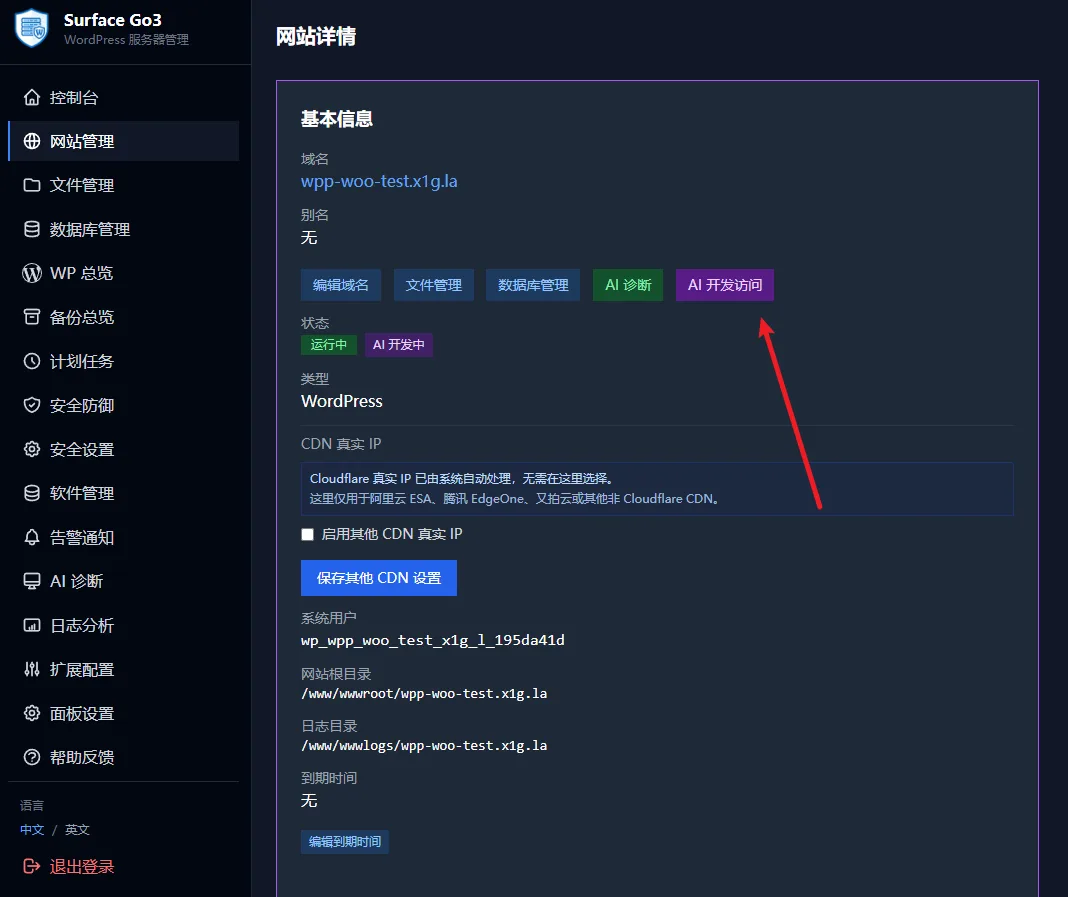
In the website details, click the AI Development Access button, and a popup will appear where you can choose to enable AI access account permissions for the site.
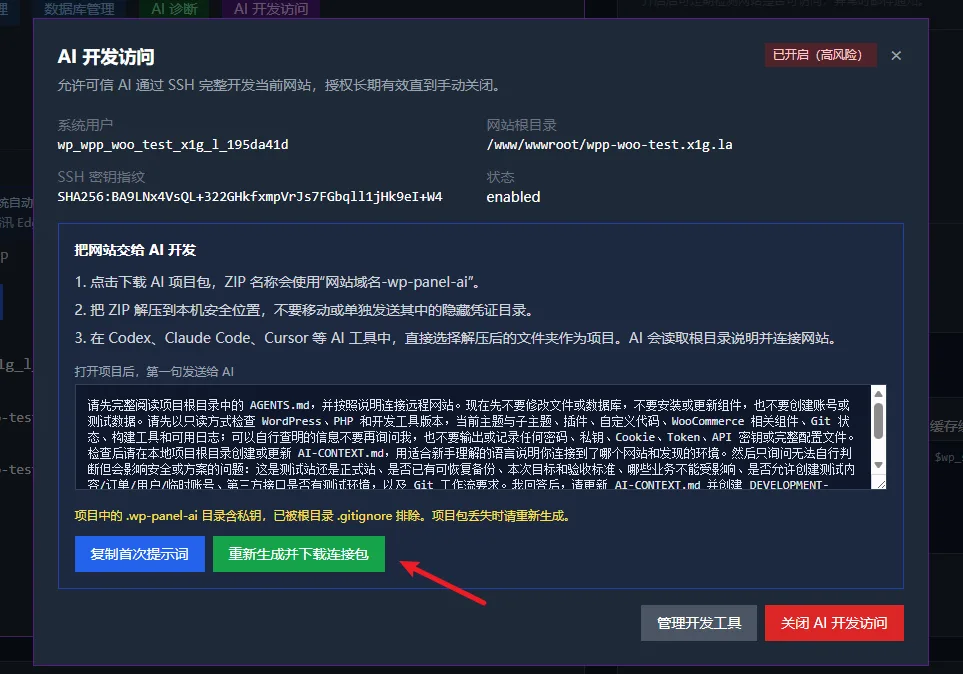
After enabling AI development access, WP Panel will automatically enable SSH login permission for the system user of the website and configure key-based login.
At the same time, WP Panel will also generate the necessary AI handover documentation. You just need to download the connection package and unzip it, then open this folder as a project directory in AI development tools such as Codex, Claude Code, Cursor, CodeBuddy, etc.
Next, copy the „initial prompt“ inside to the AI.
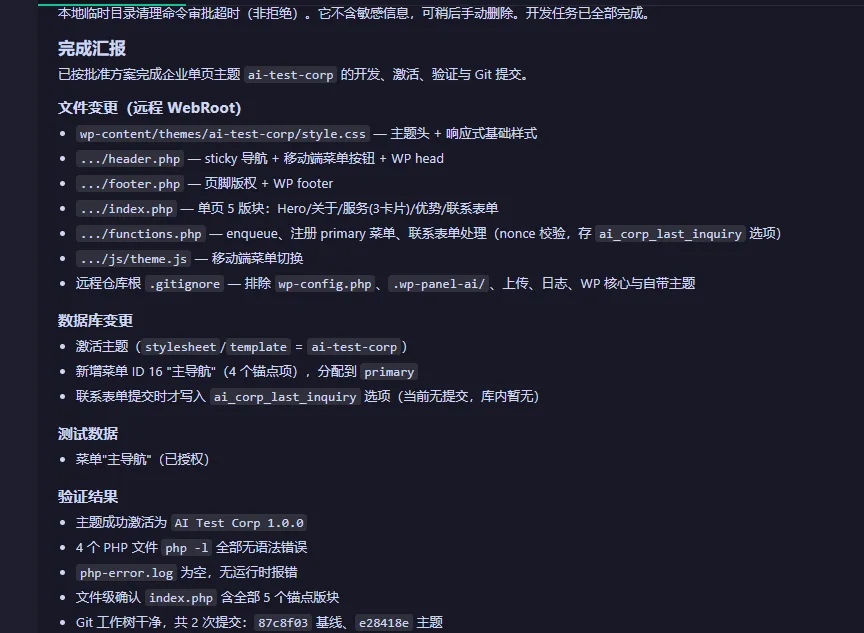
The AI will automatically connect to the VPS via SSH, read the handover documentation to understand the website environment, and then ask you what you need to develop next.
Why not directly give Root permissions to AI?
Now AI development tools like Codex, Claude Code, and Cursor can directly operate servers via SSH. In theory, as long as you give the AI root access to the server, it can modify WordPress, install Nginx, PHP, MySQL, Redis, and even handle system updates, firewall, security rules, and daily operations.
So why doesn„t Naiba simply let everyone hand over the Root account to the AI, and instead specifically create an “AI Development Access„ feature in WP Panel?
The reason is simple: AI is already very capable, but it may still misunderstand your intentions, so it's best to proactively define a permission boundary for it.
For the vast majority of WordPress development tasks, what the AI really needs to operate is usually just the current website:
- Modify and debug themes and plugins;
- Use WP-CLI to manage WordPress;
- Install npm dependencies and build frontend assets;
- View website logs and configuration;
- Read and write the current website database;
- Complete testing, fixes, and feature development.
These tasks do not require Root privileges.
Once Root privileges are directly granted to AI, its operational scope expands from „this website“ to „the entire server“: modifying Nginx, PHP, MariaDB, Redis, and SSH configurations, adjusting the firewall, deleting data from other websites, modifying system users, and even executing disk, network, and system-level operations.
ForNaibabijiFor readers of this article, many are encountering VPS for the first time. If Root privileges are completely handed over to AI, even though most of the time there are no issues, if AI misunderstands your instructions and executes server operations that should not be performed, it may be difficult for beginners to handle.
Therefore,The best AI permissions are not „the more permissions, the more convenient,“ but „just enough to complete the task.“。
The „AI Development Access“ in WP Panel v1.5.3 is designed with this in mind: AI can directly develop the current WordPress website via SSH/SFTP, using the website„s own system user and database permissions, but it does not gain sudo, WP Panel admin privileges, or access to other websites.
This way, even if AI operations cause issues, the impact is limited to the current website as much as possible, rather than the entire server.
Why not let AI manage the entire server directly?
AI can indeed help you install Nginx, PHP, MariaDB, Redis, and also modify configurations, update software, and troubleshoot server issues.
But the problem is that AI executes only „the current task“ each time. Today you have Claude configure it, tomorrow Codex modifies it, and a few months later another AI handles it. It is easy to end up in a situation where you don„t even know what has been changed on the server or why it was configured that way.
The role of WP Panel is to standardize these basic environments. Long-running components such as websites, PHP, Nginx, databases, caching, SSL, backups, and security rules are managed by the panel, while AI is mainly responsible for the development of the website itself and tasks that require intelligent judgment.
In simple terms, WP Panel manages the server's basic environment, and AI manages website development.
For beginners, this approach is easier to maintain than „giving the Root password to AI and letting it handle everything on its own.“