WordPress content management is primarily divided into two features: Posts and Pages. Pages are more often used to display static pages, such as the website homepage, About Us, Contact Us pages, etc.
How to Create a WordPress Page
In the WordPress Admin Dashboard, click the „Pages“ menu, then click the „Add New Page“ button. This will bring up the page editing interface.
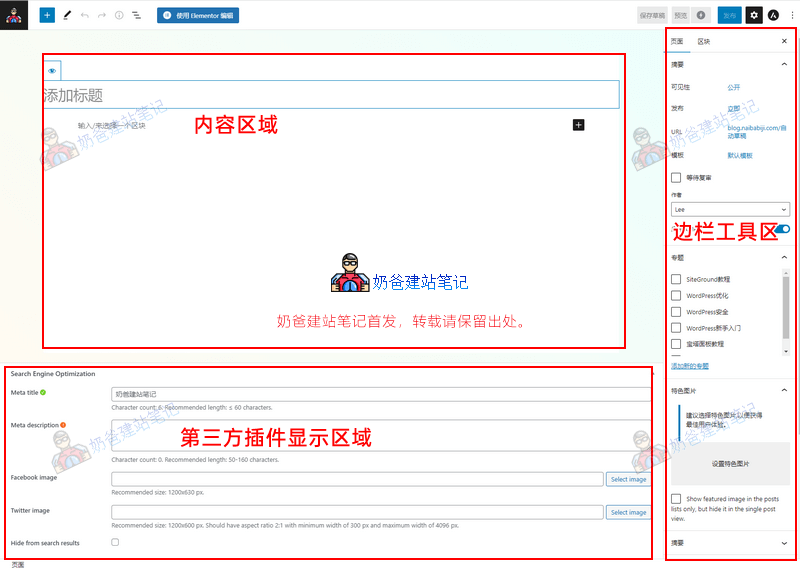
The features displayed in the page editing interface for each website vary depending on the installed Plugins. The main areas are divided into three parts as shown in the image above: the Content Area, the Third-party Plugin Display Area, and the Sidebar Widget Area.
Content Area
The Content Area is where we edit the content of our page. Just like in WordPress, what you write here is what will be displayed after publishing.
The default WordPress editor is the Gutenberg editor. If you have installed other builder Plugins and set editing permissions for Pages, you can also edit the page using third-party page builder Plugins, such as 'Edit with Elementor' shown at the top of the screenshot.
Third-party Plugin Display Area
Typically, after installing an SEO Plugin, it will be displayed here. However, some Plugins may display in the Sidebar Widget Area. This depends on the specific Plugin, essentially serving as the settings entry point for these Plugins. Where it displays does not affect functionality.
Sidebar Widget Area
In the screenshot, to the right of the gear icon at the top of the red box in the sidebar widget area, there is another icon. That is the interface for Astra Theme settings. Some plugins also place their settings entry in this location, which is something to note.
The remaining tasks involve setting up the Category, permissions, publish time, featured image, etc., for this page.
WordPress Page Considerations
Pages are more independent compared to Posts; they do not appear in the list of latest published posts. They are more suitable for creating static pages (though this does not prevent pages from containing dynamic data). Typically, the homepage, About, Contact, and Services pages of a corporate website are created using Pages. News, blog posts, and industry knowledge are published via Posts.
Pages do not support creating Categories. Managing an excessive number of pages can become troublesome later on. If you have more than 20 products, it is not recommended to follow some online tutorials that use Pages to create product detail pages.
Pages can be used to create special topic pages or landing pages. From an SEO perspective, Pages generally carry more weight than Posts.
How to Set a Page as the Homepage
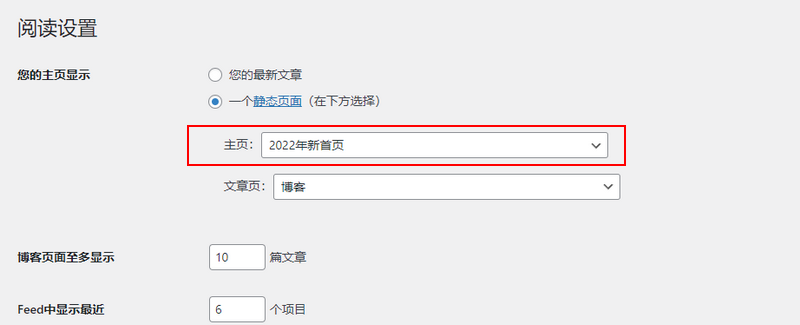
When you have finished designing a page and want to use it as the website's homepage, you need to go to the WordPress Admin Dashboard, then Settings > Reading, and select the page you created as the homepage.