WordPress is a powerful content management system that helps users easily create and manage websites. WordPress plugins are an important part of this platform, as they can add various functions and features to a website, thereby improving its performance and user experience.
What is a WordPress Plugin?
Simply put, a WordPress plugin is a piece of software that can add new features, improve existing functions, and optimize website performance on a WordPress site. These plugins can be downloaded and installed from the official WordPress plugin repository or other third-party plugin markets.
For example: By default, WordPress does not support product display and sales. We can install the WooCommerce plugin to implement this functionality.
Or, if the default WordPress does not support a slideshow effect, we can separately install a slideshow plugin to add that feature.
How to install WordPress plugins?
Installing WordPress plugins is very simple. In the WordPress Admin Dashboard, click the „Plugins“ menu, then click the „Add New Plugin“ button. Enter the plugin name or keywords in the search box, then click the „Search Plugins“ button. Once you find the plugin you need to install, click the „Install“ button. After the installation is complete, click the „Activate“ button.
If you purchased a paid plugin online, you will usually receive a plugin zip file. You can still install it via the WordPress Admin Dashboard: Plugins > Add New > Upload Plugin, then upload the plugin zip file to install and activate it.
Additionally, you can directly place the plugin files into the corresponding WordPress folder using file management methods like FTP. This method is relatively cumbersome and rarely used, so this article will not cover it in detail.
What are the commonly used WordPress plugins?
Commonly used WordPress plugins include SEO plugins, social media plugins, security plugins, backup plugins, form plugins, and caching plugins. The specific plugins to choose depend on your needs and the type of website. For example, if your website needs better search engine rankings, you can choose to install an SEO plugin; if you want your website to interact better with social media, you can choose to install a social media plugin.
Related articles:WordPress Plugin Installation Tutorial_Complete Guide to Popular Essential Plugins
How to manage WordPress plugins?
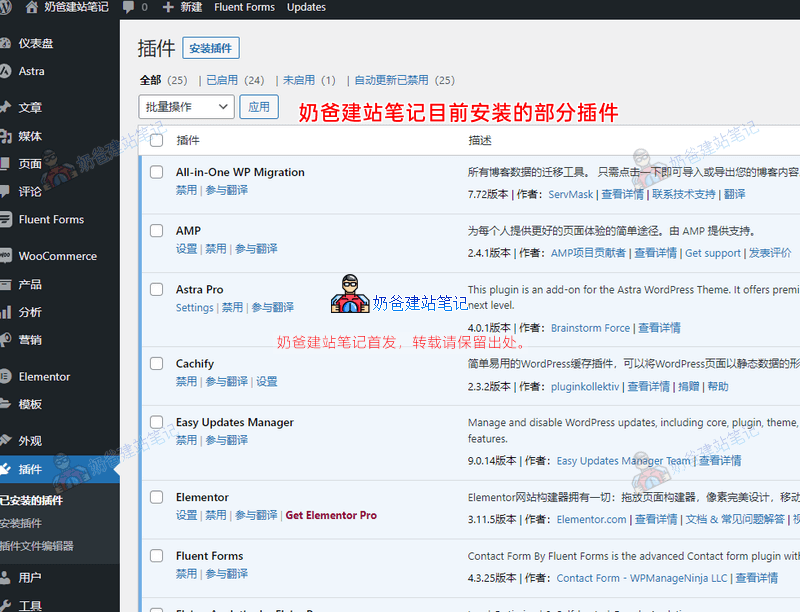
When managing WordPress plugins, users can view the list of installed plugins in the „Plugins“ menu of the WordPress Admin Dashboard. You can activate, deactivate, delete, or update plugins. To avoid plugin conflicts, users can back up website data before installing plugins, choose plugins with high download counts and good reviews, test the website after installation to ensure it functions normally, and regularly update plugins and the WordPress version.
WordPress plugin precautions
Do not download cracked WordPress plugins. The security of cracked plugin code cannot be guaranteed. It is recommended to use free alternatives of the same type or purchase genuine plugins.
Install only one plugin for the same functionality. Installing ten SEO plugins will not improve your website's ranking; instead, it will slow down your site.
More plugins are not necessarily better; the more plugins you have, the greater the impact on website speed.If you must install many plugins, upgrade to a better server.
In summary, WordPress plugins are a very important component that can add various functions and features to a website, thereby improving its performance and user experience. Users can choose suitable plugins based on their needs and website type, and pay attention to avoiding plugin conflicts when installing and managing them.