
ThisWooCommerce TutorialsIntroduces how to use shortcodes to call WooCommerce product data. These shortcodes are all supported by WooCommerce by default, and you can call them in any Post or Page.
How to Use Shortcodes
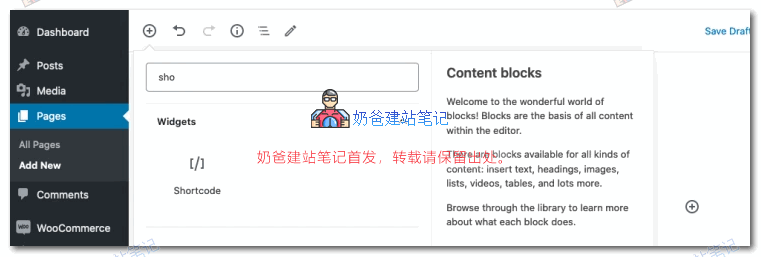
If you are using the Gutenberg editor, then when writing an article or page, find the shortcode block.
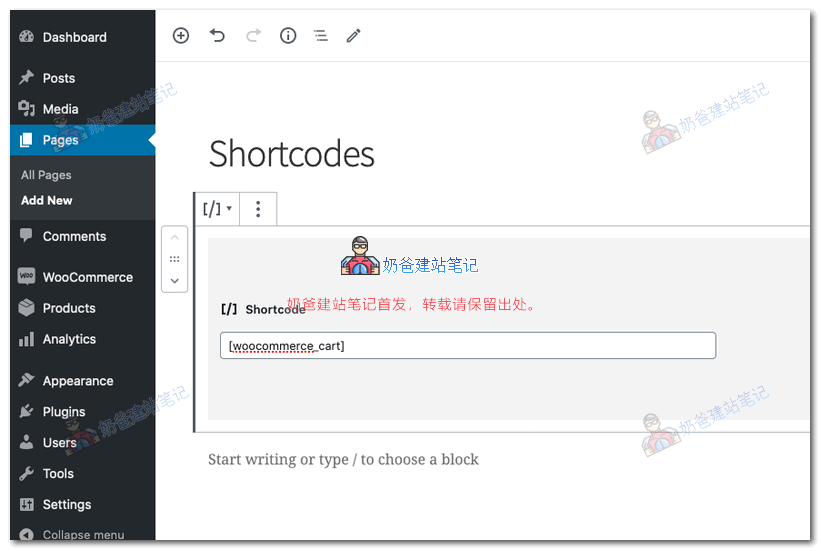
Then fill in the corresponding shortcode.
If you are using the Classic Editor, simply copy and paste the shortcode.
WooCommerce Shortcodes
Next, let's summarize the shortcode content supported by WooCommerce.
Page Shortcodes
[woocommerce_cart]– Display Cart Page[woocommerce_checkout]– Display Checkout Page[woocommerce_my_account]– Display user account page[woocommerce_order_tracking]– Display order tracking form
Cart shortcode
[woocommerce_cart]
Checkout
[woocommerce_checkout]
My Account
[woocommerce_my_account]
Order Tracking
[woocommerce_order_tracking]
Product Display
[products]
Products can be configured to achieve the specified product display.
Display product attributes
limit– Number of products to display.-1List products by default as AND (all-1display), category as (display all).columns–Number of columns to display. Default is4。paginate–Toggle pagination. Use in combination withlimit. DefaultfalseSettingstrueis paginate.orderby–Sort displayed products by the entered options. One or more options can be passed by adding a space between two slugs. Available options are:date–Date the product was published.id–The product's Post ID.menu_order–Menu order (if set) (small numbers displayed first).popularity–Purchase quantity.rand–Randomly order products on page load (may not work on sites using caching, as it can save a specific order).rating–Average product rating.title–Product title. This is the defaultorderbymode.
skus– A comma-separated list of product SKUs.category– A comma-separated list of category separators.tag– A comma-separated list of tag separators.order– Use the method set in to specify whether product orders are ascending (ASC) or descending (DESC)orderby. Default isASC。class– Add HTML wrapper classes so you can modify specific outputs with custom CSS.on_sale– Retrieve products on special. Do not use withbest_sellingortop_rated。best_selling– Retrieve best-selling products. Do not use withon_saleortop_rated。top_rated– Retrieve top-rated products. Do not use withon_saleorbest_selling。
Content Product Attributes
attribute– Retrieve products using the specified attribute slugs.terms– A comma-separated list of attribute terms to use withattribute。terms_operator– Operator to compare attribute terms. Available options are:AND– Will display products that have all selected attributes.IN– Will display products that have any of the selected attributes. This is the defaultterms_operatorvalue.NOT IN– Will display products that are not in the selected attributes.
tag_operator– Operator comparison tags. Available options are:AND– Will display products with all selected tags.IN– Will display products with the selected tags. This is the default.tag_operatorvalue.NOT IN– Will display products not in the selected tags.
visibility– Will display products based on the selected visibility. Available options are:visible– Products visible in the shop and search results. This is the default option.visibilityOption.catalog– Products visible only in the shop, but not in search results.search– Products visible only in search results, but not in the shop.hidden– Products hidden from both the shop and search, accessible only via direct URL.featured– Products marked as featured products.
category– Retrieve products using the specified category block.tag– Retrieve products using the specified tag block.cat_operator– Operator comparison category terms. Available options are:AND– Will display products belonging to all selected categories.IN– Will display products in the selected categories. This is the default.cat_operatorvalue.NOT IN– Will display products not in the selected categories.
ids– Will display products based on a comma-separated list of post IDs.skus– Will display products based on a comma-separated list of SKUs.
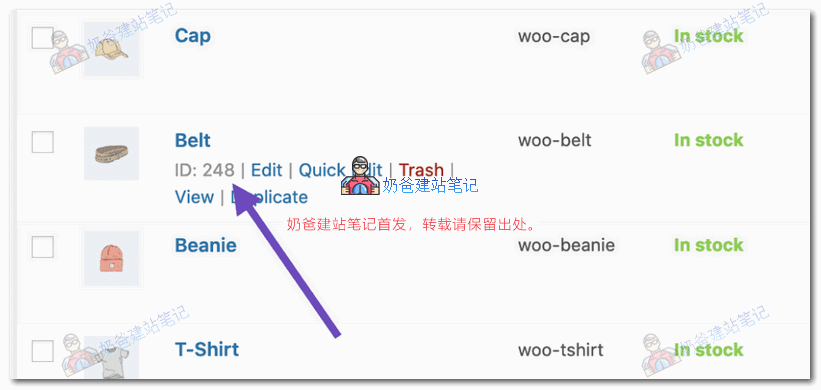
On the product list page, hover over a product to see an ID value, which is the corresponding product ID.
Special Product Attributes
These attributes cannot be used together with the „Content Attributes“ listed above, as they may cause conflicts and fail to display. You should use only one of the following special attributes.
best_selling– Will showcase your best-selling products. Must be set totrue。on_sale– Will display your products on sale. Must be set totrue。
Product Call Shortcode Example
1. Display random products
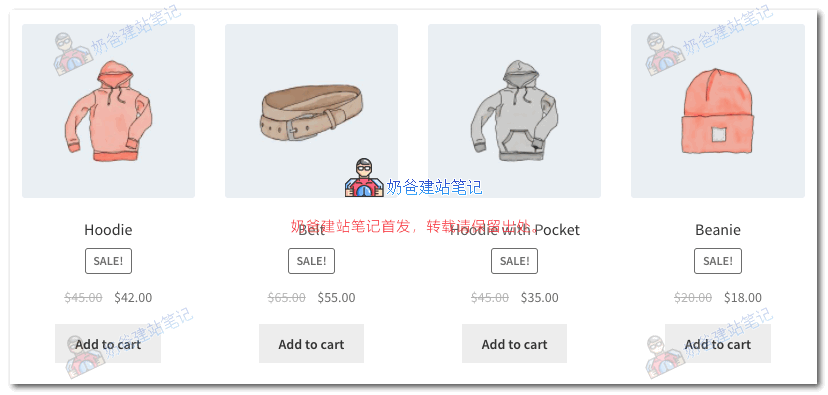
[products limit="4" columns="4" orderby="rand" class="quick-sale" on_sale="true"]quick-sale is the corresponding CSS value, allowing you to customize the styling yourself.
2. Featured Products
[products limit="4" columns="2" visibility="featured"]limit displays 4 items, columns displays as 2 columns.
3. Best Selling Products
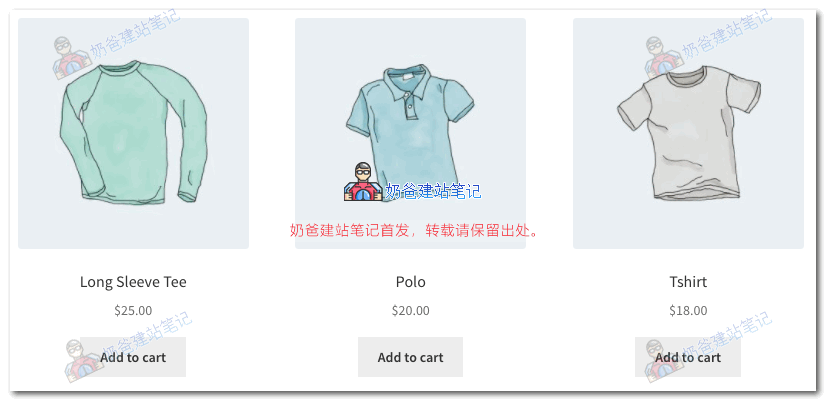
[products limit="3" columns="3" best_selling="true"]Display 3 items, shown in 3 columns.
4. New Products
[products limit="4" columns="4" orderby="date" order="DESC"]5. Products from Specified Categories
[products limit="8" columns="4" category="hoodies,tshirts" cat_operator="IN"]category corresponds to the category. If you want to display products from categories other than a specific one, change the final IN to NOT IN.
6. Display Products by Attribute
[products columns="3" attribute="season" terms="warm" orderby="date"]7. Display Products with Specific Tags
[products limit="12" columns="4" tag="hoodie"]Product Category Call
These two shortcodes can display your product categories on any page.
[ product_category]– Will display products from the specified product category.[ product_categories]– Will display all your product categories.
Available Product Category Attributes
ids– Specify the specific category ID to list.limit– Number of categories to display.columns– Number of columns to display. Default is 4.hide_empty– Default value is „1“, which will hide empty categories. Set to „0“ to display empty categories.parent– Set to a specific category ID if you want to display all its subcategories.orderby– Default sorting is by „name“. Can be set to „id“, „slug“, or „menu_order“. If you want to order by specified IDs, you can useorderby="include"order– Use the method set in to specify whether category order is ascending (ASC) or descending (DESC)orderby. Default isASC。
Demo 1: Display Only Top-Level Category Products
[product_categories number="0" parent="0"]Demo 2: Display Products by ID or SKU
[product_page id="99"]
[product_page sku="FOO"]
[product id="22"] // 注意:这是不同的短代码
Demo 3: Display Related Products
[related_products limit="12" columns="4"]For more detailed usage of WooCommerce shortcodes, it is recommended to refer directly tothe official documentation.。