
Many friends use WordPress and WooCommerce to build their own Foreign Trade Independent Websites. On the product detail page, a tab labeled 'Other Information' (called Additional Information in English) often appears, as shown in the image below. This article by Naiba teaches you how to remove this Additional Information tab.
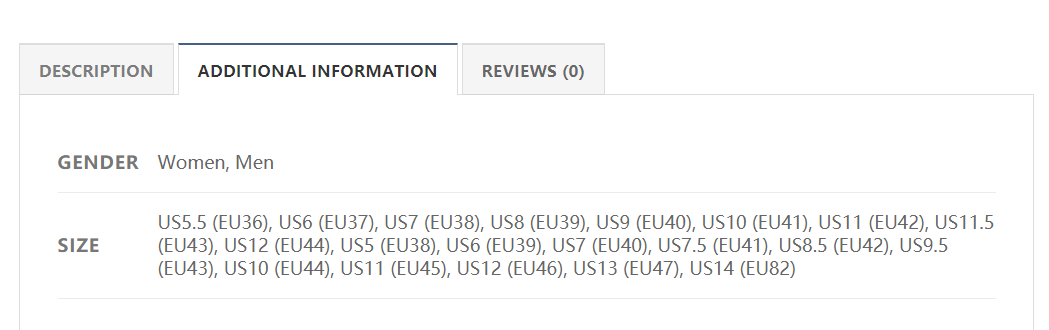
There are two ways to remove the Additional Information tab.
1. Use CSS code to hide it. This way, users won't see it, but the code remains.
/* Hide the additional information tab */
li.additional_information_tab {
display: none !important;
}
The specific code above needs to be determined based on your Theme's corresponding class. Therefore, directly copying and pasting it into your website's stylesheet may not work.
2. Use code to block its output.
// Remove the additional information tab
add_filter( 'woocommerce_product_tabs', 'naibabiji_remove_product_tabs', 9999 );
function naibabiji_remove_product_tabs( $tabs ) {
    unset( $tabs['additional_information'] );
    return $tabs;
}
Copy the code above and paste it into your theme's functions file to save.
For beginners, the second method is recommended as it does not require you to judge the theme code; just copy and paste. If the article helps you, please help promote Naiba Web Development.