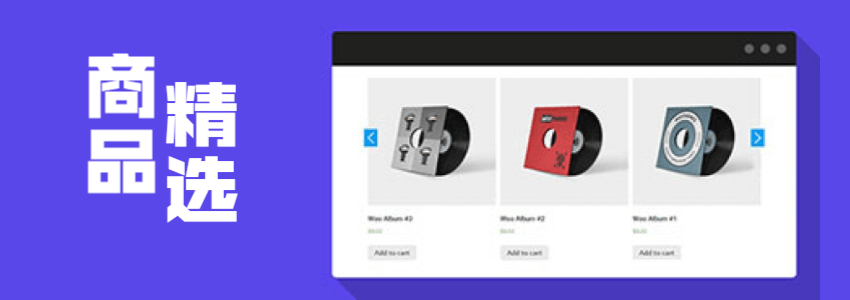
Today'sWooCommerce Tutorialscontent shares how to create featured products for WooCommerce, that is, featured products, and how to display these featured product lists on the website.
How to Create Featured Products
On the WooCommerce all products list page, you can see a star icon behind each product. Clicking it marks the product as featured products, as shown in the image below:
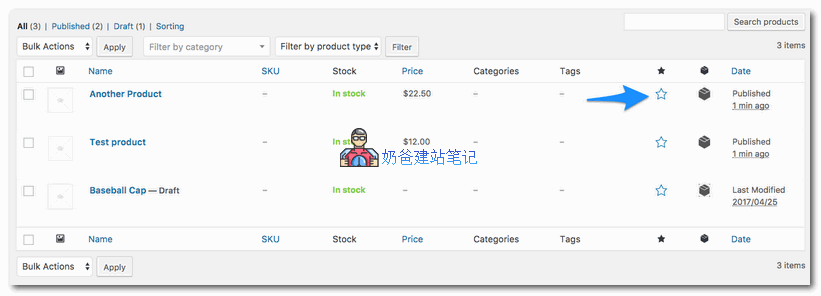
We can set some distinctive, better-selling products as featured products.
How to Call the Featured Products List on the Frontend Webpage
After we set featured products in the WooCommerce product list, no change is visible on the default frontend of the website, so we need to use shortcodes to output them.
The method is: create a new page, then enter the shortcode below, and after publishing the page, you can see the effect.
[featured_products per_page=”10” columns=”2”]
The values of per_page and columns can be modified by yourself.
You can add the shortcode to any post, page, or widget.