
How can you make a website multilingual? Naibabiji previously introducedthe method of using PolylangToday, we will introduce how to use Weglot to create a multilingual website.
If your business targets a global audience, building websites in different languages is essential. Typically, translating a website into more than two languages is a daunting task for most people, so we can use translation plugins to help. The Weglot introduced in this article can help you translate your WordPress website into other languages, thereby attracting potential customers in those languages.
Weglot: Introduction
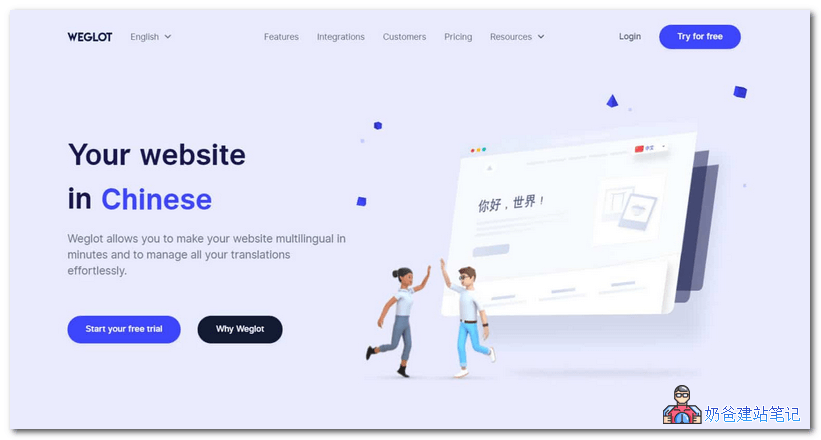
Weglot is an all-in-one multilingual platform that can automatically translate your website or blog into over 100 languages. The automatic translation feature uses Microsoft, DeepL, Google, and Yandex translation services (depending on the language being translated). Weglot supports manual editing of translation results to avoid inaccuracies from automatic translation.
Other features of Weglot include...
- Easy to Use –You can seamlessly integrate this multilingual service with your website using Weglot's WordPress plugin. Weglot features are accessible via your WordPress admin interface and the intuitive Weglot dashboard. Automatically translating your website and configuring settings is very fast and simple, allowing you to get a multilingual website up and running in minutes.
- SEO– Weglot creates subdomains for new languages, so Google can index each page. It also converts all metadata and adds Hreflang tags to all pages.
- Supported– The Weglot knowledge base provides extensive support documentation, including in-depth „Getting Started“ guides and tutorials, as well as email support.
Weglot offers both free and premium services, but in this article, Naiba will demonstrate using the free version of Weglot. The free version only provides translation for 20,000 words, so if you find the results meet your requirements, you will need to upgrade to the premium version to fully translate your website.
Step 1: Install the Weglot Plugin
First, let's install the Weglot plugin. You can directly search for Weglot in the WordPress Dashboard to install it, or you canclick here to downloadThen upload and install.
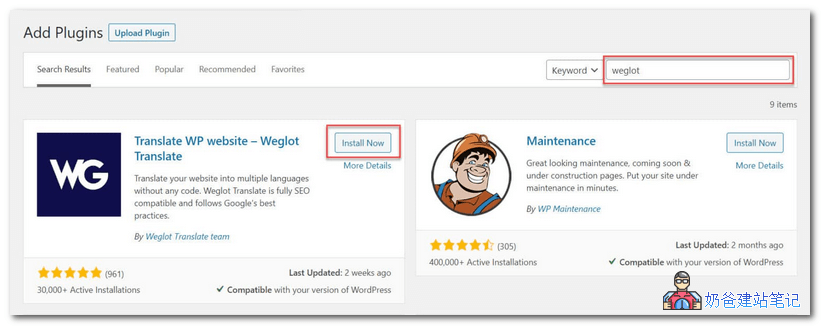
After installation and activation, you can find the corresponding item in the WordPress admin menu.
If you have questions about installing WordPress plugins, please refer to:WordPress Plugin Installation Tutorial_Complete Guide to Popular Essential Plugins
Step 2: Register a Weglot Account
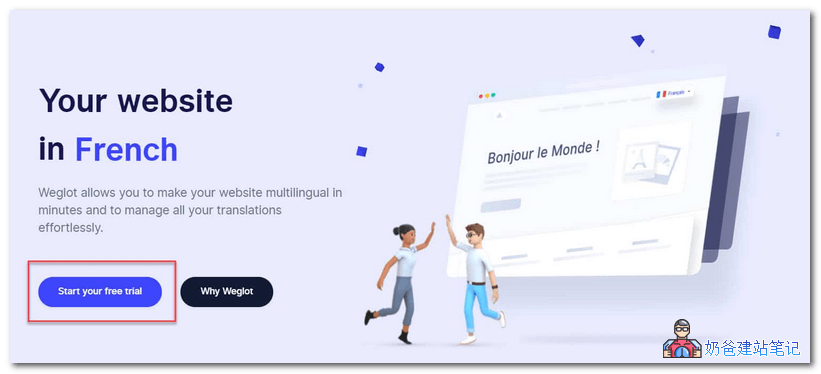
After installing Weglot on your WordPress website, the next step is to register a Weglot account. To do this, openWeglot websitein the left menu bar, then clickStart free trial。
Register an account on the newly opened page.
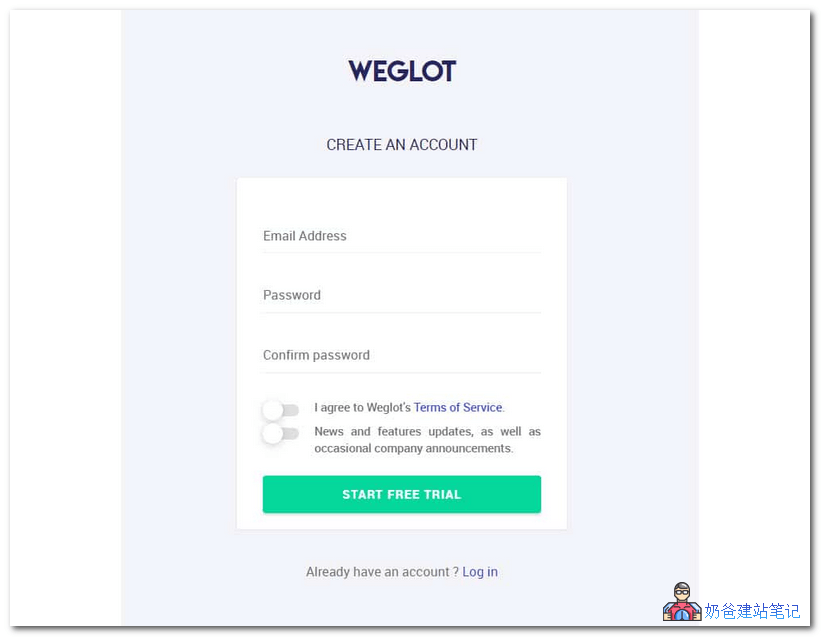
After submitting the registration application, an email verification will be sent to you. After verification, an API key will be displayed for you.
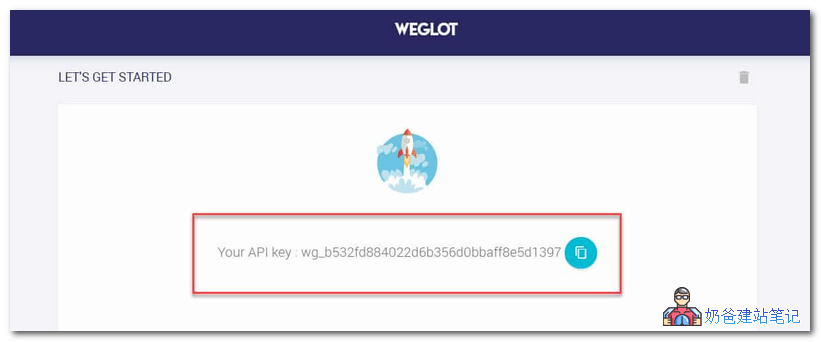
Step 3: Connect Your Weglot Account and Select the Target Languages for Your Website
Copy the API key value above, then select from the WP Dashboard menuWeglot, then underMain Configuration, paste theAPI Key。
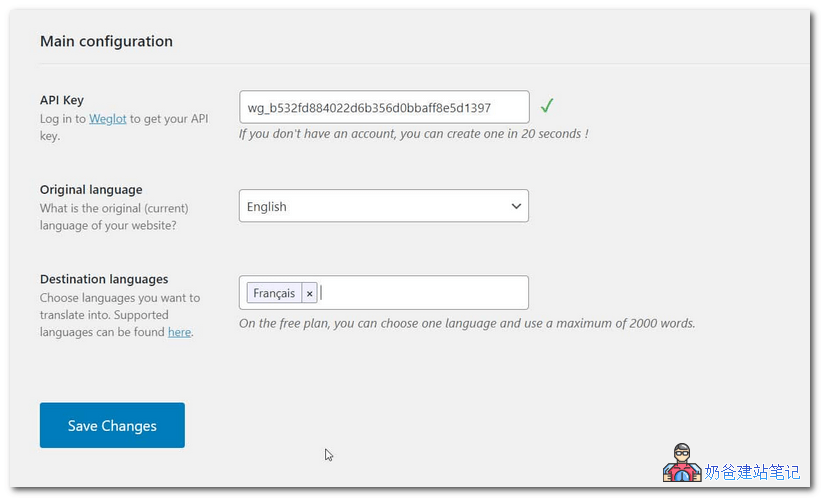
Under the API Key, you need to select the website'sOriginal Language(i.e., the language currently in use), then select theTarget Language(the language you want to translate your website into). After selecting the correct language for the website, click the „Save Changes”.
Note that if you use the free version of Weglot, you can only choose to translate your website into one other language.
Step 4: View Your Multilingual Website
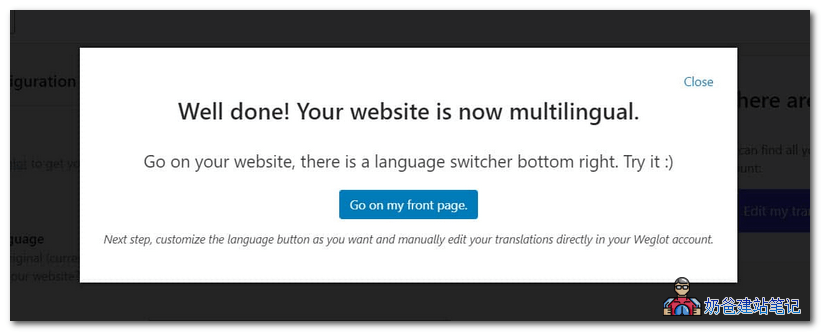
Next, a pop-up window will appear informing you that your website is now multilingual. Click the buttonGo to my homepageto view your site.
Visit the website frontend to view. In the lower right corner of the screen, you will find a language switcher. Click the switcher to select your new language.
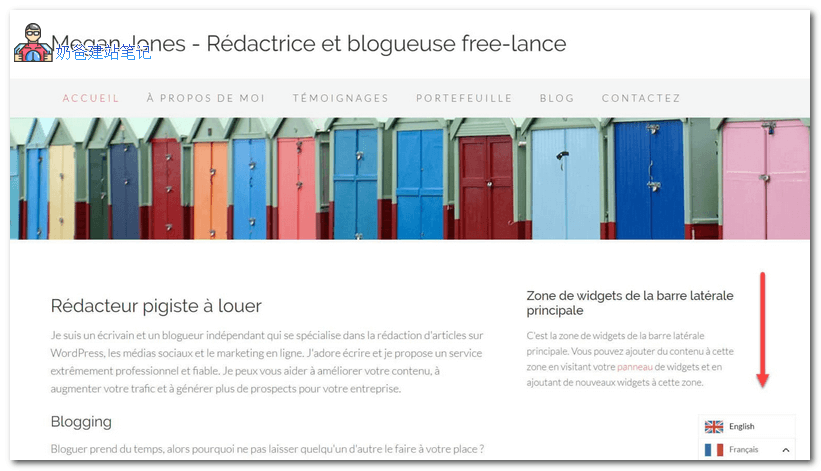
After clicking, it will automatically switch to the website in the translated language, including menus, post content, sidebars, and other content, all of which have been translated.
Step 5: Customize the Language Switcher
Switch back to the WordPress Dashboard, then scroll down theWeglot > Main Configurationpage to find theLanguage Button Designsection.
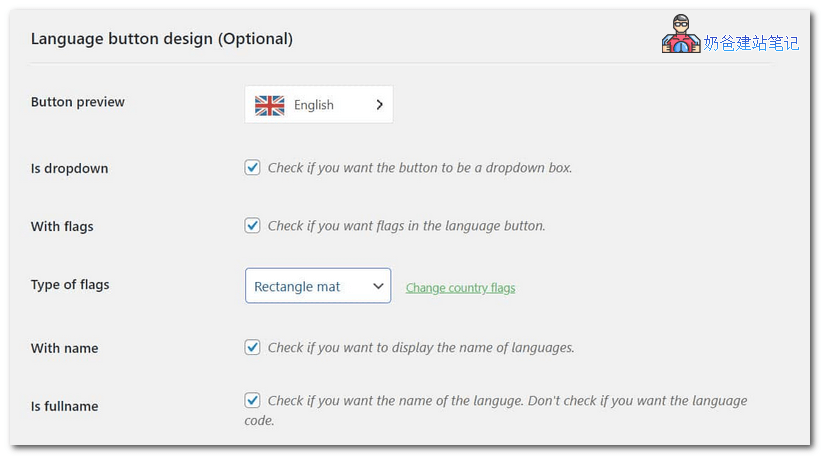
Here, you can choose the appearance of the language switcher. These include...
- Display country flags.
- Change the shape of the flags.
- Use the full name of the language.
You can also override settings by adding CSS to give the button a specific style.
Scroll further down the page for more information on how to change the language switcher position. Options include...
- Menu –Add the switcher to your site's menu bar.
- Sidebar – Display the language switcher in the sidebar or any other widget area.
- Shortcode – Use Weglot's pre-generated shortcode
[weglot_switcher]to add the switcher to your website's content.
- Source Code – Add
<div id='weglot_here'></div>to the HTML page's source code to display the language button anywhere on the site.
If you make any changes to the language switcher, be sure to click the „Save ChangesButton.
Step 6: Configure Additional Settings
Weglot also has advanced settings. Under „Translation Exclusions", you can choose to exclude certain pages or specific parts of pages from translation. (By default, Weglot translates all content on every page of your website). To exclude content, simply type the URL of the page or the CSS selector of the section you do not want translated.
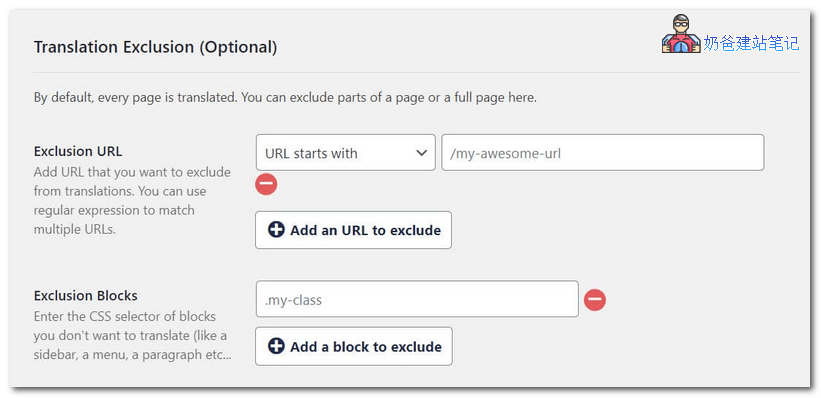
Other useful settings include...
- Auto Redirect – Select this option to redirect users to the appropriate translation of your site based on their browser language.
- Translate AMP – Select to automatically translate Accelerated Mobile Pages.
- Search Feature – Although only in Beta, this feature will allow your users to search your website in the translated language.
Step 7: Manually Edit Translations
Although automatic translation is convenient, the results are not 100% accurate. Weglot also provides an option to manually adjust automatic translations, which can be done in the Weglot interface.
Open the Weglot dashboard and select from the left menuVisual Editor > START EDITING。
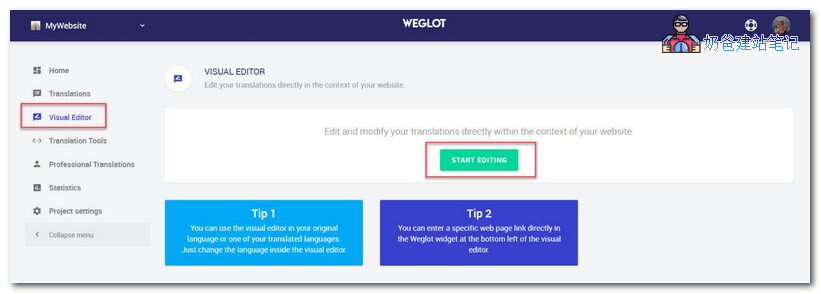
In the editing interface that appears, you can manually edit content where the automatic translation was inaccurate.
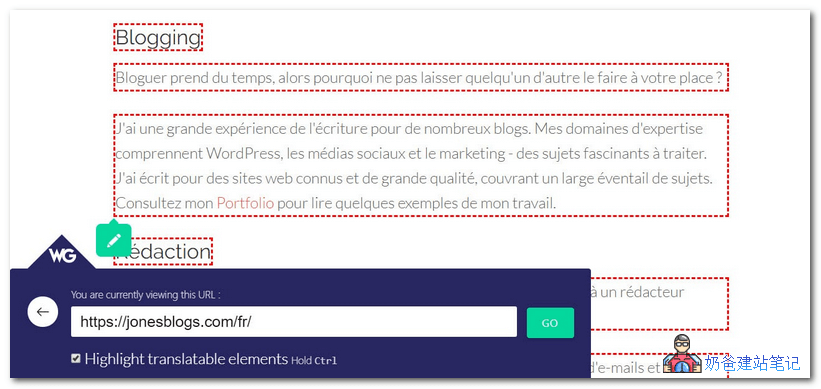
Any changes you make in the editor will be automatically pushed to your live site.
Summary
Weglot is simple, fast, and user-friendly. However, the free version comes with a word limit. If you are satisfied, you can consider purchasing a premium plan to remove the restrictions.
Further Reading: