Today, while publishing VPS deals, Naiba encountereda $5 for 5 years shared hosting plan. At a price of less than 10 yuan per year, buying a shared hosting plan to play with, and by the way, introducing how to install a WordPress website on shared hosting.
Purchasing Cheap Shared Hosting
Promotion URL:US Shared Hosting $5 for 5 Years, VPS $7/Month – VPS Together
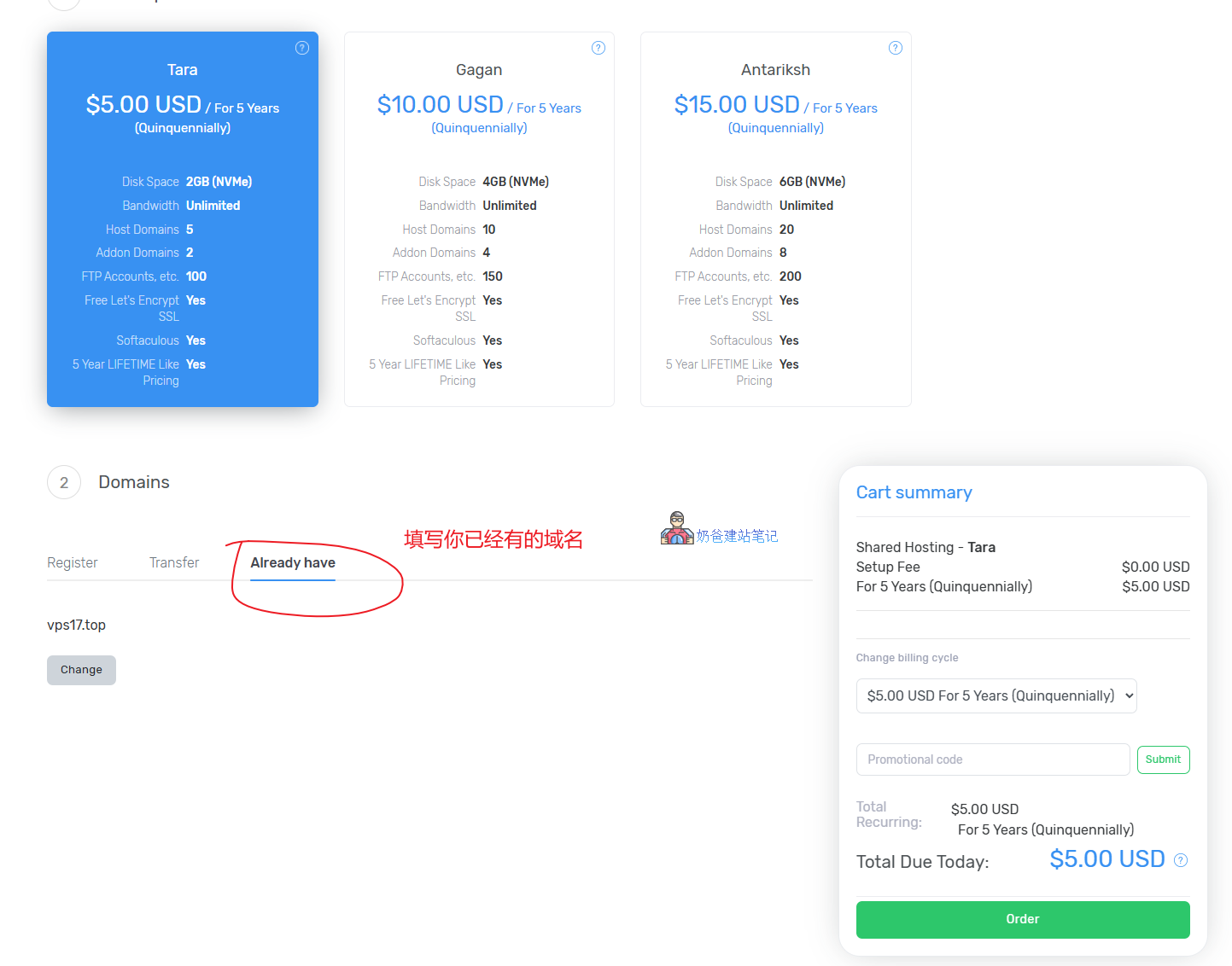
Select the plan you want to purchase, then fill in the domain name you have already purchased below. If you don't have a domain, you can purchase one directly on their website, or refer to Naibabiji'sDomain Tutorialto purchase.
Normal Order → Fill in account information → Checkout → Wait for service activation
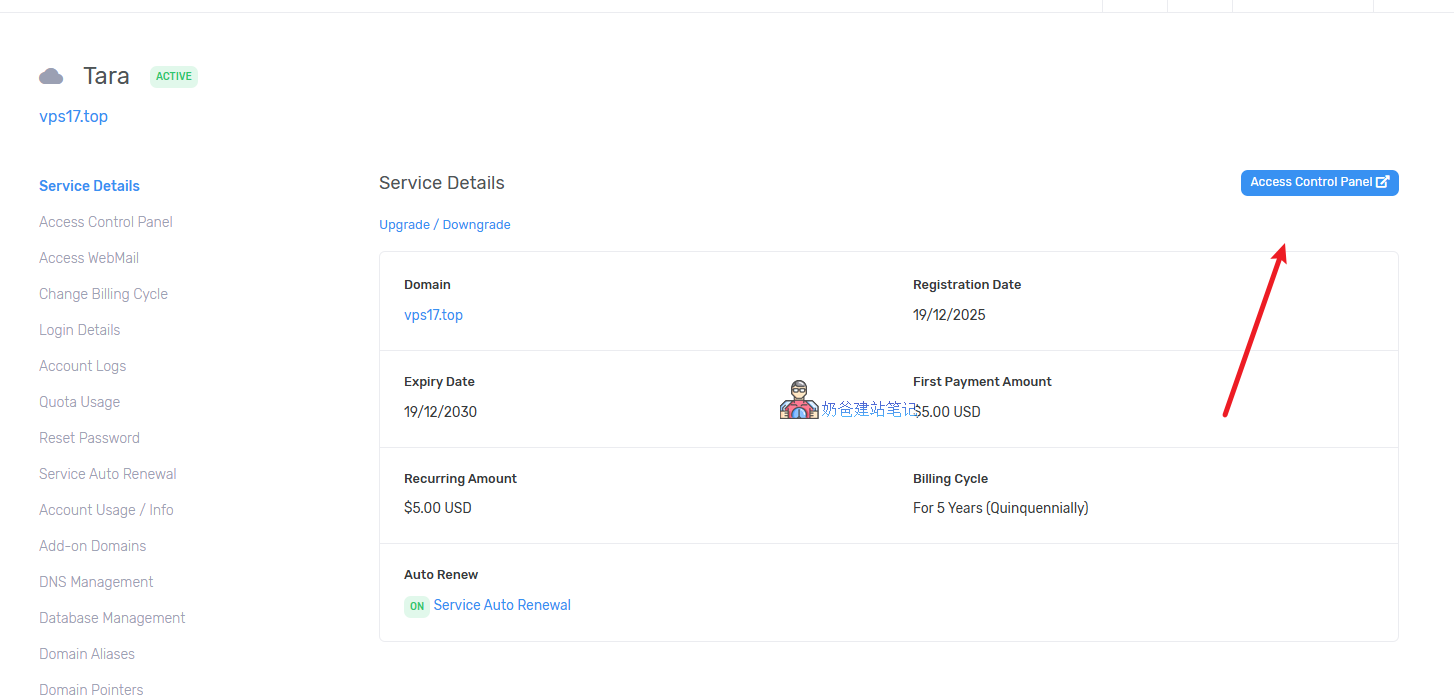
Installing a WordPress Website
After the service is activated, go to the details page of the service you purchased and click „Access Control Panel“ in the top right corner.
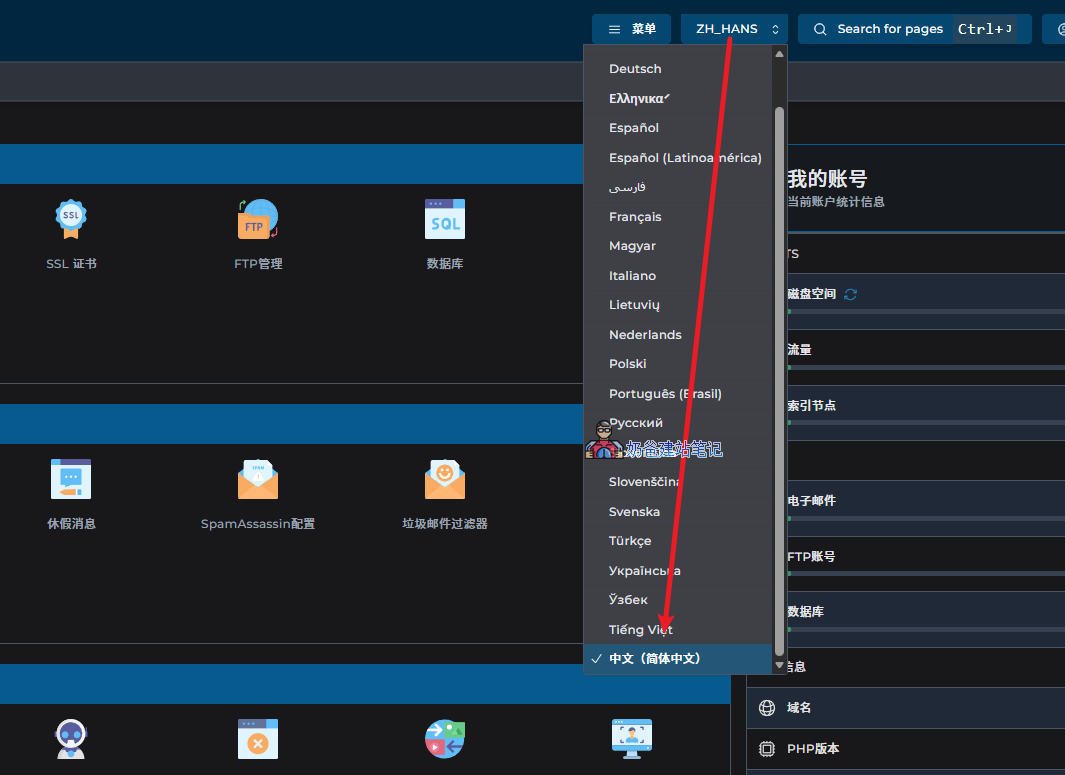
In the control panel's top right corner, you can set the language to Chinese.
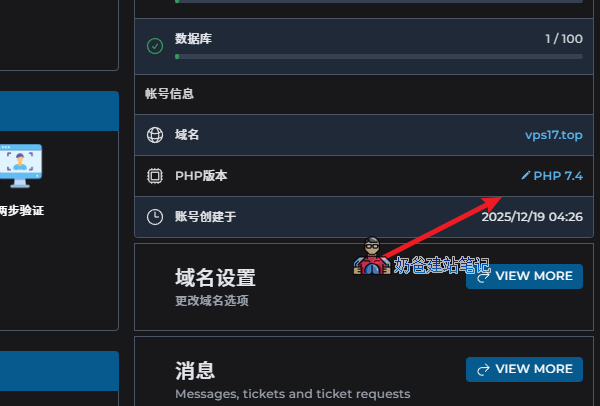
Click the pencil icon next to the PHP version here at the bottom right of the screen to edit and switch to PHP 8.3.
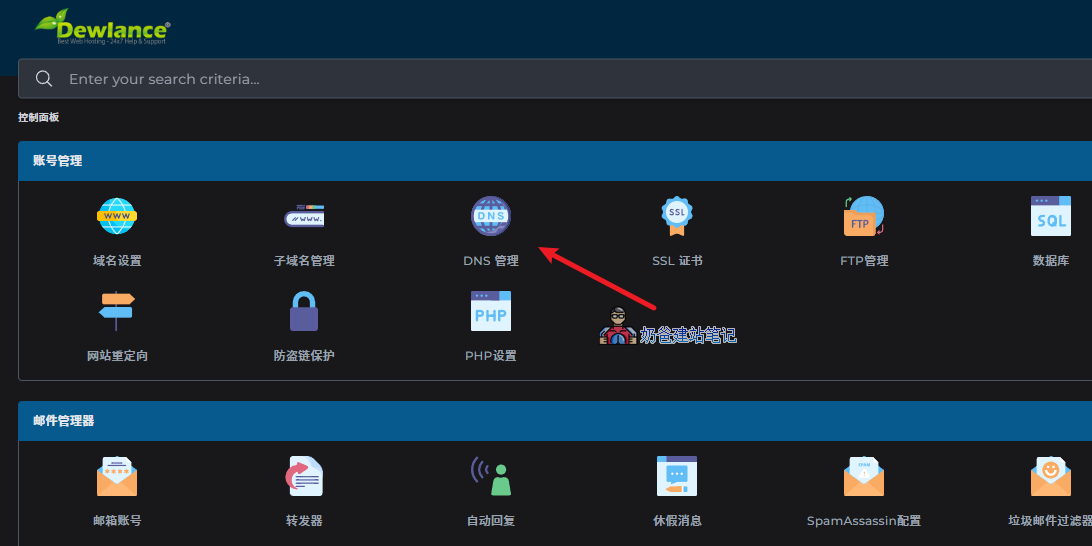
Click DNS Management. By default, it contains A records, MX records, TXT records, and NS records.
If you are willing to modify your domain's DNS, then copy the NS records to modify at your domain registrar's website, for example, ns1.dewlance.com and ns2.dewlance.com.
If you are unwilling to modify DNS, then manually copy and paste the values other than the NS records to create corresponding resolution records at your domain registrar's website.
不会解析?参见域名解析教程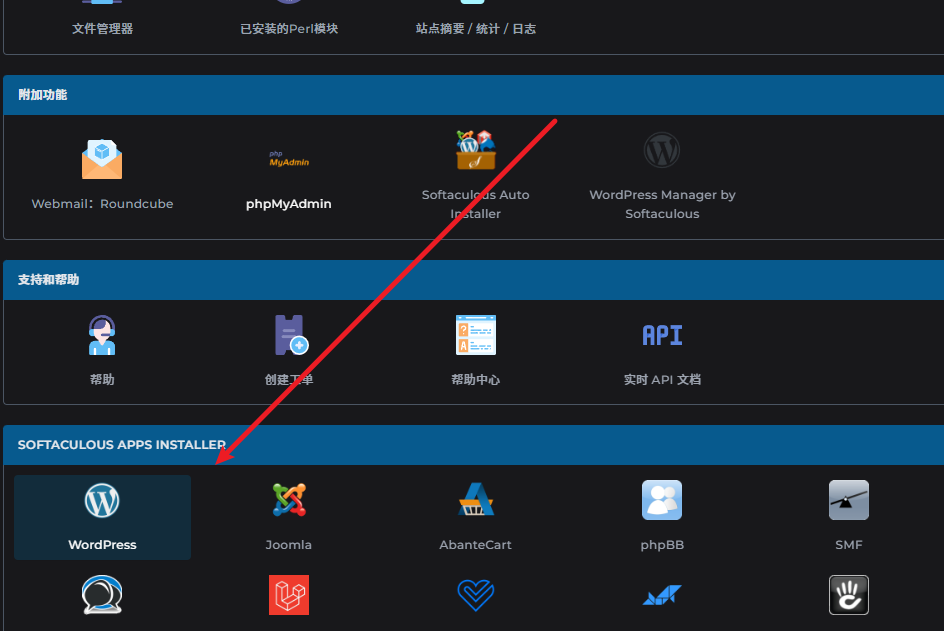
After completing domain resolution, next click the WordPress icon to install a WordPress website with one click.
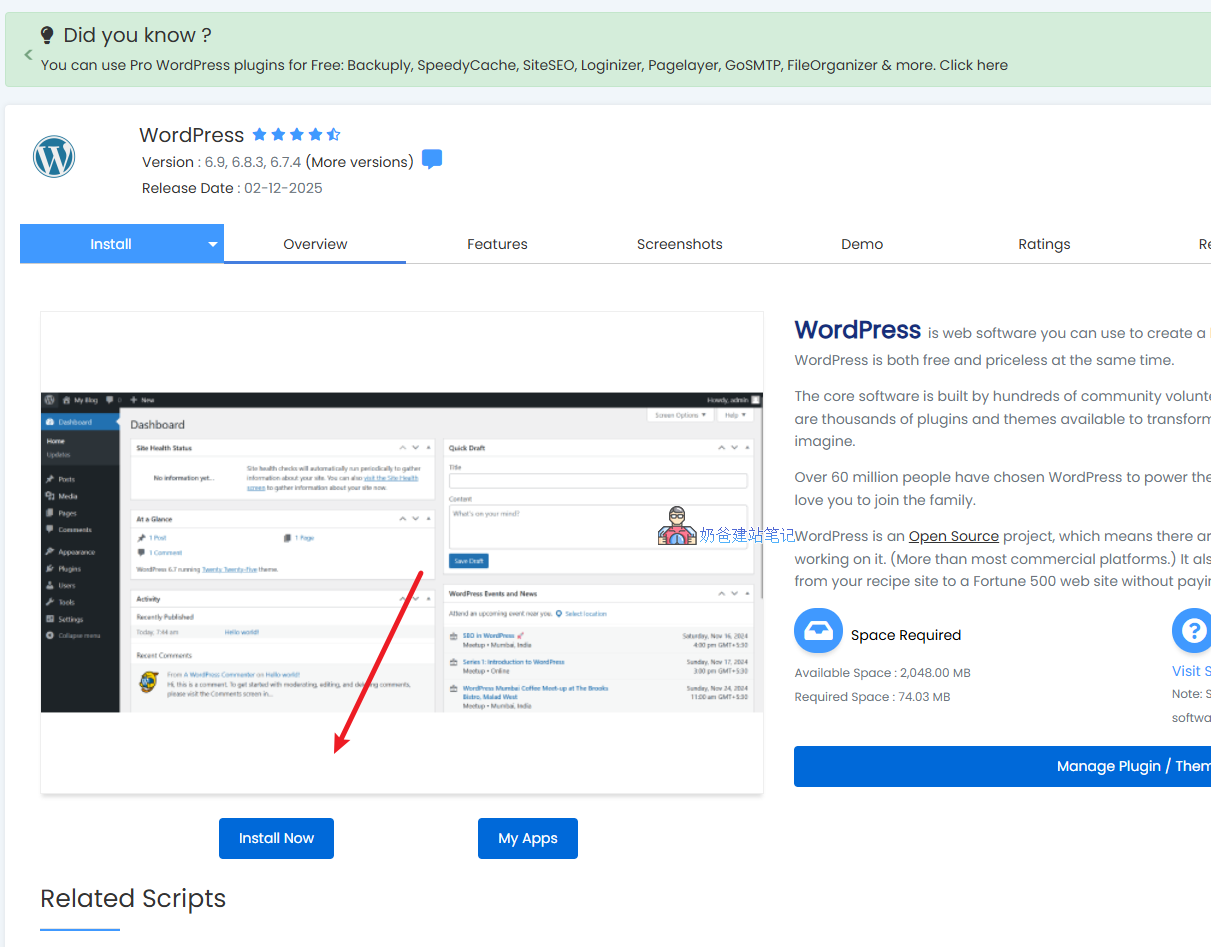
Click the Install Now button, then the following image appears:
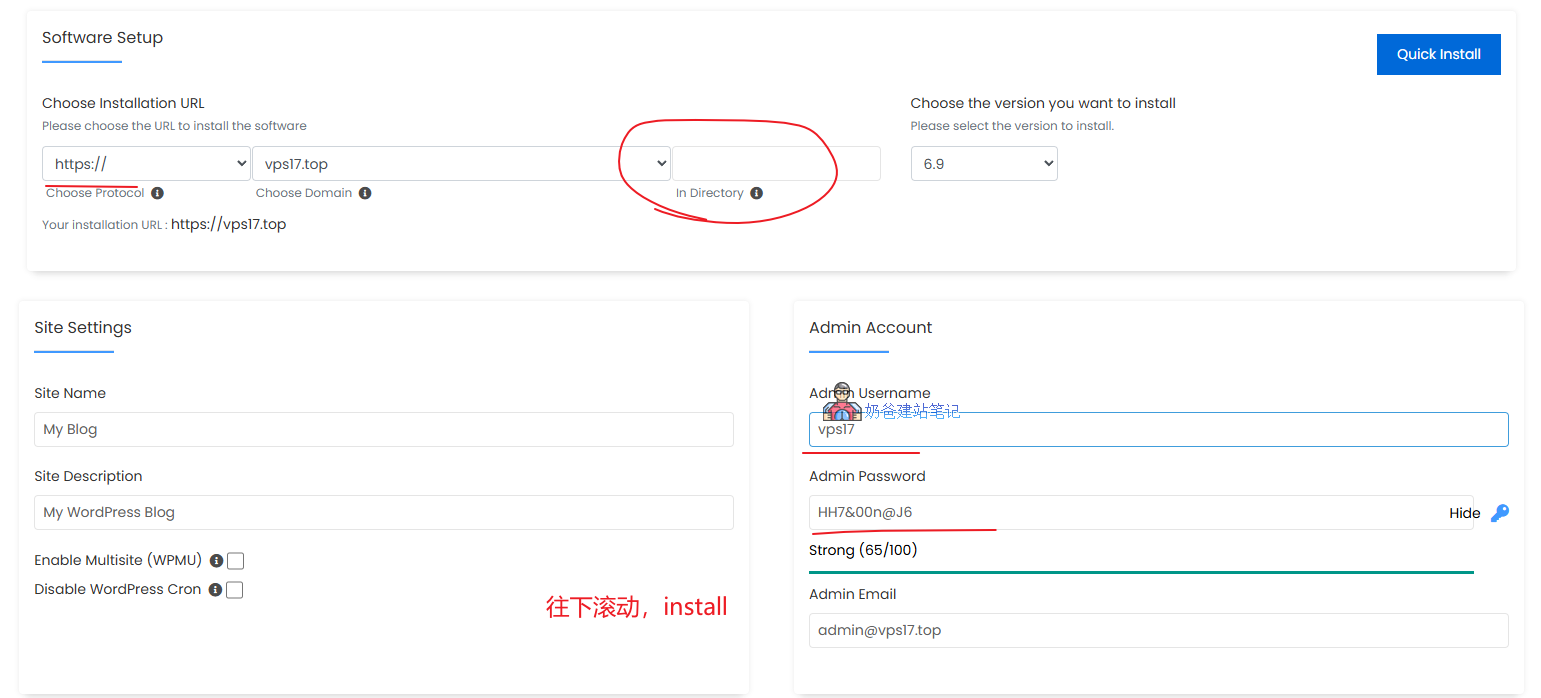
Select the website URL, directly choose the one starting with https, and leave the installation location blank.
Then fill in the website administrator username and password, scroll to the bottom of the page to find the Install button.
Wait a moment and the installation will be successful. Thenwait for the domain resolution to take effect, and you can open your WordPress website via the URL.
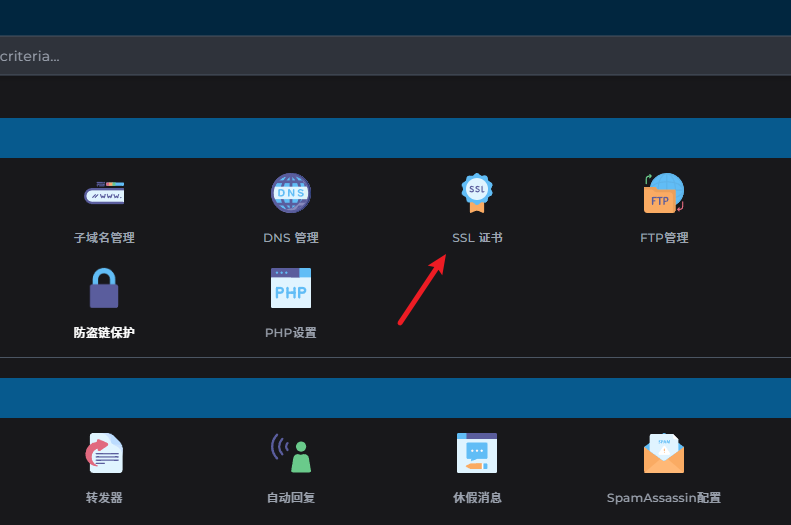
If accessing the website after the domain takes effect prompts as insecure, it„s because the SSL certificate was not obtained automatically. Go into the SSL certificate section, select “Automatically obtain certificate from ACME Provider„, then apply and save.
Once the domain resolution takes effect and the SSL certificate application is successful, visiting your URL will show the default WordPress interface.