Google Search Console, also known as Google Search Console, Google Administrator Tools, or Google Webmaster Tools, is a website SEO tool frequently used for English foreign trade websites. In this article, Naiba will share its usage methods and tips.
Introduction to Google Search Console
Google Search Console translates to Google Search Console, commonly referred to as Google Webmaster Tools. Google officially calls it Google Webmaster in Chinese. If you are involved in Google SEO, then Google Search Console is an essential tool.
Google Search Console can help you with the following tasks:
- Improve your website's ranking in Google search results (Tools and reports in Search Console help you measure your website's search traffic and search ranking, resolve related issues, and make your website stand out in Google search results)
- Optimize your website„s content with the “Search Analytics„ report (Understand which queries attract users to your website. Analyze the impressions, clicks, and rankings your website receives in Google search.)
- Get your content indexed by Google (Submit sitemaps and individual URLs for crawling. You can view your index coverage to ensure Google has indexed the latest version of your website.)
- Receive alerts and resolve website issues (Receive email alerts when Google detects issues on your website. You can view which URLs are affected by these issues in the email and notify Google after resolving them.)
- Understand how Google Search views your web pages (This URL Inspection Tool retrieves information about the crawling, indexing, and display of your web pages directly from Google's index.)
- Optimize and enhance your website (AMP, mobile usability, rich media search results)
How about it? Does it seem very powerful? Let's start using Google Search Console now.
Google Search Console Tutorial
To use Google Search Console, you first need a Google account. Friends involved in foreign trade website building should have ways to access Google and manage it, so we won't cover how to access or register here.
Log in to Google Search Console
Open the Google Search Console website and log in with your Google account.
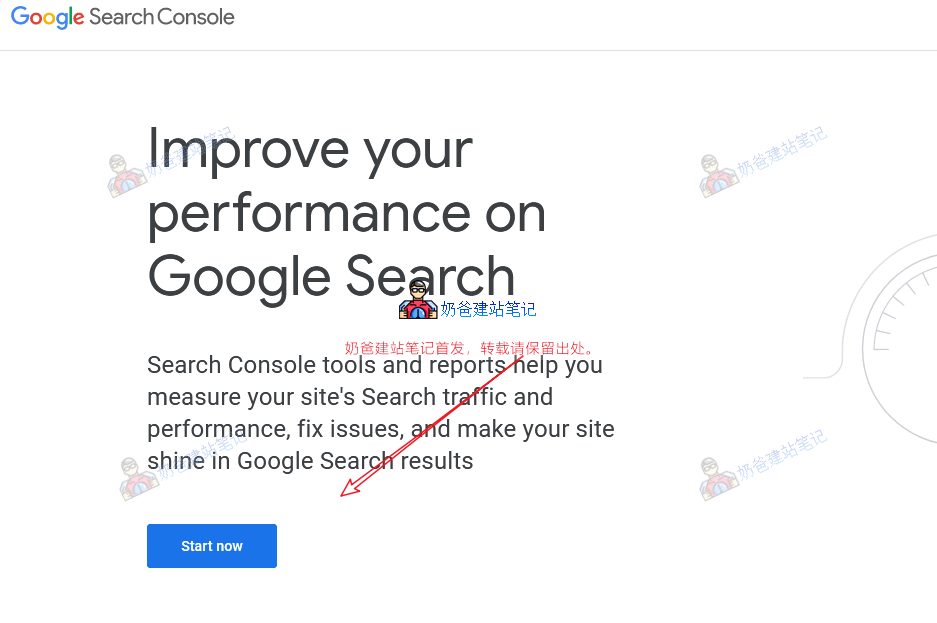
Click the "Start now" button and log in with your Google account.
Add Your Website to Google Webmaster Tools
After logging into Google Search Console, add your website. You need to verify website ownership. There are two verification methods: domain and URL prefix.RecommendedUsing URL prefix additionmethod, takes effect quickly.
- Domain verification involves adding the main domain, and your subdomains will be verified automatically. Verification may take some time.
- URL prefix verification involves adding a specific URL. Other subdomain URLs require re-verification if added separately, but verification is fast.
Using the domain verification method:
We use the domain addition method. Fill in your website domain,without www.
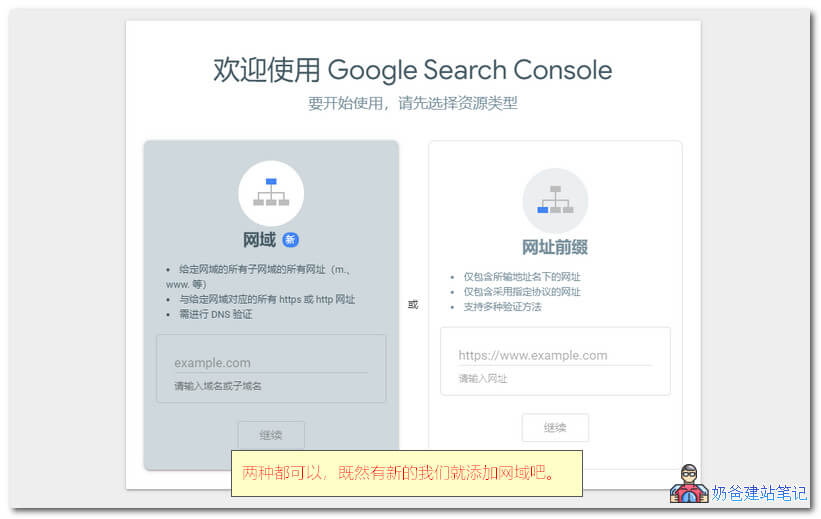
Add a TXT domain resolution record
Go to the domain registrar and add a domain resolution record. If you don't know how, you can refer to Naibabiji'sDomain Registration and DNS Resolution Topic, which shares methods for adding resolution records at common domain registrars.
Note: If you have modified the domain DNS server, you need to add the record at the website of the DNS server.
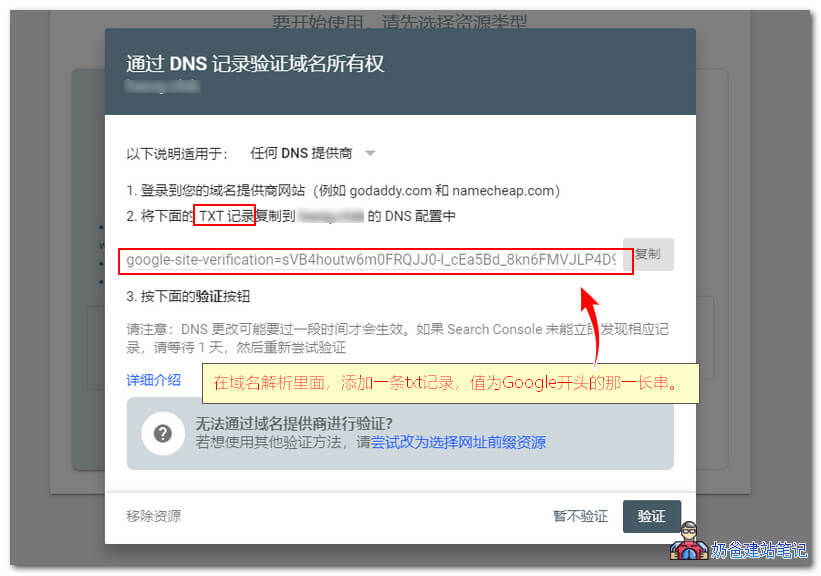
For domains registered with NameSilo, add the DNS record as shown below.
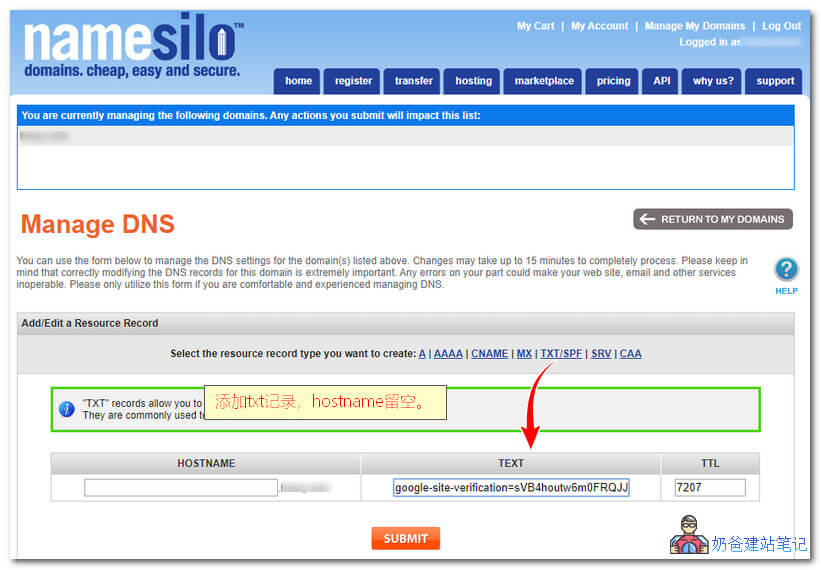 After adding, it may take several hours or a day for verification to pass., you can first disable Google Search Console, or use URL prefix verification.
URL prefix verification method:
In the URL prefix input box, enter your website's complete URL, including https (if not https, fill in http), for examplehttps://blog.naibabiji.comURL like this.
There are multiple verification methods. It is recommended to use the file or HTML tag method.
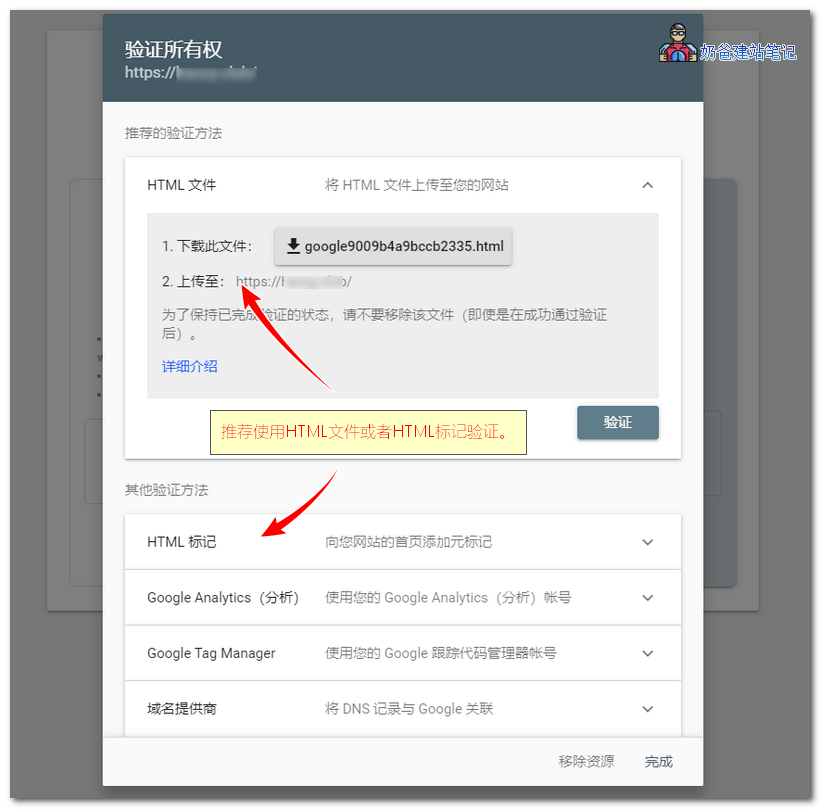
Supports multiple verification methods; it is recommended to use HTML file or HTML tag verification.
- For HTML file verification, download the html file, then use FTP software to upload it to the website server, placing it in the website root directory.
- For HTML tag verification, it is added to the website's HTML code; see the detailed method below.
There are 3 methods to add the HTML tag:
- Add it to the corresponding settings of the SEO Plugin (look for it yourself; writing tutorials for all is too tiring);
- Use a plugin to add it,using the plugin introduced in this article, paste the code into the plugin;
- Edit the Theme's header.php file, and in
<head>the next line, paste the code and update the file.
Verification successful, proceed to the resource page.。
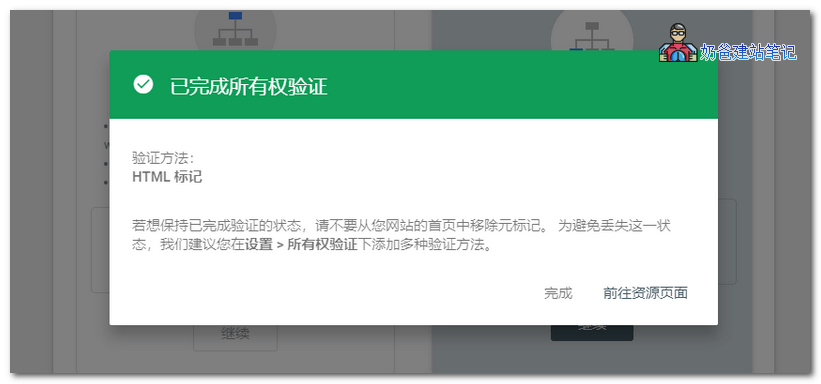 Do not delete the added verification code and file; if you change the Theme, remember to re-add it.
Submit Sitemap
After verification, we can submit the sitemap.
At the sitemap section, add your website's sitemap. If you don't have a sitemap yet, please refer tositemap generation method.。
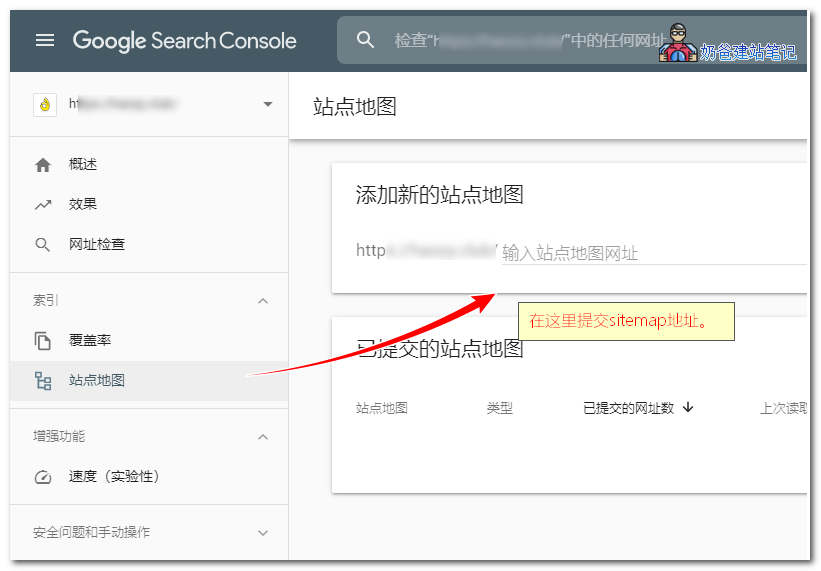
Other Features
After adding the website sitemap, Google's bots will crawl it. After some time, you can check the specific indexing records from the Google Search Console.
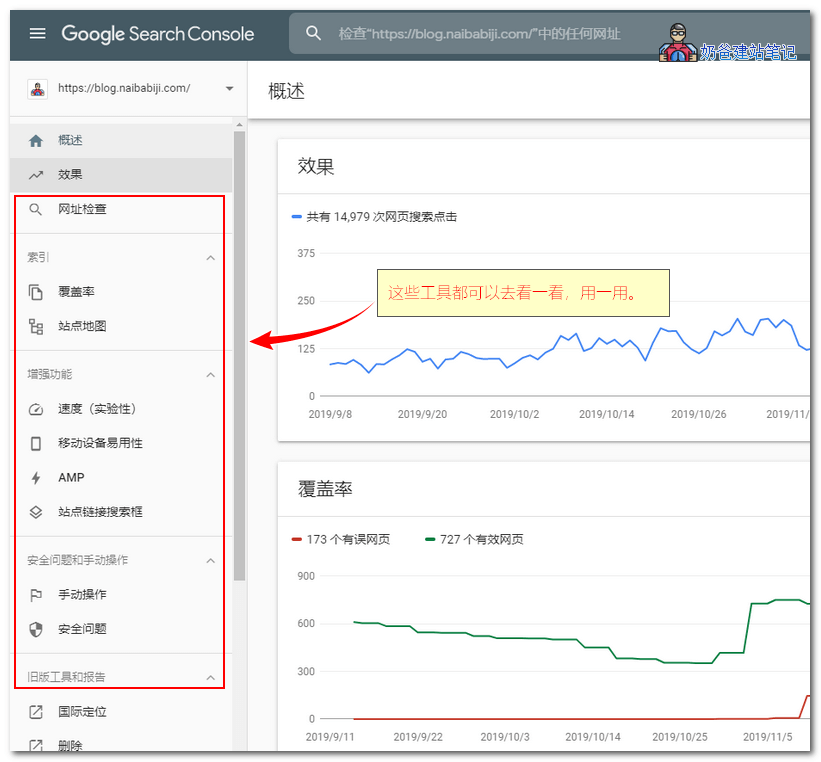
These tools help you better understand your website's performance in Google Search and your site's link information.
With the help of Google Search Console, I believe your website can gain more traffic in Google search results.

Addresses of Other Search Engine Webmaster Tools
Besides Google, other search engines have corresponding webmaster tools. The addresses are shared as follows: