Recently, many users building foreign trade independent websites have received notifications when running Google Ads, requiring their websites to set up cookie notices to meet the EU's Consent Mode V2 policy requirements. For users building websites with WordPress, there are already multiple plugins available to help us achieve this goal.
In the WordPress Admin Dashboard, under Plugins, select Add New, search for „cookie“, and you will see several cookie plugins listed below.
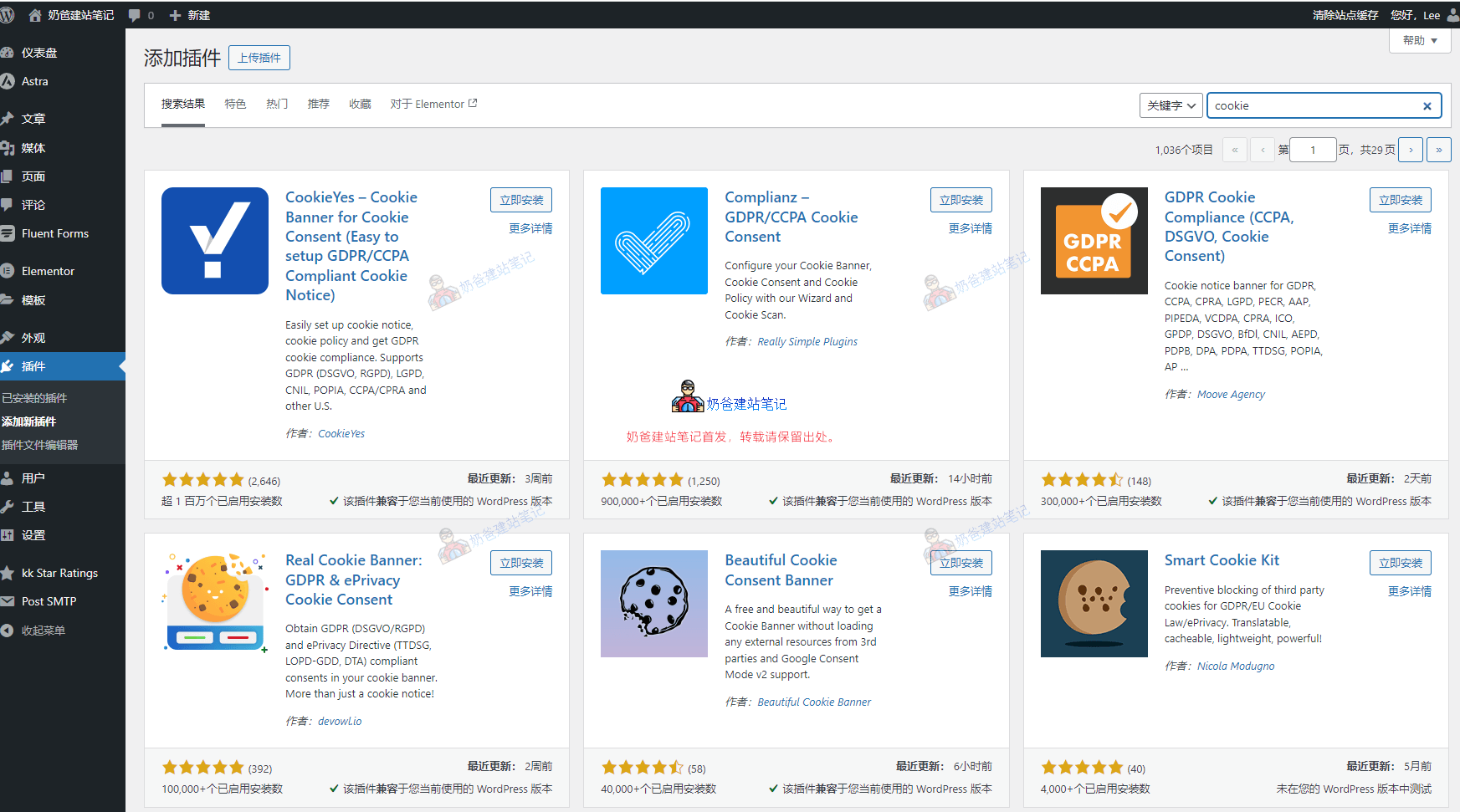
Naiba often uses the Cookie Yes plugin.
The CookieYes GDPR Cookie Consent plugin seamlessly integrates a Cookie banner into your website, simplifying GDPR (RGPD, DSVGO) compliance.
Additionally, it supports various global privacy regulations, including LGPD (Brazil), CNIL (France), PIPEDA (Canada), Law 25 (Quebec), POPIA (South Africa), nFADP (Switzerland), Privacy Act (Australia), PDPL (Saudi Arabia), PDPL (Argentina), PDPL (Andorra), DPA (Faroe Islands), and the California Consumer Privacy Act (CCPA/CPRA). Its design also complies with other important U.S. state privacy laws, such as VCDPA (Virginia), CPA (Colorado), CTDPA (Connecticut), and UCPA (Utah).
Our Cookie plugin ranks among the top WordPress GDPR Cookie compliance plugins, offering a range of features, some of which are listed below.
Simply install this plugin and follow the official tutorial to set it up, and you're good to go.
Official Tutorial Address:https://www.cookieyes.com/documentation/install-cookieyes-wordpress-plugin/
The official tutorial includes animated GIF demonstrations. Translating the English content, I believe those involved in foreign trade can understand it. For websites with low traffic, the free plan is sufficient initially; upgrade to a paid plan later if needed.
1. Click Connect to Web App to register an account.
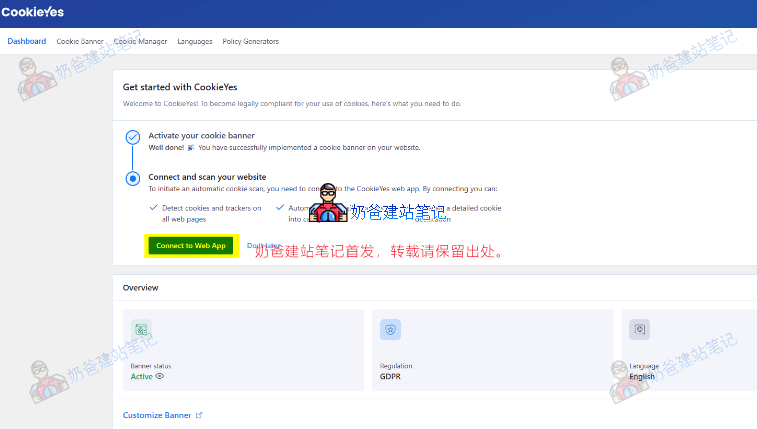
2. Here you can choose the free user option, then click Connect for free to register an account.

3. After registration, enter the CookieYes management page, click Cookie Banner to set the style. It supports left, bottom, and center display modes, and allows custom styling. Set the colors according to your website's theme.
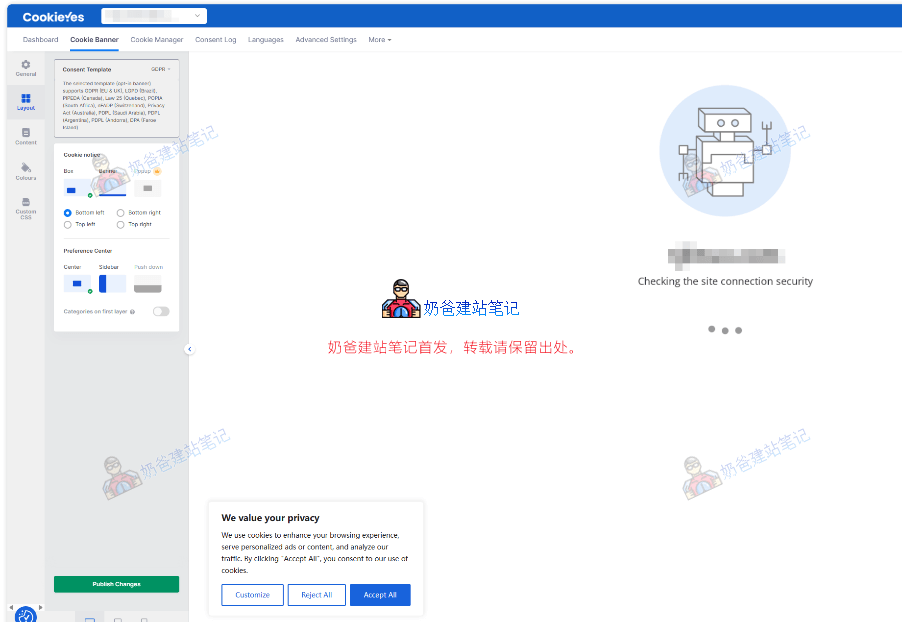
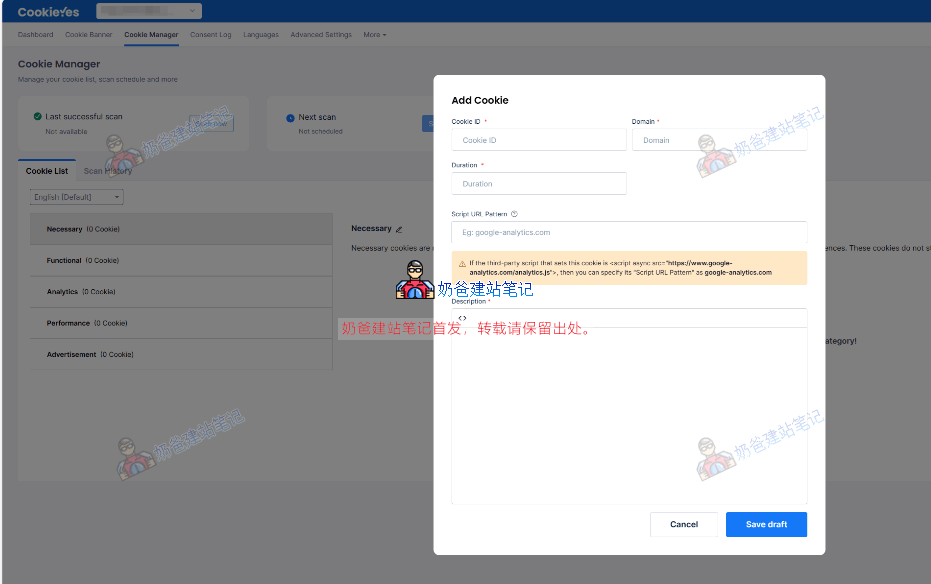
4. Click Cookie Manager to add Cookies and customize the Cookie notice content.
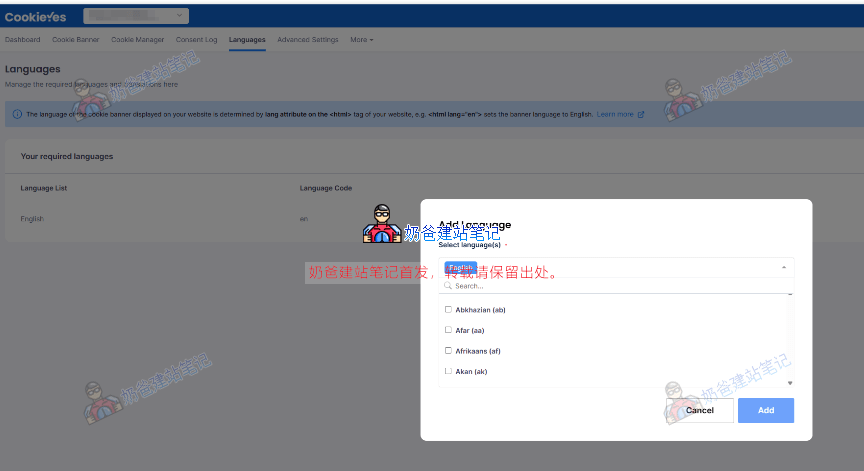
5. If your website is multilingual, you can also click Language to set up multilingual Cookie notices.