
Batiment is a modern, clean WordPress theme for the industrial and construction industry. This theme is suitable for any small, medium, or large construction-related companies such as building, renovation, construction, commercial, corporate, enterprise, electrical, engineering, industrial, interior, insulation, maintenance, painting, projection, etc., to build websites.
In this article, Naiba will introduce the installation and basic usage tutorial of the Batiment theme.
Batiment Purchase and Download
Batiment is a paid theme. You can click the button below to purchase it.
Official Purchase and View Demo
After purchase, you can download the theme installation file, which is a compressed package. After extraction, it will contain the following:
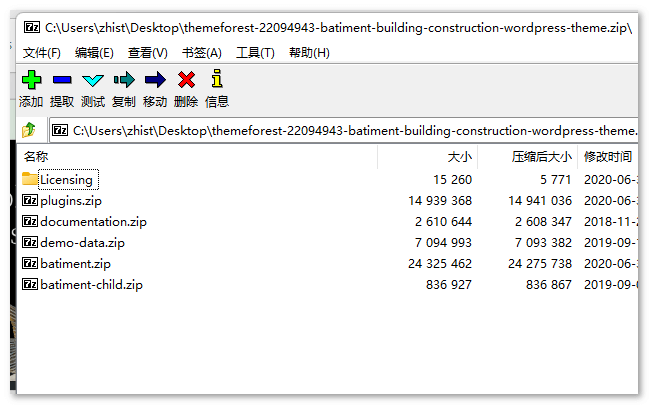
Among them, batiment.zip is the theme installation package, and batiment-child.zip is the Child Theme file. We can upload the theme file for installation, and choose whether to install the Child Theme as needed.
Batiment Theme Installation and Demo Import
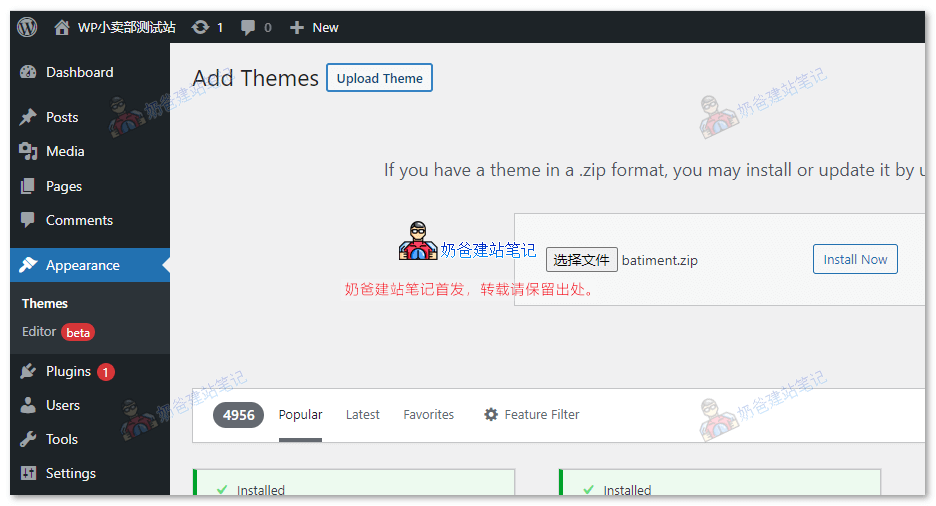
After extracting the downloaded theme file package, go to WordPress Admin Dashboard > Themes > Add New > Upload Theme, select the theme file package for installation.
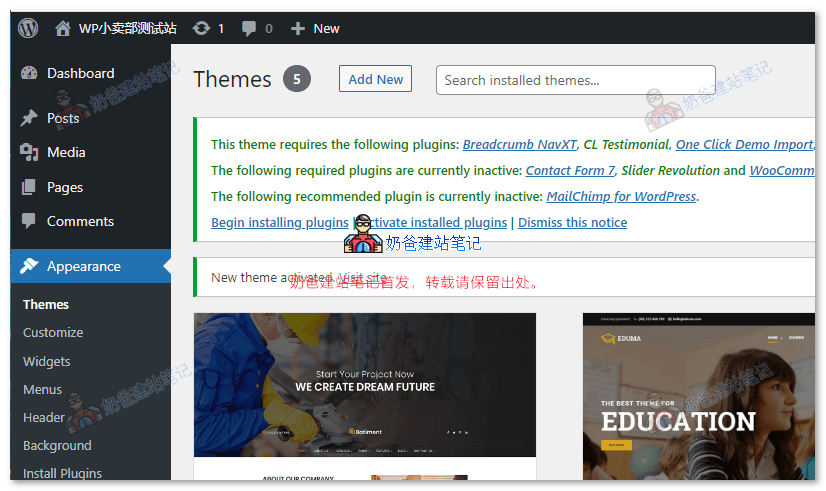
After installation, you will be prompted to install the required plugins. Click "Begin Install Plugins".
After clicking, install and activate all the plugins required by the theme.
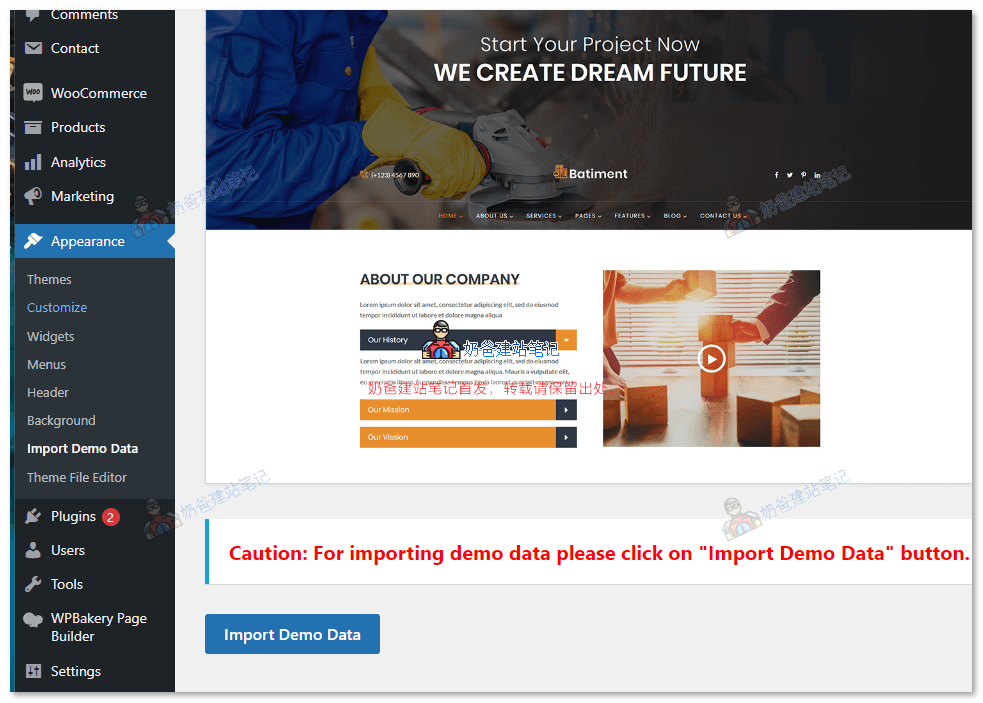
After activating all plugins, under the theme menu options, you can see 'import demo data'. Click the import button.
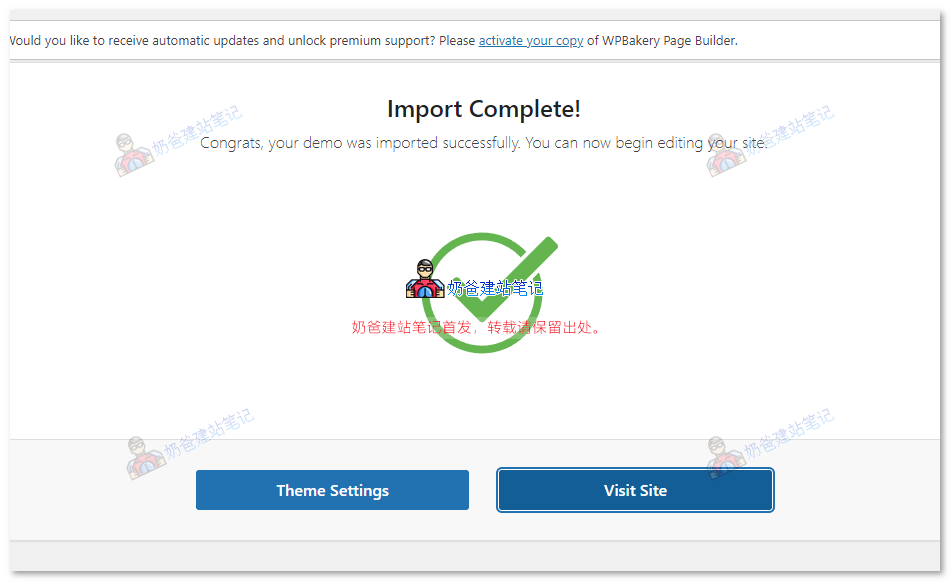
After waiting patiently, a prompt indicating successful demo import will appear.
Batiment Theme Simple Usage Tutorial
Modify Navigation Menu
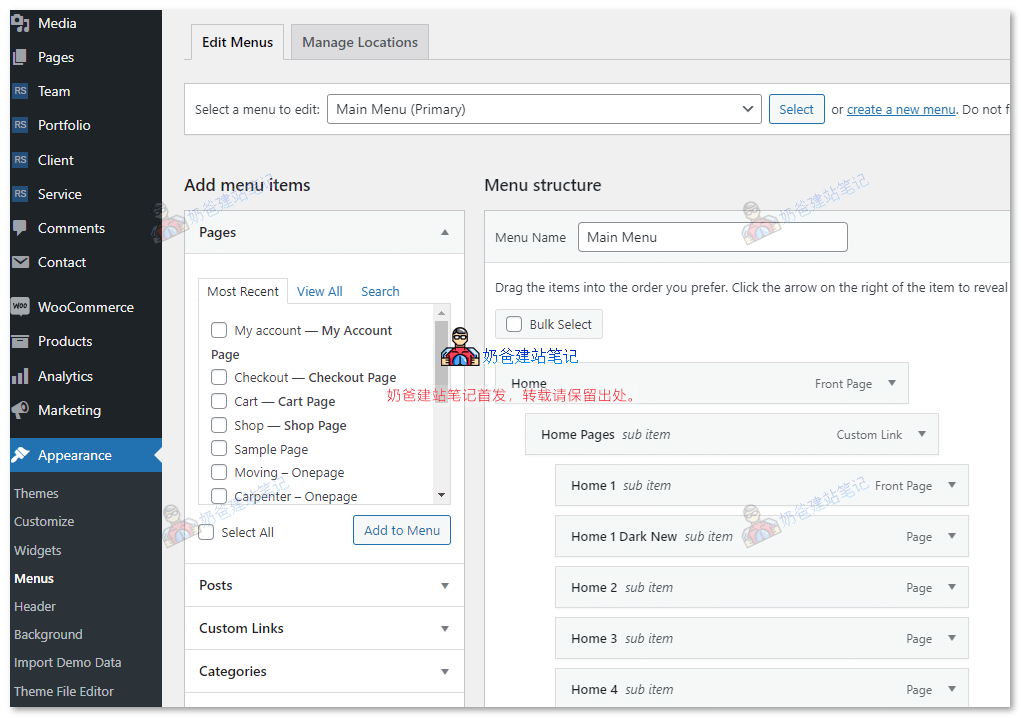
Under the theme's menu options, find the Main Menu, then add or delete menu items and save.
Related Tutorials:WordPress Navigation Menu Setup Tutorial with Images and Video
Modify LOGO
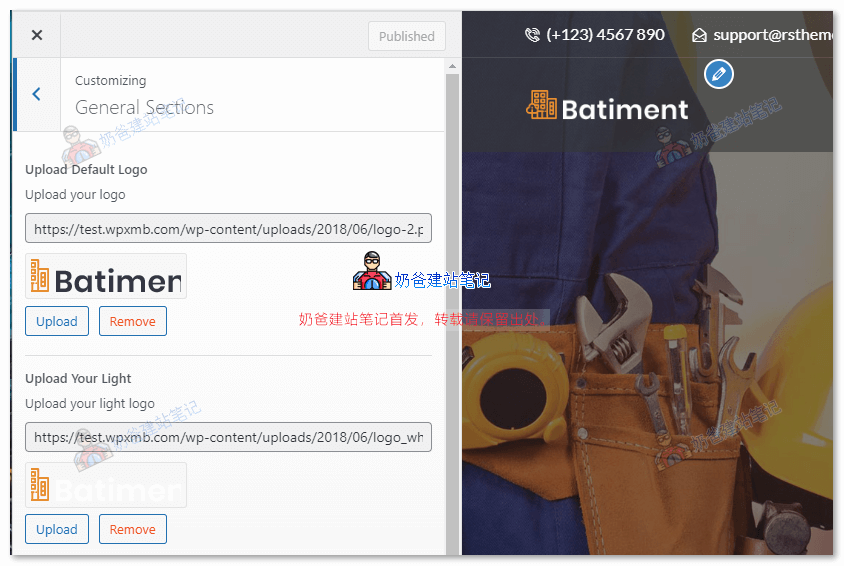
In Appearance > Customize > Basic Settings, you can modify the LOGO image.
Modify Footer
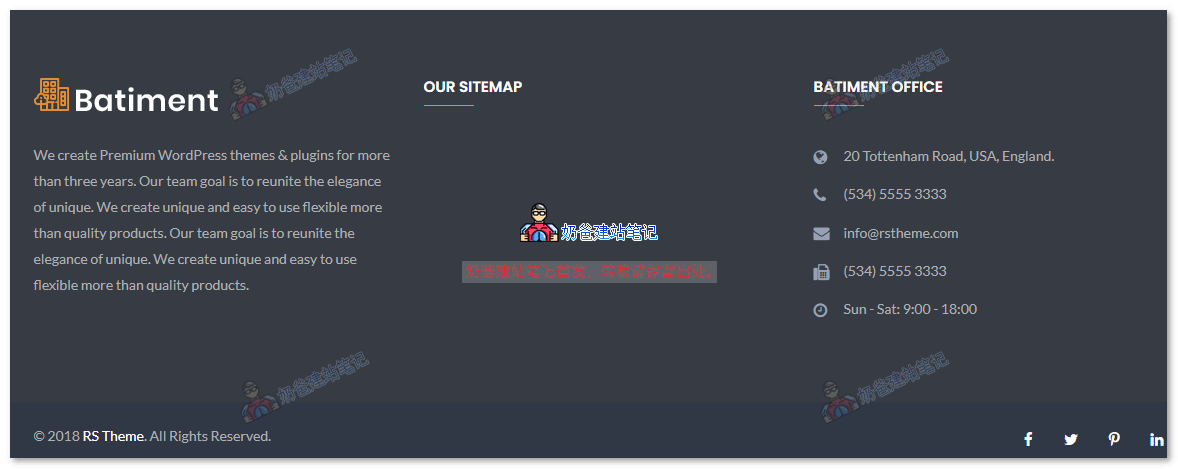
In Appearance > Widgets, modify the footer information.
Modify Page Content
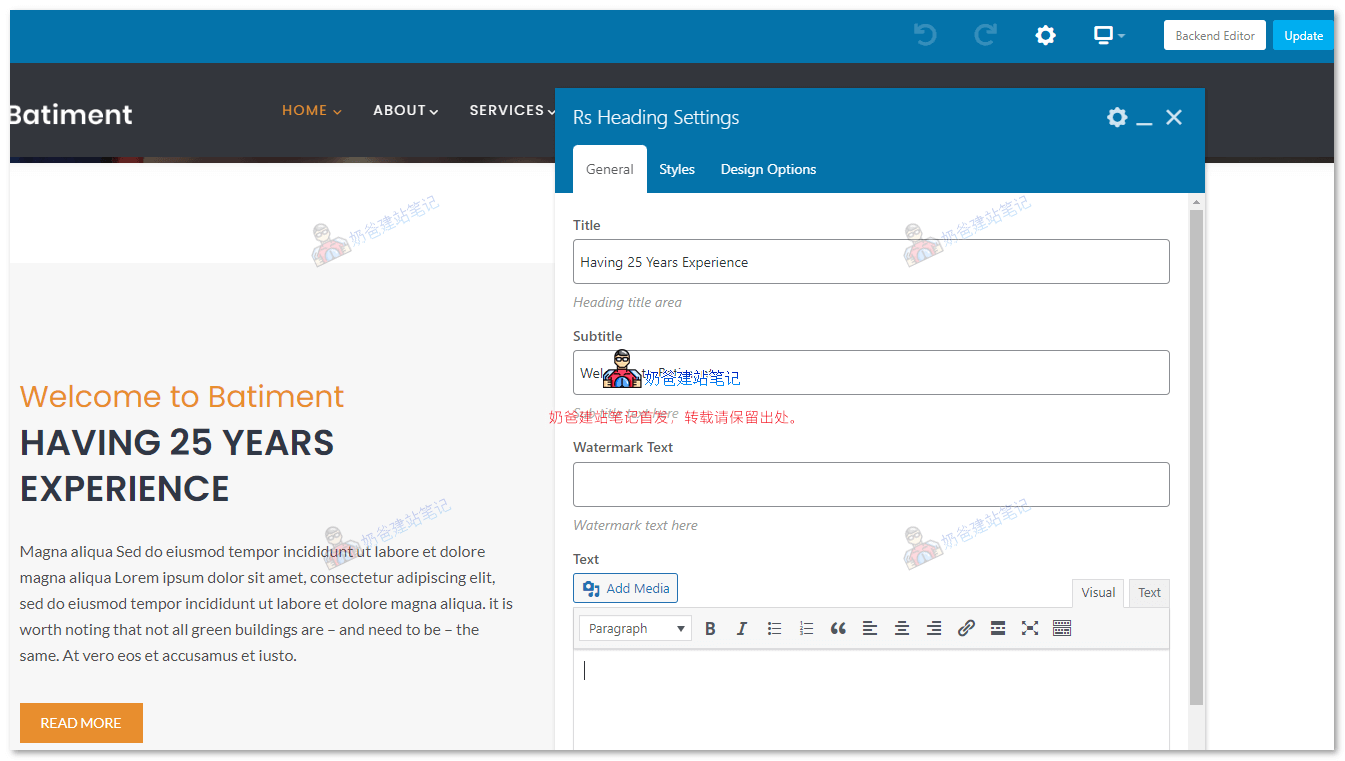
On the page you need to modify, click 'Edit Page' in the top admin bar or 'Edit with WPBakery Page Builder' to replace text and images, delete or add templates to the page content.