Home Website Building Knowledge Standard Post

Standard Post

Namecheap Domain Resolution and DNS Modification Tutorial

If you purchased a domain on Namecheap and don't know how to set up DNS, follow the steps below. 1. Log in to the Namecheap dashboard and click on Domain List on the left: 2. Click the [Manage] button behind the domain you need to modify. 3. Modify, delete, or add records as needed. Edit...

Updated on October 1, 2025 About 1 minute read
Namecheap域名解析和修改DNS教程

If you purchased a domain from Namecheap and don't know how to resolve it, please follow the steps below.

1. Log in to theNamecheapAdmin Dashboard, click on Domain List on the left:
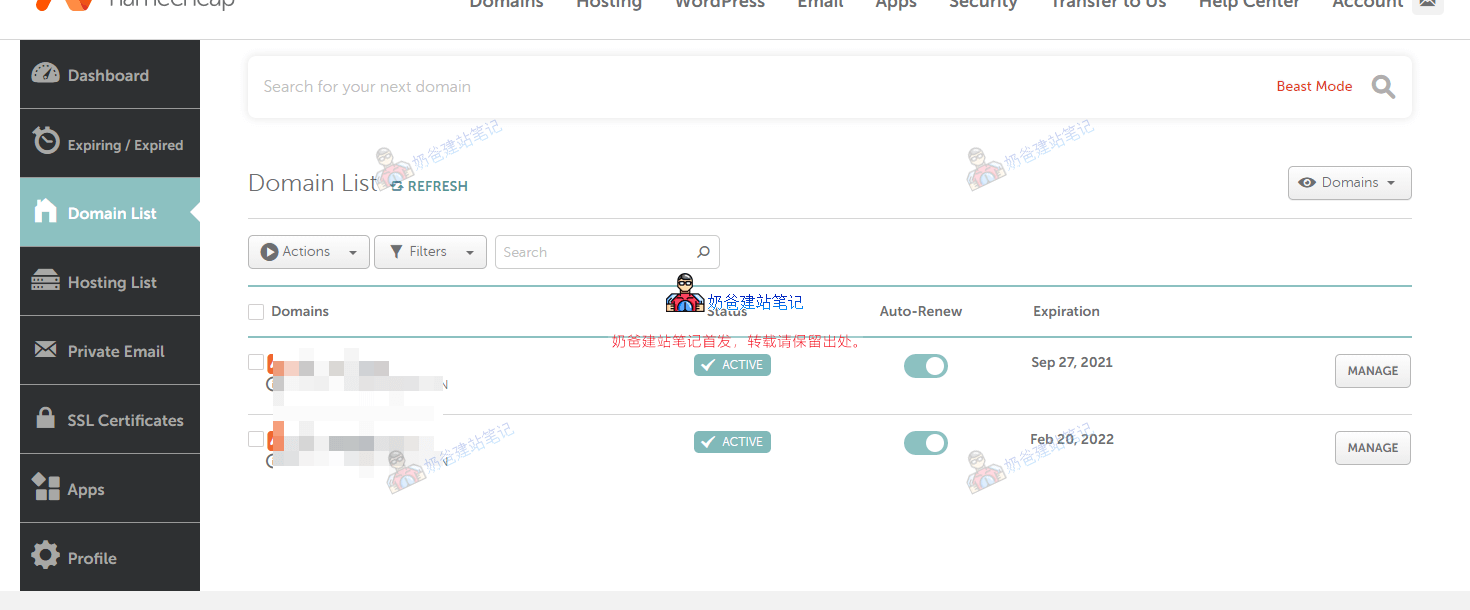
namecheap域名列表

2. Click the 【Manage】 button behind the domain name you need to modify the resolution for.
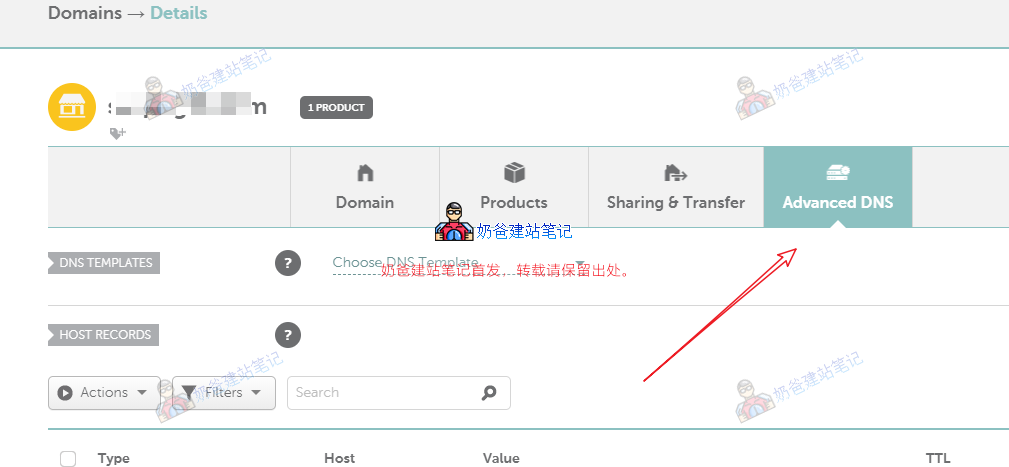
namecheap域名管理界面

3. Modify, delete, or add resolution records as needed.
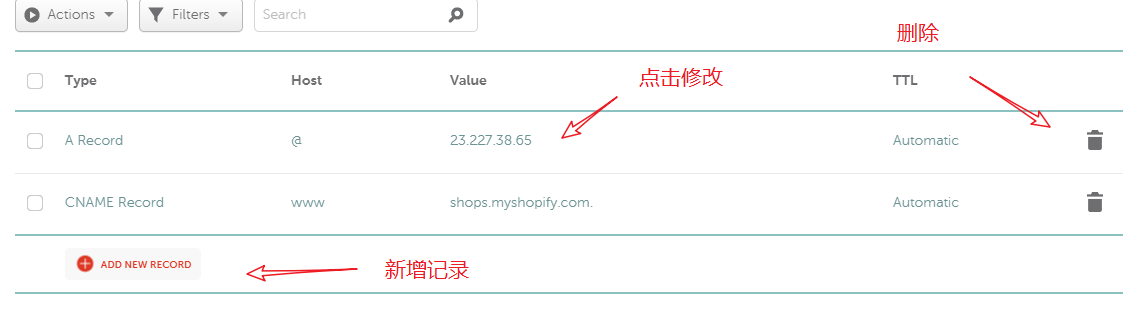
namecheap域名解析界面

Modify DNS Servers

If you purchased other Shared Hosting and are asked to modify the DNS servers to those of the Shared Hosting, you can modify them using the method below.
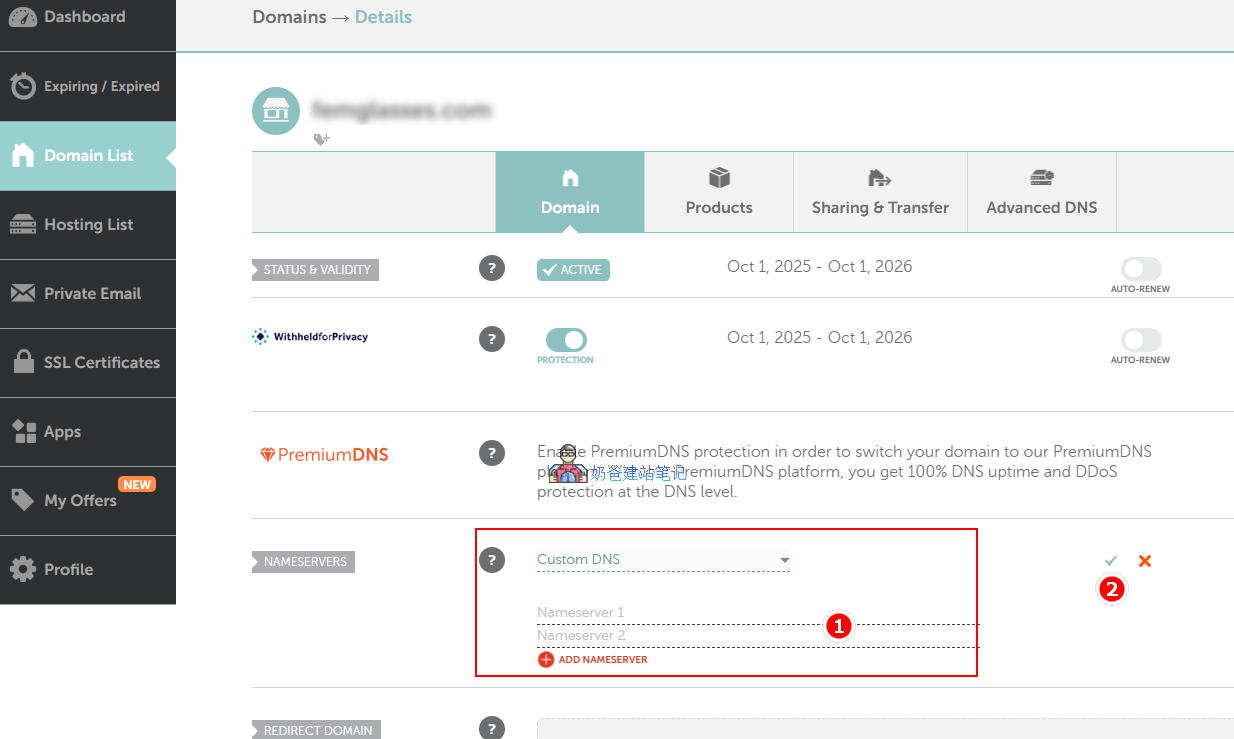
namecheap修改域名DNS

Also in the domain management interface, select Custom DNS after NAMESEVERS, then fill in the DNS addresses of your Shared Hosting below, and click the √ checkmark to save.

If the Custom DNS option does not appear, it is because you have not verified your email account. You need to verify your email account first before you can set it up.

2.4/5 - (39 votes)
Previous Baota Panel Nginx FastCGI Cache Configuration Tutorial: Complete Guide to WordPress Website Acceleration (2026 Edition) Continue reading content around the same timeline. Next What to Do When You Forget Your WordPress Password? 4 Methods to Quickly Recover Admin Password (2026 Latest) View the next related tutorial or experience.

AI Website Building Assistant

🤖
Hello! I am the Naibabiji AI Assistant. How can I help you?
Quick Consultation: