Recently plannedBuild an industry websitePractice hands-on, because the domain is not registered, so only foreign servers can be used. Since it's for practice, the requirements are not high, so I directly used the previously writtenFree web hosting applied for during the tutorial on building a WordPress website with free web hosting. (Another reason is that my Hong KongVPSThe load is a bit high, and I don't want to add another website to it.)
Because I am already used to the HTTPS icon (otherwise Chrome shows 'Not Secure', which is very annoying), the first step after building the website is to set up HTTPS.
This virtual host uses the DirectAdmin panel. The method to apply for an SSL certificate is as follows.
Apply for a free SSL certificate
Go directly toThis websiteApply for a free TrustAsia certificate, valid for one year.
Specific Method:
1. On the website homepage, enter the domain name for which you want to apply for a certificate, then click 'Create Free SSL Certificate'. Select the brand TrustAsia.
2. For CSR generation, select browser generation. Enter your email in the input box above, then click 'Create'.
3. A DNS modification verification message will pop up. Modify your DNS resolution yourself. SeeTutorial on DNS resolution and DNS server modification for NameSilo domains
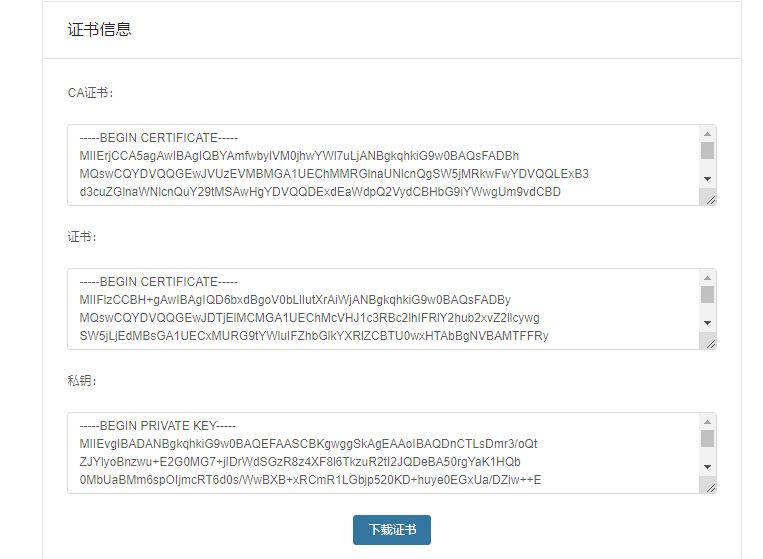
4. Wait a few minutes for verification. After successful verification, the certificate download and certificate information will pop up, as shown in the figure below:
Add SSL certificate in DirectAdmin panel
Find the SSL certificate icon in the DirectAdmin panel backend and click to enter.
First, click on arrow 1 and paste the CA root certificate. (Copy the certificate data generated in step 4 above.)
Then, click on arrow 2 and paste the certificate and private key. (Copy both into one box.)
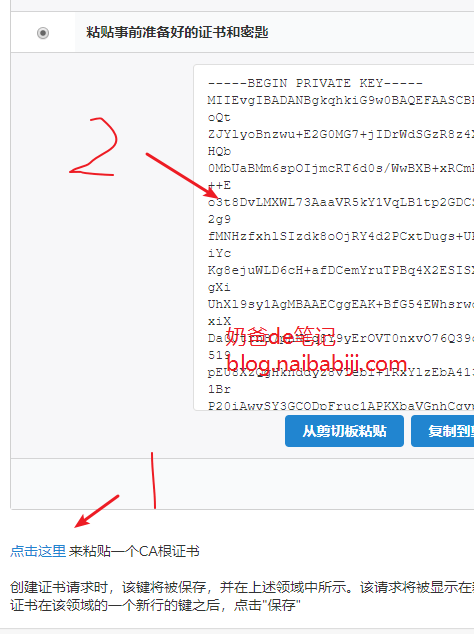 After saving, your website's SSL certificate can be used.
Access your website via HTTPS. If a certificate error is prompted, force refresh once, and then it will be OK.