How to safely update WordPress plugins? For most beginners managing a WordPress site, the update process goes like this:
A bunch ofupdate prompts → Select Allappear in the dashboard → click "Update Plugin" →refresh the homepage→ if it loads, done.
In most cases, this process works fine.
In rare cases, such as when you've accumulated many updates and update them all at once, youmight encounter:
- White screen of death (WSOD) after plugin update, where both the frontend and backend are inaccessible, requiring manual FTP intervention;
- The page looks fine, but contact form submissions don't send emails, and you lose two weeks of customer messages before noticing;
- After a WooCommerce update, the checkout page throws errors, preventing visitors from placing orders, resulting in real financial losses;
- More subtle is JavaScript conflicts: the page loads, but a button doesn't respond when clicked.
So in this article, Naiba will share with you:How to establish a complete closed loop of "backup → update → verify → rollback", turning plugin updates from "relying on luck" into a controllable, verifiable, and recoverable operational process.
1. Should WordPress plugins be auto-updated at all?
This is the most common question in the backend update settings. My answer is:Don't take a one-size-fits-all approach; decide based on plugin type.。
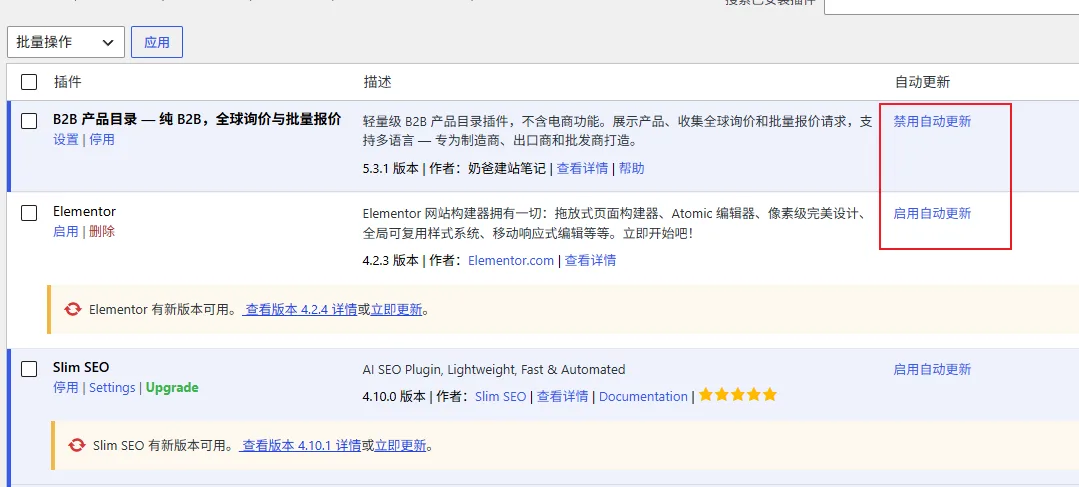
Generally, plugin updates fall into two categories: fixing vulnerabilities or adding features, which we call security updates and feature updates.
- Security Update: Fixes vulnerabilities; the risk of not updating is "being hacked";
- Feature Update: New features, UI changes, whether you update or not, you may encounter "incompatibility with old code/themes".
For security updates, the "risk of not updating" is usually greater than the "risk of updating", while for feature updates it is the opposite—this is why many people recommend: security updates can be automatic, but feature updates are recommended to be manual.
Which plugins are suitable for automatic updates
- Pure display, low-risk plugins (such as simple SEO descriptions, social share buttons);
- Mainstream plugins with high update frequency and stable quality (such as Yoast SEO, Rank Math and other major plugins);
- Auxiliary plugins that do not directly participate in "transactions and data submission".
Which plugins are recommended for manual or delayed updates
- WooCommerce and its extensions: frequently updated and involve orders, payments, inventory;
- Payment gateway plugins (Stripe, PayPal, WeChat Pay, etc.);
- Membership/subscription/login plugins;
- Form plugins (Contact Form 7, WPForms, Fluent Forms, etc.);
- Page builders (Elementor, Bricks, etc., with large changes in JS/CSS resources);
- Cache/performance plugins (after update, may change caching rules and cause page anomalies).
Why these plugins need more caution
The reason is simple: they are directly related to the website's "core business flow". If a blog plugin update goes wrong, at worst the article layout will be messy; but if a payment plugin update goes wrong, visitors cannot pay, order status is confused, and you may lose customer trust, or even face compliance issues (such as abnormal payment data).
2. What to do before updating?
1. Back up files and database
If you are a beginner and are afraid of problems during updates, then honestly back up your website before updating (some servers support daily automatic backups, or likeWP PanelThis server management panel can set up daily automatic backups):
- Complete database backup (WP-CLI: wp db export, or plugins such asUpdraftPlus);
- Backup the wp-content directory (focus on plugins, themes, uploads).
Generally speaking, if you don't have many accumulated updates, especially if you update only after a long time, then you can safely update after just backing up the database; problems are relatively rare.
2. Check the changelog and compatibility
Spend 30 seconds before updating to do two things:
- Check the Changelog in the plugin details to confirm whether this update is a bug fix, security fix, or major version refactoring;
- Check the "compatible with current WordPress version" and "compatible with current PHP version" indicators in the update notice.
3. Determine if it is a major version
1.2.3 → 1.2.4 is usually a security or bug fix, low risk; 1.2.3 → 2.0.0 is a major refactoring, may have breaking changes, and such updates should always be verified in a test environment first (if there is no test environment, then both the website database and files should be backed up just in case).
4. If possible, test in a Staging environment first
A more professional approach is to maintain a Staging environment consistent with the production environment:
- Same theme, same PHP version, same plugin combination;
- Update on Staging first, run through key pages and flows;
- If no issues, then go live on production.
5. For multi-site, first do gray release on low-risk websites
If you manage multiple WordPress websites, don't update the same plugin on all sites at once. The strategy is:
- First pick 1–2 websites with low traffic and non-critical business to update;
- Observe for 24–48 hours, if no issues, then push to important sites.
- This is the same idea as 'gray release/canary release' in software releases.
3. Don't blindly select all and update at once
„Select all → batch update“ is very convenient, but it„s one of the most dangerous operations. Because once a problem occurs, you don“t know which update caused it, and troubleshooting costs are extremely high.
Recommended update order
A safe order is:
- WordPress Core: Core first, ensure plugins run on the latest core;
- Theme: Theme second;
- Plugin: Update plugins last.
Practical advice: after core and theme updates, first verify the website is working normally, then start updating plugins.
Why critical plugins should be updated in batches
It is recommended to update plugins in batches:
- First batch: low-risk plugins—batch updates are fine;
- Second batch: medium-risk plugins—update 2–3 at a time, and quickly verify after each update;
- Third batch: high-risk plugins (WooCommerce, payment, forms, membership)—update individually, and after updating, focus on verifying the corresponding functions.
This way, even if problems occur, the scope of troubleshooting is limited to one or two plugins, and you can locate the issue within minutes.
4. Update completed ≠ update successful
This is the most overlooked step. After a plugin update shows green "Update successful", it only means the files were written successfully, not that the functionality is normal.
The homepage loading is only the first step. A complete post-update checklist should be:
Basic checks
- Can the admin dashboard log in normally (exclude white screen of death, fatal errors);
- Can the homepage, post pages, and product pages load normally, and is the layout intact;
- Is the site search working normally (some plugin conflicts can affect queries);
- Check both mobile and desktop views.
Checks by business type
- Forms: submit a test form to confirm you receive the notification email and that there is a record in the admin;
- WooCommerce: go through the full flow of add to cart → checkout → submit a test order, and check email notifications and order status;
- Membership/login: test the registration, login, and password reset flows;
- SEO: spot-check that page titles and meta descriptions are output correctly.
Check logs
If you find problems, check three logs immediately:
- WordPress debug log (wp-content/debug.log, requires enabling WP_DEBUG_LOG in wp-config.php);
- PHP error log (server-level, FPM/Apache logs);
- Nginx/server access and error logs (direct source of 500, 502 errors).
Many people don't check logs after updates, and by the time problems surface, several days have passed and logs have already been rotated.
5. Why Uptime Monitoring Alone Is Far from Enough
Some site owners set up online monitoring for their websites. This kind of "monitoring" is just an Uptime check: it requests the homepage every 5 minutes, and if it returns 200, the site is considered alive.
But the reality is: HTTP 200 only means the server responded, not that the business functions are working.
Plugin updates can lead to:
- A 500 error after form submission, but the homepage still returns 200;
- The checkout button not responding (JS conflict), but the homepage still returns 200;
- Broken images on product pages, but the homepage still returns 200.
A higher level of monitoring should include:
| Detection Type | Detection Content | Tool Approach |
|---|---|---|
| Smoke Test | Whether the homepage, login page, and key pages render correctly | Scheduled requests + keyword/status code assertions |
| Visual Regression | Page screenshots and historical comparisons to detect layout issues | Screenshot comparison tools |
| Critical flow detection | Real flows for form submission, add-to-cart, and checkout | Automation scripts/browser automation |
But to be honest, unless you manage multiple client websites and those client websites are very important (most websites have little traffic; Naiba has encountered many clients whose websites were inaccessible for many days without being noticed), for normal websites you can choose to update manually and test after updating. There's no need to set up such complex monitoring. Simply put, most websites don't warrant such heavyweight monitoring.
6. What to do if the website breaks after updating
If your website cannot be accessed after updating, don't panic. You've already backed up earlier. If your website cannot tolerate downtime, restore the backup data to get the site back online first, then use a staging environment to upgrade and troubleshoot. If you don't mind a brief downtime, follow the troubleshooting steps below.
1. First, determine which plugin is causing the issue
Going back to the principle in Part 3: if you updated in batches, the scope of troubleshooting is now very small, and you can usually pinpoint it easily.
Troubleshooting methods:
- Check the plugin path involved in the error in debug.log (e.g., /wp-content/plugins/xxx/). The error message will clearly indicate it.
- Use FTP/file manager to rename the folder of the suspicious plugin (e.g., change woocommerce to woocommerce-off). WordPress will automatically deactivate it, and your website will likely recover immediately.
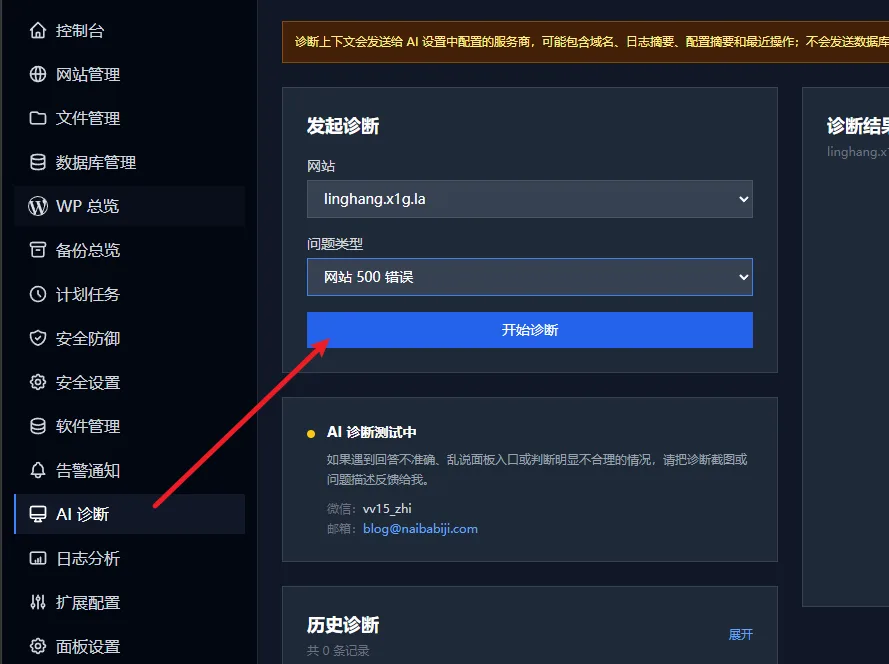
If your server is managed with the WP Panel, you can use the panel's log analysis feature to have AI analyze the cause.
2. Roll back a single plugin version
Naiba wants to emphasize: in most cases, you don't need to restore the entire site; you only need to roll back the problematic plugin.
There are three methods to roll back:
- Install WP Rollback from the plugin store. Any wp.org plugin can be rolled back to a previous version with one click. This is most recommended for beginners.
- WP-CLI users can directly run wp plugin update plugin-name --version=old-version-number (this command needs to be run on the server; not recommended for beginners).
- Manual method: Go to the Advanced View on the WordPress plugin page, download the old version zip, and extract and overwrite (remember to back up the current version files first, in case the old version also has issues and you need to switch back).
3. When do you need to restore a backup?
Only in these situations is it recommended to restore the full site backup:
- The database has been corrupted (orders are messed up, data lost);
- Multiple plugins conflict in a chain, making it impossible to locate the issue one by one;
- If the update process is interrupted midway, the files may be incomplete.
⚠️Special note: Restoring data will result in the loss of data from the time of the update to the time of restoration.
For example, if you backed up data before the update, restoring usually only loses a few minutes of data, which is fine for most websites—just restore directly. If you have a B2C website, you need to consider whether any new orders were placed during those few minutes; if you restore, the order data will be lost.
7. How to handle emergency security updates
The logic of security updates is the opposite of regular updates:The longer you delay, the higher the risk. Once a Critical vulnerability is disclosed, automated attacks scanning all IPs across the internet will appear within hours. Whether your site gets hit is often just a matter of probability.
Especially now with advanced AI, many vulnerabilities in WordPress are being discovered by AI. Although not every security vulnerability exists on your website, Naiba suggests:Update as soon as an update is available。
Recommended handling pace
- Critical security updates: Update as soon as possible after backup, even if not fully tested—choose the lesser of two evils; the probability of being attacked is much higher than the probability of an update failure.
- High and below: You can follow the normal process and complete it within the same day.
- After updating: Immediately perform a round of checks on key pages and key processes (refer to Part 4), and also check the logs for any new errors.
Even quick updates must have a bottom line
„Quick“ does not mean „running naked.“ The bottom line remains the same three things:Have a usable backup before updating, verify after updating, and be able to roll back if problems occur. Missing any one of these means a quick update is a naked update.
„Manual updates“ do not mean forever refusing automatic security updates
Finally, let's correct a common misconception: those who insist on "all manual updates" often overestimate their memory and execution. Naiba won't even mention when you last updated; many enterprise websites are built and then no one logs into the backend for months.
So for the vast majority of websites,enabling automatic updates plus good backups and monitoring is the option with the best risk-reward ratio. The ones truly worth manual review are the few key plugins listed earlier—don't let "caution" become "procrastination," because procrastination is the real high risk.
8. If you manage dozens of WordPress websites
When you have 20, 50, or even hundreds of WordPress sites, "logging into each backend to update" becomes completely impractical. Multi-site updates should be a complete process, not a bunch of scattered operations:
1. Batch view available updates
Centrally list all pending updates for Core / Theme / Plugin across all sites. Prioritize security updates; handle the red security items first. Functional updates can be queued.
2. Execute in batches
Do not perform a "one-click full update" on all sites. Batch by site importance: update low-risk sites first → observe for issues → update core business sites last.
3. Record failed sites
Batch updates will inevitably have failures (timeouts, permission issues, PHP version too low). These sites should be individually marked for later manual follow-up, so they don't slip through unnoticed.
4. Automatic detection after update
This is the step in multi-site management that is most often omitted but has the greatest value. After batch updates, automatically run a round of key page checks (homepage, login page) on all sites, and automatically mark any site with issues in red—otherwise, after updating 50 sites, you can't possibly click through each one manually.
5. Rollback mechanism
Before updating each site, a snapshot or backup should be automatically retained, so that if problems occur, you can roll back a single site rather than rebuilding the entire site from scratch.
6. Update log / audit trail
Who updated which plugin on which site at what time, and what was the result—without an audit trail, you can't review what went wrong when issues arise, nor can you account to your clients.
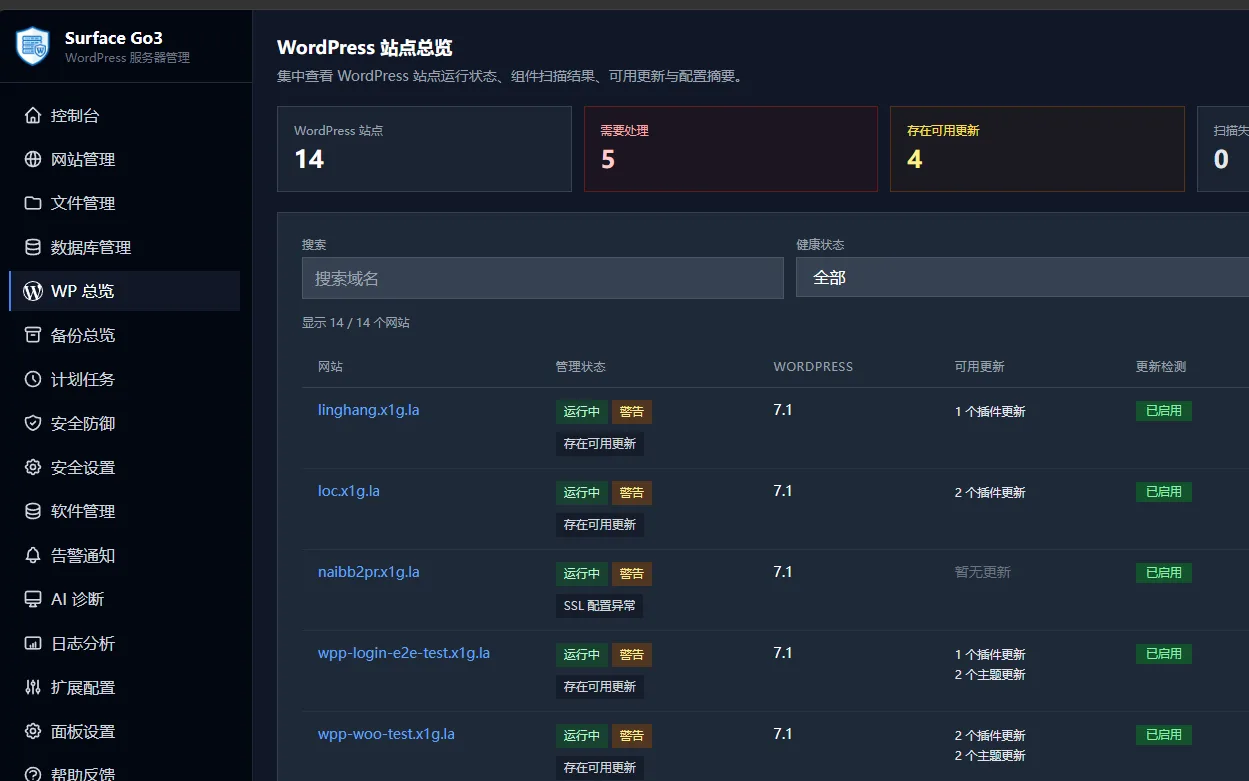
This is also the reason Naiba built WP Panel: with the above capabilities (batch core/plugin/theme updates, failed site marking, automatic detection after updates, single-site rollback, operation logs), managing dozens of sites manually would really make you doubt life; by automating the process, you can finish in one afternoon what used to take a week.
9. Naiba's own update process
Naiba is also human, and humans tend to be lazy. Strictly following the full update process—backing up before every update, then creating a staging environment for testing, and only updating the production site after tests pass—unless a website is extremely important and maintenance fees are paid, Naiba won't strictly follow the safest method for updates.
Usually, Naiba does the following:
Daily database backup for websites
For all websites that Naiba manages and maintains, a daily automatic database backup is set up on the server, retaining 30 days of database backups, and syncing backups to third-party storage.
Routine small updates (low-risk plugins)
Enable automatic updates + server website monitoring → handle issues manually if they arise, no need to watch every day.
Important business sites (corporate websites, content sites)
Either update manually in the site's admin dashboard, or batch update in the WP Panel admin (WP Panel automatically backs up and performs health checks, and automatically restores if issues occur).
WooCommerce sites
If it's a B2C site: analyze plugin update logs, assess update impact (since these are sites built or maintained by us, we can basically judge update risks) → backup (including order data) → update during off-peak hours → run a test order → monitor orders and error logs for 24 hours.
Emergency security updates
Usually, WordPress will automatically update for serious security vulnerabilities. Websites on domestic servers may not auto-update due to network issues, so Naiba will manually update domestic sites after receiving update notifications from English sites.
Multi-site management
Important sites are updated manually; ordinary low-traffic B2B sites are batch-updated directly with WP Panel, and after updating, manually visit the site to test if it's normal.
Conclusion
What WordPress plugin updates really need to solve is never "how to click update"—anyone can click that button in the admin.
What really needs to be established is a complete closed loop:
Backup → Update → Verify → Rollback
Missing any step means updates are gambling with luck: without backup, you can't recover if problems occur; without verification, you won't know if problems occur; without rollback, even if you know about problems, you can only stare helplessly.
When you have few sites, this process can be maintained by self-discipline; when you have many sites, it's worth using tools to automate each step. Turning updates from "mysticism" into "engineering" will put your website's stability ahead of 90% of WordPress sites.
Frequently Asked Questions (FAQ)
Q1: Can WordPress plugins be updated in bulk?
Yes. The WordPress admin itself supports select-all batch updates, but it's not recommended to blindly select all; key plugins (WooCommerce, payment, forms) should be updated separately in batches. For multi-site management, tools like WP Panel can be used for centralized batch updates.
Q2: What should I do if the website shows a white screen after updating a WordPress plugin?
The most common cause is a plugin conflict or a PHP fatal error. Use FTP to go to wp-content/plugins, rename the folder of the recently updated plugin, and WordPress will automatically deactivate it, allowing the site to recover. After that, troubleshoot one by one or roll back that plugin version.
Q3: How do I roll back a WordPress plugin to an older version?
The simplest method is to install the WP Rollback plugin, which lets you select a historical version directly from the plugin list to roll back. WP-CLI users can use wp plugin update plugin-name --version=x.x.x. You can also manually download the old version zip and overwrite install it.
Q4: Should I enable automatic updates for WordPress plugins?
It is recommended to enable automatic updates for low-risk plugins (security updates automatically, feature updates can be delayed). For critical plugins like WooCommerce, payment, membership, form, and page builder plugins, it is recommended to update manually, or test on a staging site first before updating.
Q5: What should I pay attention to when updating WooCommerce?
Before updating, be sure to back up the database (order data is most important). Avoid updating during peak hours. After updating, you must run a complete test order through the entire shopping cart and checkout process. If problems occur, prioritize rolling back the plugin rather than directly restoring the entire site database.